Virtualize Unraid 6.9.2 with VMware Workstation 17.5.1
- VMware
- VMware Workstation
- 11 December 2025 at 08:45 UTC
-

- 3/5

4. Start your Unraid virtual machine on VMware Workstation Pro
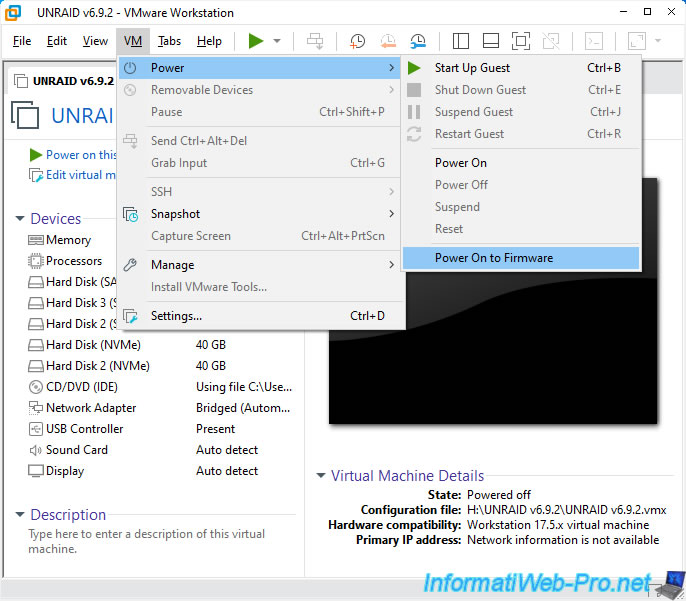
To start your Unraid virtual machine on VMware Workstation Pro, go to the menu: VM -> Power -> Power On to Firmware.
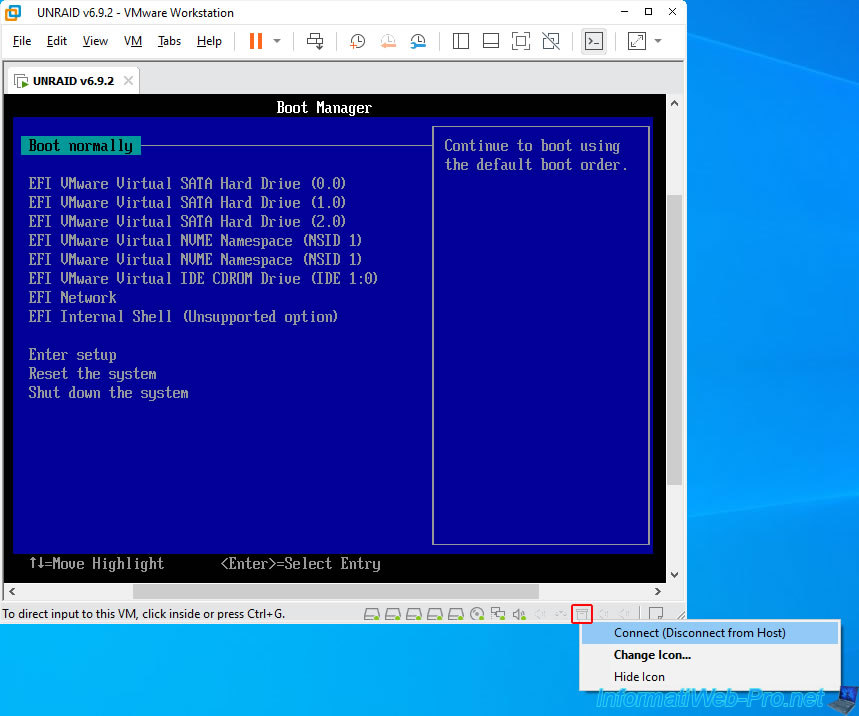
Once the virtual machine is booted, you will arrive at the VMware Workstation Pro UEFI Boot Manager.
Click the icon in the bottom right corner of your virtual machine that corresponds to the USB key on which you installed Unraid and click "Connect (Disconnect from Host)".
Note: if the "Connect (Disconnect from Host)" option is grayed out in your case (which may be the case since VMware Workstation Pro 16.2.1), refer to our tutorial: VMware Workstation 17 / 16 - Unable to connect an USB key to a VM (solution).
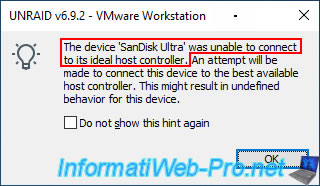
If you see the message below, it means the USB port version on your physical PC doesn't match the USB controller version in your virtual machine.
By default, the virtual machine uses a USB 2.0 controller. Therefore, unplug your USB key and plug it into a USB 2.0 port on your computer.
This message will no longer appear.
Plain Text
The device '[USB key name]' was unable to connect to its ideal host controller. An attempt will be made to connect this device to the best available host controller.
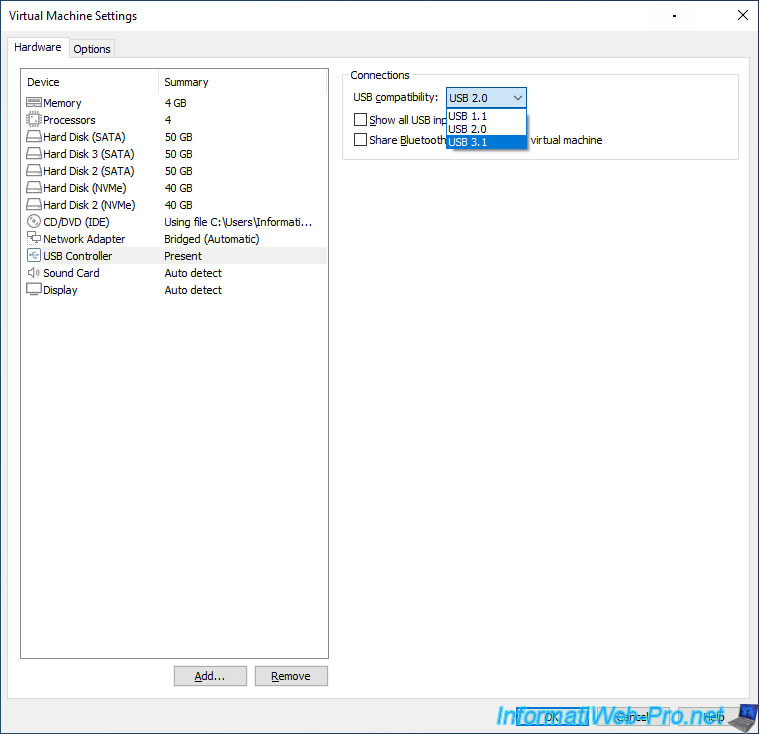
If you want to leave your USB key plugged into a USB 3.0 port on your computer, then shut down your Unraid virtual machine and use version "3.0" or "3.1" (the option varies depending on your version of VMware Workstation Pro) for your virtual machine's USB Controller.
Your USB key will now be seamlessly connected to your virtual machine.
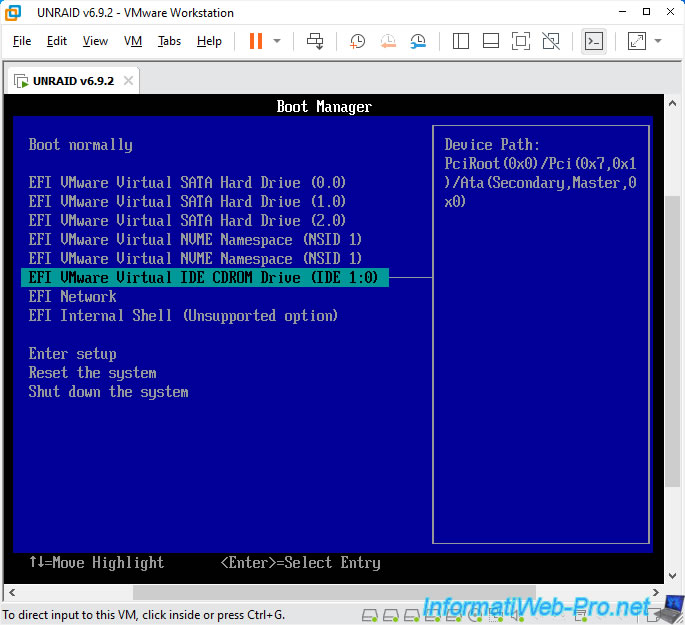
Select your virtual machine's virtual CD/DVD drive (EFI VMware Virtual IDE CDROM Drive (IDE 1:0)) and press Enter.
Note: this virtual CD/DVD drive contains the plopkexec ISO file (which will allow you to boot from your Unraid USB key).
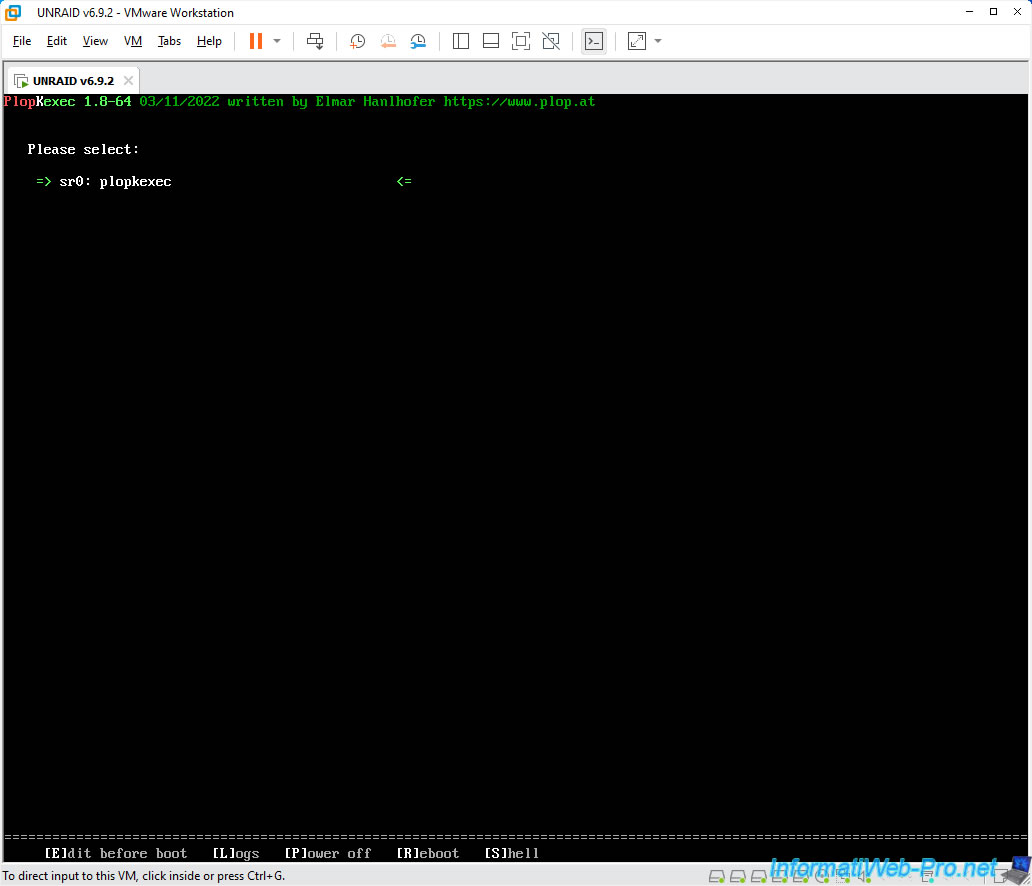
The PlopKexec utility appears with only one line: "sr0:plopkexec".
Wait a few seconds for PlopKexec to detect your Unraid USB key.
Plain Text
PlopKexec 1.8-64 ...

Please select:

=> sr0: plopkexec
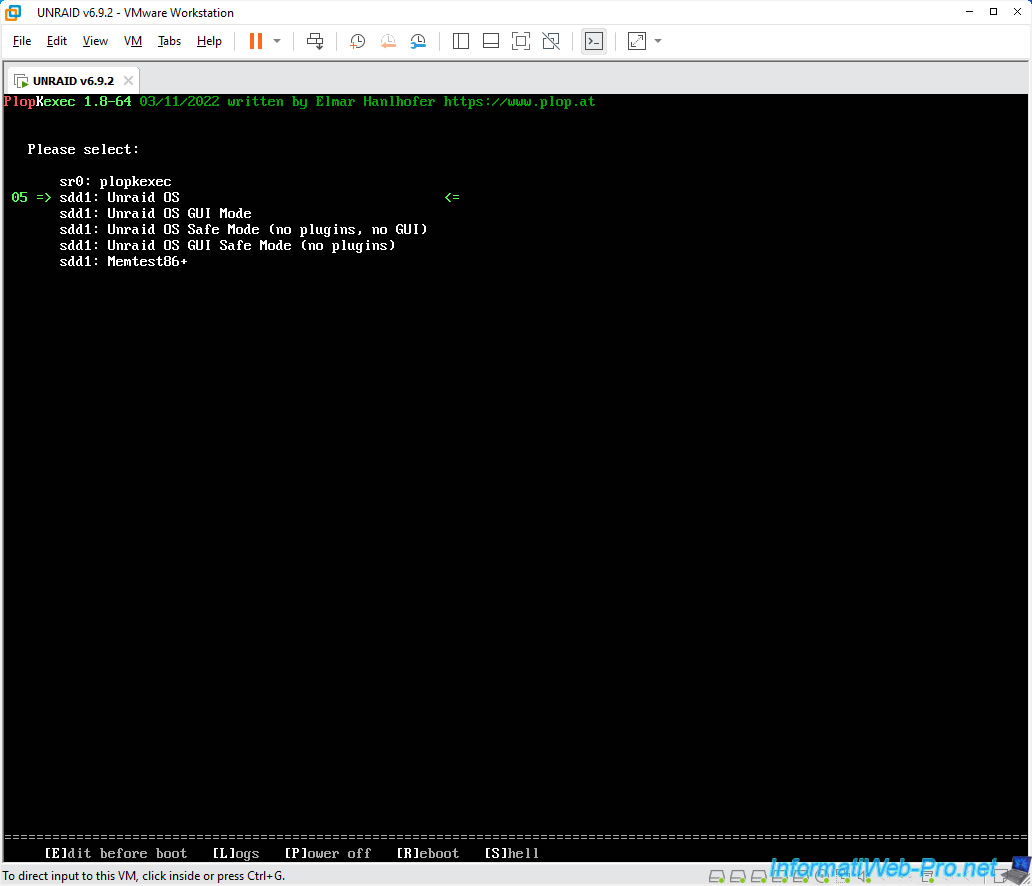
Once your Unraid USB key is detected, the boot options for it will appear and PlopKexec will automatically boot (after 5 seconds) to the "Unraid OS" boot option.
Plain Text
sr0: plopkexec
sdd1: Unraid OS
sdd1: Unraid OS GUI Mode
...
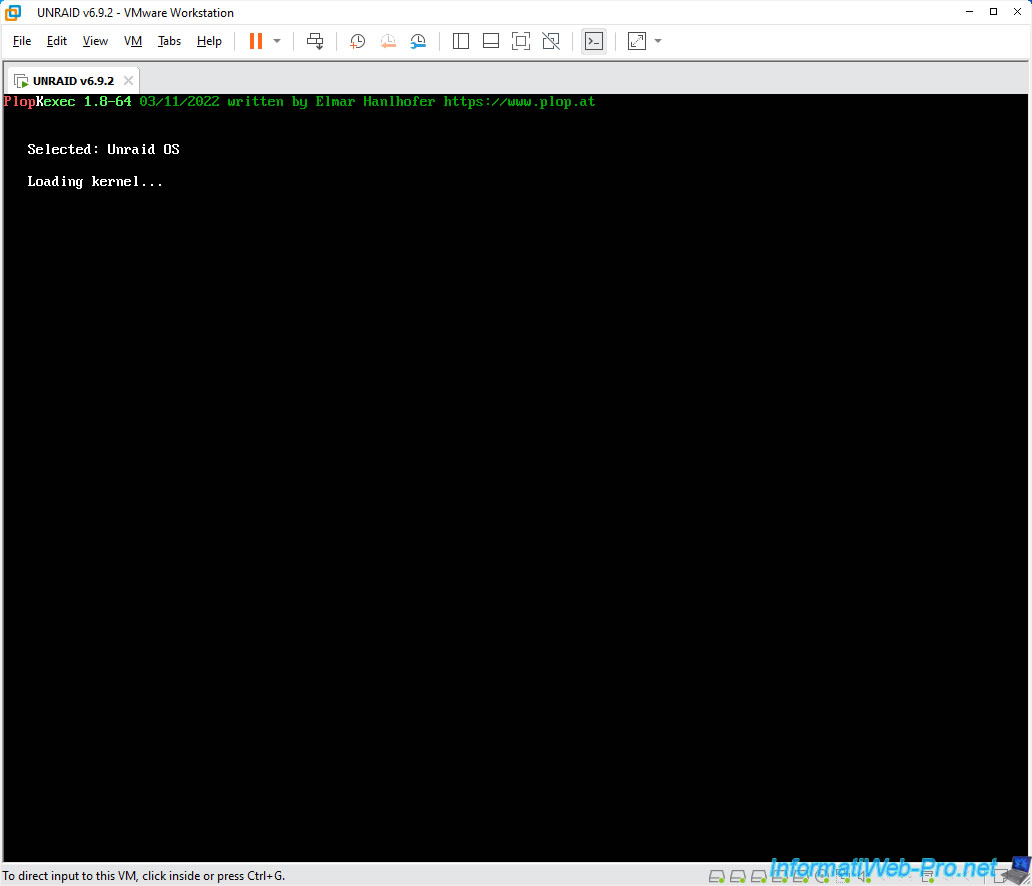
Then, PlopKexec will load the Unraid kernel.
Plain Text
Selected: Unraid OS

Loading kernel...
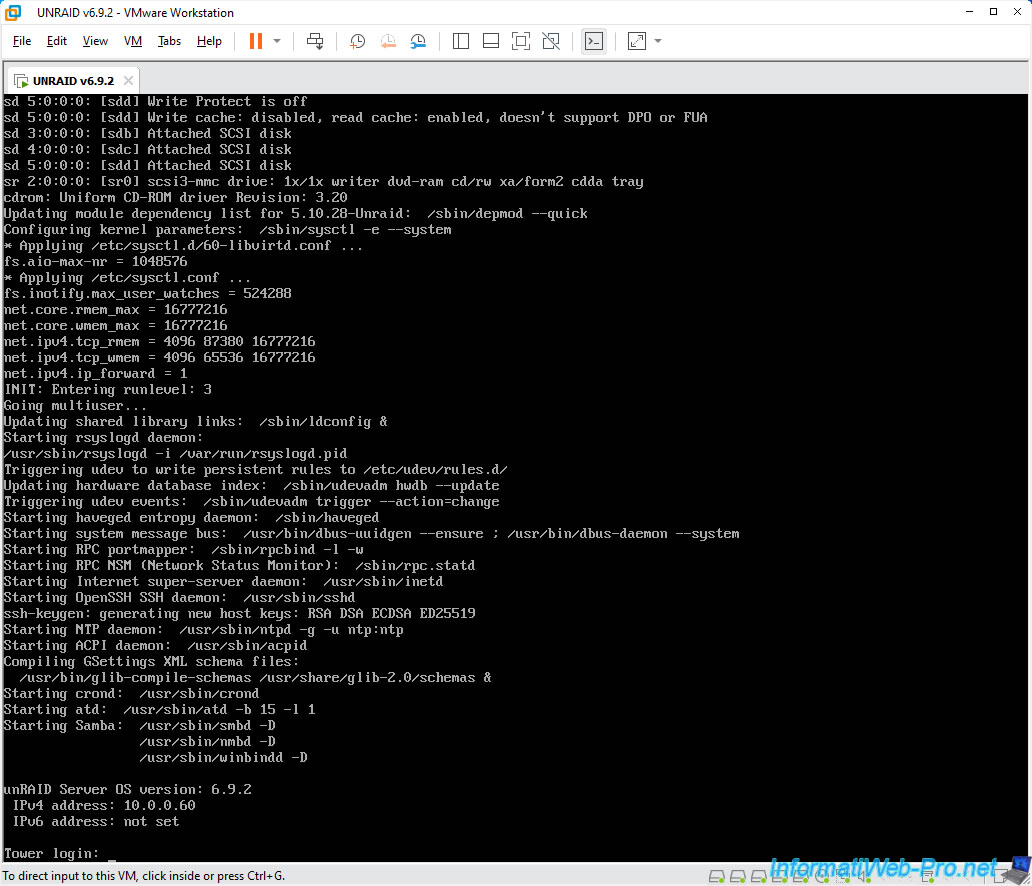
Once Unraid has finished booting, you will see this at the bottom of the screen:
Plain Text
unRAID Server OS version: 6.9.2
IPv4 address: 10.0.0.60
IPv6 address: not set

Tower login:
5. Start the Unraid evaluation period
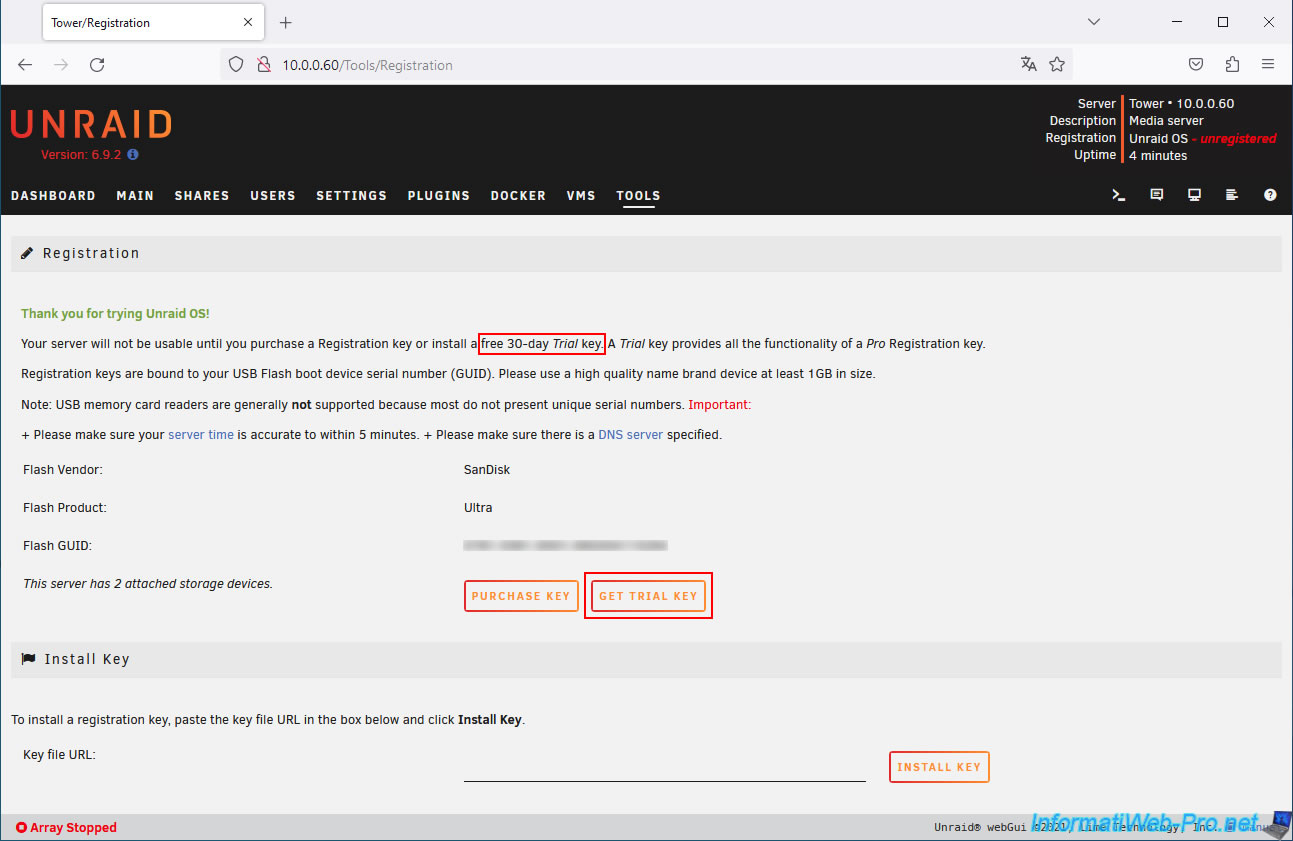
In your web browser, enter Unraid's IP address and you will arrive by default at the "Registration" page.
On this page, click "Get trial key" to obtain a 30-day license that will be linked to your USB key's unique identifier (Flash GUID).
Note: this page can also be accessed by clicking on the "Registration: Unraid OS - unregistered" line in the top right corner of the screen.
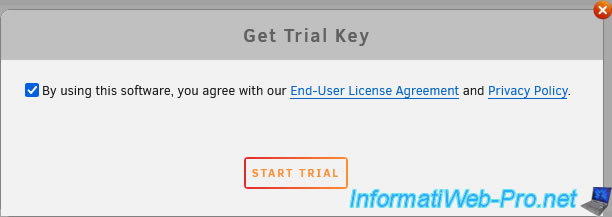
Check the box "By using this software, you agree...", then click on: Start trial.
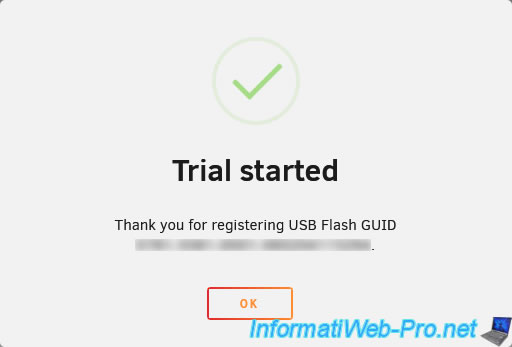
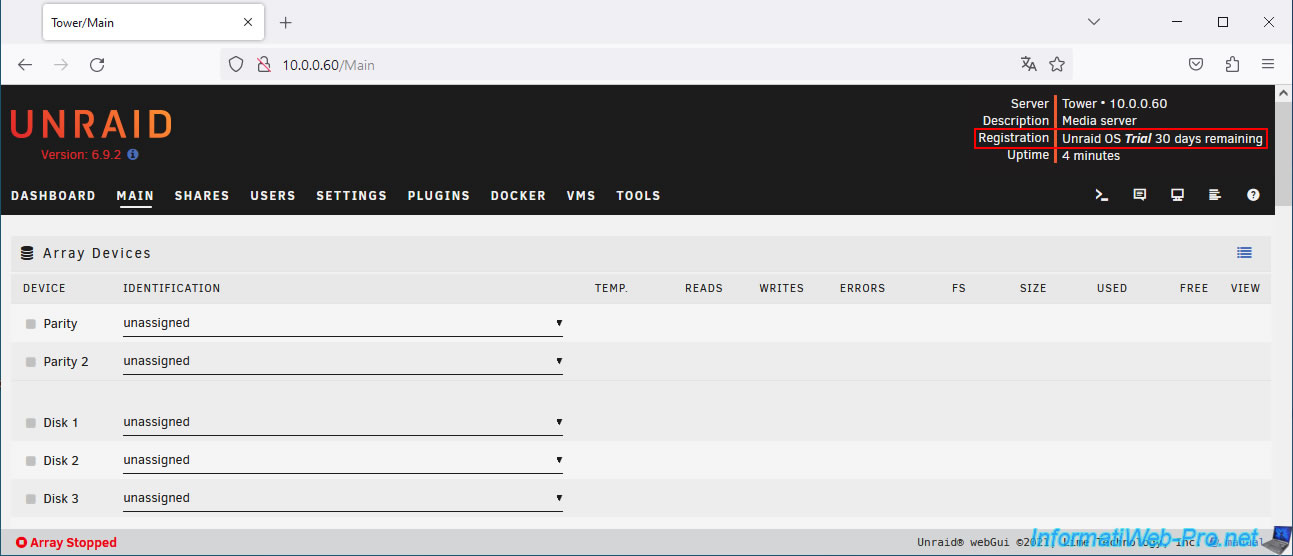
The evaluation period begins.
Plain Text
Trial started.
Thank you for registering USB Flash GUID.
Click OK.
Now, you can use this virtualized Unraid installation for 30 days.
Share this tutorial
To see also
-

VMware 2/24/2016
VMware Workstation - Remotely access to a VM over VNC
-

VMware 1/7/2022
VMware Workstation 16 / 15 - Improve the performance by using a physical HDD
-
VMware 5/8/2020
VMware Workstation 16 / 15 - Reclaim space not used by your VMs
-

VMware 1/27/2020
VMware Workstation 9 - Manage your VMs from a web interface
No comment