Virtualize Unraid 6.9.2 with VMware vSphere 6.7
- VMware
- VMware vCenter Server (VCSA), VMware vSphere
- 26 December 2025 at 10:34 UTC
-

- 2/4

For the virtual network adapter (NIC), VMware vSphere uses a "VMXNET 3" network adapter by default.
This is supported by Unraid.
Note: the "E100E" adapter, which is also available in this list, is also supported.
Regarding the "DirectPath I/O" box, this doesn't matter for this type of network adapter.
In fact, it shouldn't even appear. This is a simple bug (as I explained in a previous tutorial).
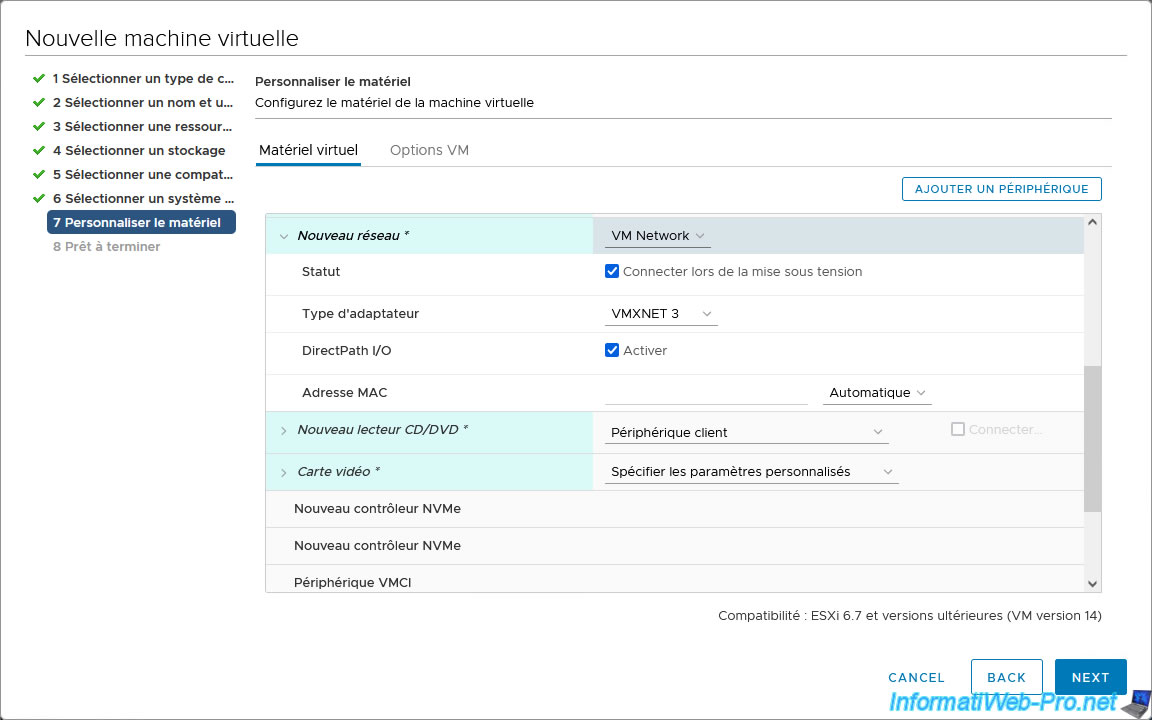
For the new CD/DVD drive, select "Datastore ISO file".
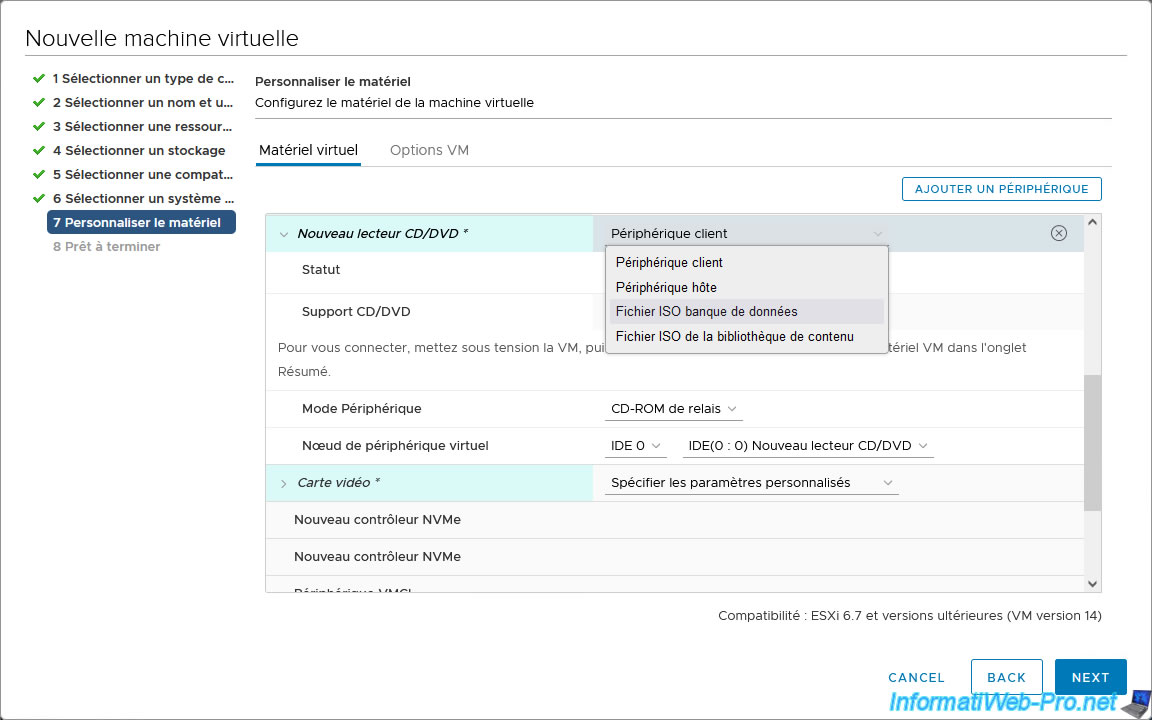
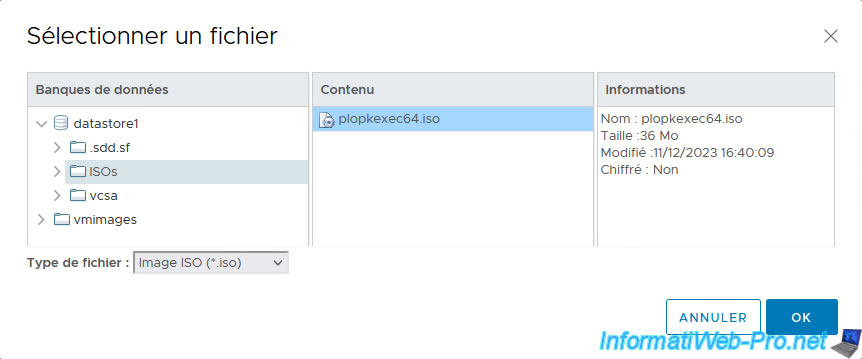
Then, select the "plopkexec64.iso" file previously stored in a datastore on your VMware ESXi host.
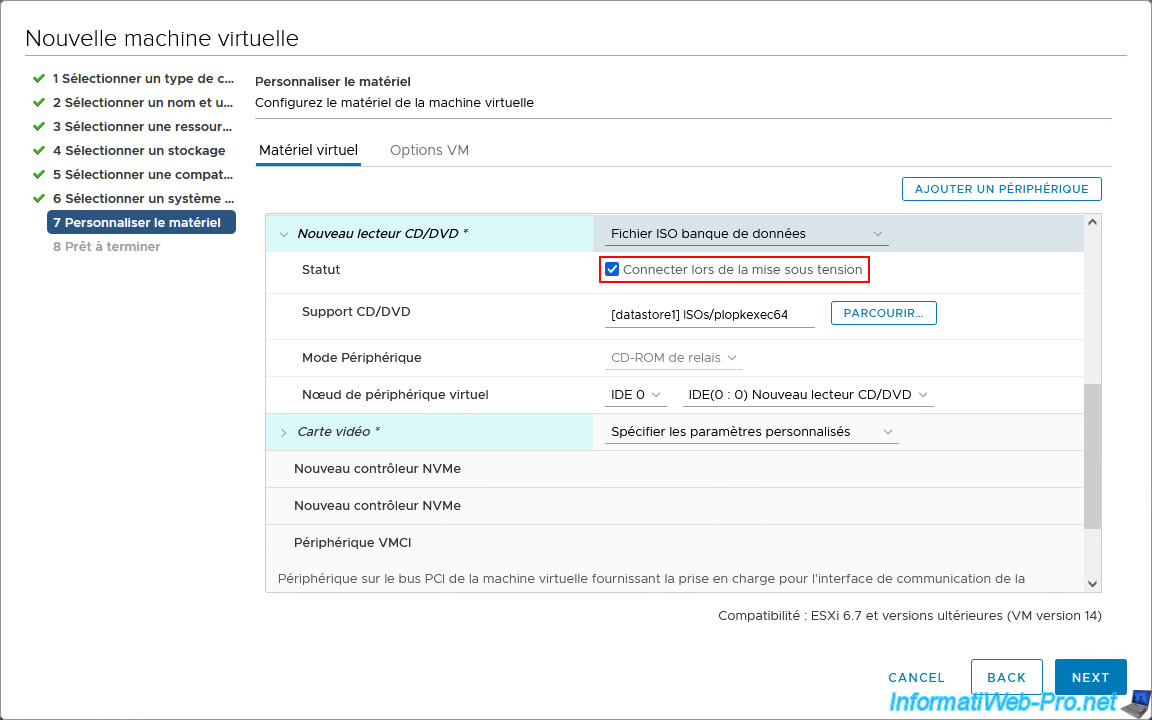
Check the "Connect on power on" box for the CD/DVD drive to have the ISO file automatically inserted when your virtual machine starts.
In the "VM Options" tab, open the "Boot Options" section and configure these 2 settings:
- Firmware: select "EFI (recommended)" if you checked the "Allow UEFI Boot" box when creating your Unraid USB key.
- Secure Boot: uncheck the "Enabled" box to disable Secure Boot (in the case of UEFI firmware), as it is not yet supported by Unraid.
Now, click Next.

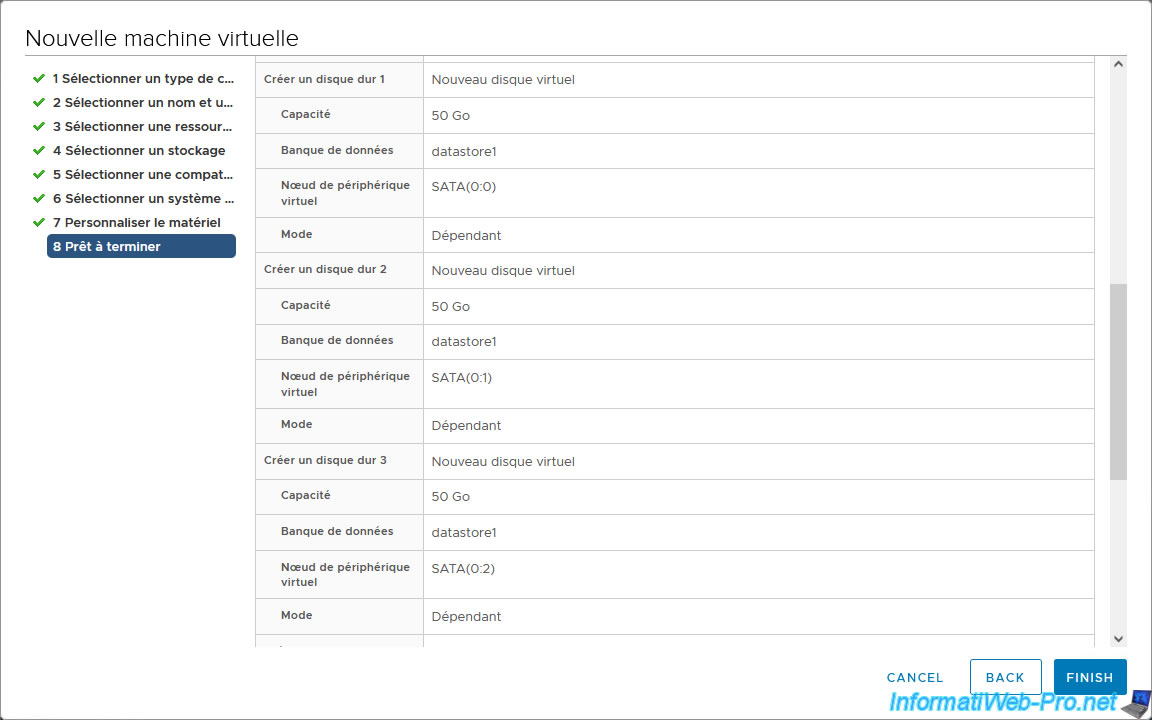
A summary of your Unraid virtual machine configuration appears.

The 3 SATA virtual hard drives for the Unraid array appear.
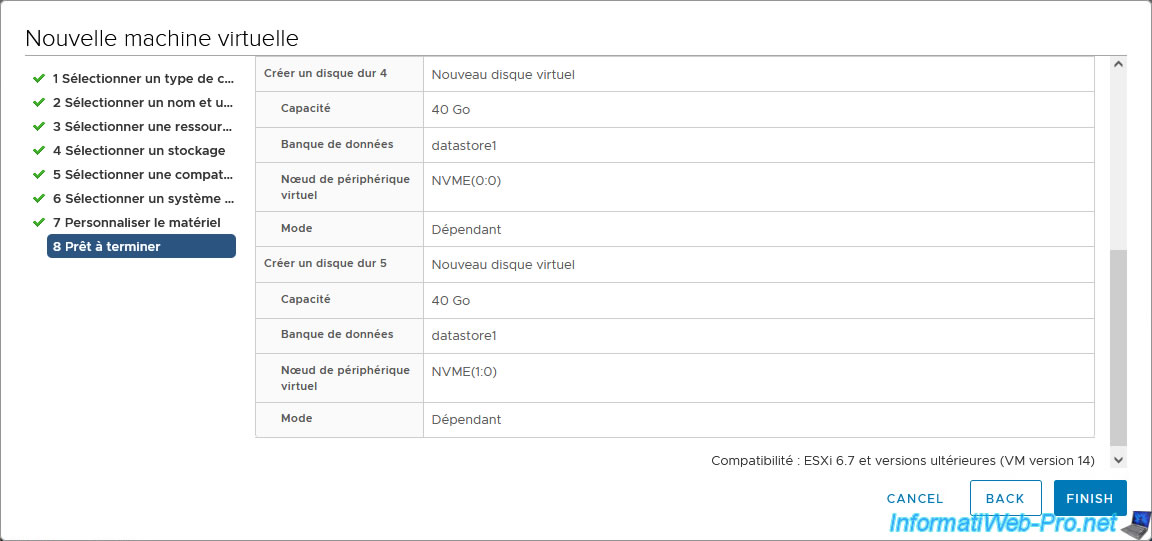
The two virtual NVMe SSDs for the Unraid cache also appear.
Click Finish.
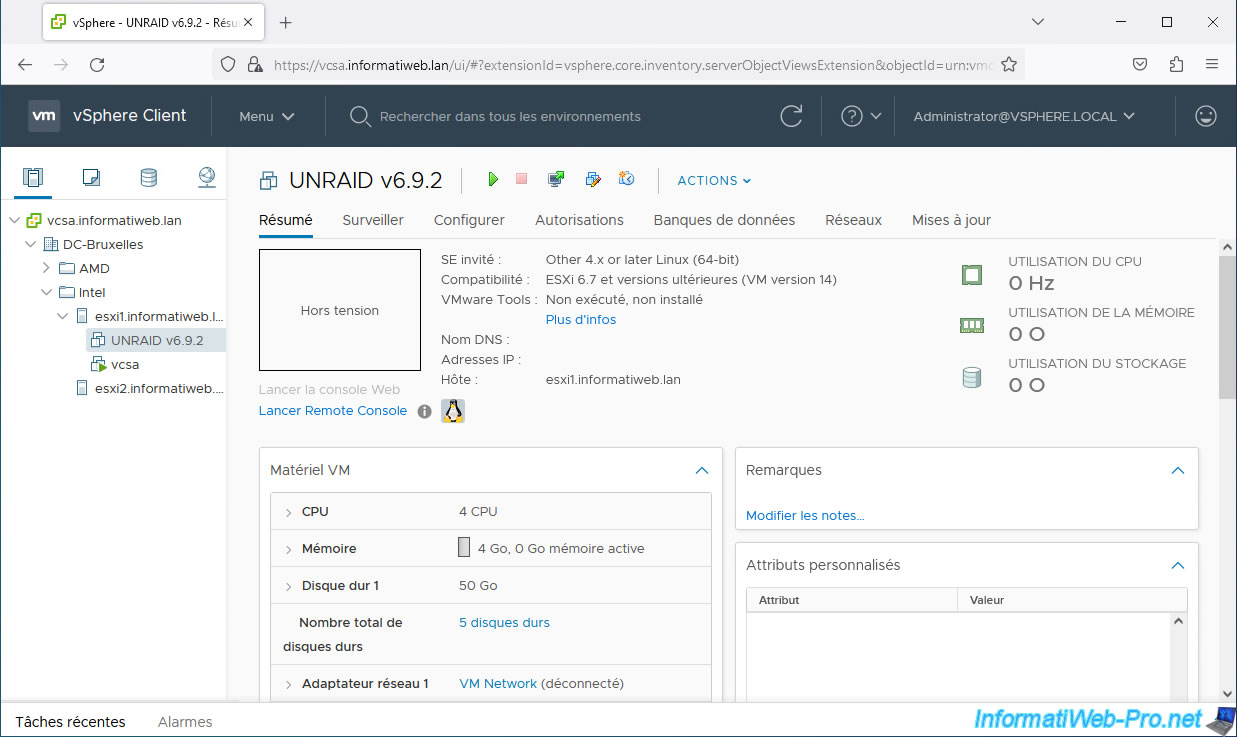
Your Unraid virtual machine appears.
3. Connect your Unraid USB key to your Unraid virtual machine
To connect your Unraid USB key to your virtual machine, first physically plug it into the VMware ESXi host where the virtual machine resides.
Next, modify the virtual machine's configuration.
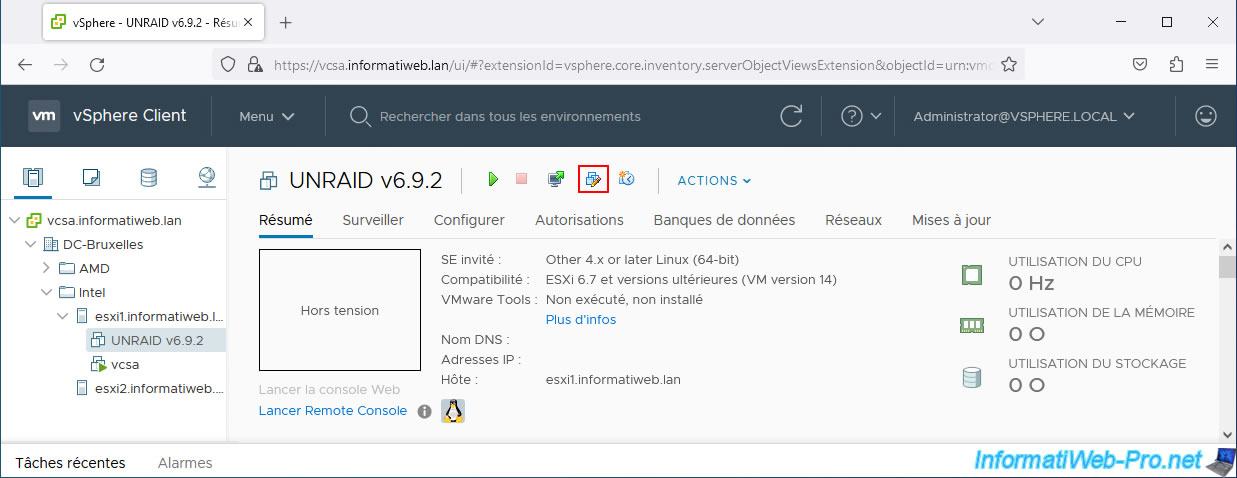
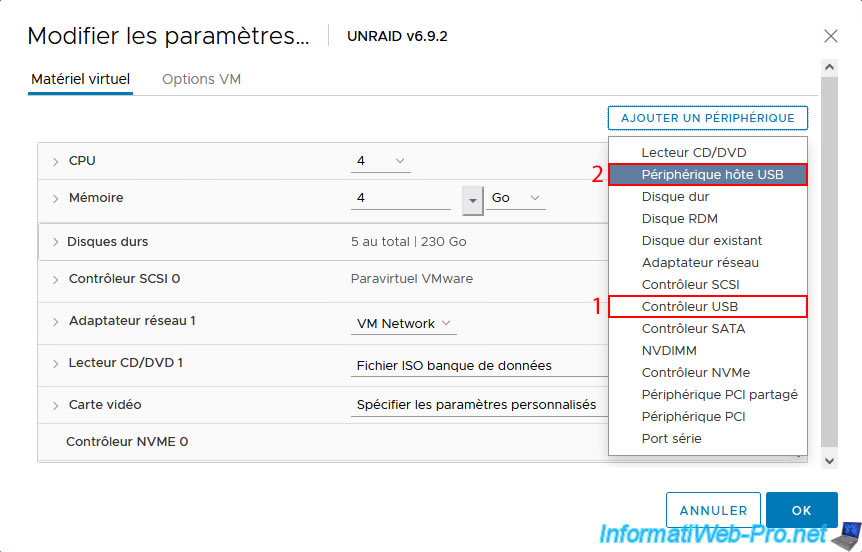
If you don't see the USB controller in the virtual hardware (although it was present when the VM was created), click "Add Device -> USB Controller" to add it back.
Then, click "Add Device -> USB Host Device".
Note: if your USB key doesn't appear, make sure that input/output (I/O) virtualization is enabled in the motherboard BIOS of your VMware ESXi host.
I/O virtualization is called "Intel VT-d" or "AMD IOMMU" (depending on the processor manufacturer).
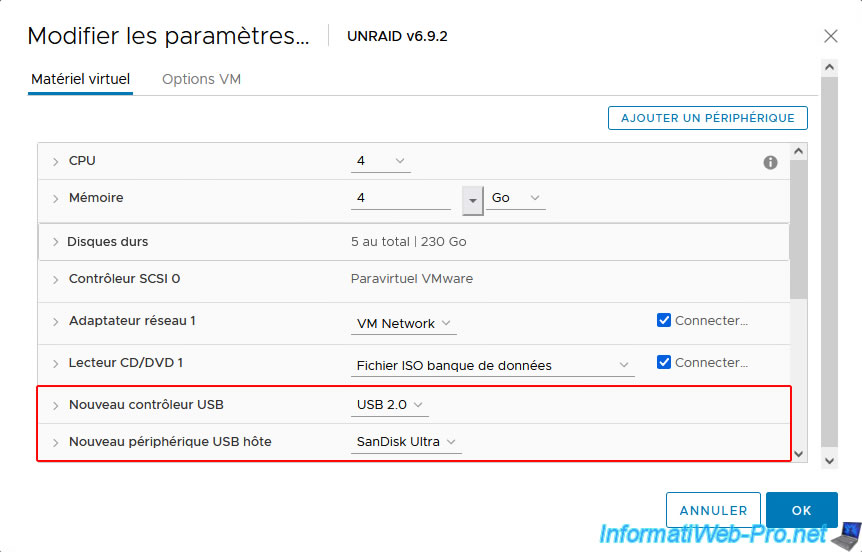
The USB controller and "New USB Host Device" settings appear.
Select your Unraid USB key from the list.
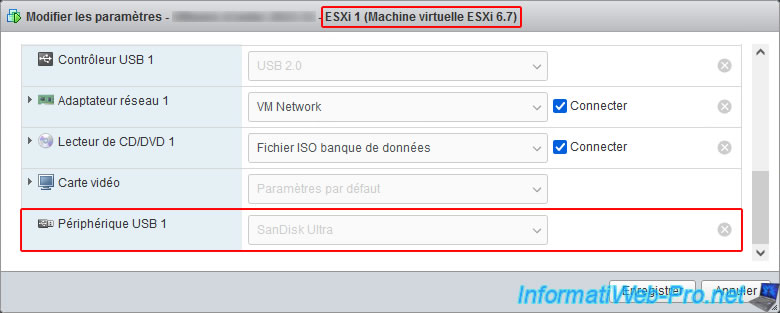
Note that it is possible to plug a physical USB key into a physical VMware ESXi hypervisor, then pass this USB key as a "USB Device" to a virtual VMware ESXi host, and then pass it to your Unraid virtual machine created on the virtual VMware ESXi host.
This is what we did exceptionally in this tutorial.
4. Known issue: USB port version different between host and VM
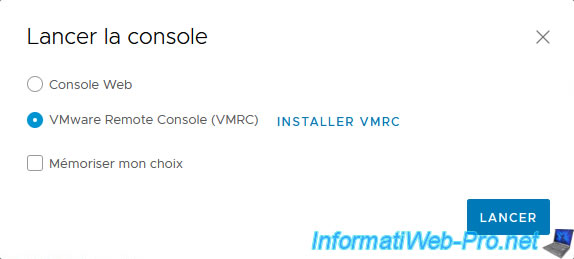
Launch your Unraid virtual machine and open its console.
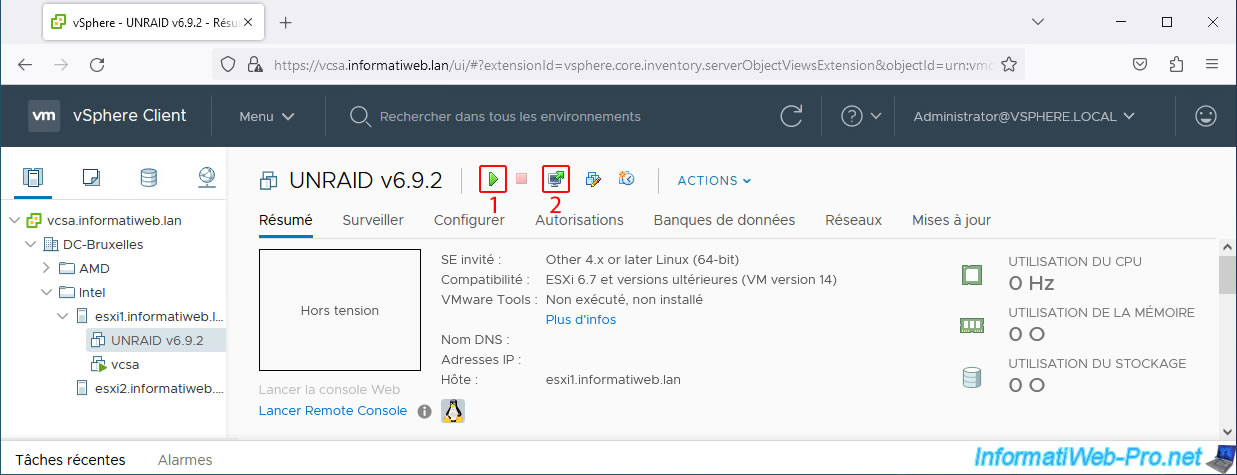
In our case, we used the VMware Remote Console (VMRC).
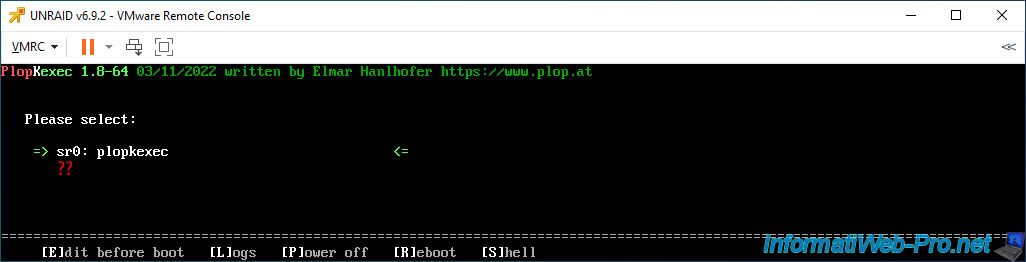
As expected, the "PlopKexec" utility appears.
However, even if you wait for 1 minute, you'll notice that no Unraid boot options appear.
However, Unraid boot options often appear in less than 10 seconds.
The problem is that you plugged your USB key into a physical USB 3.0 port on your VMware ESXi host, even though your virtual machine uses a USB 2.0 controller by default.
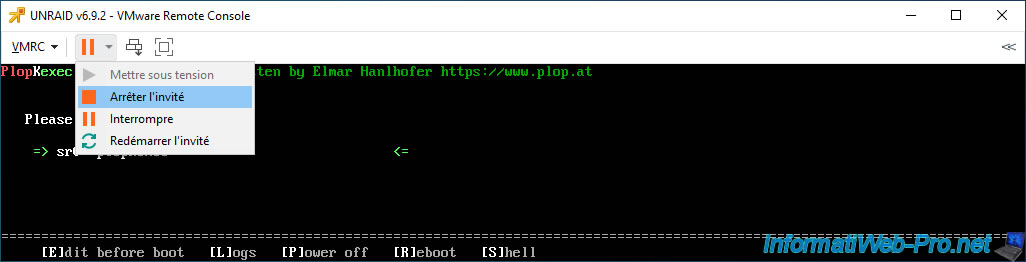
Shut down your Unraid virtual machine.
Share this tutorial
To see also
-
VMware 4/7/2023
VMware ESXi 6.7 - How memory (RAM) management works
-
VMware 7/13/2022
VMware ESXi 7.0 / 6.7 - Create a virtual USB key
-
VMware 8/16/2024
VMware vSphere 6.7 - Create a new virtual network
-

VMware 7/3/2024
VMware vSphere 6.7 - Scheduled tasks
No comment