- NAS
- Unraid
- 16 September 2026 at 08:10 UTC
-

- 1/2

When you want to create a gaming virtual machine, you need two keyboards and two mice.
Indeed, you need a keyboard and mouse for your Unraid server console and the same for your gaming virtual machine.
If you're a bit of a geek, you may have a physical KVM that allows you to control multiple computers with the same keyboard and mouse.
However, you'll find that this adds a bit of complexity when you want to transfer your keyboard and mouse to your gaming VM.
- Keyboard and mouse not offered in the list of USB devices
- Install Libvirt Hotplug USB plugin
- Use Libvirt Hotplug USB plugin
- Reconnect the USB keyboard and mouse to your gaming VM
- Uninstall Libvirt Hotplug USB plugin
- Problems encountered without the plugin when using a KVM with a gaming VM
1. Keyboard and mouse not offered in the list of USB devices
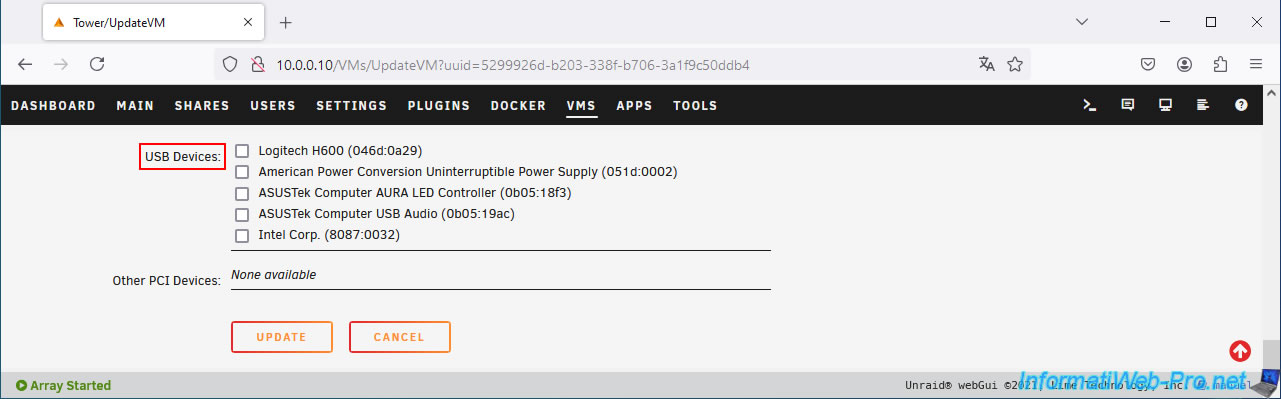
When using a physical KVM and changing your virtual machine's configuration, you'll notice that your keyboard and mouse don't appear in the list of available USB devices.
This is because your physical KVM is actually recognized by Linux as a USB hub, and Unraid doesn't offer your keyboard and mouse, which are located behind this USB hub.
2. Install Libvirt Hotplug USB plugin
To manually connect your keyboard and mouse to your gaming virtual machine, you'll need to install a third-party plugin on your Unraid server.
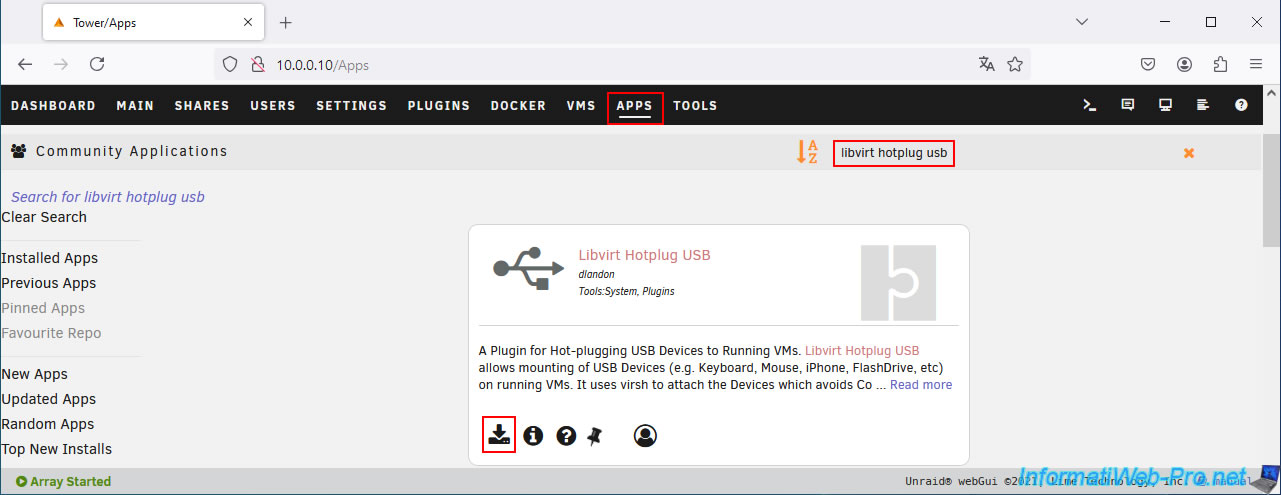
To do this, go to the "Apps" tab and search for "libvirt hotplug usb".
Then, install the suggested "Libvirt Hotplug USB" plugin.
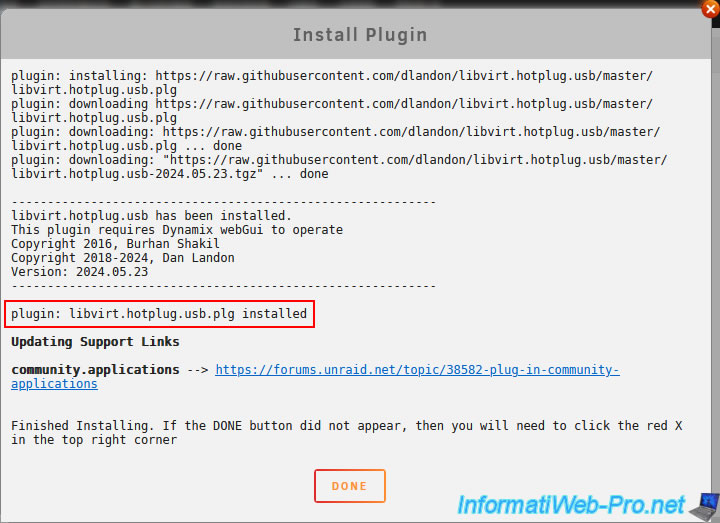
Once the "Libvirt Hotplug USB" plugin is installed, click "Done".
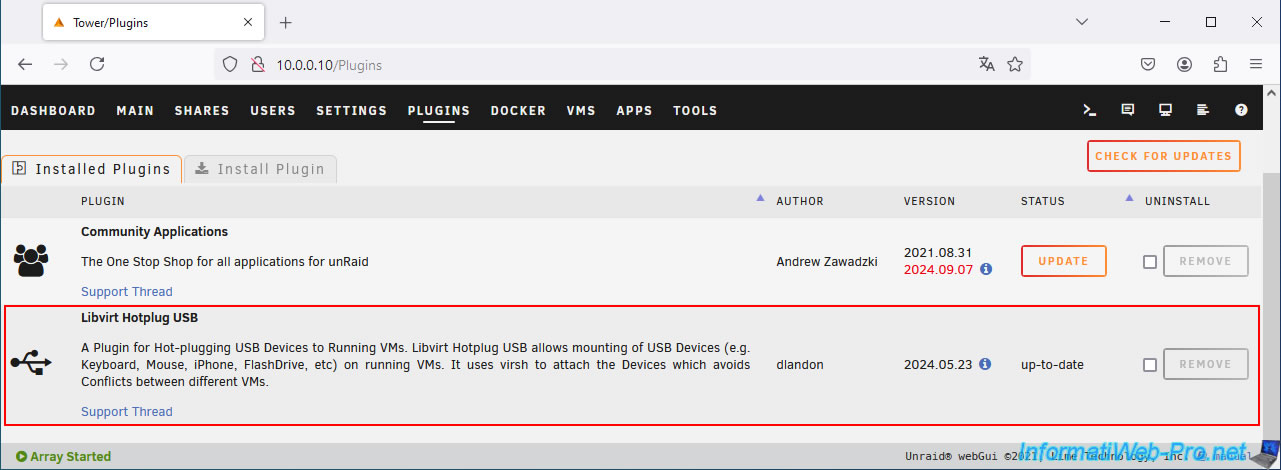
In the "Plugins" tab, you will find the "Libvirt Hotplug USB" plugin that you just downloaded and installed.
3. Use Libvirt Hotplug USB plugin
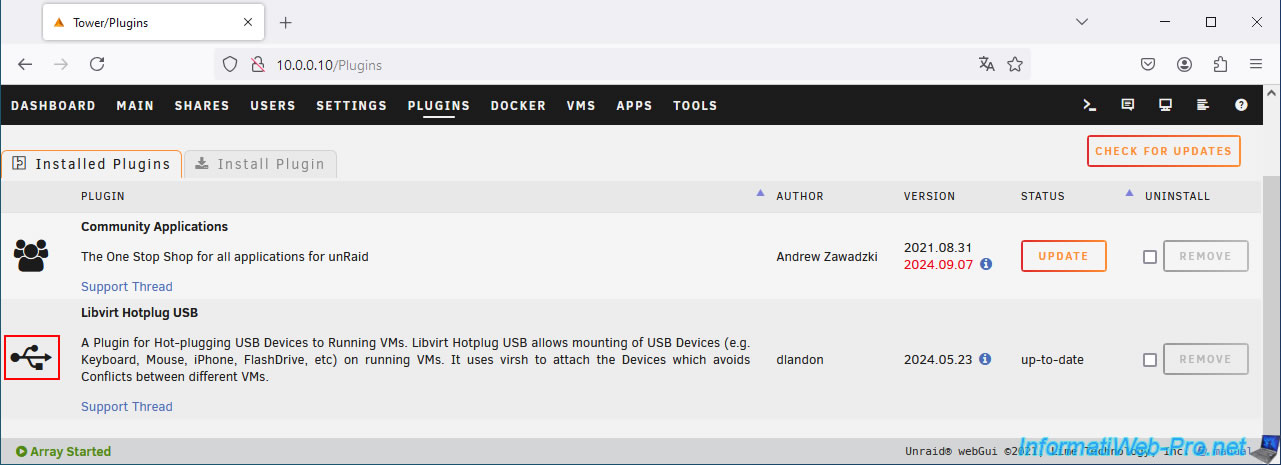
To use this "Libvirt Hotplug USB" plugin, go to the "Plugins" tab and click on the USB icon of this plugin.
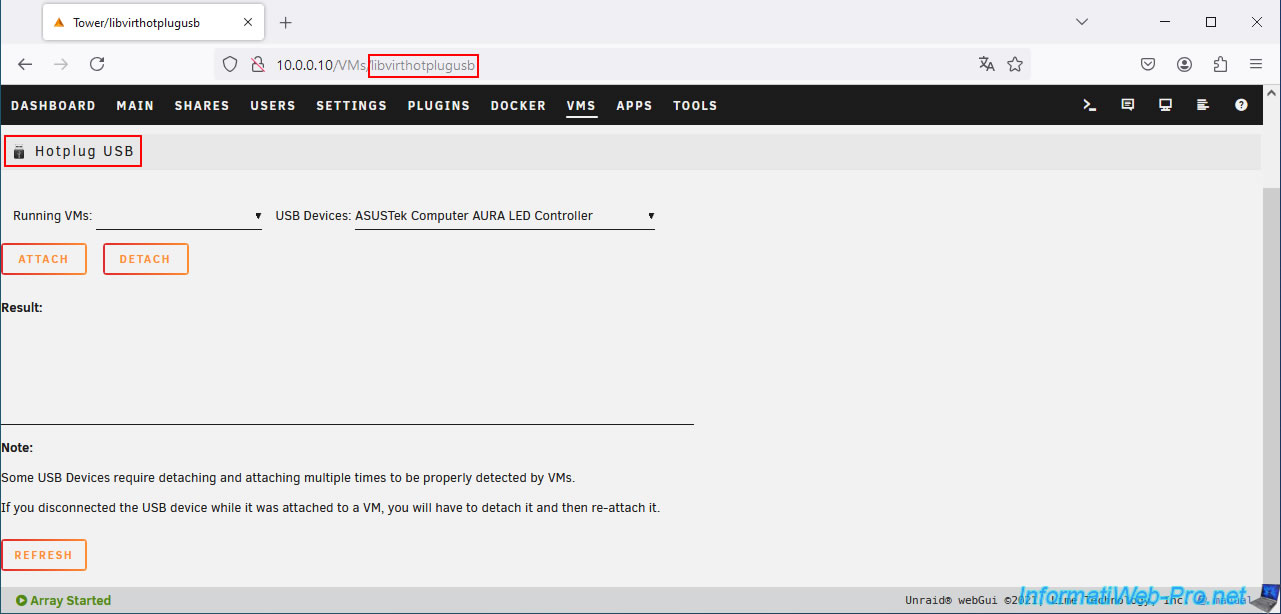
A "USB Hotplug" page will appear where you can select your virtual gaming machine and keyboard or mouse to attach them to it one by one.
Note that these options are also visible at the bottom of the "VMs" page.
However, note that you must first select your gaming VM on your physical KVM for your keyboard and mouse to appear in the list.
Indeed, when you switch PCs on your physical KVM, your box disconnects the keyboard and mouse from the previous PC and reconnects them to the next one.
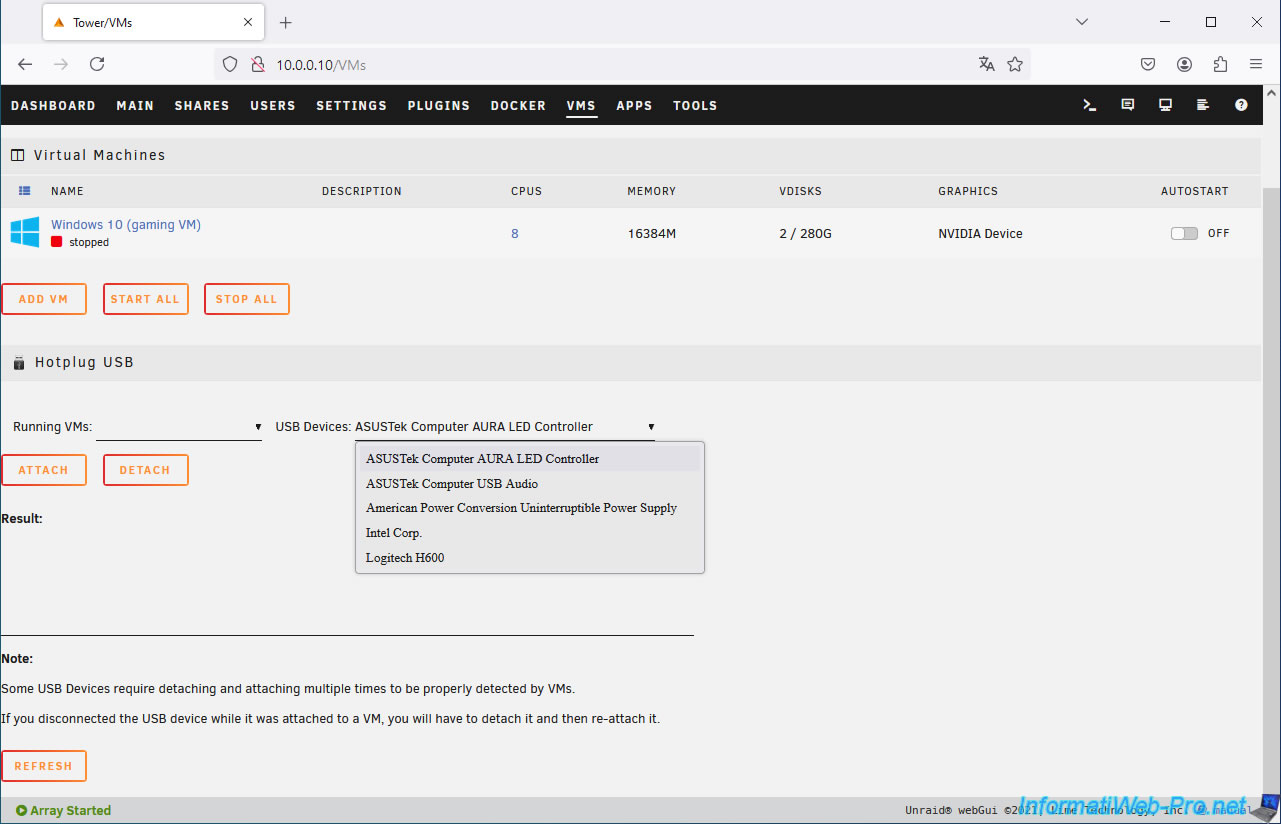
In the "VMs" tab, start your gaming VM.
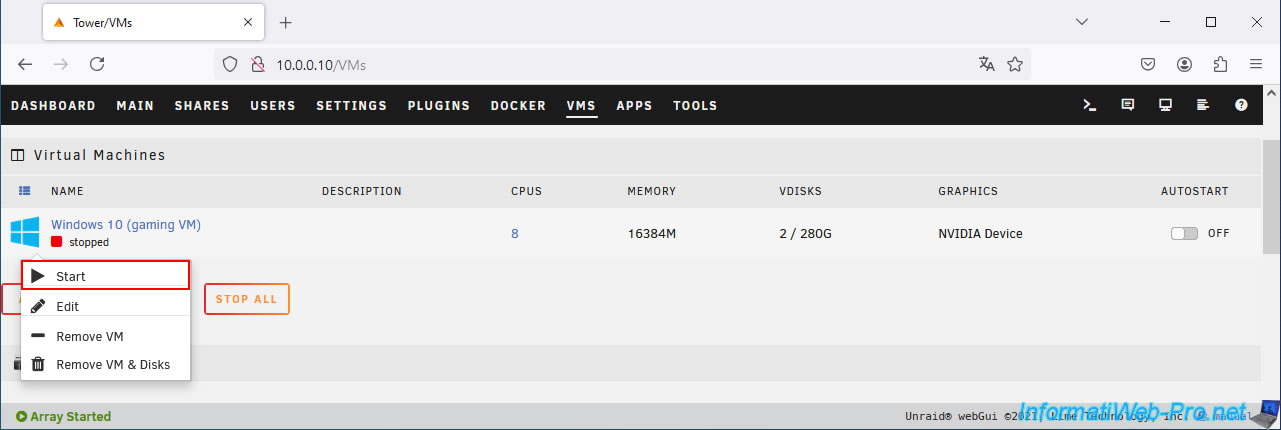
Once your gaming VM is started and your KVM position is set to see your gaming VM's screen, access your VM list from a laptop or smartphone.
The goal is to leave the KVM in the position that allows you to see your gaming VM's screen, which allows your keyboard and mouse to be connected to a USB port on your Unraid server.
On your laptop or smartphone, select your gaming VM from the "Running VMs" list, then select your USB keyboard from the "USB Devices" list.
In our case: Holtek Semiconductor Keyboard LKS02.
Then, click the "Attach" button.
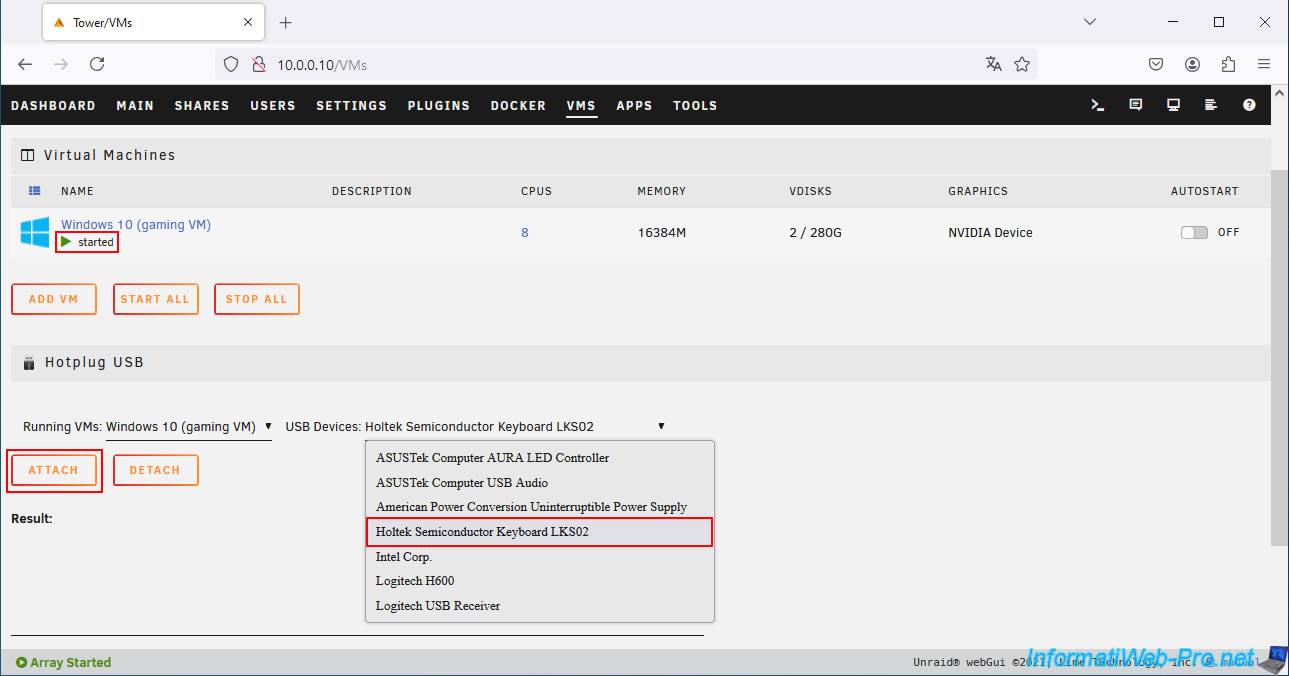
The message "Device attached successfully" will appear.
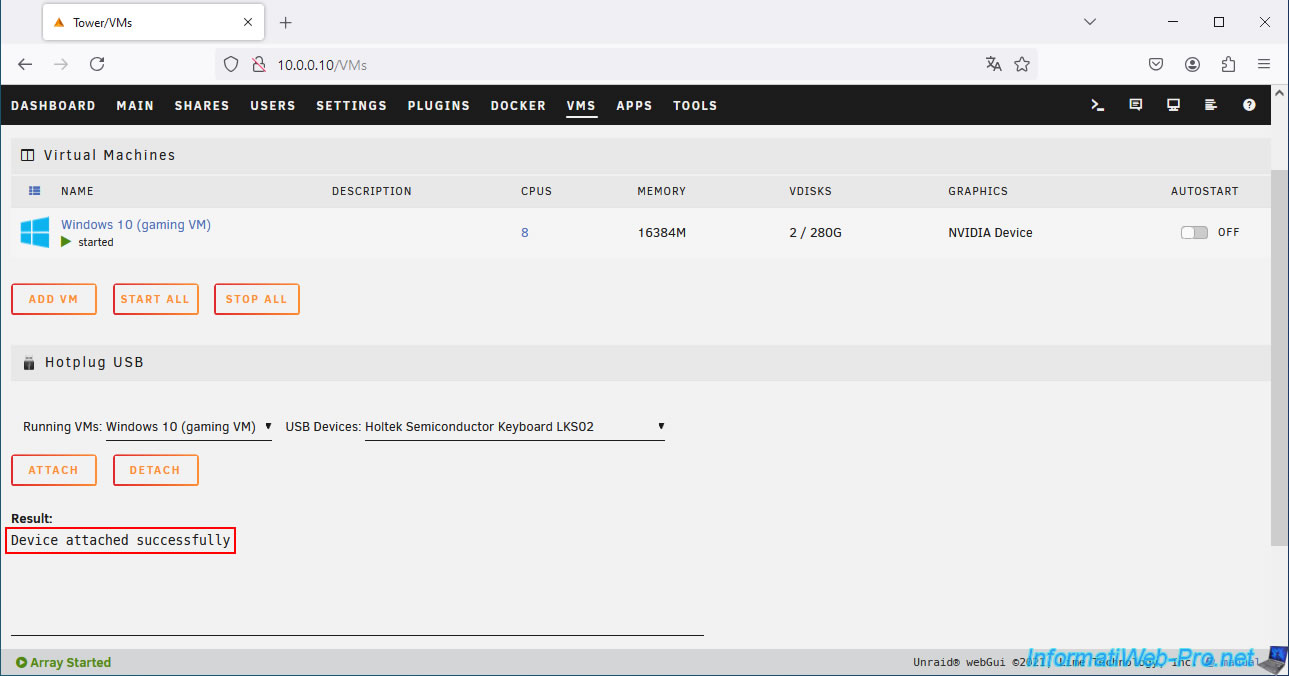
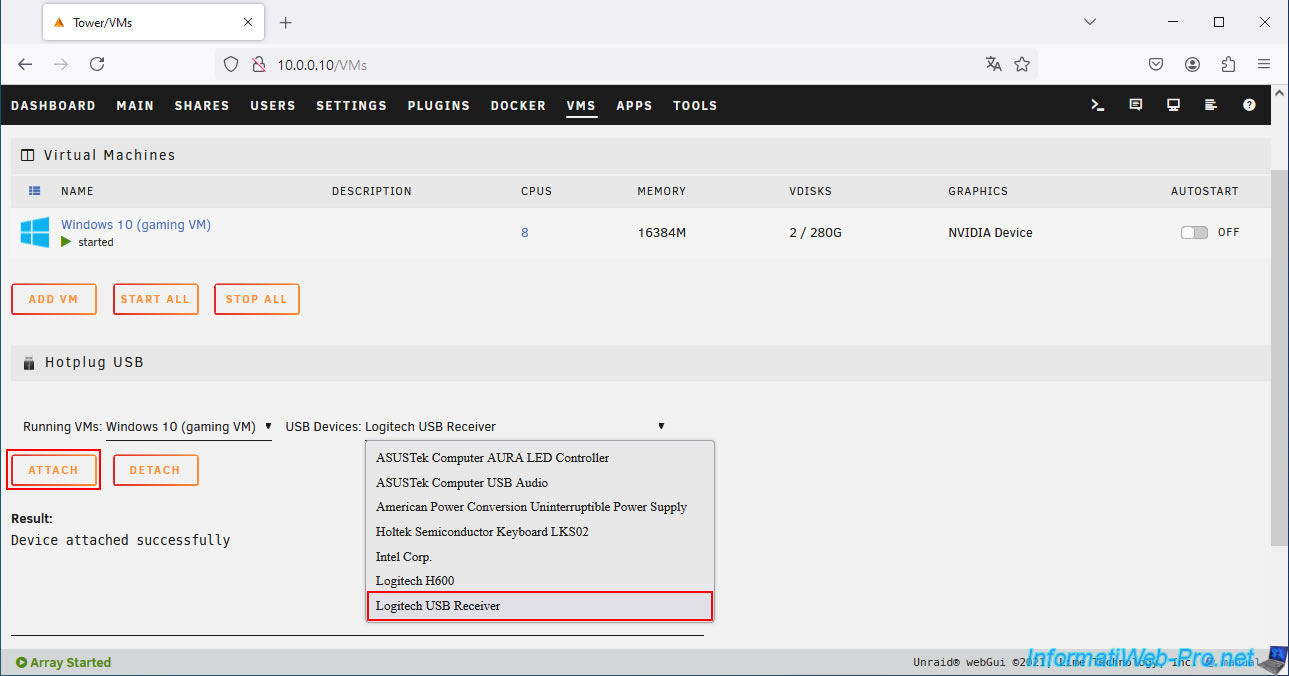
Do the same for your USB mouse.
In our case, it's the Logitech USB Receiver.
Then, click "Attach" again, and the message "Device attached successfully" will appear.
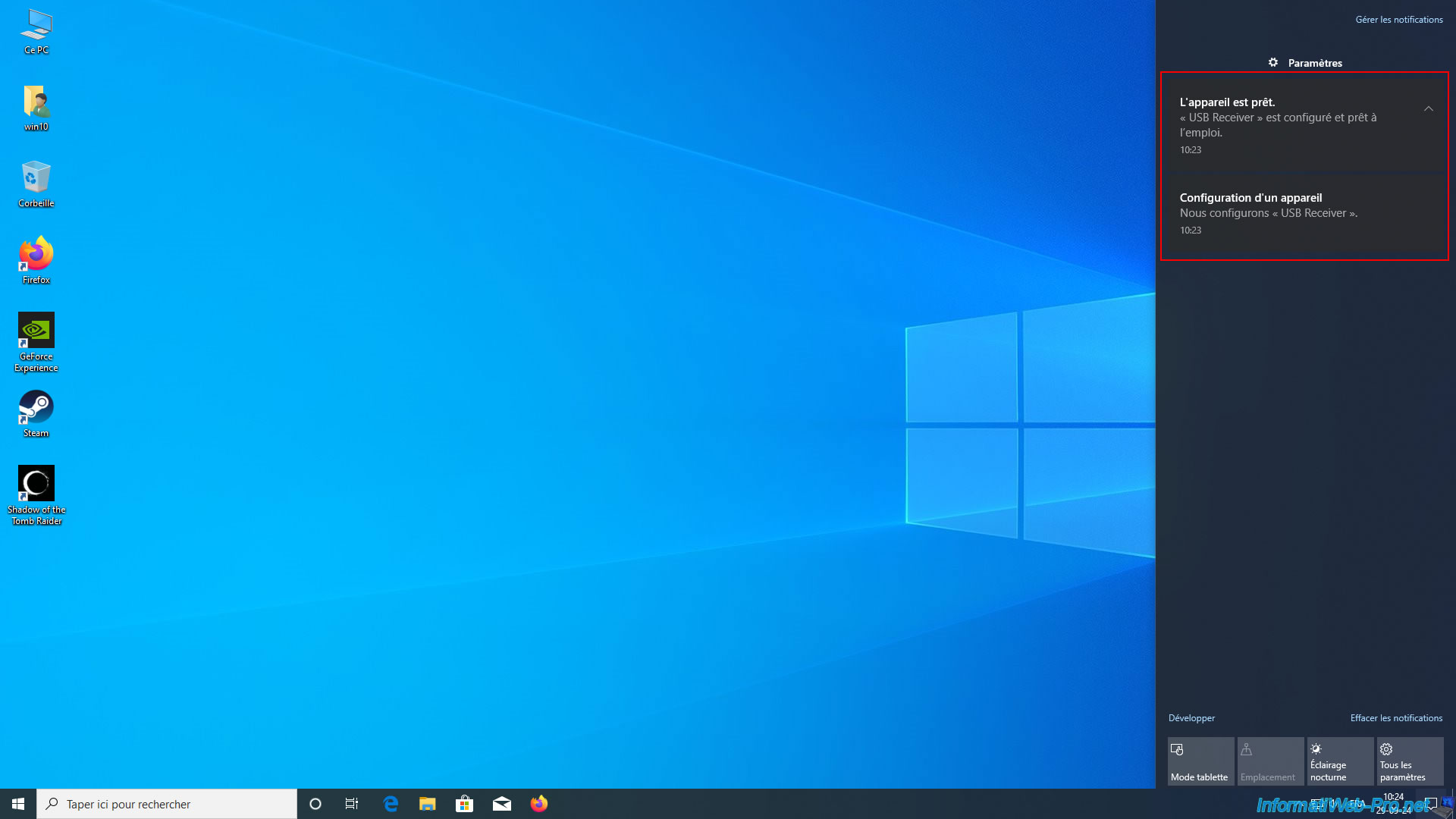
On your gaming VM, you may notice that Windows 10 has recognized the USB devices you just connected to it.
You can now use your KVM's keyboard and mouse on your gaming VM.
Warning : USB is not plug-and-play in Unraid. If you change the position of your KVM, you will need to manually reconnect the keyboard and mouse to your gaming VM via the plugin (as explained later in this tutorial).
4. Reconnect the USB keyboard and mouse to your gaming VM
If you change positions on your KVM after connecting your keyboard and mouse to your gaming VM, you'll need to reconnect them via this plugin when you reselect your gaming VM on your physical KVM.
Once you've selected another PC on your physical KVM, and then re-selected your gaming VM on the same physical KVM, return to the "VMs" tab on your laptop or smartphone.
Select your gaming VM from the "Running VMs" list, then your USB keyboard from the "USB Devices" list.
Next, click "Detach".
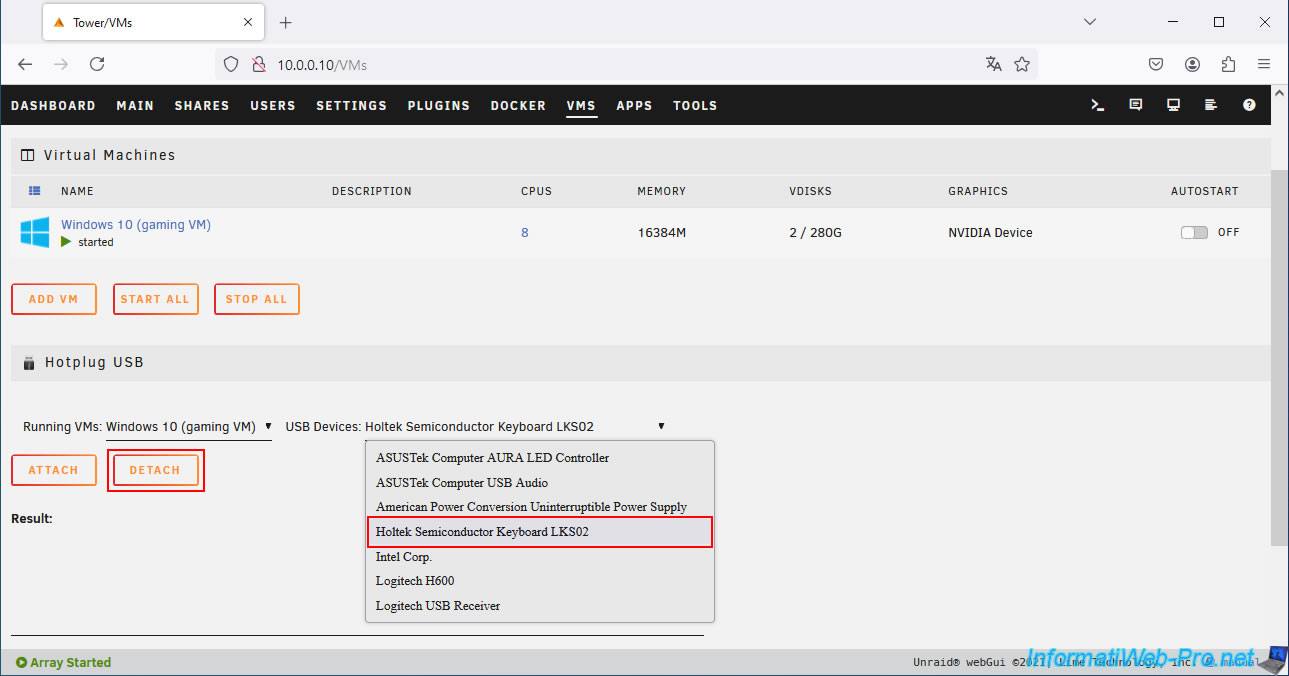
The message "Device detached successfully" will appear.
Now, click "Attach" to reconnect it to your gaming VM.
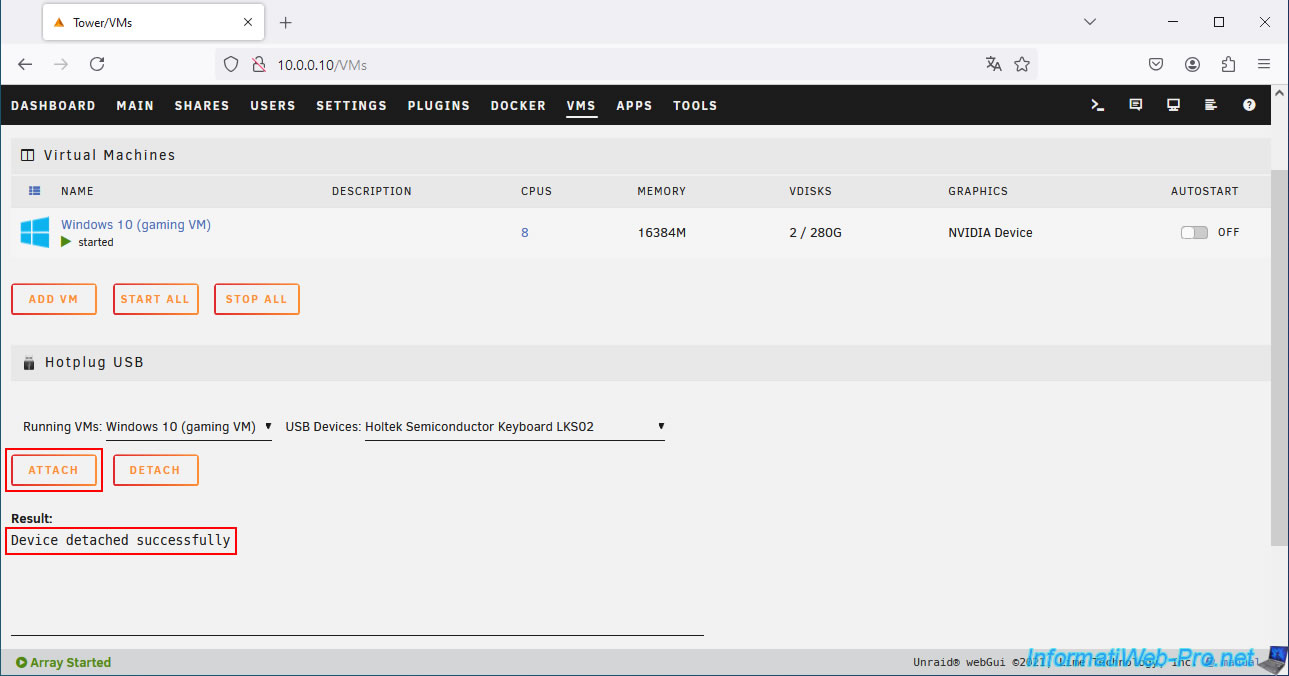
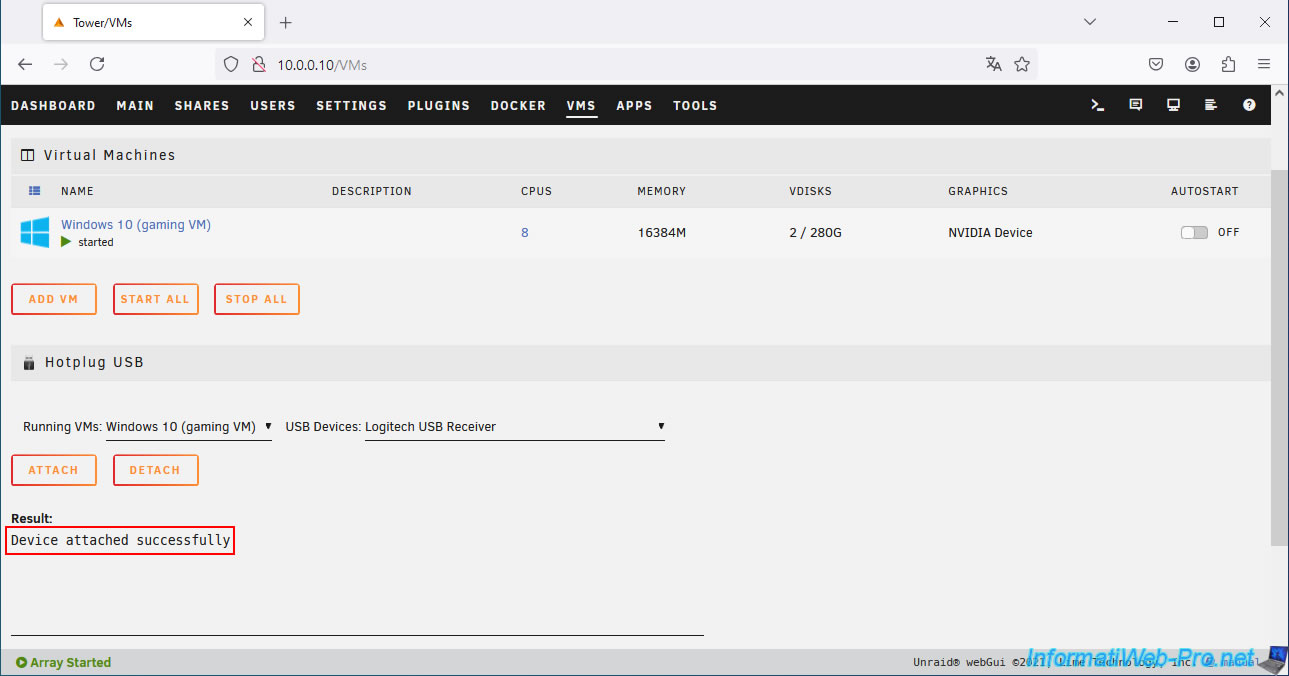
The message "Device attached successfully" will appear.
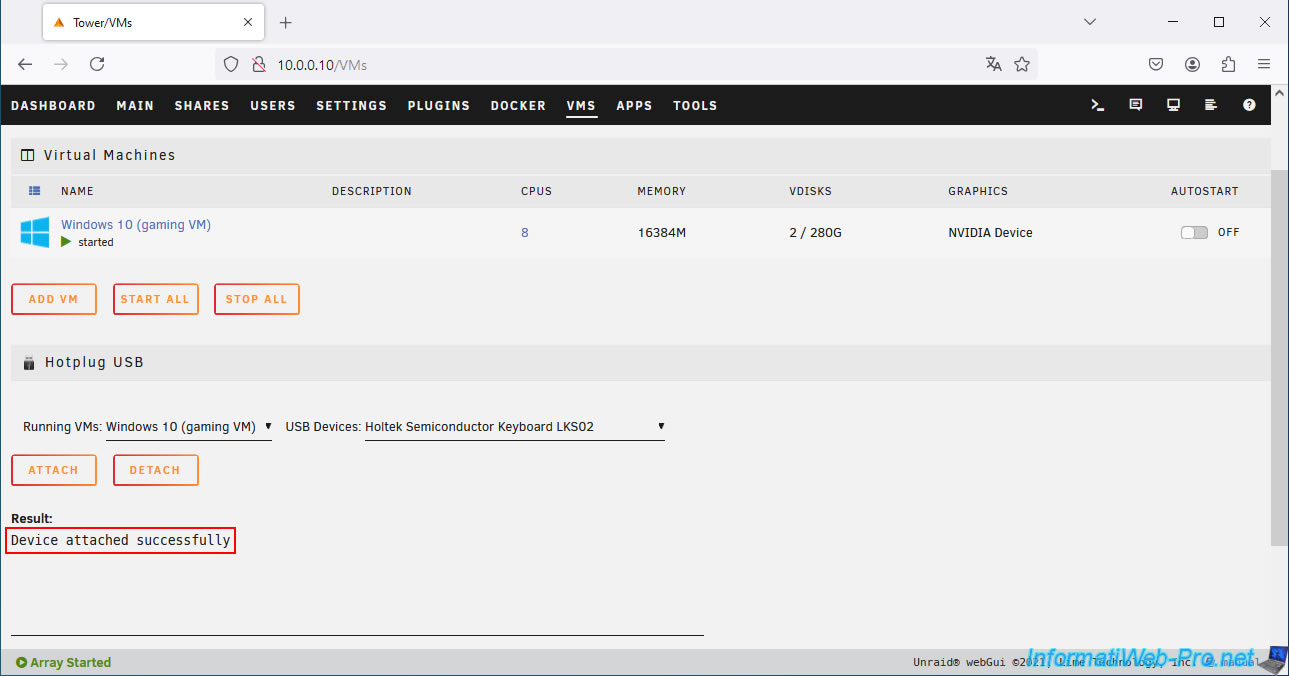
In the "USB Devices" list, select your USB mouse and click "Detach".
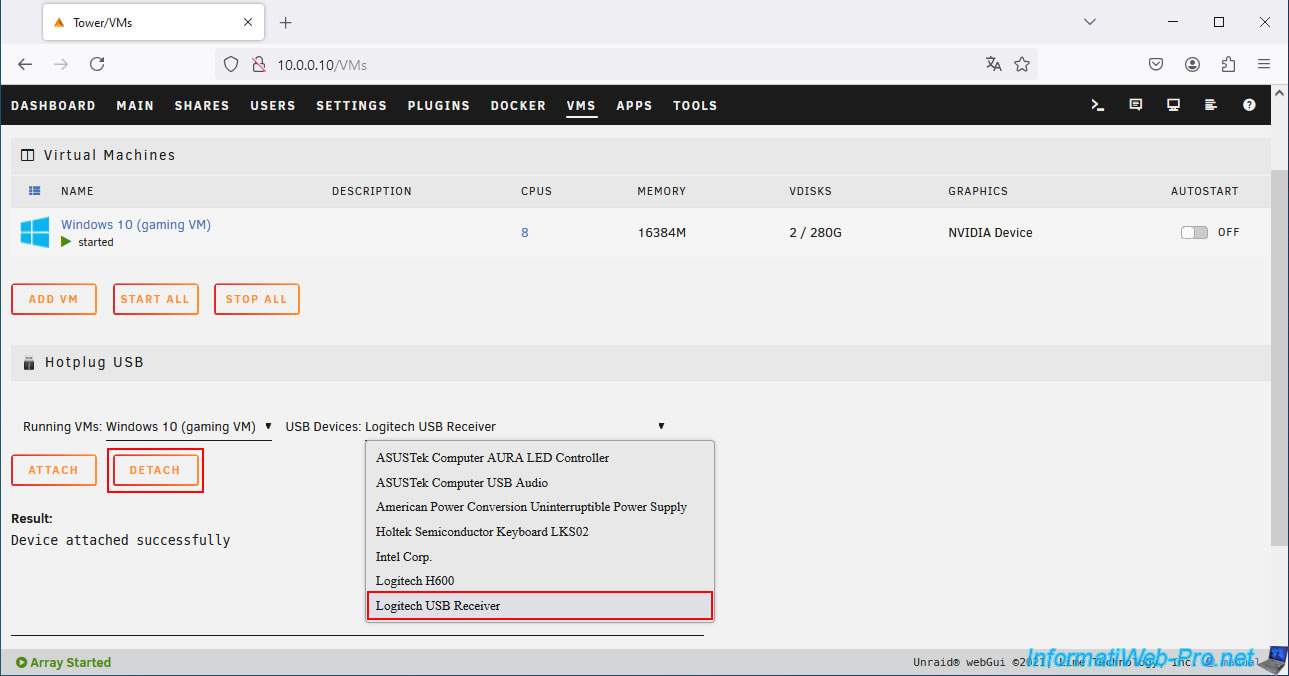
The message "Device detached successfully" will appear.
Now, click the "Attach" button to reconnect your USB mouse to your gaming VM.
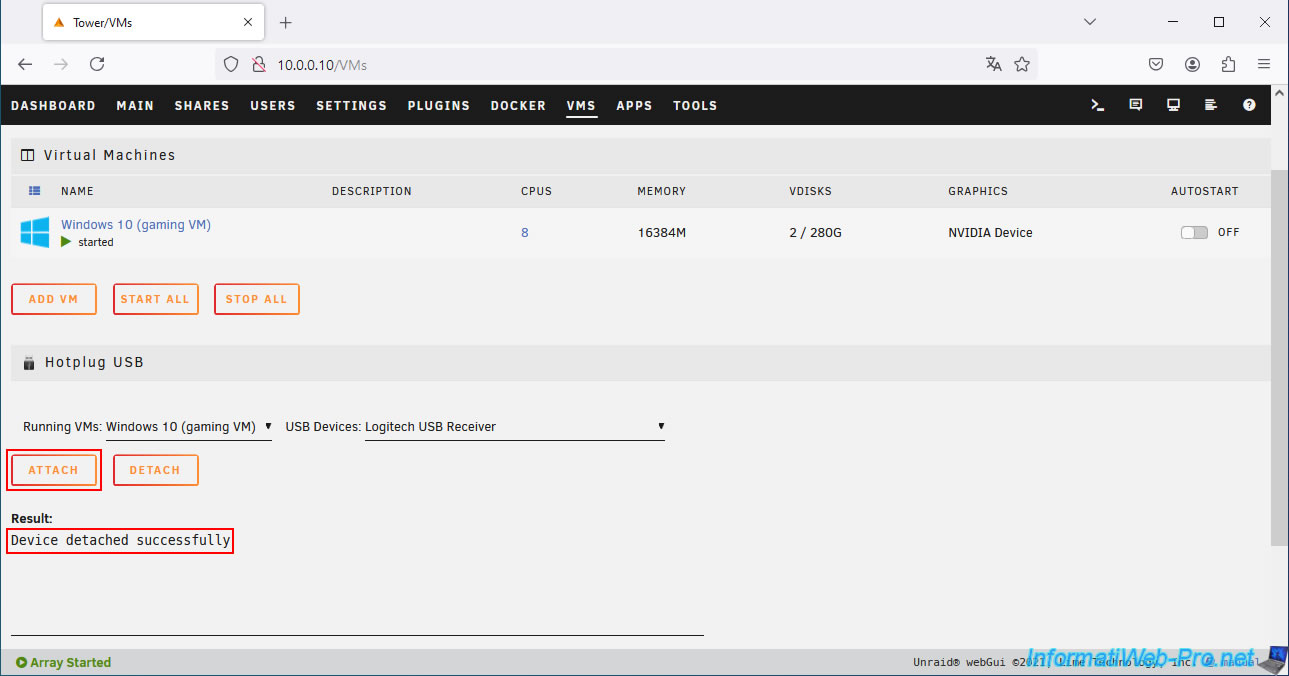
The message "Device attached successfully" will appear.
Share this tutorial
To see also
-
NAS 1/21/2026
Unraid 6.9.2 - Replace a storage disk
-
NAS 5/20/2026
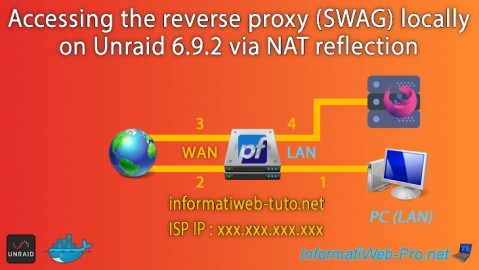
Unraid 6.9.2 - SWAG - Locally access the reverse proxy (SWAG) via NAT reflection
-
NAS 7/1/2026
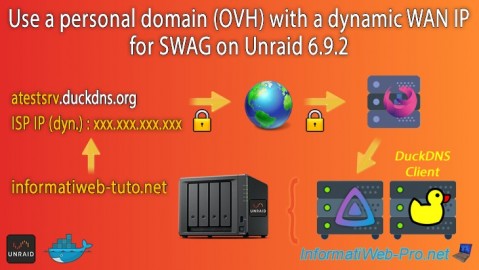
Unraid 6.9.2 - SWAG - Use a personal domain with a dynamic WAN IP
-
NAS 10/1/2026
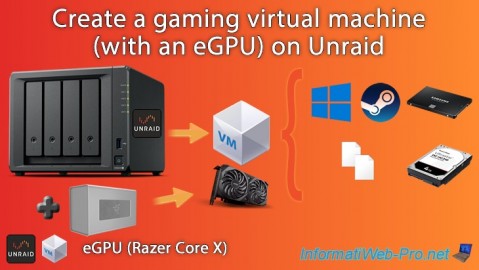
Unraid 6.9.2 - VMs - Create a gaming virtual machine (with an eGPU)
You must be logged in to post a comment