Hot-plug USB devices (keyboard, mouse, ...) to a virtual machine (via the Libvirt Hotplug USB plugin) on Unraid 6.9.2
- NAS
- Unraid
- 16 September 2026 at 08:10 UTC
-

- 2/2

5. Uninstall Libvirt Hotplug USB plugin
If you want to uninstall this plugin, it's easy.
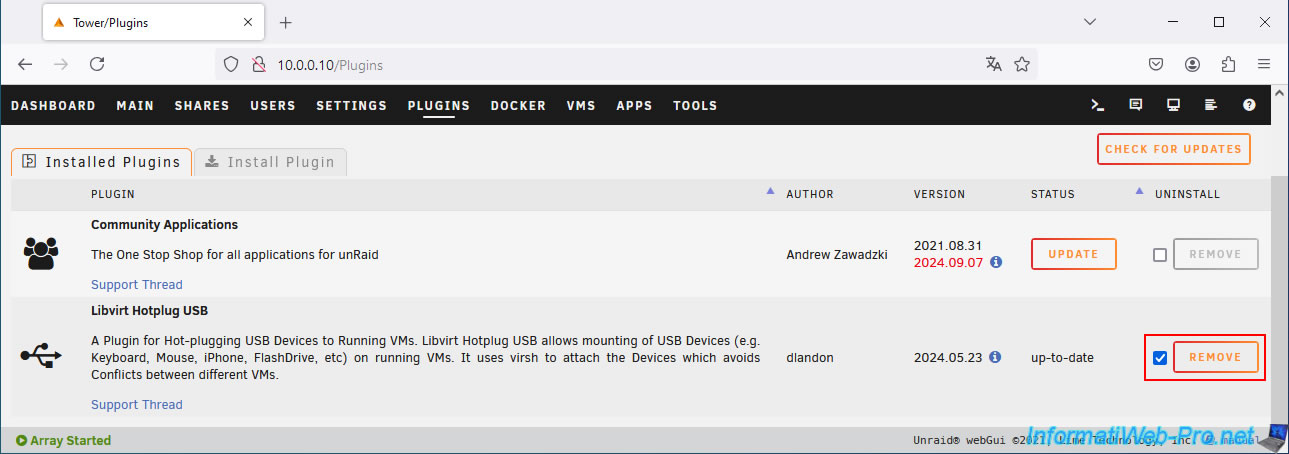
Simply go to the "Plugins" tab, check the plugin's box in the "Uninstall" column, then click the "Remove" button.
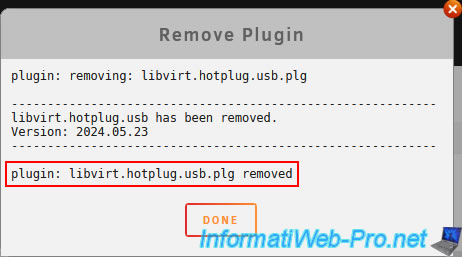
The "Libvirt Hotplug USB" plugin has been uninstalled.
Click "Done."
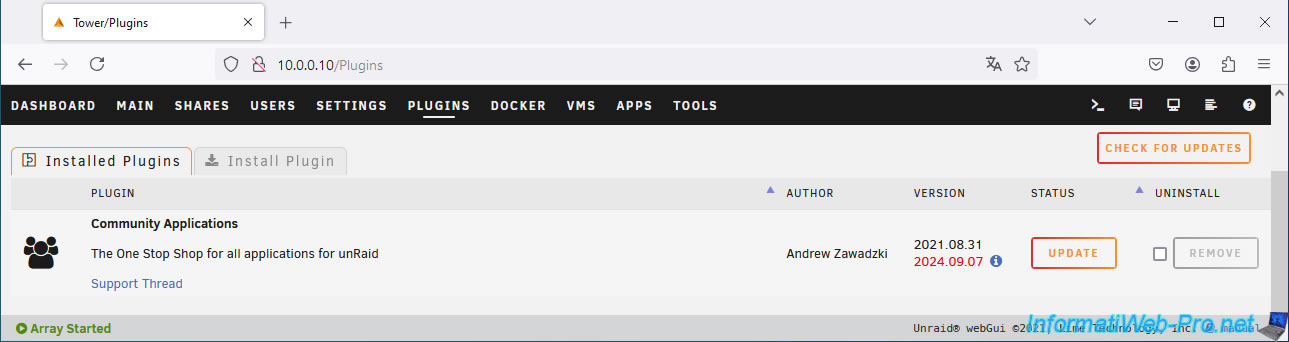
The plugin has been removed from the list of installed plugins.
6. Problems encountered without the plugin when using a KVM with a gaming VM
6.1. USB keyboard and mouse not showed by Unraid
In the "VMs" tab, you click on the icon of your gaming VM, then on "Edit".
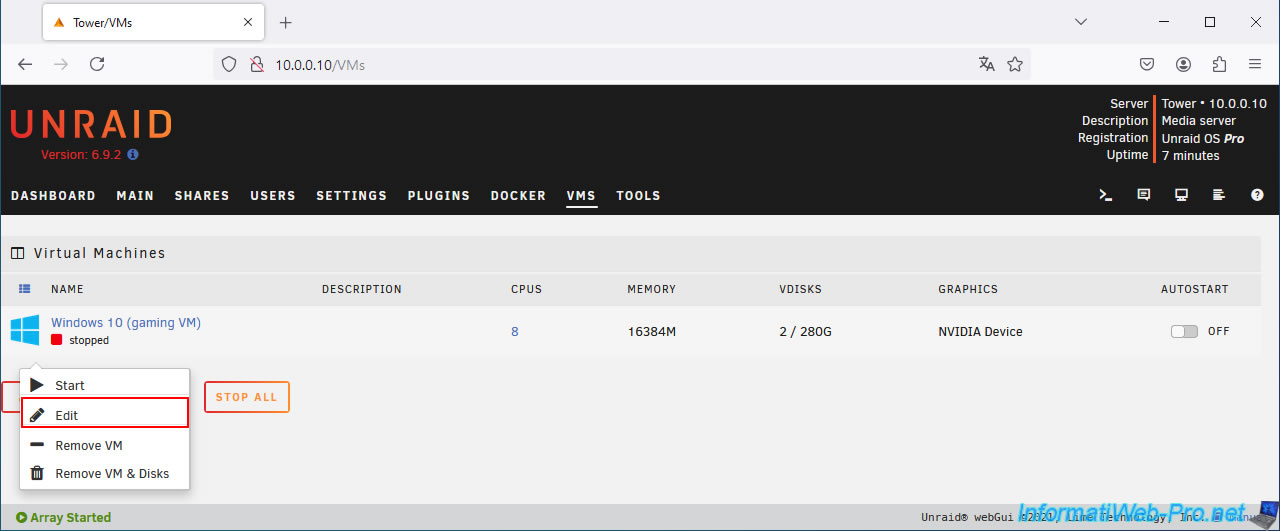
Your gaming VM configuration page appears.
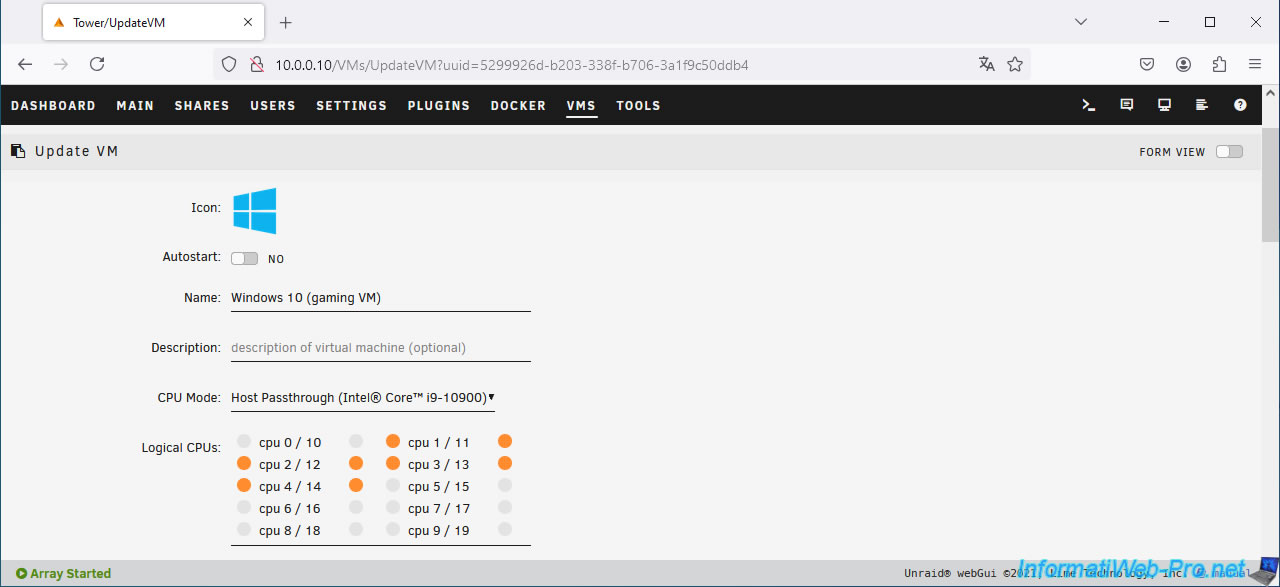
At the bottom of the page, you won't see your USB keyboard or mouse.
This is because Unraid only lists the USB devices currently plugged into the physical USB ports of your Unraid server.
However, if you see the Unraid web interface, you're probably on your second PC controlled via the physical KVM.
Therefore, the keyboard and mouse plugged into your physical KVM are connected to the PC you're currently using, not to your physical server where Unraid is installed.
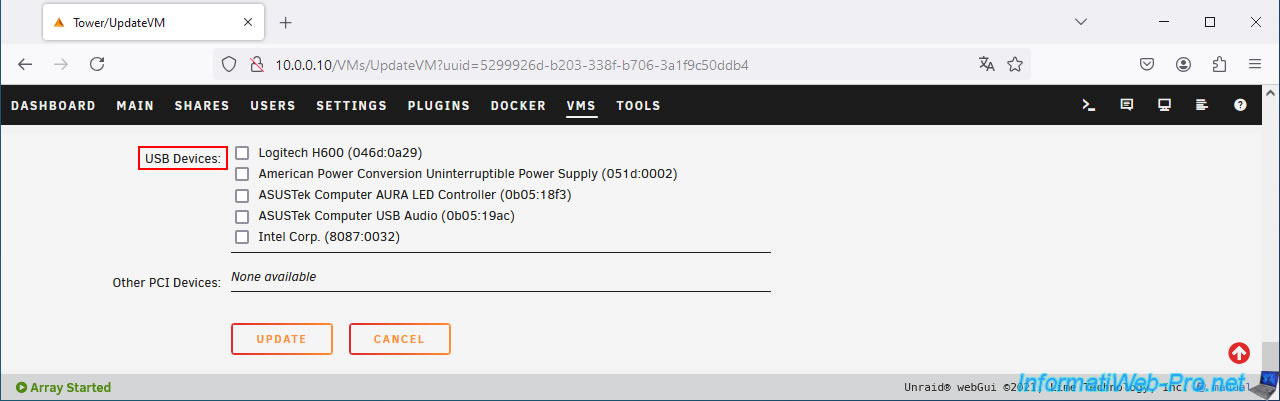
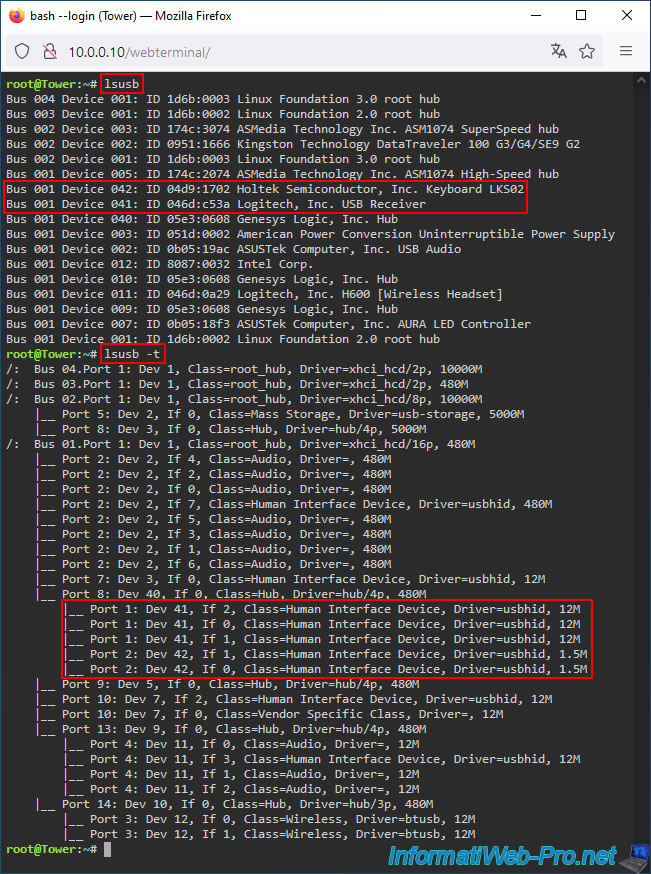
If you click the first icon in the top right corner to open the Unraid terminal and use the "lsusb" command, you'll also see that your keyboard and mouse don't appear among the USB devices recognized by Linux.
However, you can see the USB hub corresponding to your physical KVM.
In our case, the "Genesys Logic, Inc. Hub" USB device.
Bash
lsusb
lsusb -t
6.2. USB devices required and not recognized after changing position on physical KVM
To overcome this problem, you might be thinking that simply selecting your Unraid server or your gaming VM (which is currently turned off) on your physical KVM would be enough for Unraid to recognize your USB keyboard and mouse.
Indeed, in this case, if you refresh the edit page for your gaming VM, you'll see that your USB keyboard and mouse will appear.
So, check the boxes and click "Update".
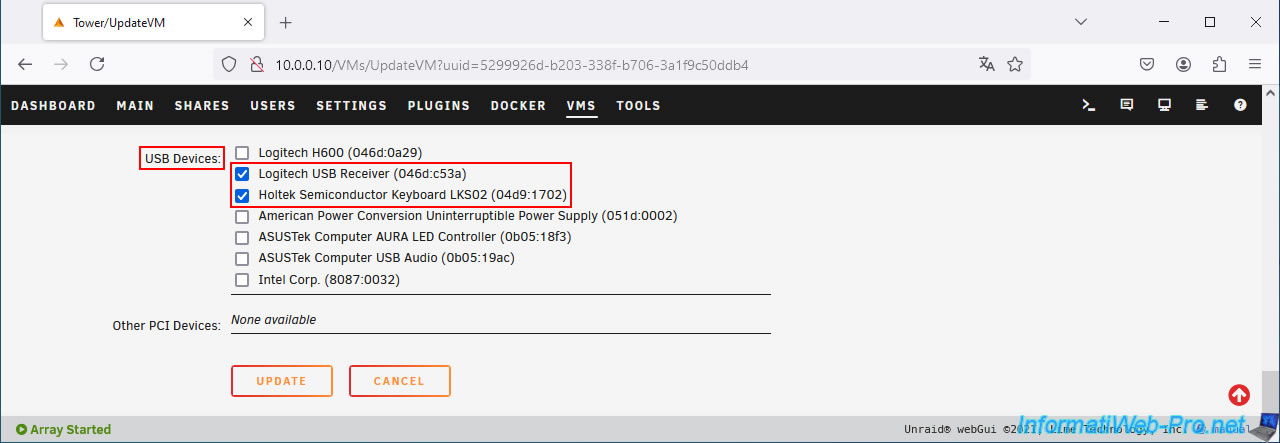
If you use the Unraid terminal again and rerun the previous "lsusb" commands, you'll see your USB keyboard and mouse appear.
Note: to locate them between the output of the first and second commands, use the USB device number (Device 042 = Dev 42, ...).
Bash
lsusb
Plain Text
Bus 001 Device 042: ID 04d9:1702 Holtek Semiconductor, Inc. Keyboard LKS02
Bus 001 Device 041: ID 046d:c53a Logitech, Inc. USB Receiver
Bash
lsusb -t
Plain Text
|__ Port 1: Dev 41, If 2, Class=Human Interface Device, Driver=usbhid, 12M
|__ Port 1: Dev 41, If 0, Class=Human Interface Device, Driver=usbhid, 12M
|__ Port 1: Dev 41, If 1, Class=Human Interface Device, Driver=usbhid, 12M
|__ Port 2: Dev 42, If 1, Class=Human Interface Device, Driver=usbhid, 1.5M
|__ Port 2: Dev 42, If 0, Class=Human Interface Device, Driver=usbhid, 1.5M
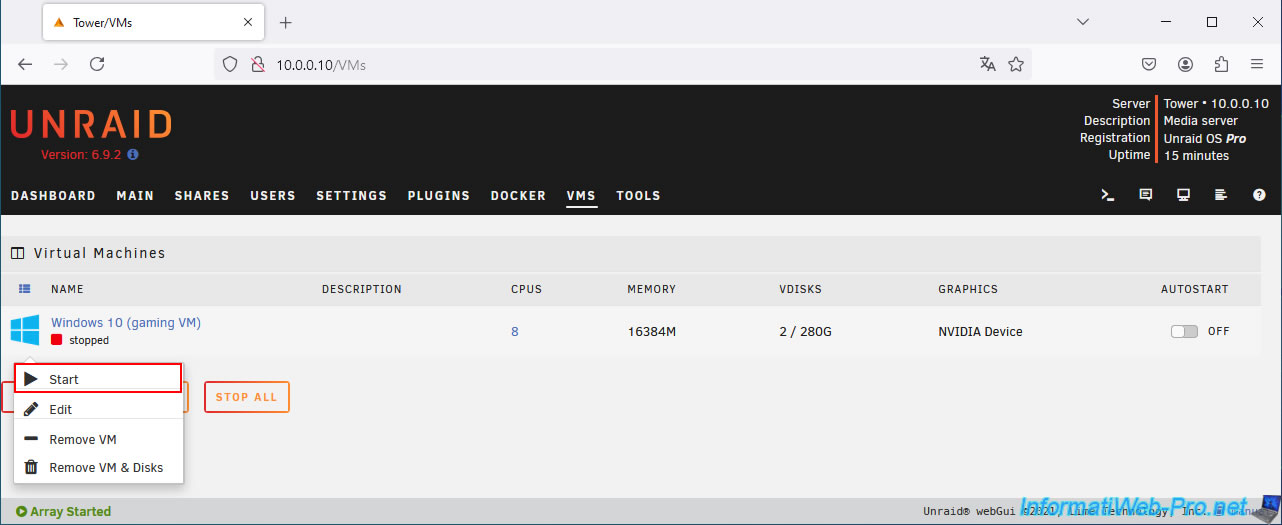
You select your physical Windows PC on your KVM for convenience and you try to launch your gaming VM, telling yourself that you will then just have to select your gaming VM on your physical KVM once the gaming VM has started.
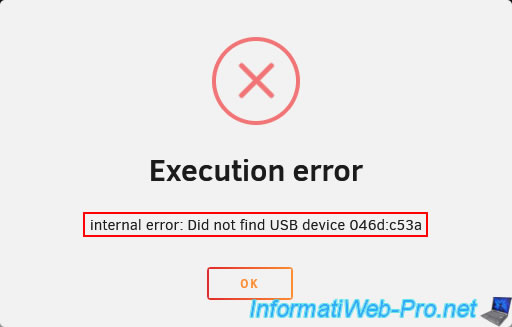
Except your gaming virtual machine will not start and will show you the error below.
Plain Text
Execution error.
internal error: Did not find USB device 046d:c53a.
In our case, the hardware ID "046d:c53a" refers to our USB mouse (Logitech, Inc. USB Receiver) as you can verify with the output of the "lsusb" command used above.
6.3. USB not plug-and-play on Unraid
The last technique you could consider would be to select your gaming VM (configured to pass your keyboard and mouse as explained above) on your physical KVM and start it by accessing the Unraid web interface from a laptop or from your smartphone.

In this case, the gaming virtual machine would start and your USB keyboard and mouse would work.
However, once you change positions on your physical KVM, you'll notice that when you return to your gaming VM, your USB mouse and keyboard no longer work on this gaming VM.
This is because USB is not plug-and-play in Unraid.
As a reminder, when you change positions on your physical KVM, it disconnects your keyboard and mouse from your gaming VM and connects them to the next PC.
Then, when you return to the position on your physical KVM corresponding to your gaming VM, the keyboard and mouse are not automatically reconnected by Unraid, because USB is not plug-and-play in this case.
Although USB is plug-and-play by default on physical PCs running Windows,
To better understand what happened, click on your gaming VM icon, then click on "Logs".
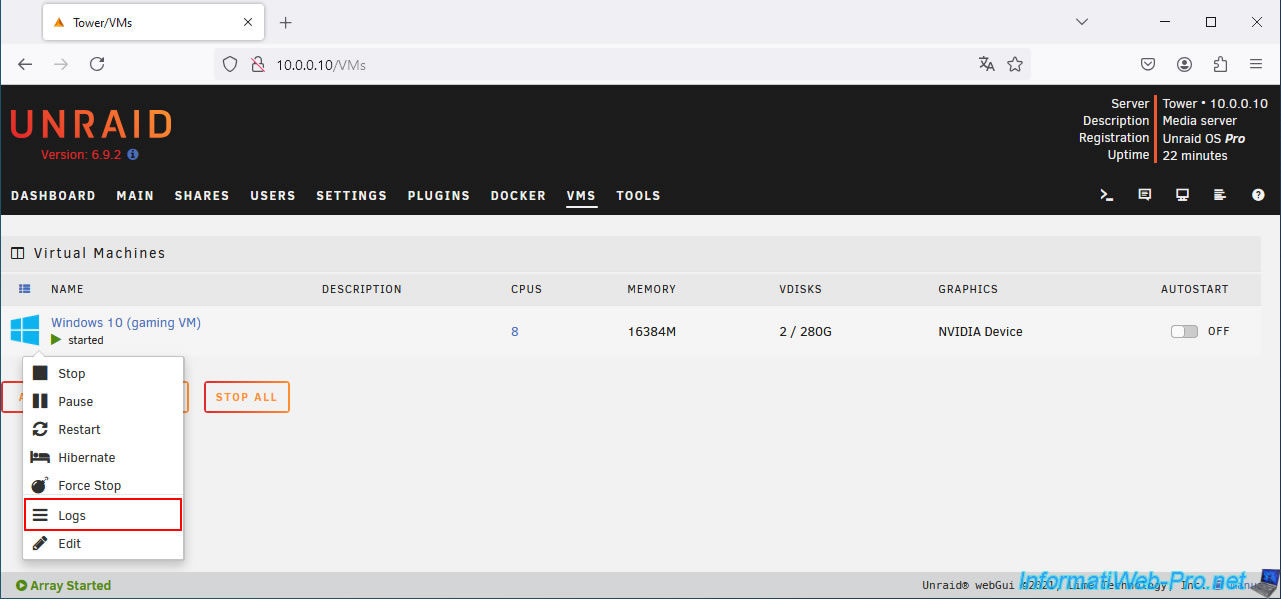
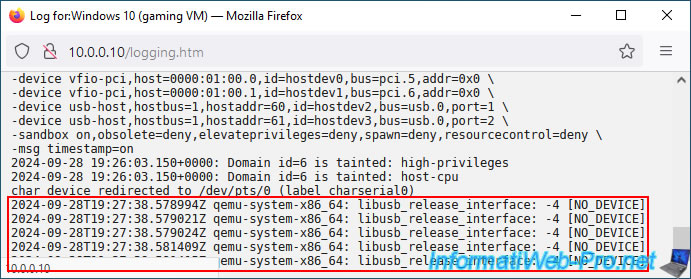
At the end of your gaming VM's logs, you'll see the following message appear several times.
This message is caused by the disconnection of USB devices (and therefore the change of position on your physical KVM) from your gaming VM.
In short, Unraid has noticed the disconnection of your USB keyboard and mouse, which were previously connected to your gaming VM.
Plain Text
2024-09-28T19:27:38.578994Z qemu-system-x86_64: libusb_release_interface: -4 [NO_DEVICE]
Share this tutorial
To see also
-

NAS 6/24/2026
Unraid 6.9.2 - Docker - Install the office suite (Collabora) for Nextcloud
-

NAS 3/4/2026
Unraid 6.9.2 - Install the "Community Applications" plugin (old version)
-

NAS 5/6/2026
Unraid 6.9.2 - SWAG - Install a reverse proxy (SWAG)
-
NAS 7/22/2026
Unraid 6.9.2 - VMs - Backing up a VM manually
No comment