Create a virtual machine (VM) on Unraid 6.9.2
- NAS
- Unraid
- 15 July 2026 at 16:20 UTC
-

- 3/3

6. Install VirtIO drivers on Windows 10
If you look in the Windows taskbar, you will notice that you are not connected to the network.
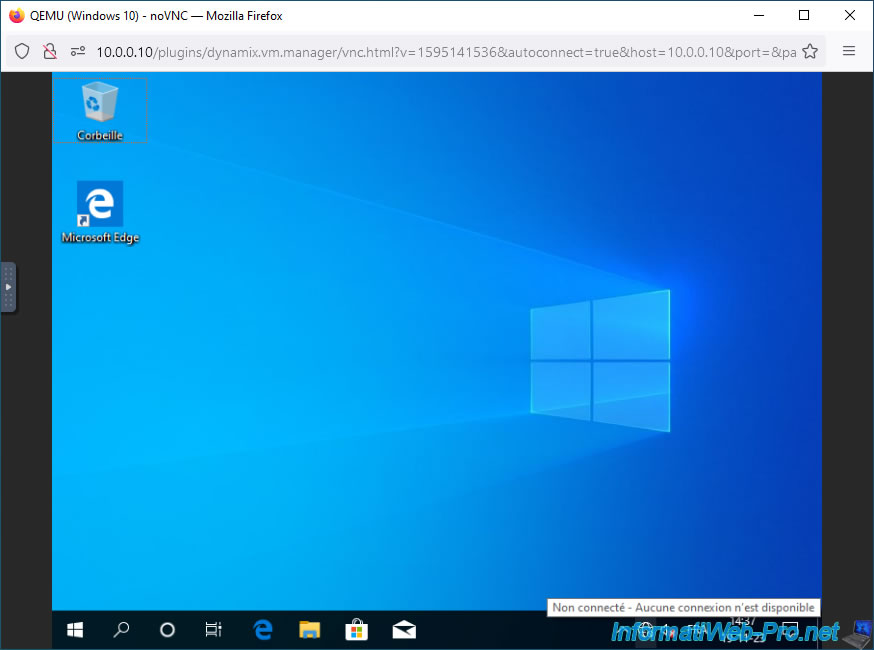
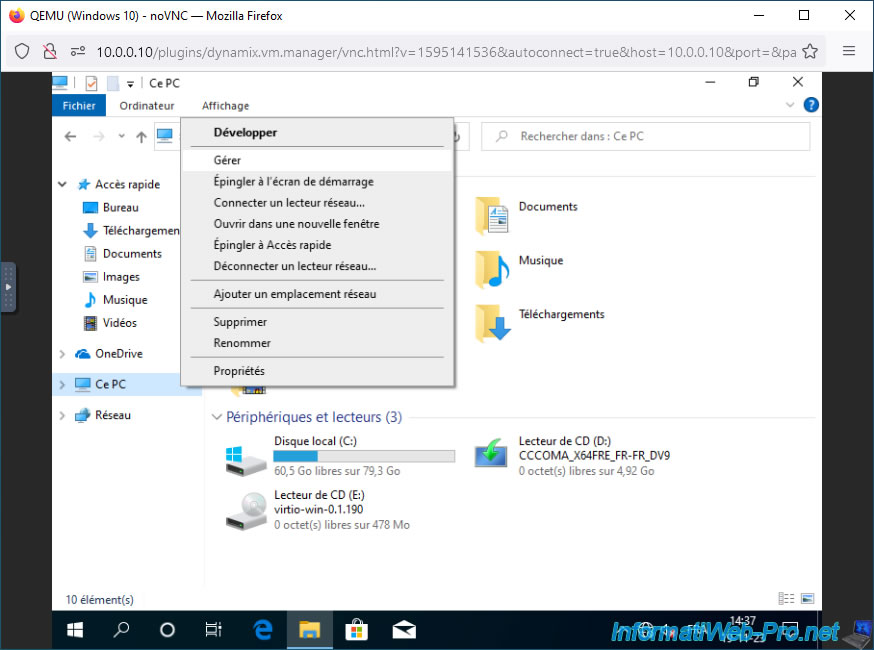
Open file explorer and right-click "Manage" on "This PC".
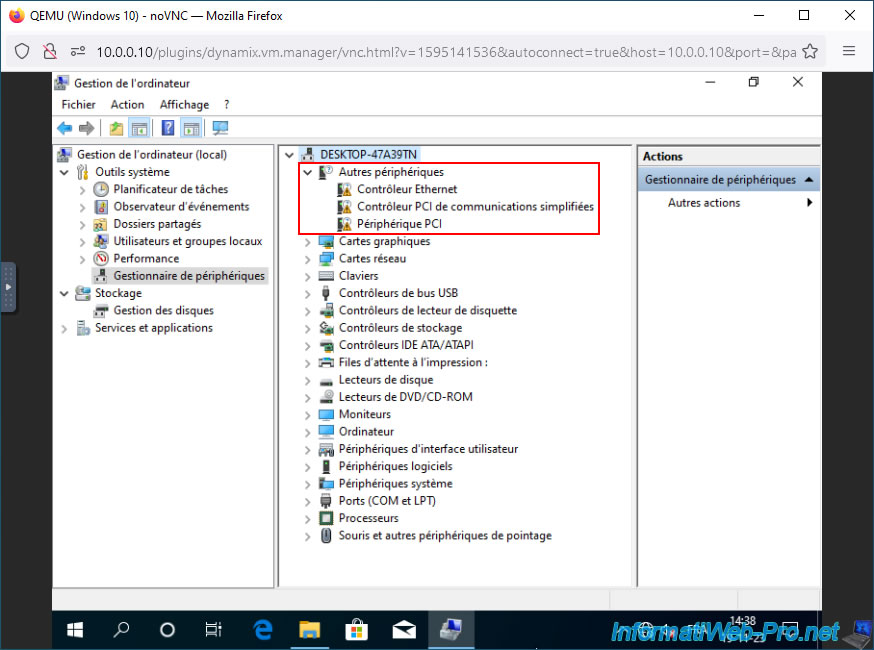
Go to the "Device Manager" section. You'll see an orange triangle appear on three devices in the "Other Devices" section.
To summarize, the drivers for these devices are missing:
- Ethernet Controller: the virtual network card
- PCI Simplified Communications Controller
- PCI Device
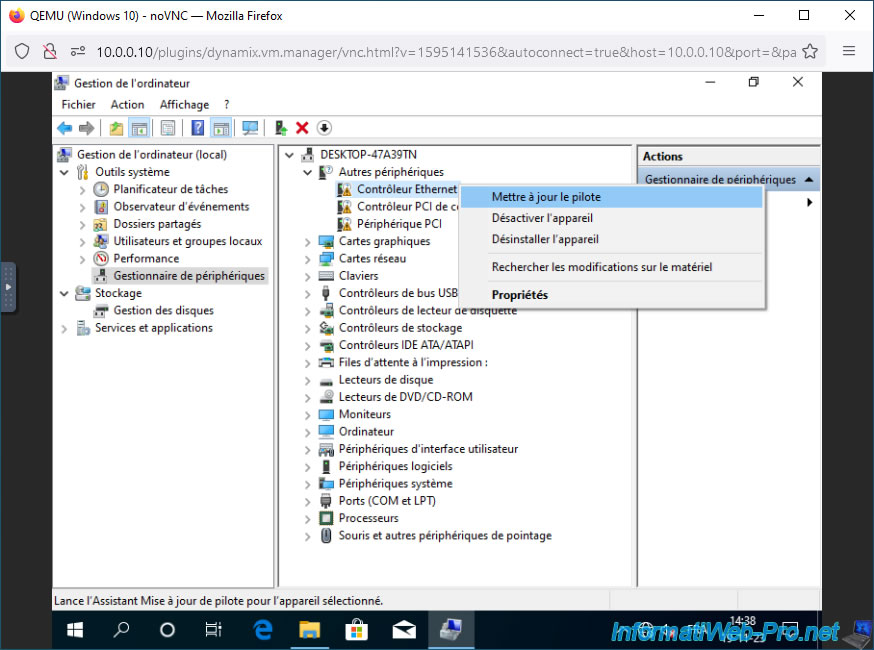
To begin, right-click "Update Driver" on the "Ethernet Controller" device.
In the "Update Drivers - Ethernet Controller" window that appears, click "Browse my computer for drivers".
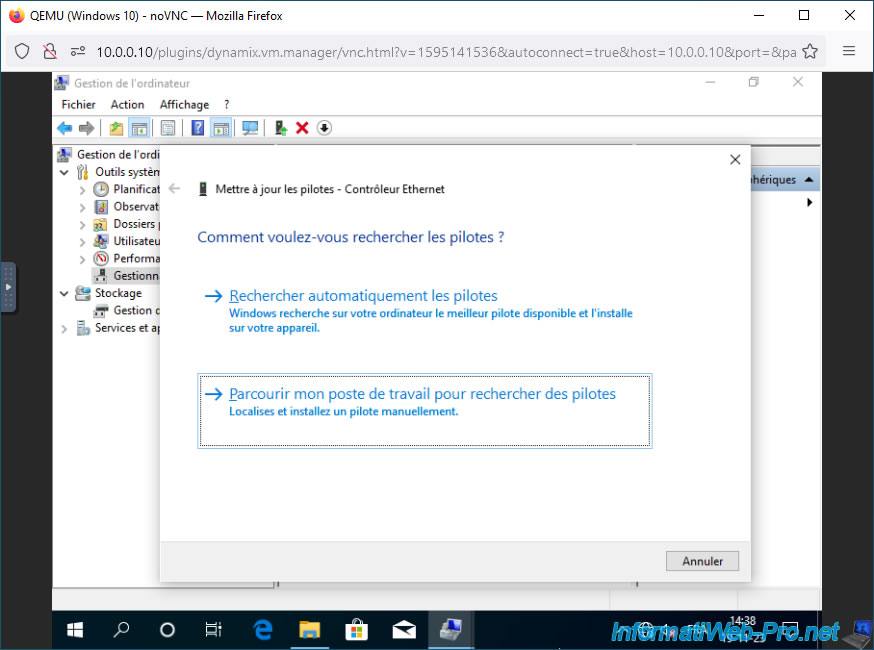
Click the "Browse" button.
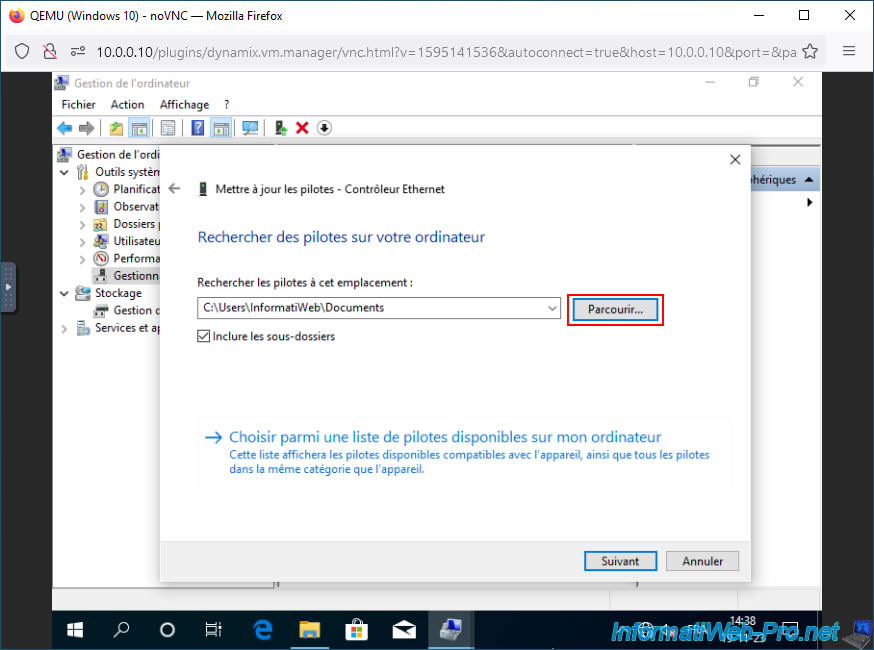
Select the CD drive "virtio-win-x.x.xx" corresponding to the VirtIO drivers virtual CD, then click OK.
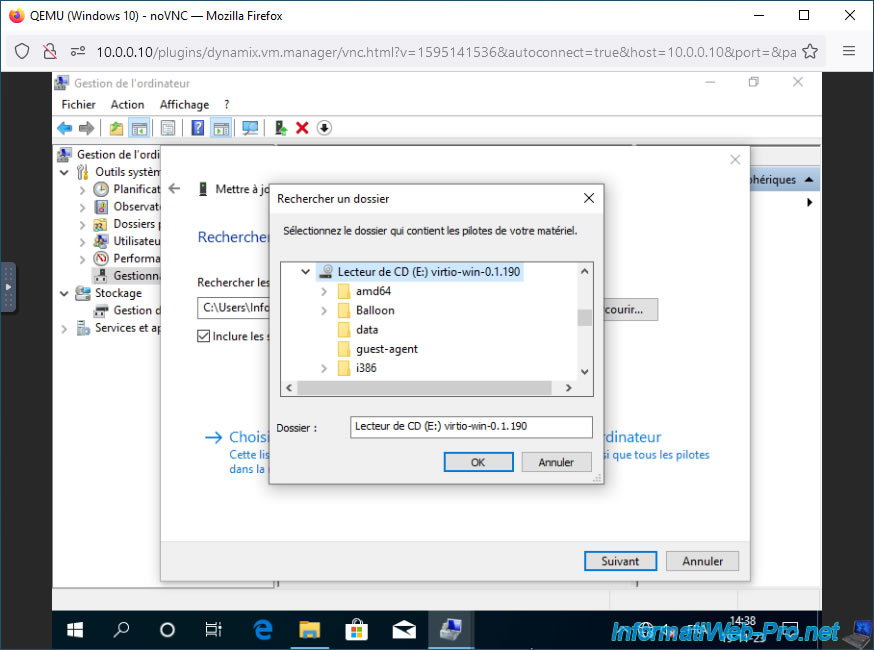
Now click "Next."
Note: on Windows 10, the "Include subfolders" box automatically searches for the appropriate driver in the selected folder and its subfolders.
It's therefore easier to select the CD drive containing the VirtIO driver CD for each driver you want to install.
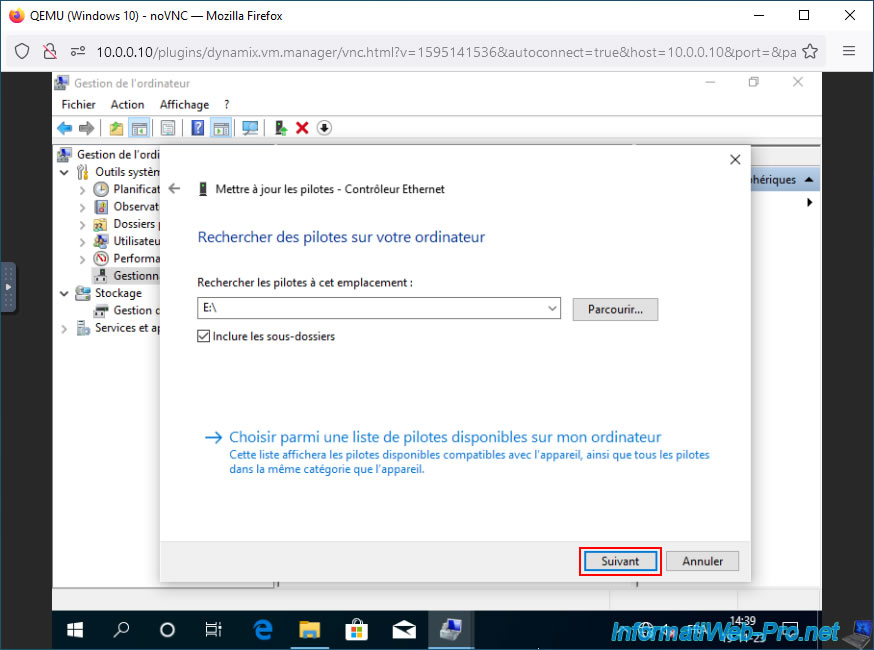
Windows searches for the driver on the previously selected virtual CD.
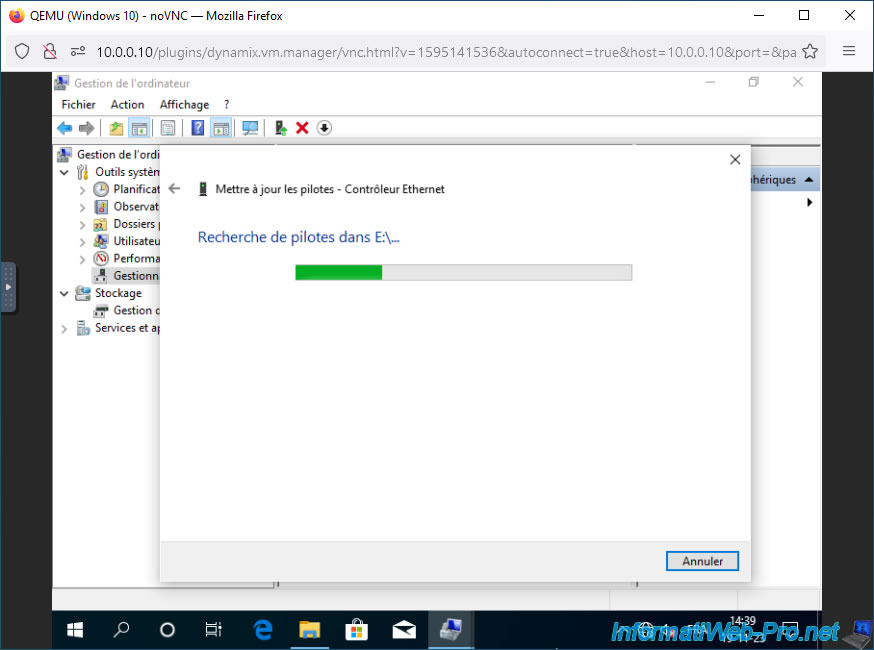
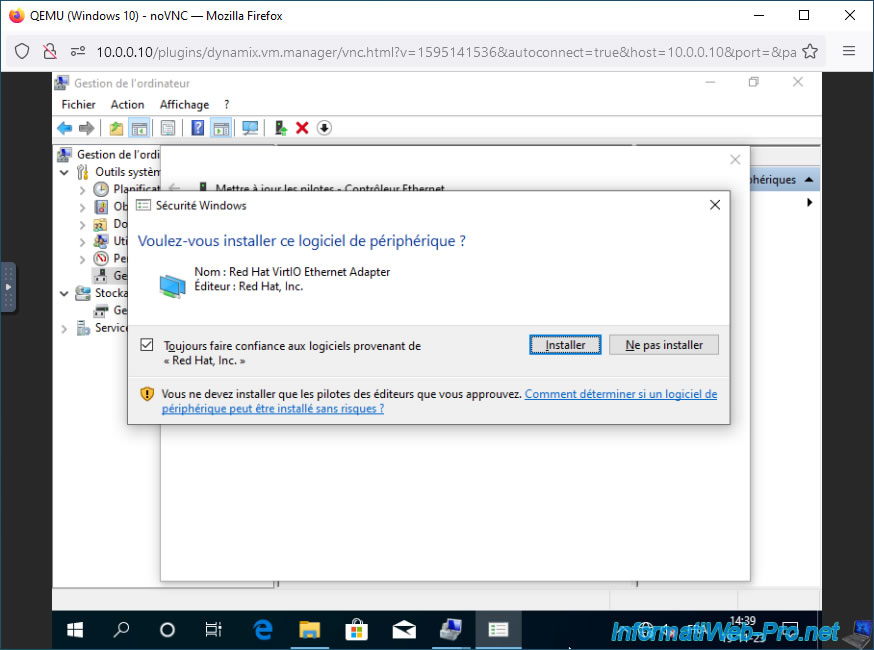
As you can see, Windows will detect the "Red Hat VirtIO Ethernet Adapter" driver developed by "Red Hat" (a Linux distribution aimed at businesses).
Check the "Always trust software from Red Hat, Inc" box, then click "Install".
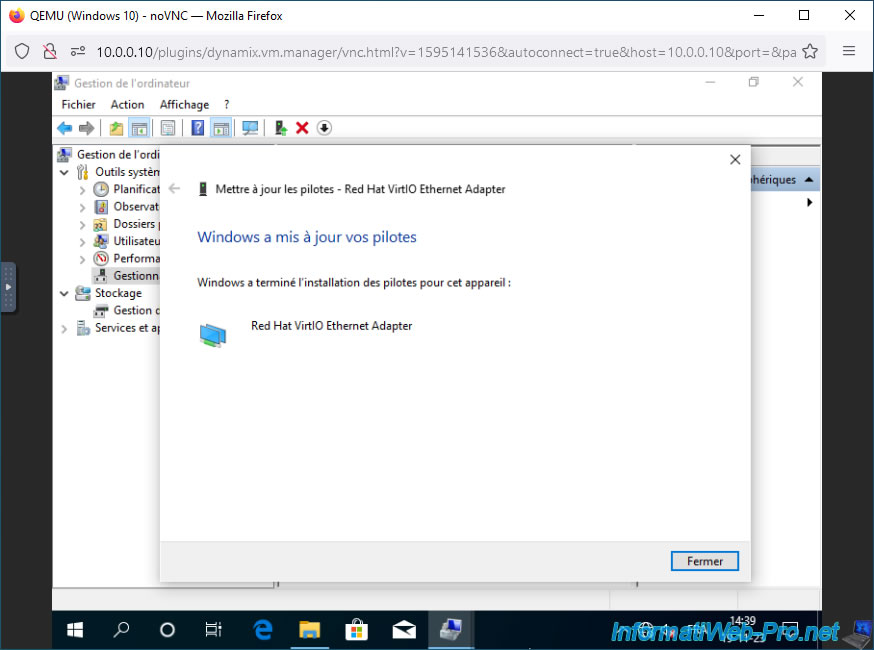
The "Red Hat VirtIO Ethernet Adapter" driver has been successfully installed.
Click Close.
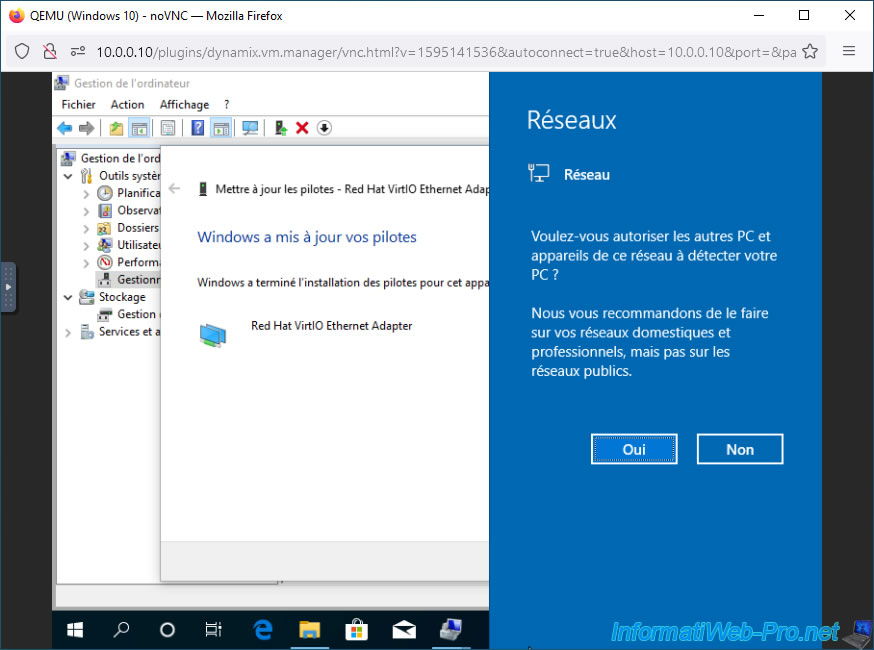
To facilitate file sharing between your virtual machine and computers on your network (if the network bridge used by your virtual machine is "br0"), click "Yes".
Do the same for the other two devices with warnings.
Right-click "Update Driver" on the "PCI Simplified Communications Controller" device.
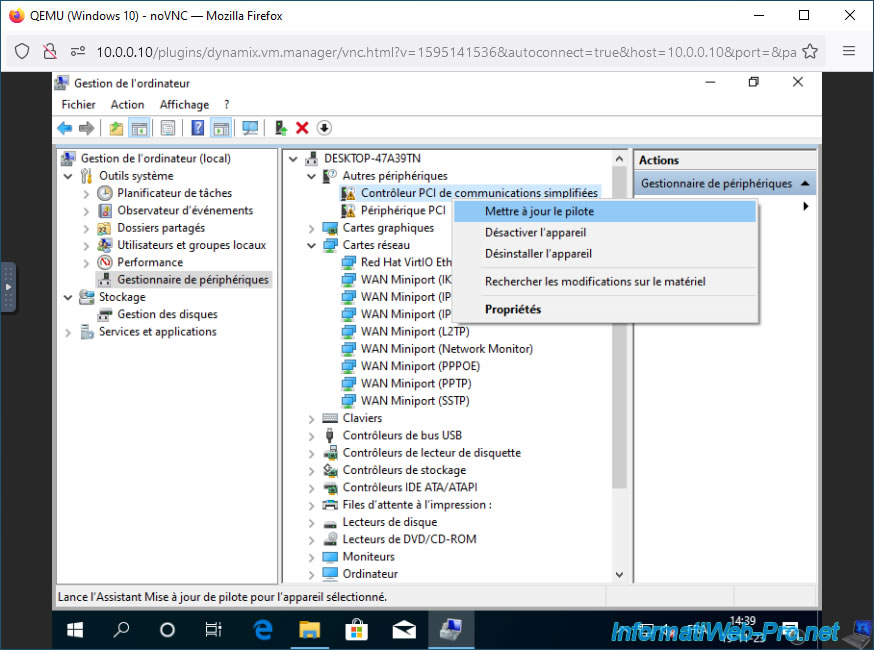
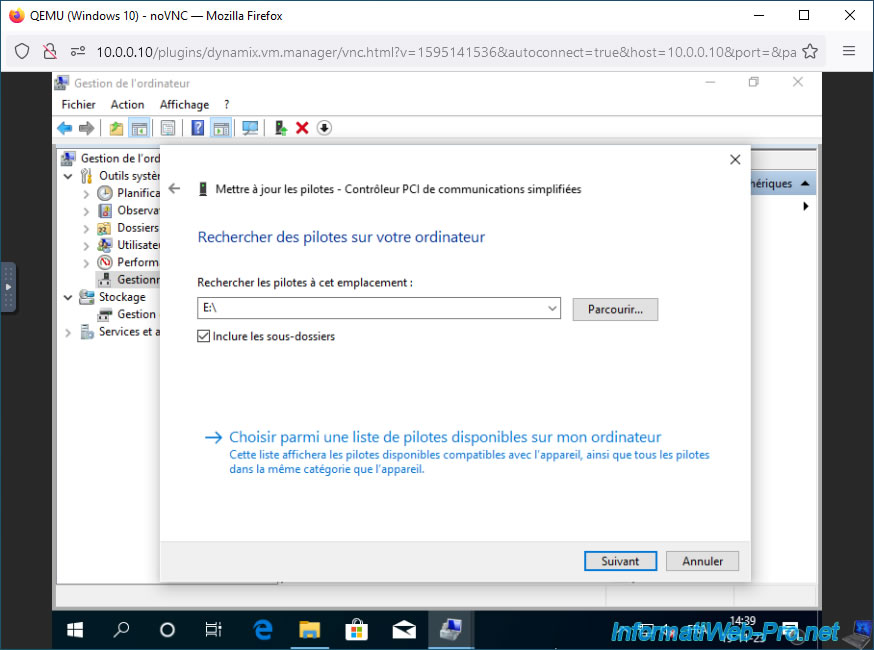
The CD drive containing the VirtIO driver CD is already selected.
Just click Next.
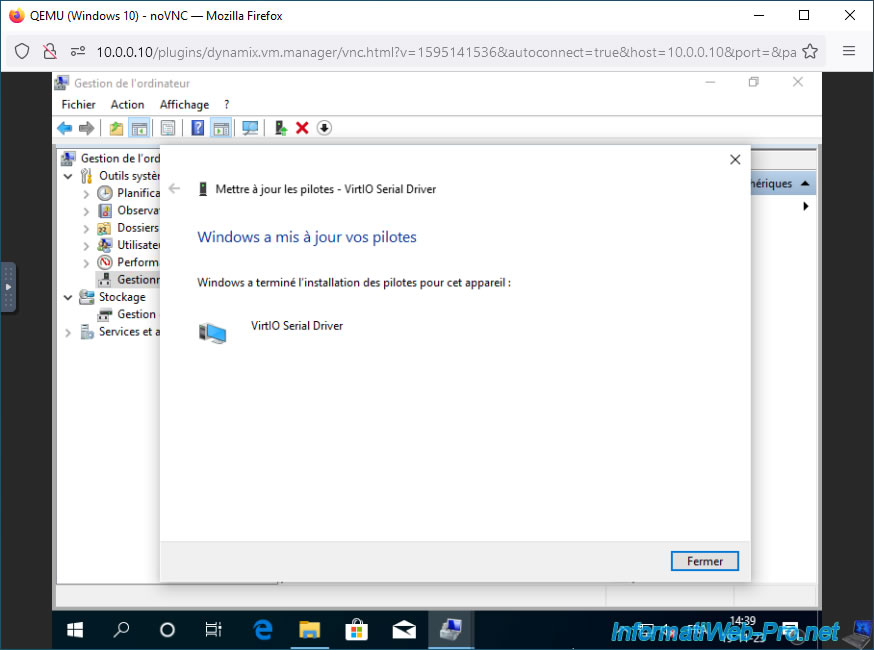
The corresponding driver installed is "VirtIO Serial Driver".
Click Close.
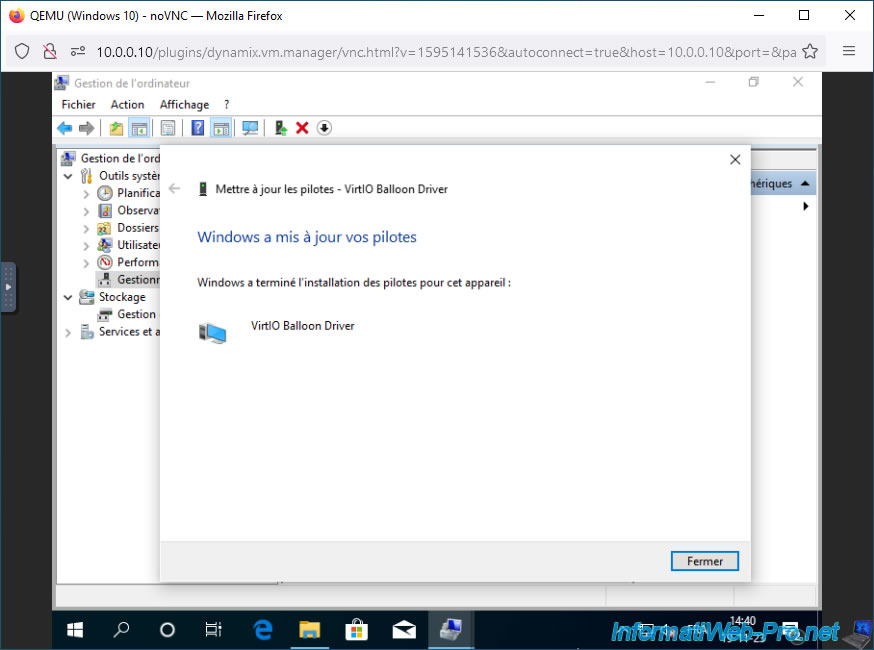
Finally, install the driver for the remaining PCI device.
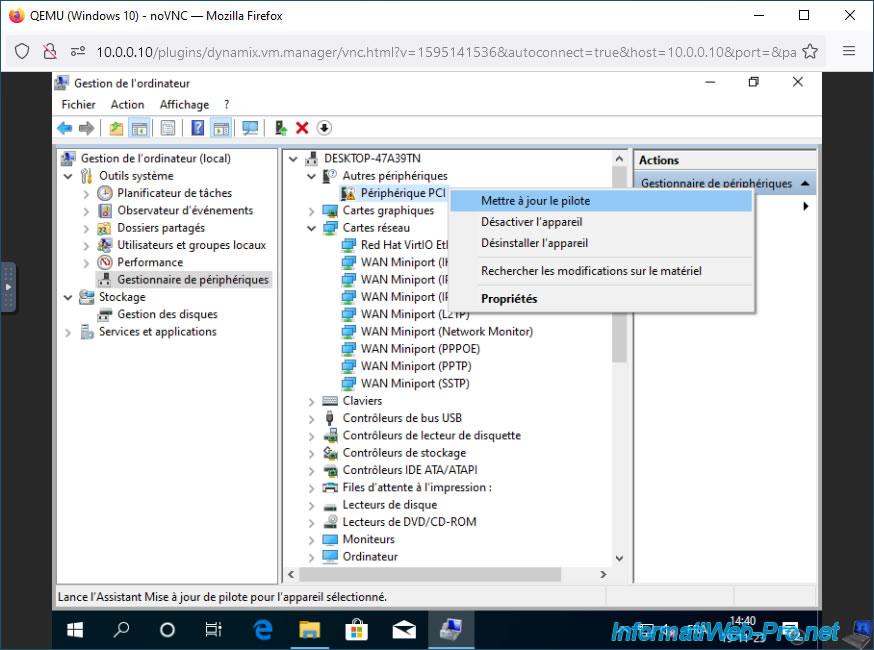
The driver for this PCI device is "VirtIO Balloon Driver" (which is a memory management driver and is required if you want to use dynamic RAM allocation for your virtual machine, as explained earlier).
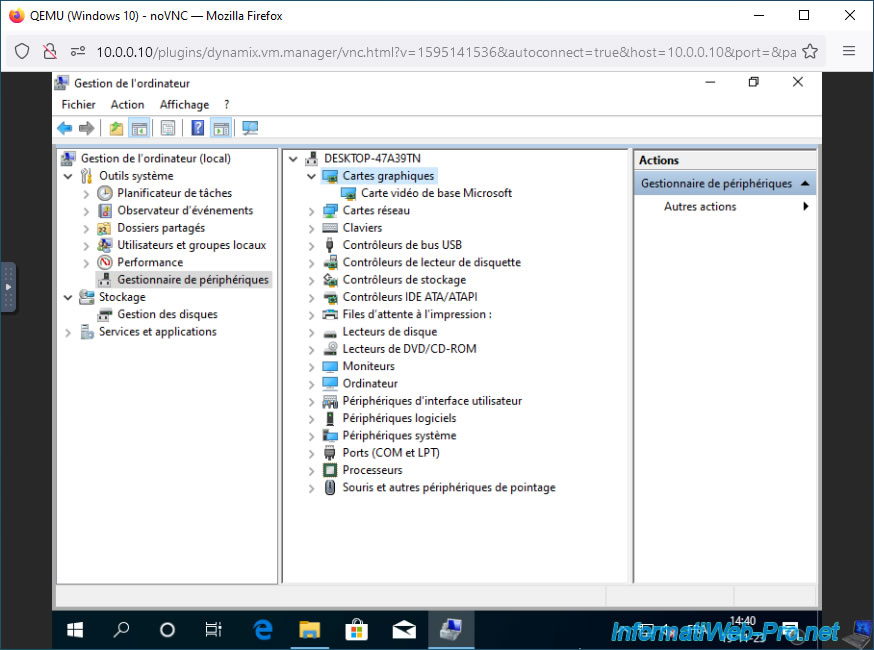
For the graphics card, since a VNC connection is used, it's the Microsoft Base Graphics Card (i.e., the generic graphics driver used by default by Windows).
If you're upgrading your graphics card to a virtual machine, you should install the graphics card driver for the version of Windows you have installed in that virtual machine.
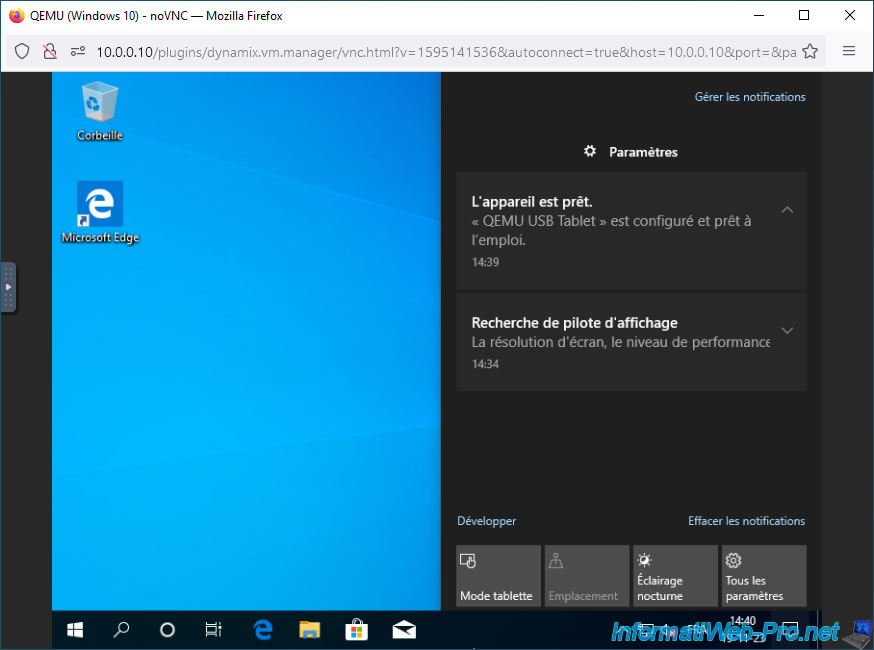
Thanks to the Internet, Windows may install other drivers automatically.
In our case, a "QEMU USB Tablet" driver was downloaded and installed automatically in the background.
Share this tutorial
To see also
-
NAS 1/15/2026
Unraid 6.9.2 - Change the parity disk
-
NAS 5/13/2026
Unraid 6.9.2 - SWAG - Locally access the reverse proxy (SWAG)
-
NAS 7/29/2026
Unraid 6.9.2 - VMs - Backing up a VM automatically
-
NAS 9/9/2026
Unraid 6.9.2 - VMs - Create a gaming virtual machine (without ACS support)
No comment