- NAS
- Unraid
- 04 December 2025 at 14:39 UTC
-

- 1/2

By default, the official tool for installing Unraid on a USB key doesn't offer many options, and your future server's IP address will therefore be obtained automatically from the network (using the DHCP protocol).
However, in this case, your server's IP address may change on its own at some point (depending on the lease duration set on your DHCP server).
The best option is to set a static (fixed) IP address on your Unraid server.
There are three methods for this, the last of which is only useful if the Unraid server is already installed.
- Set a static IP address for Unraid from the Unraid USB Creator tool
- Manually set a static IP address
- Modify Unraid's network settings from its web interface
1. Set a static IP address for Unraid from the Unraid USB Creator tool
When you launch the official "Unraid USB Flash Creator" utility, it doesn't display many options.
If you want to install Unraid with a static (fixed) IP address, click the Customize button.
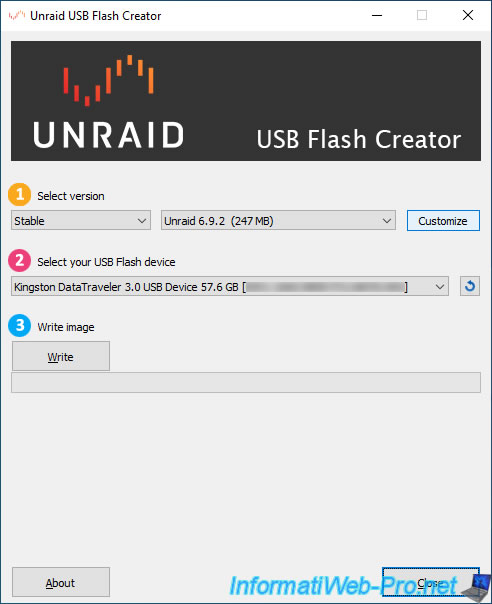
Once you click on this "Customize" button, you will see some additional options appear:
- Server name: name of the Unraid server. Default: tower.
- Network mode: DHCP (to automatically obtain an IP address from the DHCP server on your network, or most often from your router) or Static IP (to set an IP address on your Unraid server).
- Allow UEFI Boot: allows you to boot your Unraid server in UEFI mode.
To set an IP address for your Unraid server, select "Static IP".
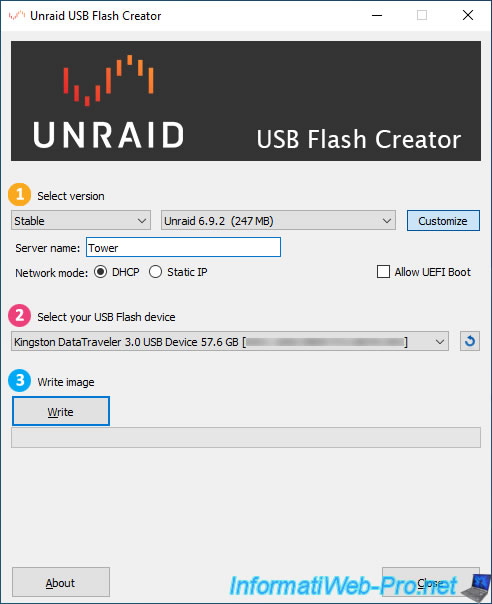
In this case, additional fields will appear again:
- IP Address: the IPv4 address to assign to your Unraid server.
- Gateway: the IPv4 address of the gateway (router or box) to use.
- Netmask: the subnet mask to use. For example: 255.255.255.0 for Class C IP addresses (192.168.1.x) or 255.0.0.0 (which is not available in this list) for Class A IP addresses.
- DNS Server: the IPv4 address of the DNS server to use.
In our case, we indicated:
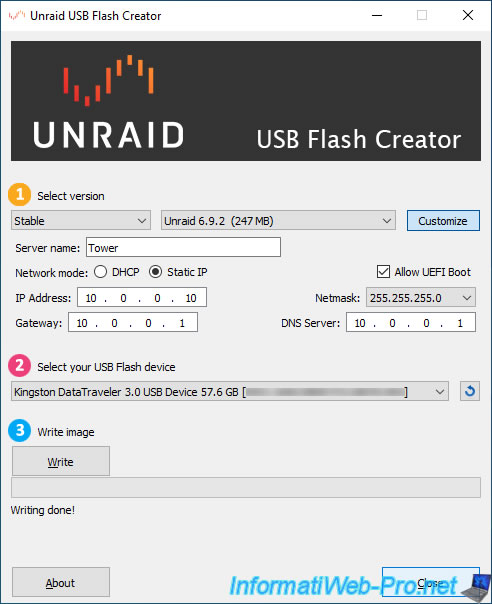
- 10.0.0.10 for the IP address.
- 10.0.0.1 for the gateway IP address (which corresponds to our router).
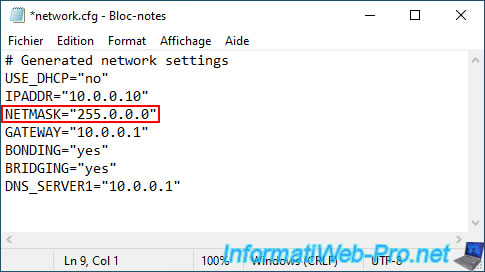
- 255.255.255.0 for the subnet mask, since the correct subnet mask, "255.0.0.0," is strangely not available in the proposed list.
- 10.0.0.1 for the DNS server.
Next, select your USB key from the list if it isn't already, then click: Write.
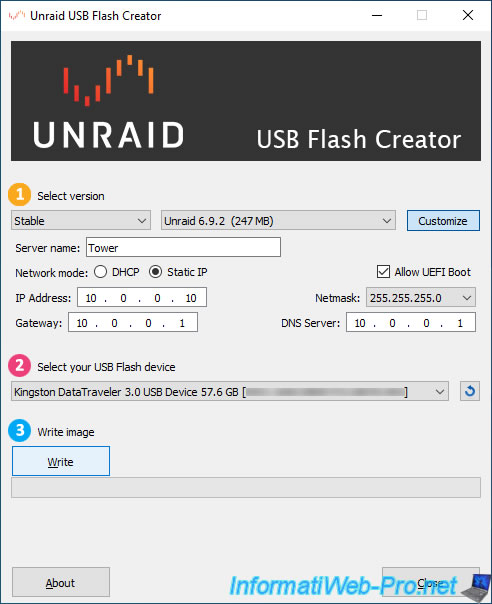
Confirm erasing your USB key to write the Unraid image to it.
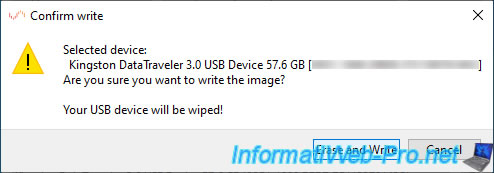
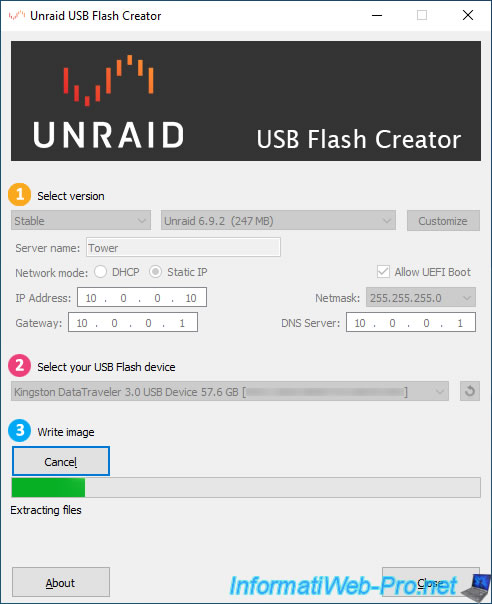
The tool downloads the desired version of Unraid.

Then, this tool extracts the downloaded files to your USB key.
Unraid has been installed on your USB key and will default to the IP configuration you just configured.
For your information, this configuration has been saved in the "config\network.cfg" file on your USB key.
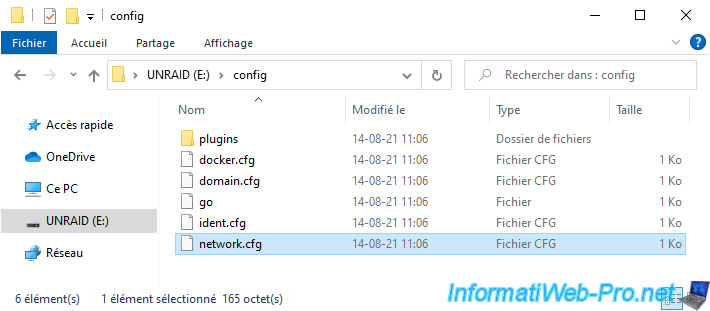
This is what this file looks like when it is configured for Unraid to use a static (fixed) IP address.
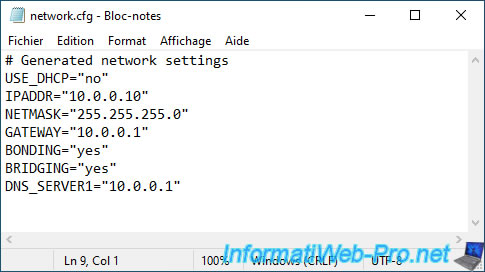
In our case, since we were unable to select the correct subnet mask (255.0.0.0) previously, we changed it in this configuration file using notepad.
2. Manually set a static IP address
If you want to manually change the IP address of your Unraid server, you will need to edit the "network.cfg" configuration file located in the "config" folder of your "UNRAID" USB key.
Note that this method is also useful if you used the manual Unraid installation method (via the "make_bootable.bat" file).
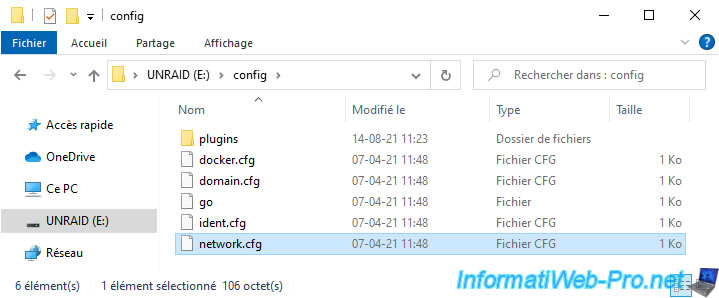
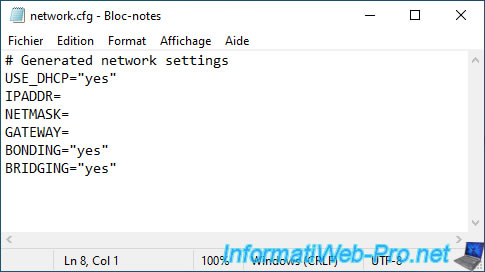
Open this file with notepad and you will see that it contains this by default:
Plain Text
# Generated network settings
USE_DHCP="yes"
IPADDR=
NETMASK=
GATEWAY=
BONDING="yes"
BRIDGING="yes"
This means that Unraid will use DHCP to automatically obtain an IP address from the DHCP server on your network (usually located in your router).
The following parameters, "USE_DHCP," are therefore not populated.
To have Unraid use a static (fixed) IP address, you will need to edit this file like this:
- USE_DHCP="no": allows you to bypass the DHCP protocol and therefore use a static IP configuration (using the following parameters).
- IPADDR: allows you to specify the IPv4 address to use. In our case: 10.0.0.10.
- NETMASK: allows you to specify the subnet mask corresponding to the IP address class used.
For example: 255.0.0.0 for class A IP addresses (10.x.x.x) or 255.255.255.0 for class C IP addresses (192.168.1.x). - GATEWAY: allows you to specify the IPv4 address of the gateway (router or box) to use.
For the DNS server, you will have to specify it manually, as its IP address cannot be retrieved from your DHCP server.
To do this, add the "DNS_SERVER1" parameter and specify the IP address of the DNS server to use (for example, the IP address of your router or Google's public DNS server "8.8.8.8") as the value.

Share this tutorial
To see also
-

NAS 4/23/2026
Unraid 6.9.2 - Docker - Install a media server (Plex)
-

NAS 3/18/2026
Unraid 6.9.2 - Fixing common problems
-

NAS 6/10/2026
Unraid 6.9.2 - SWAG - Access Jellyfin via reverse proxy and personal domain
-

NAS 10/1/2026
Unraid 6.9.2 - VMs - Create a gaming virtual machine (with an eGPU)
You must be logged in to post a comment