Dynamix plugins (sys info, temperatures, ...) overview on Unraid 6.9.2
- NAS
- Unraid
- 11 March 2026 at 17:13 UTC
-

- 4/4

4.3. Choose which temperature probes to use by default
Return to the configuration of this "Dynamix System Temp" plugin by going to: Settings -> System Temp.
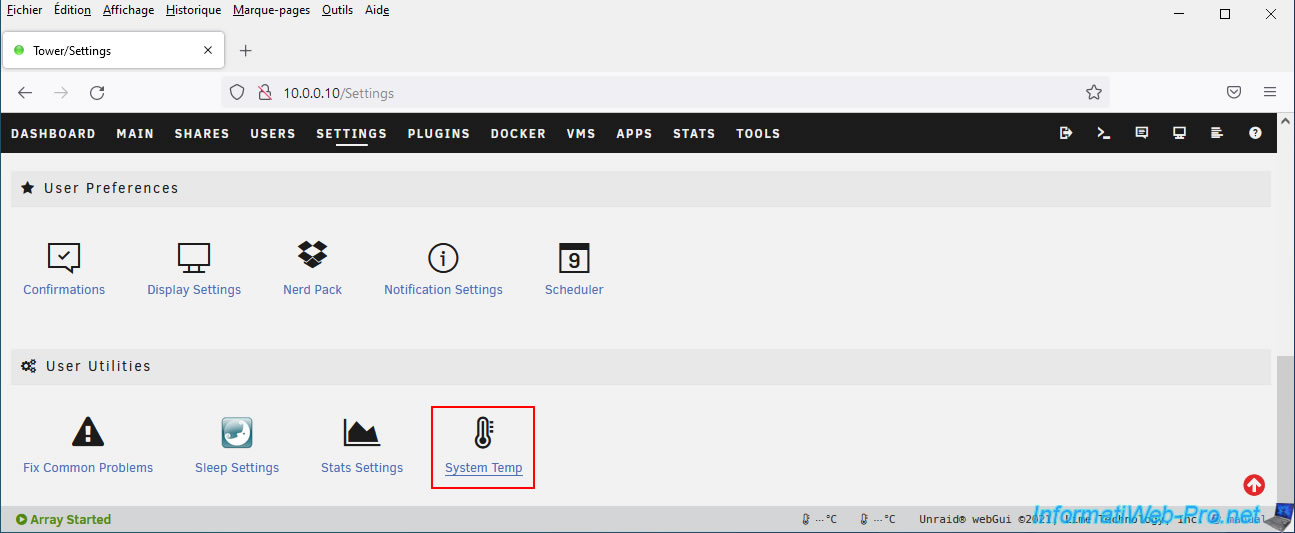
Since Perl is installed, the warning about Perl is gone.
Click "Detect" to detect the appropriate drivers for your situation.
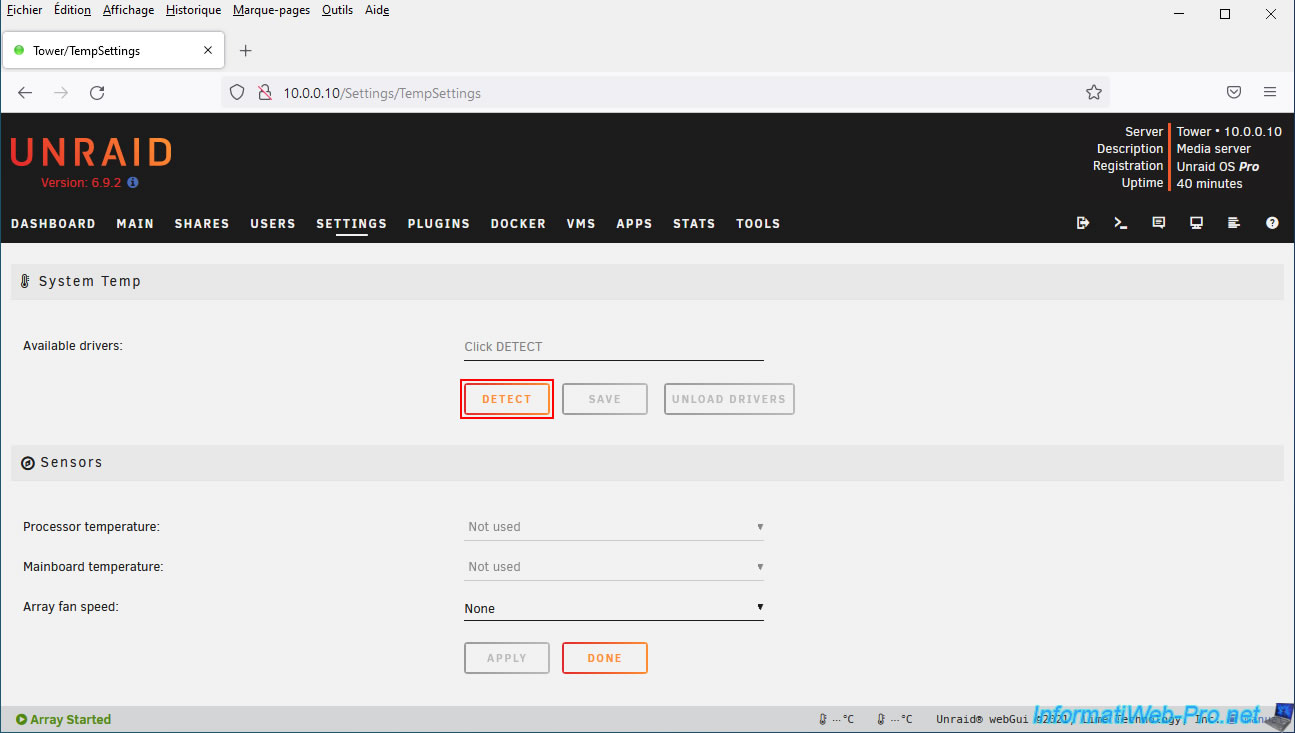
Depending on the sensor model used in your computer (motherboard, ...), this plugin will select the drivers appropriate for your situation.
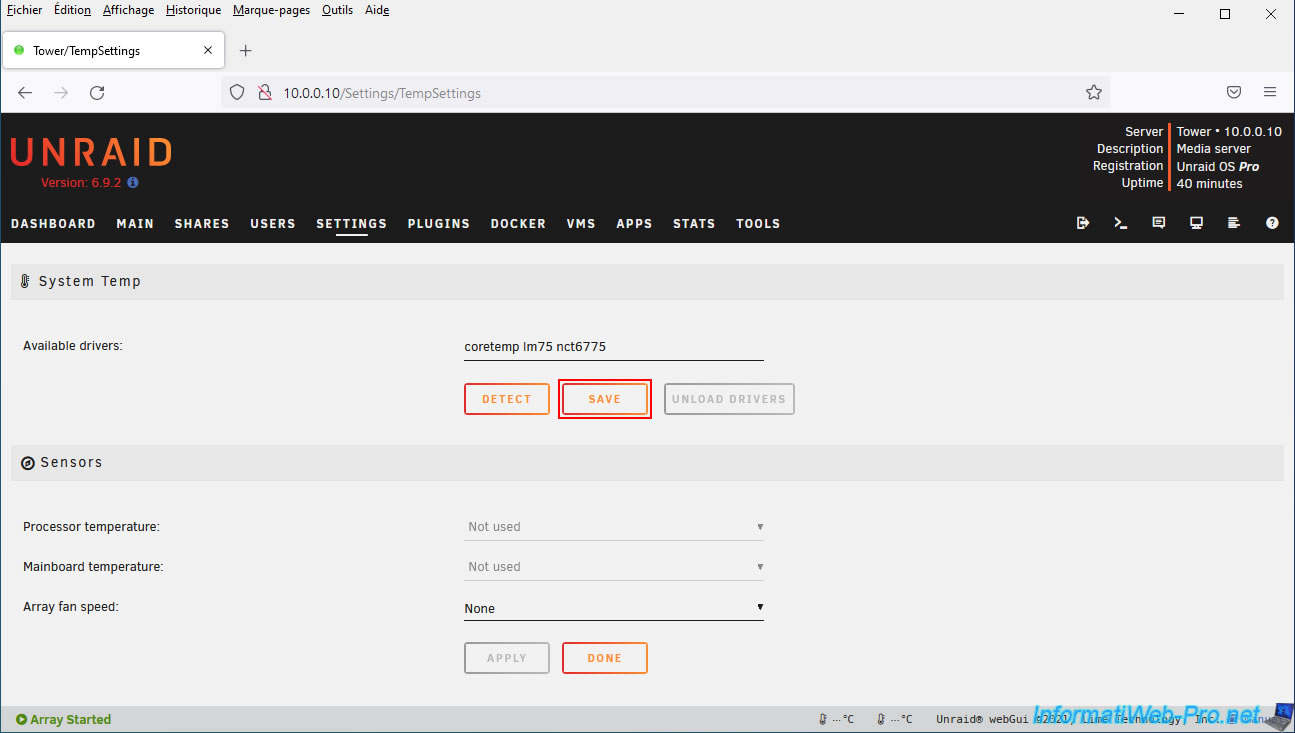
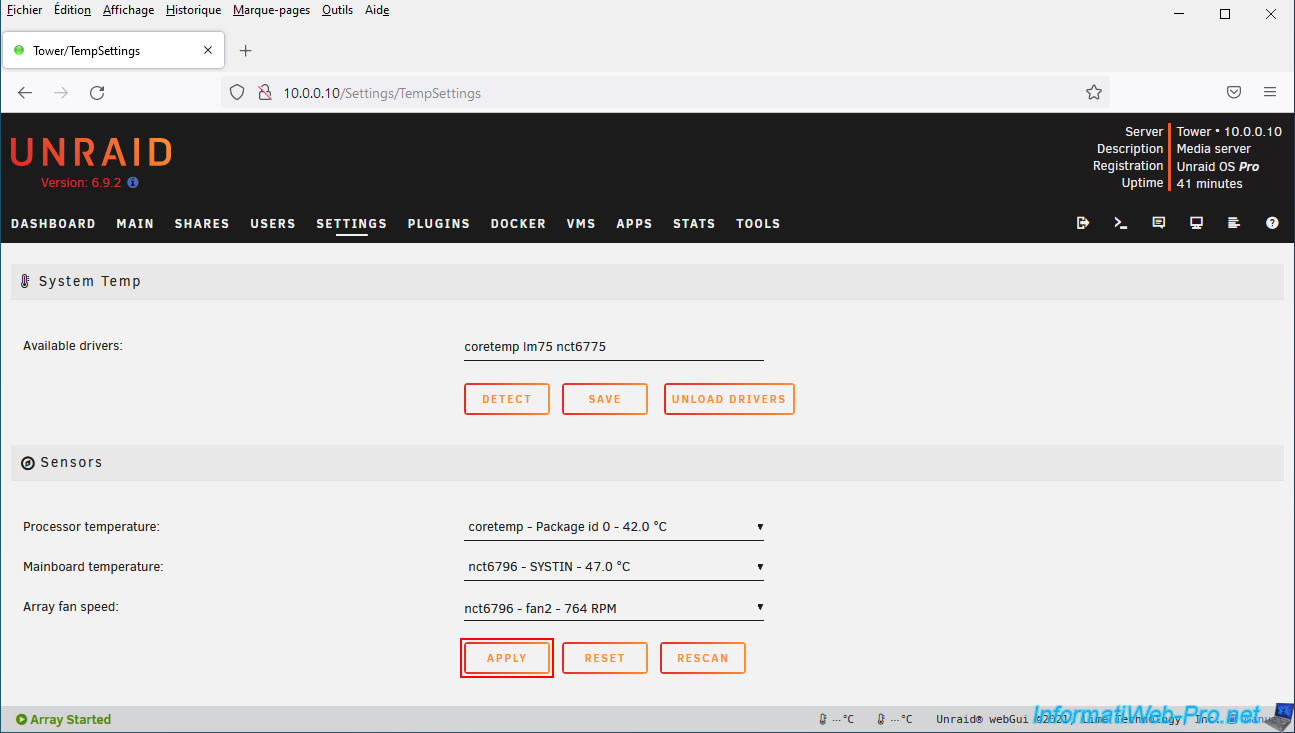
In our case: coretemp lm75 nct6775.
Click Save.
Then, click on "Load drivers" to load these drivers.
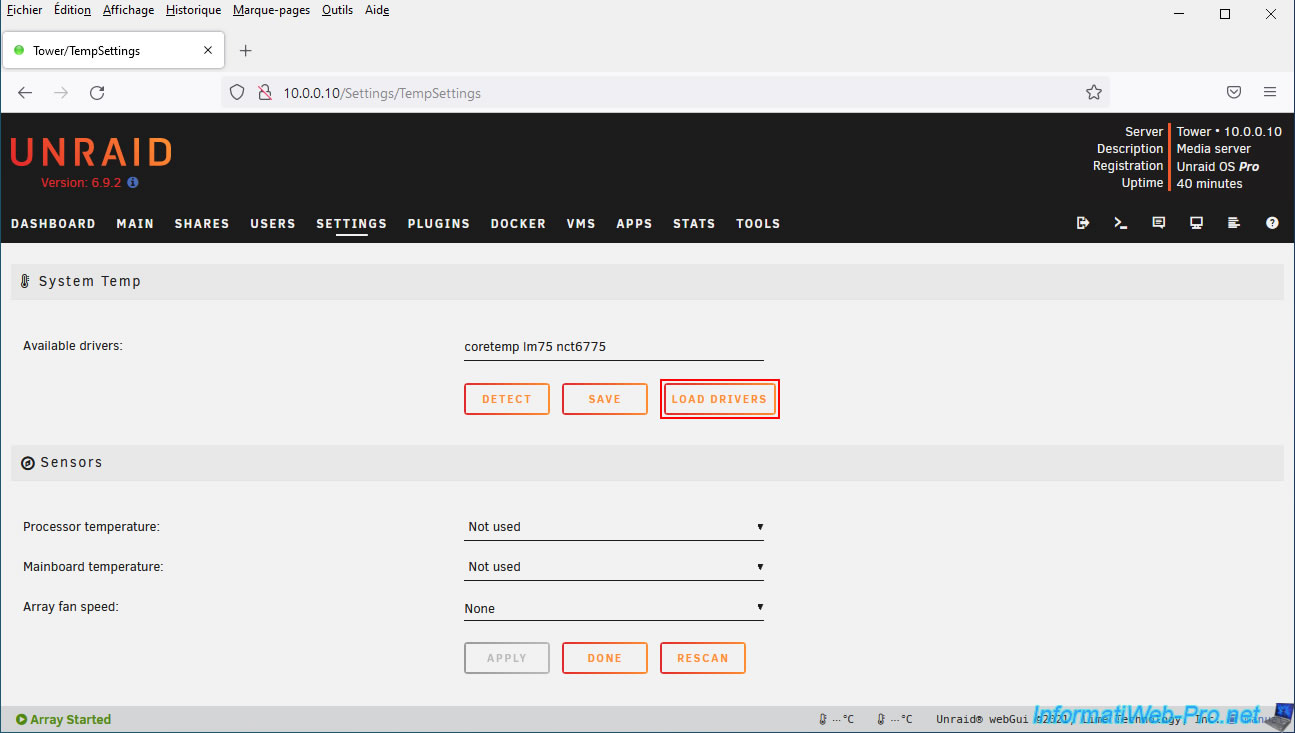
The drivers have been loaded.
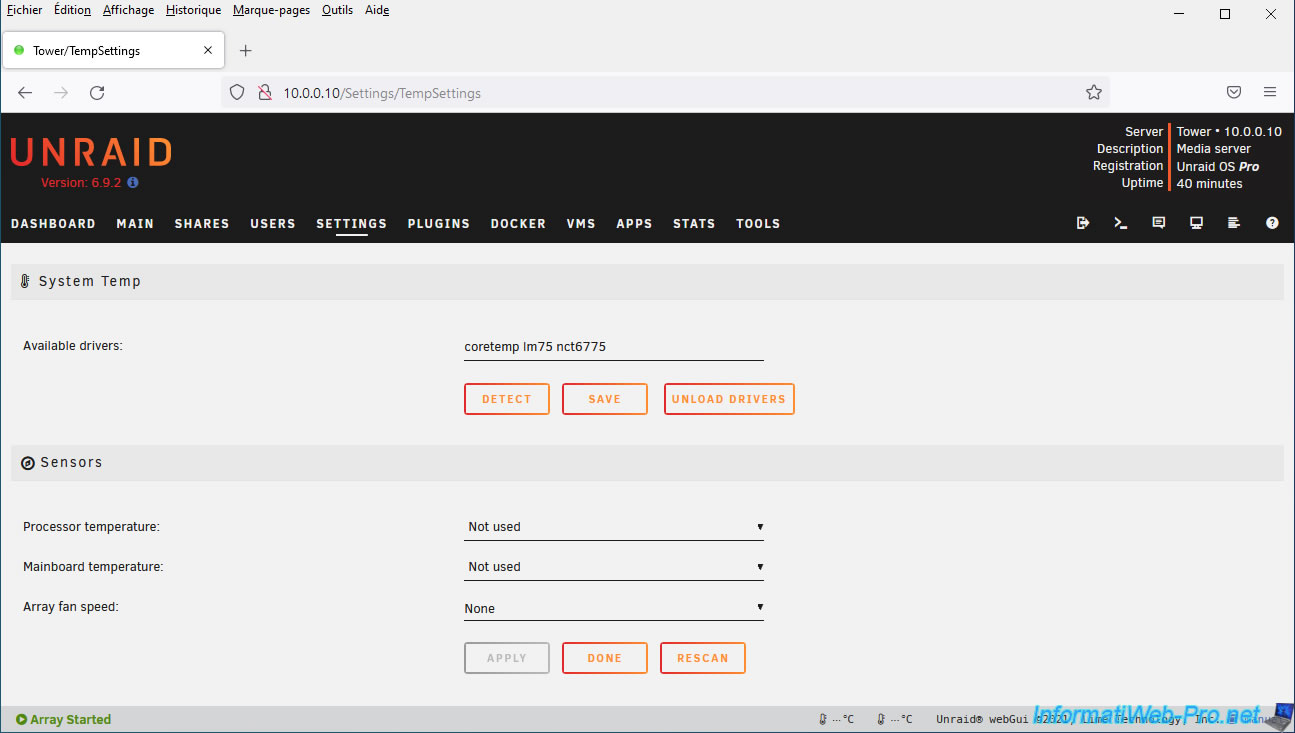
Now, choose the temperature data you prefer to monitor for each component.
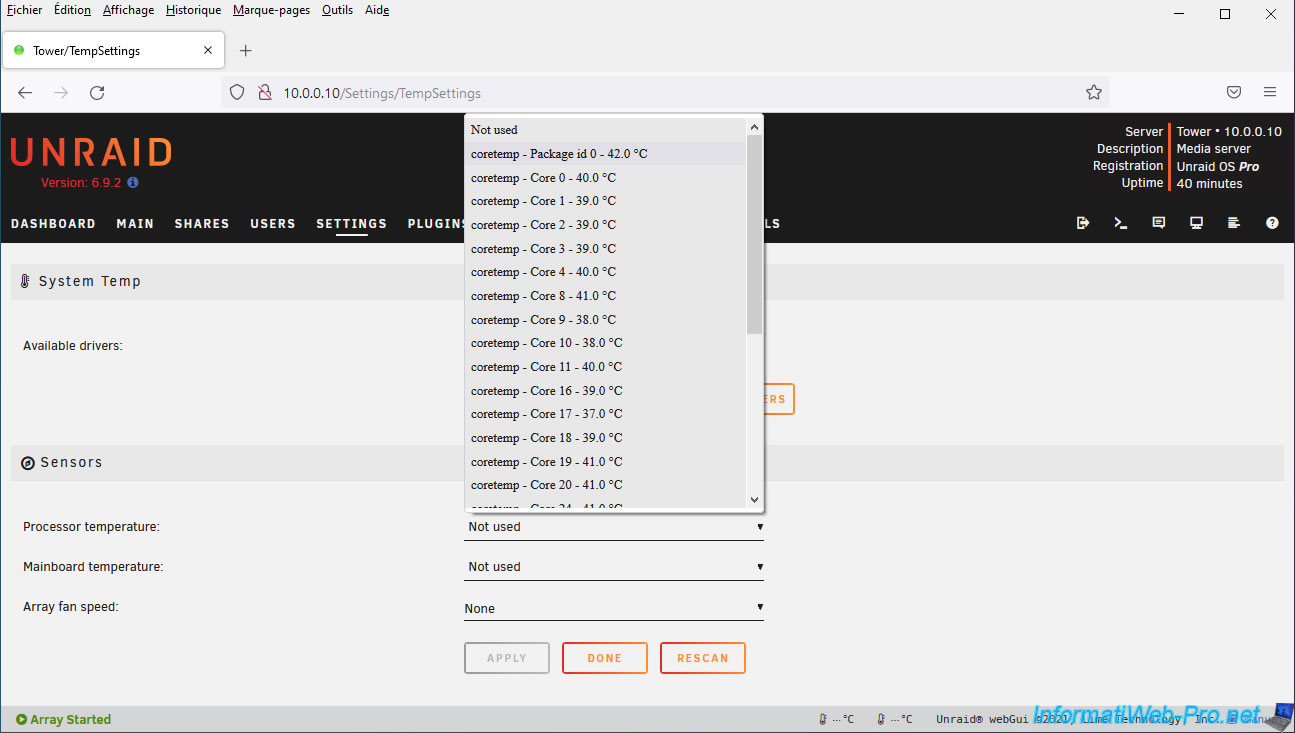
To begin, choose the data to monitor for the processor temperature.
In our case, we have the choice between the temperature of the entire processor (coretemp - Package id 0) and the temperature of each core of that processor (coretemp - Core x).
So, we selected the data "coretemp - Package id 0".
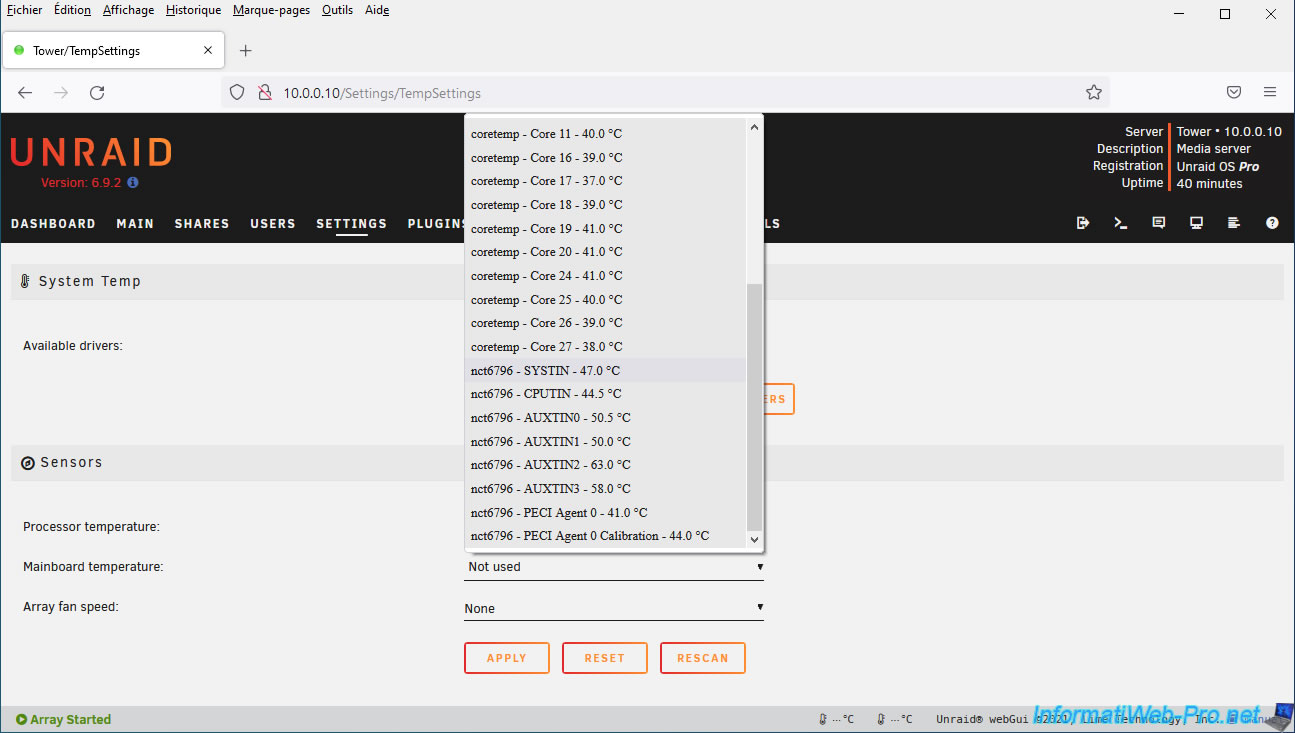
For the motherboard temperature, we have the choice between:
- nct6796 - SYSIN: this most likely corresponds to the motherboard temperature sensor.
- nct6796 - CPUTIN: this roughly corresponds to the temperature of your processor (CPU). Although the sensor isn't exactly in the same location as the CPU temperature sensor itself.
- and more.
For more information, consult your motherboard manual.
Finally, you can display the speed of one of your fans (Array fan speed).
However, they may not all appear. It also depends on whether you've connected them directly to your computer/server's motherboard or to a fan hub (such as the "Nexus+ 2 fan hub" in our "Define 7 XL Dark" case).
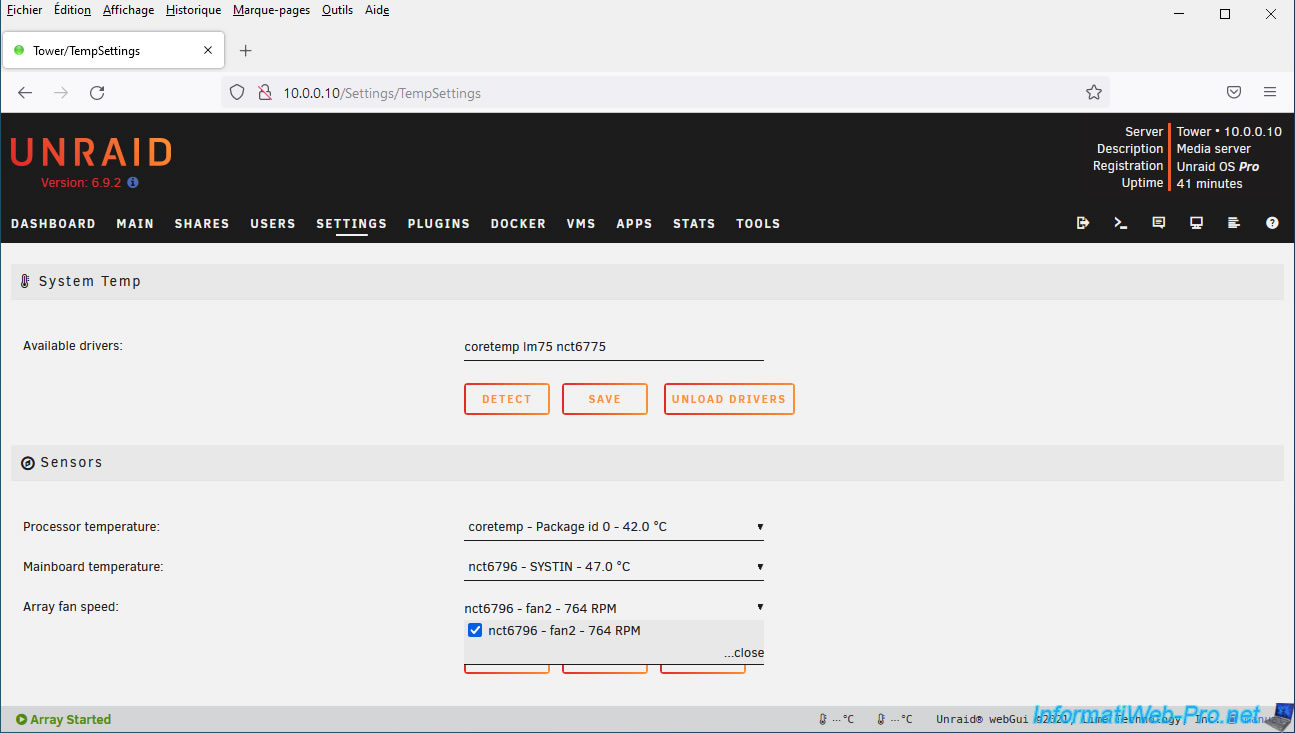
Once you have chosen the different probes, click on Apply.
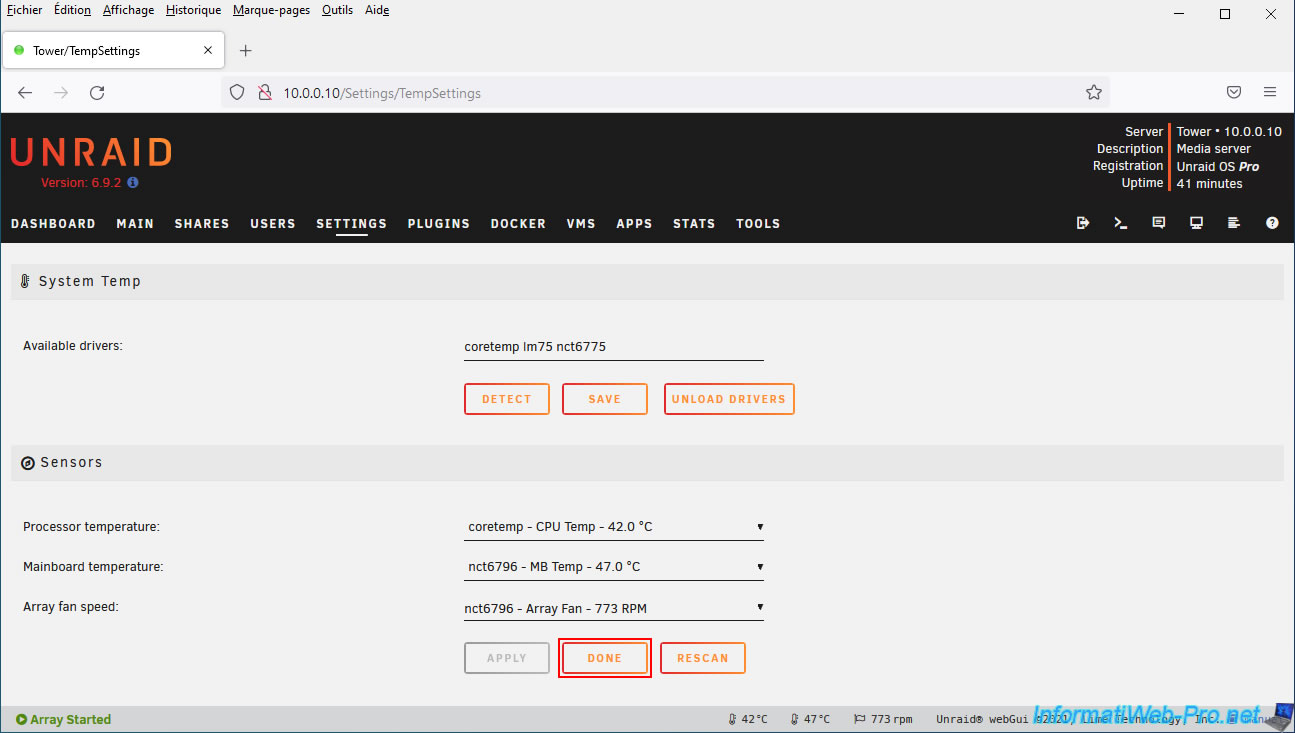
Note that once you apply these changes, the selected probes will change names and will appear as "CPU Temp" and "MB Temp" in particular.
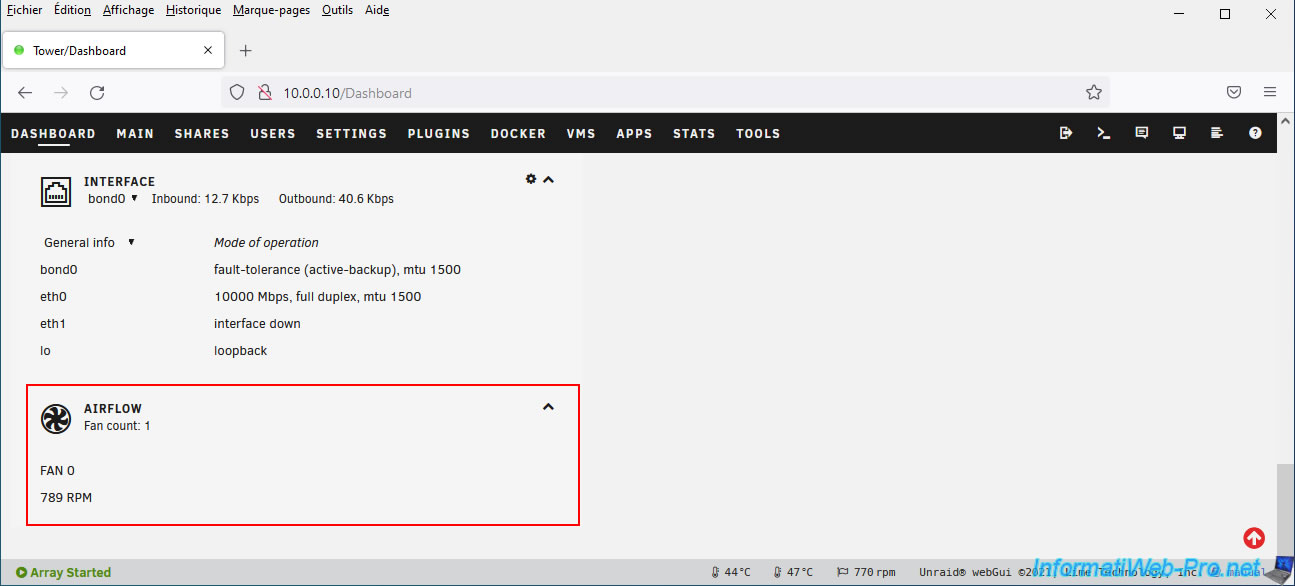
In the "Dashboard" tab of your Unraid server, you will see a new "Airflow" section appear with the speed of your fan(s).
5. Dynamix System Buttons (add buttons for common system actions)
Finally, here's a small plugin that will allow you to add an icon to the top right of the Unraid web interface to make it easier to access basic actions (shutdown, sleep, ...).
To do this, search for the "Dynamix System Buttons" plugin and install it.
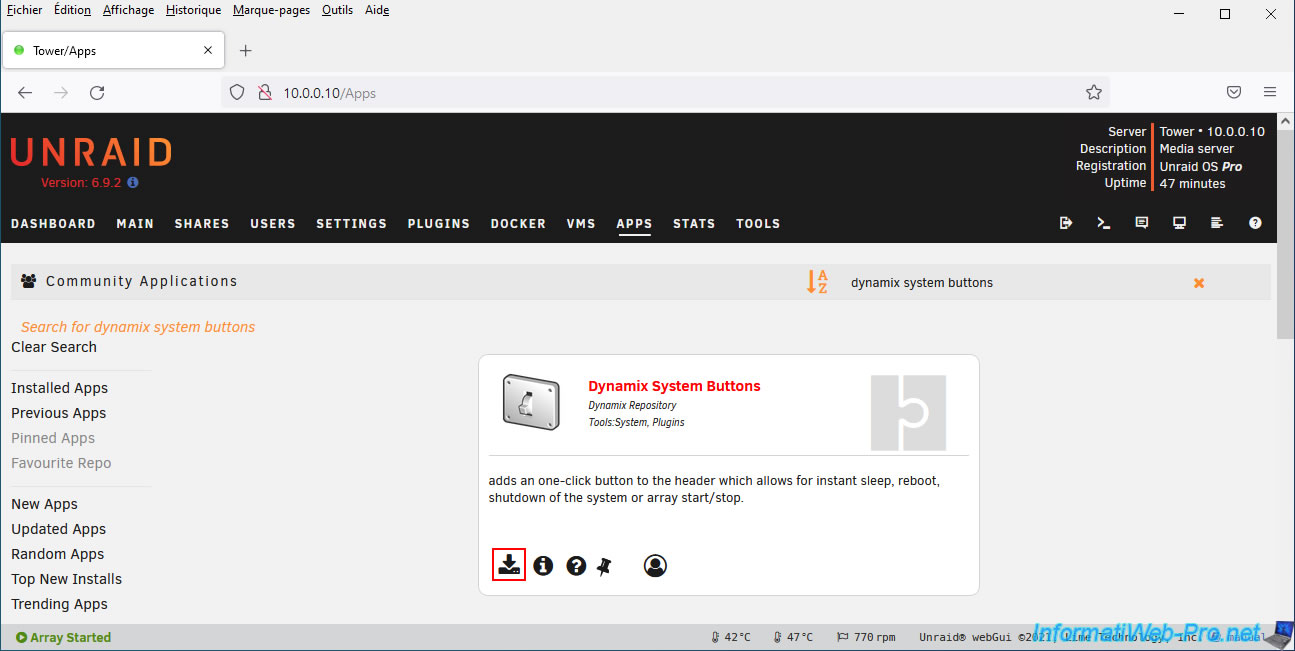
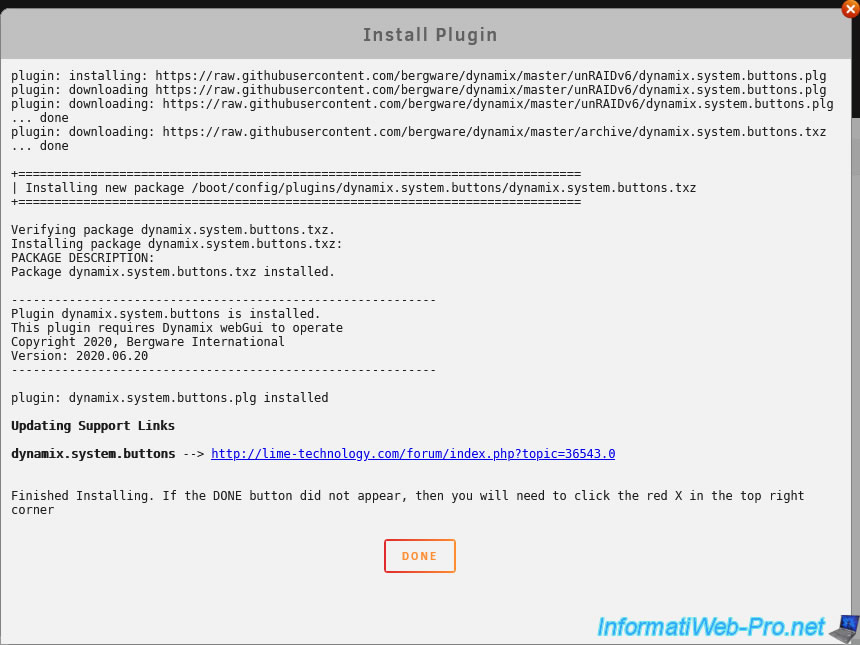
Please wait while this plugin "Dynamix System Buttons" is downloaded and installed, then click Done.
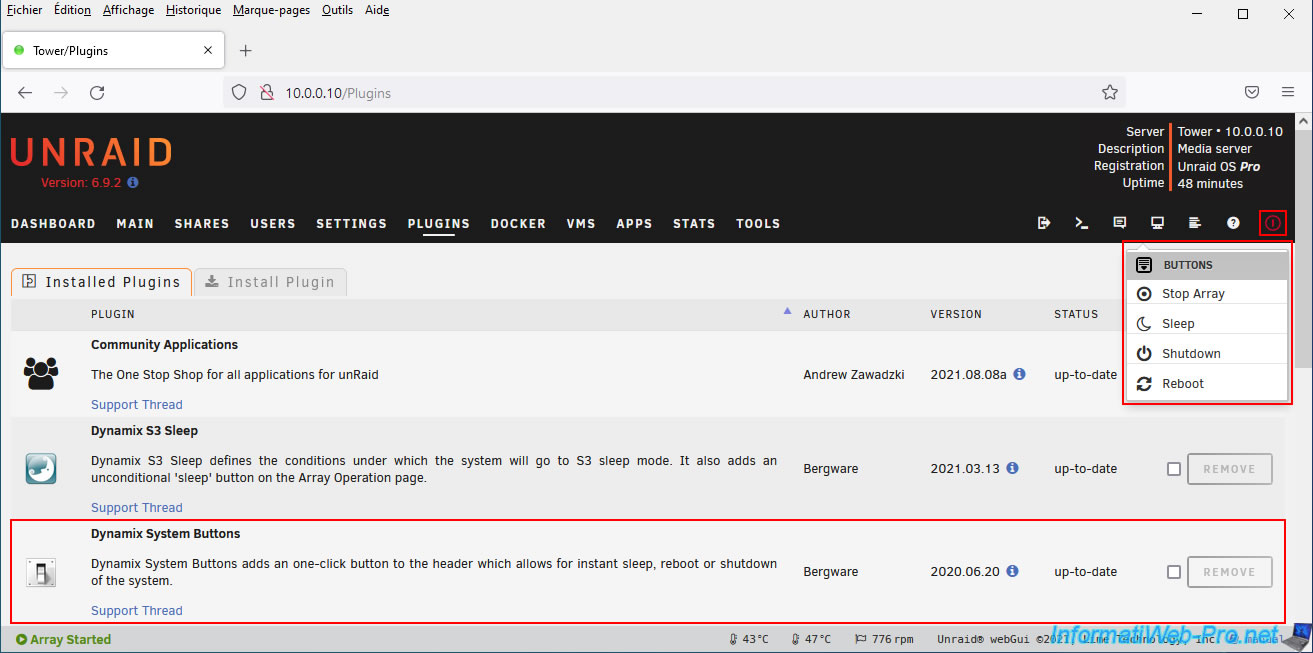
Once the "Dynamix System Buttons" plugin is installed, you'll see it appear in Unraid's "Plugins" tab.
You'll also see a red icon appear in the top right corner with several options for:
- Start/Stop Array: start or stop the array
- Sleep: put your server to sleep (if the "Dynamix S3 Sleep" plugin is also installed, otherwise this option will not appear)
- Shutdown: shut down your server
- Reboot: restart your server
Share this tutorial
To see also
-
NAS 4/23/2026
Unraid 6.9.2 - Docker - Install a media server (Plex)
-

NAS 1/21/2026
Unraid 6.9.2 - Replace a storage disk
-

NAS 10/1/2026
Unraid 6.9.2 - VMs - Create a gaming virtual machine (with an eGPU)
-

NAS 8/5/2026
Unraid 6.9.2 - VMs - Manage your VMs with virt-manager (on Debian)
No comment