Install a file explorer (CloudCommander) on Unraid 6.9.2 via Docker
- NAS
- Unraid
- 01 April 2026 at 09:31 UTC
-

- 2/2

4. Move a file on Unraid via Cloud Commander
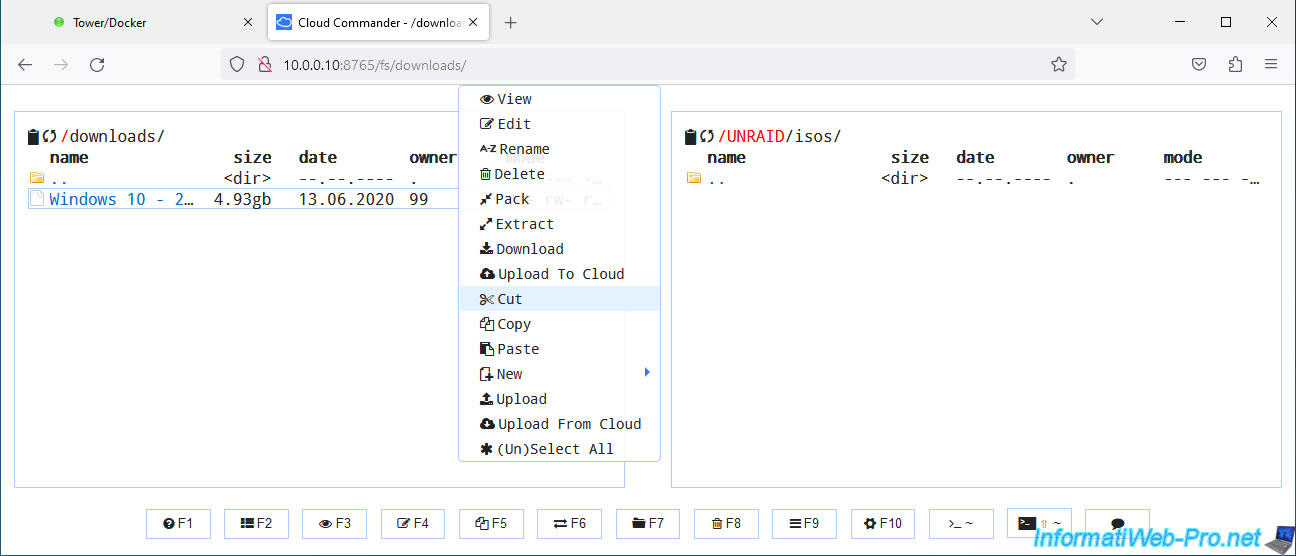
To move a file or folder to your Unraid server using Cloud Commander, navigate to the source folder on the left and the destination folder on the right.
Next, right-click "Cut" on the file you want to move.
Note: to copy a file instead of moving it, simply choose "Copy" instead of "Cut".
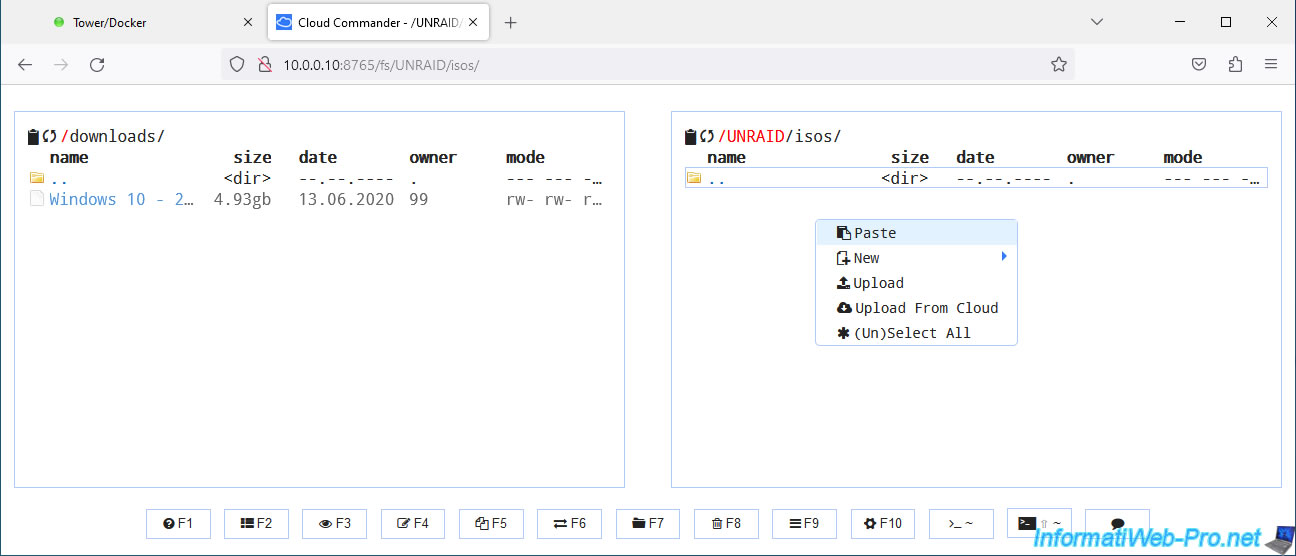
Then, right-click "Paste" on the other side into an empty space in the destination folder.
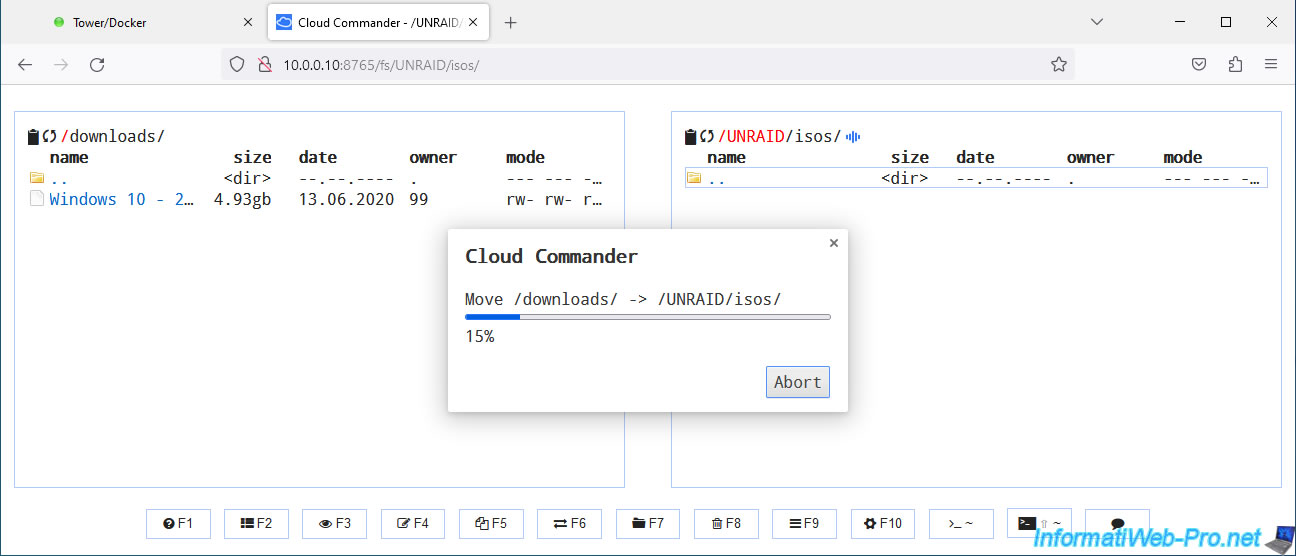
A "Cloud Commander" window will appear so you can see the progress of moving the desired file or folder.
Plain Text
Move /downloads/ -> /UNRAID/isos
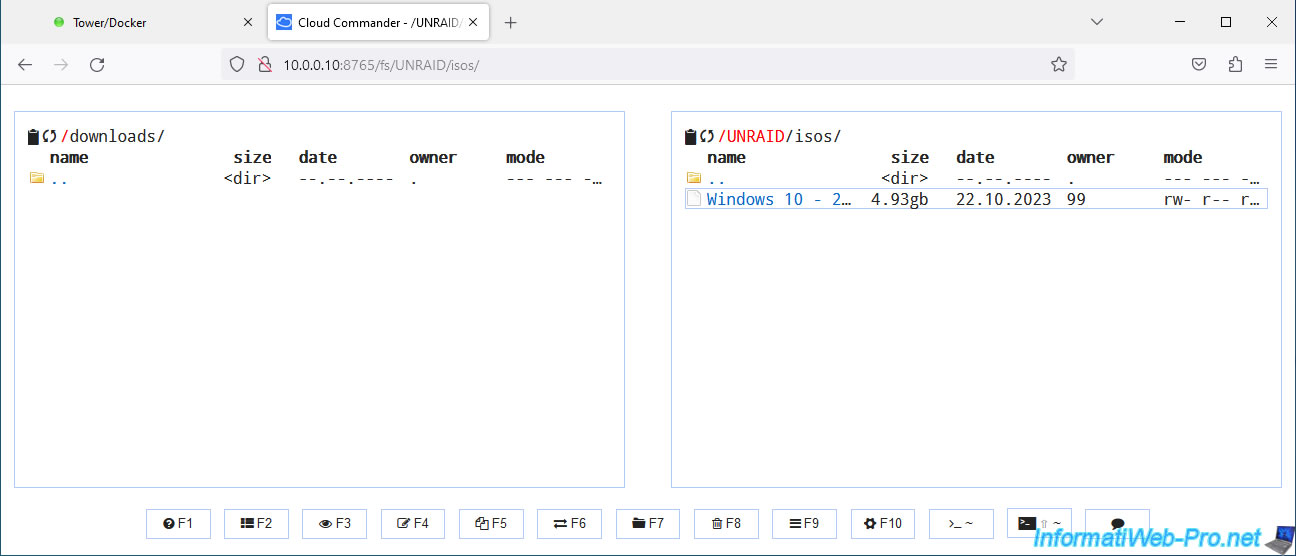
The desired file or folder has been moved.
5. Upload a file to your Unraid server
To add a file to your Unraid server via a simple web browser, go to the desired folder and right-click "Upload" in the empty space.
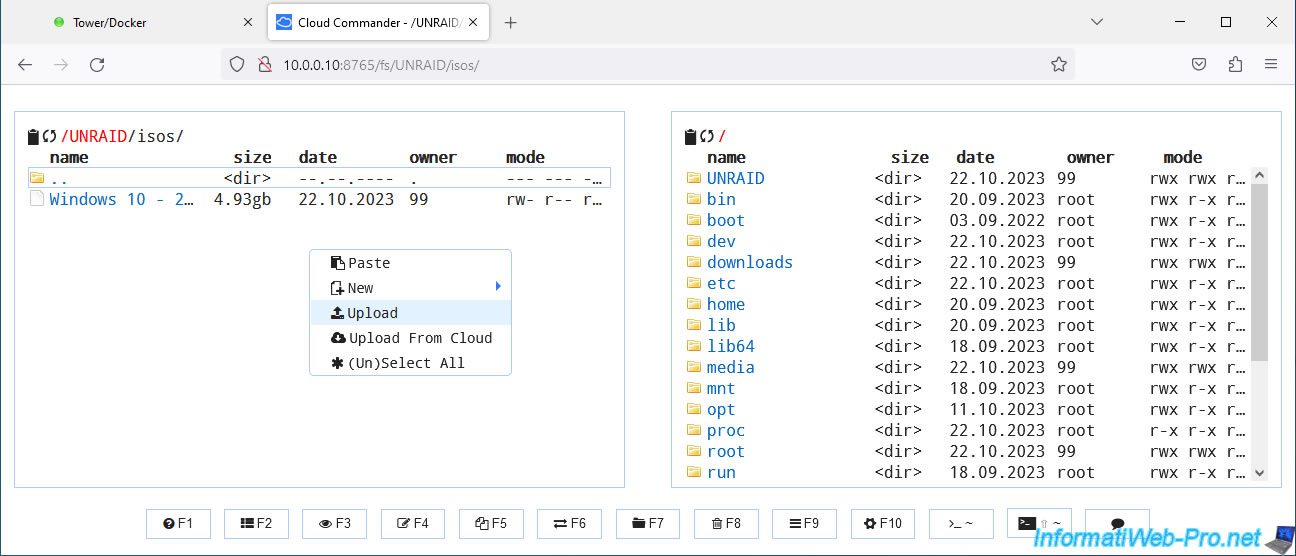
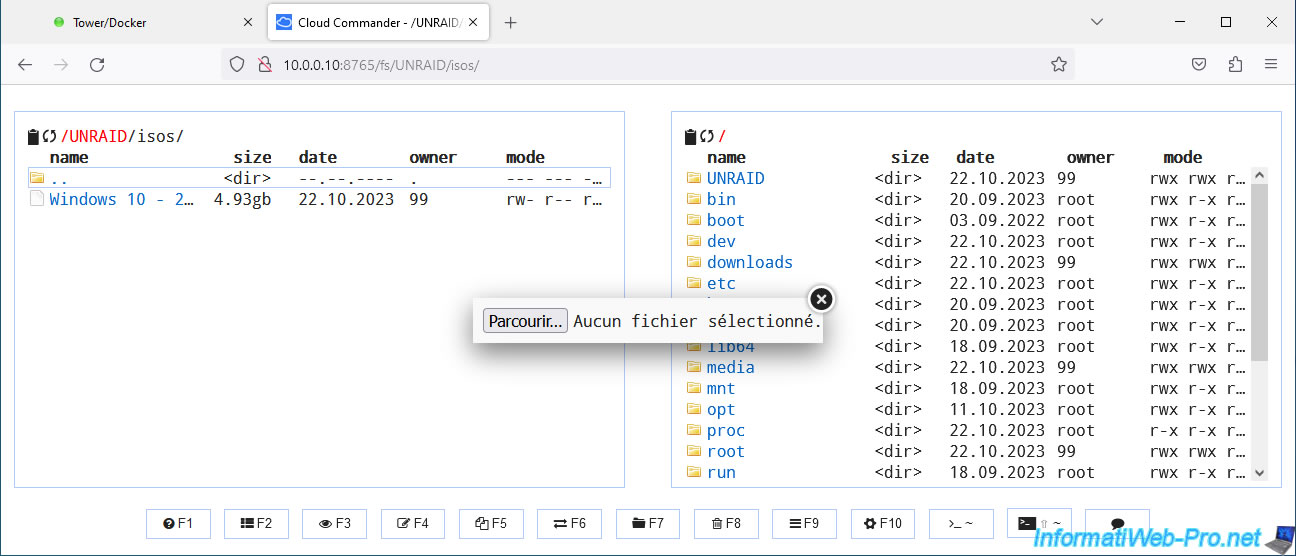
Click "Browse".
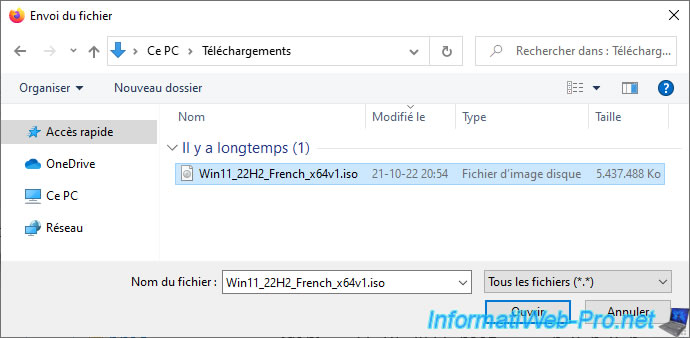
Select the desired file on your computer and click Open.
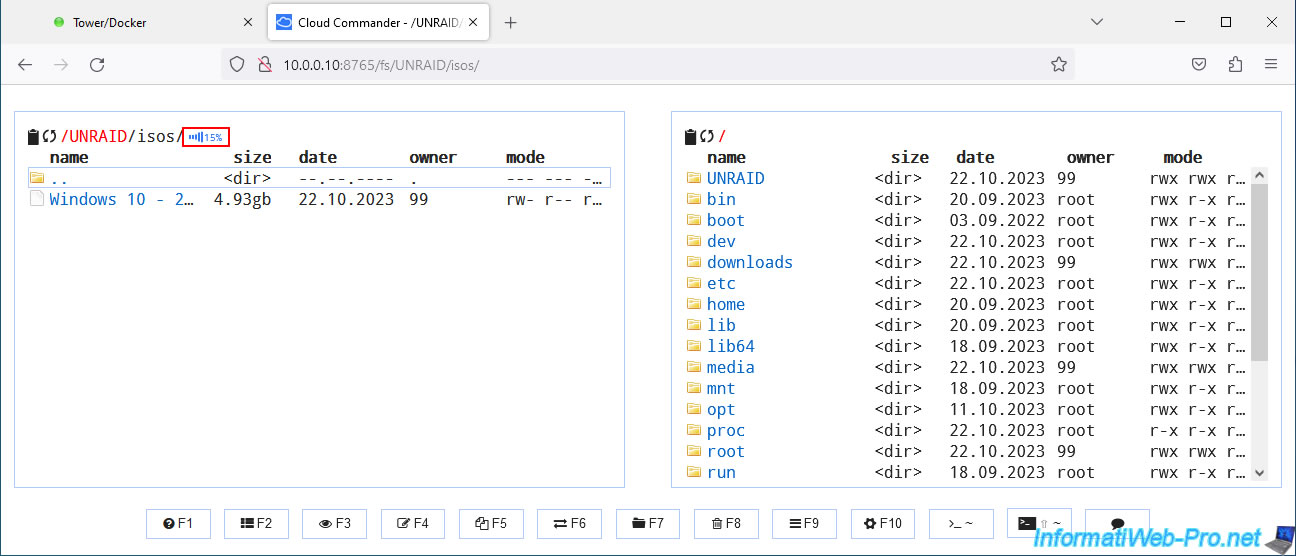
While sending the file, you will see the progress appear very small next to the folder path.
Once the file has been uploaded, the file will appear in the folder.
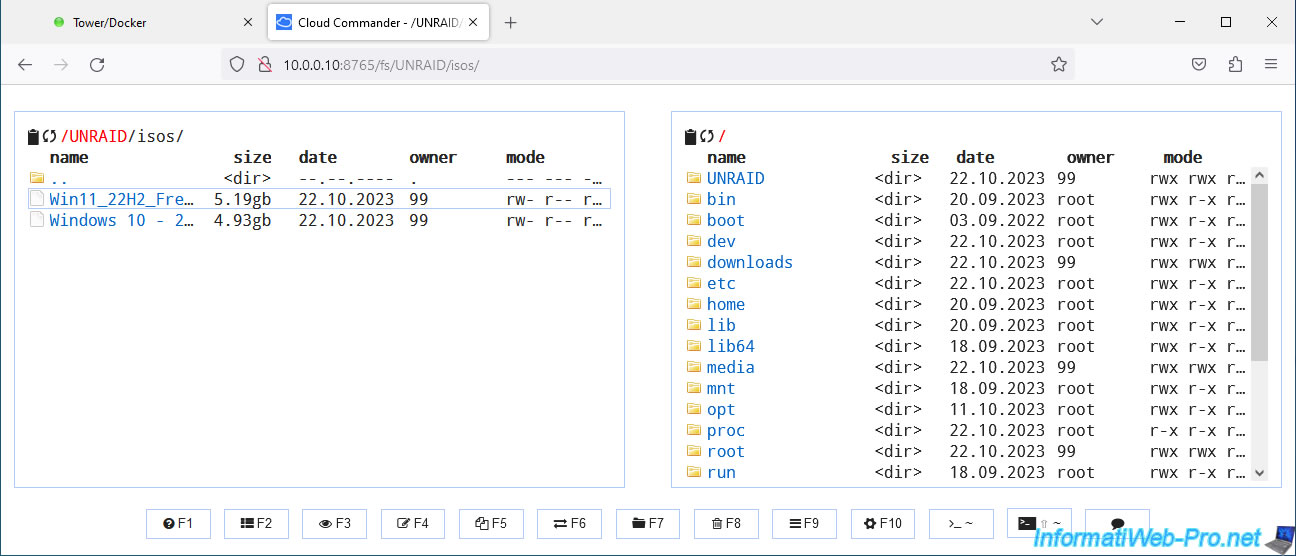
6. Download a file from your Unraid server
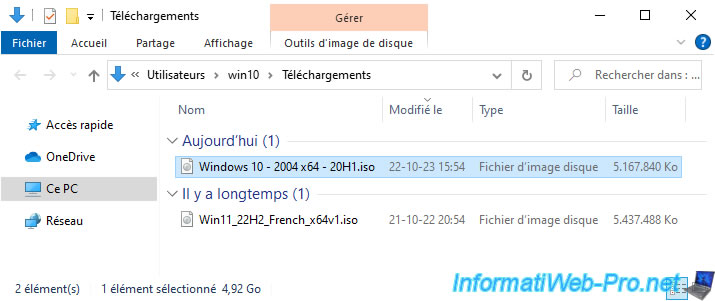
To download a file from your Unraid server (to your computer), simply right-click "Download" on the desired file.
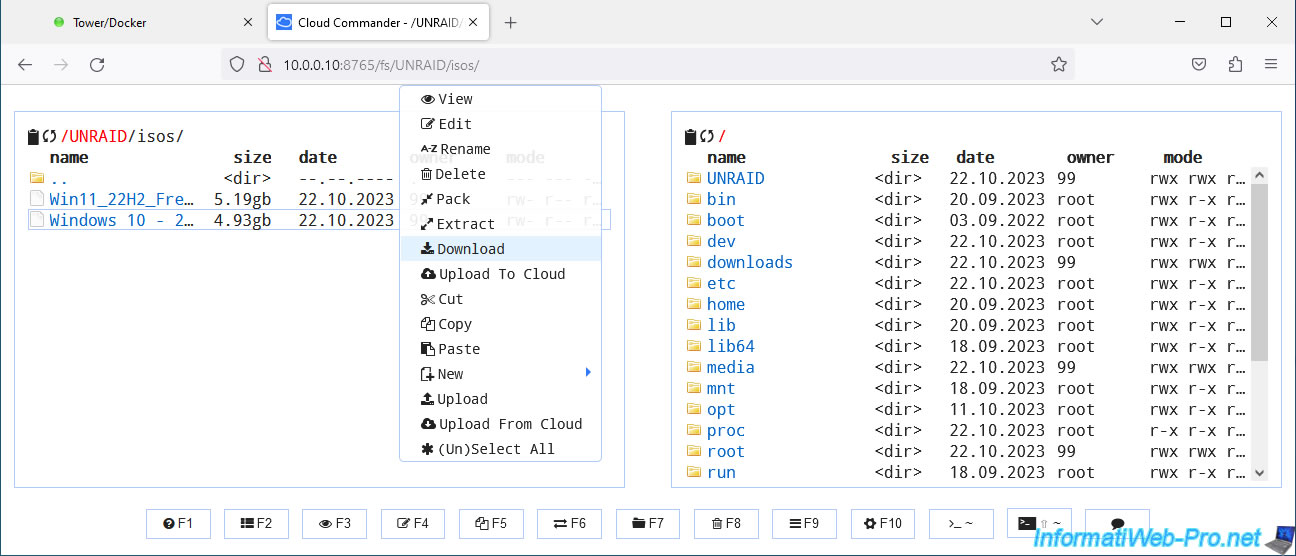
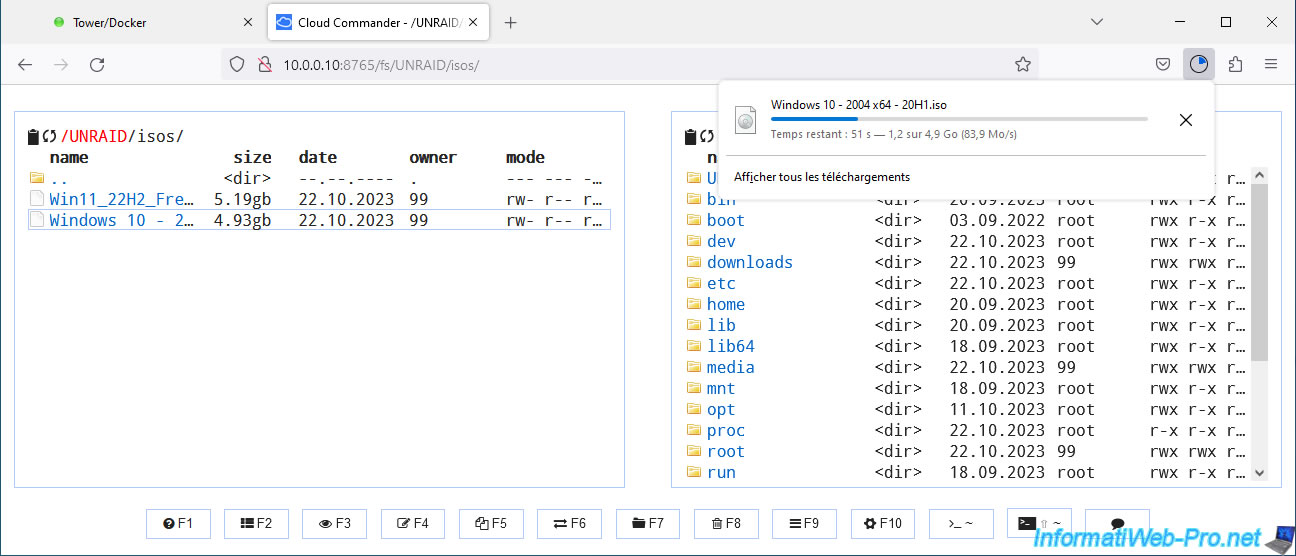
The file will be downloaded by your web browser as you would with any other website.
The file has been downloaded.
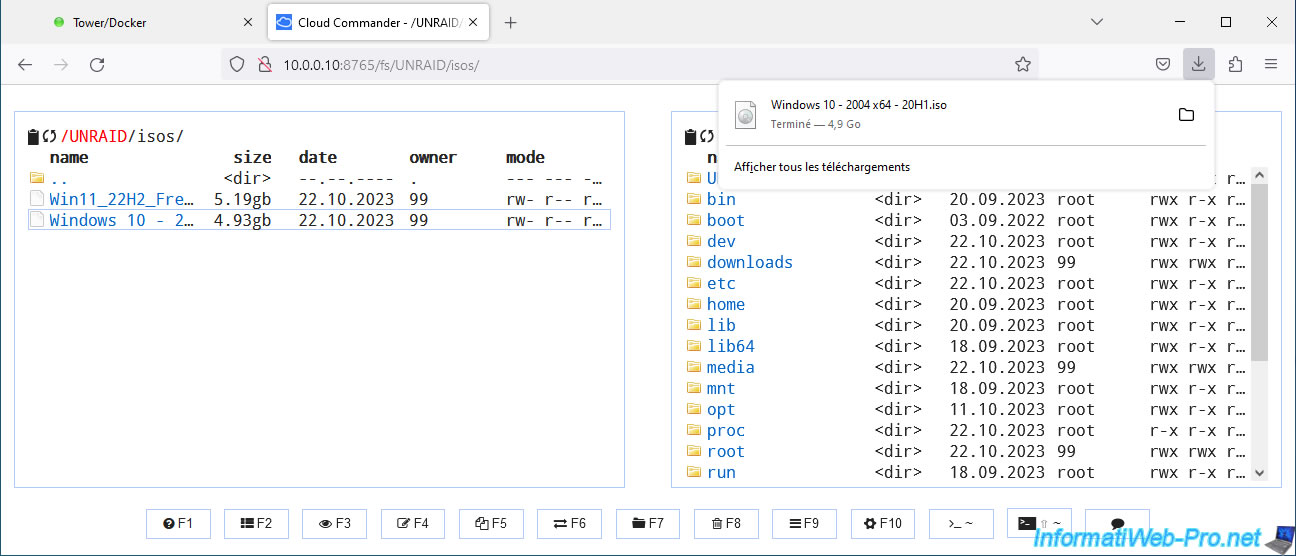
This is therefore present on your computer.
7. Access the Unraid console via Cloud Commander
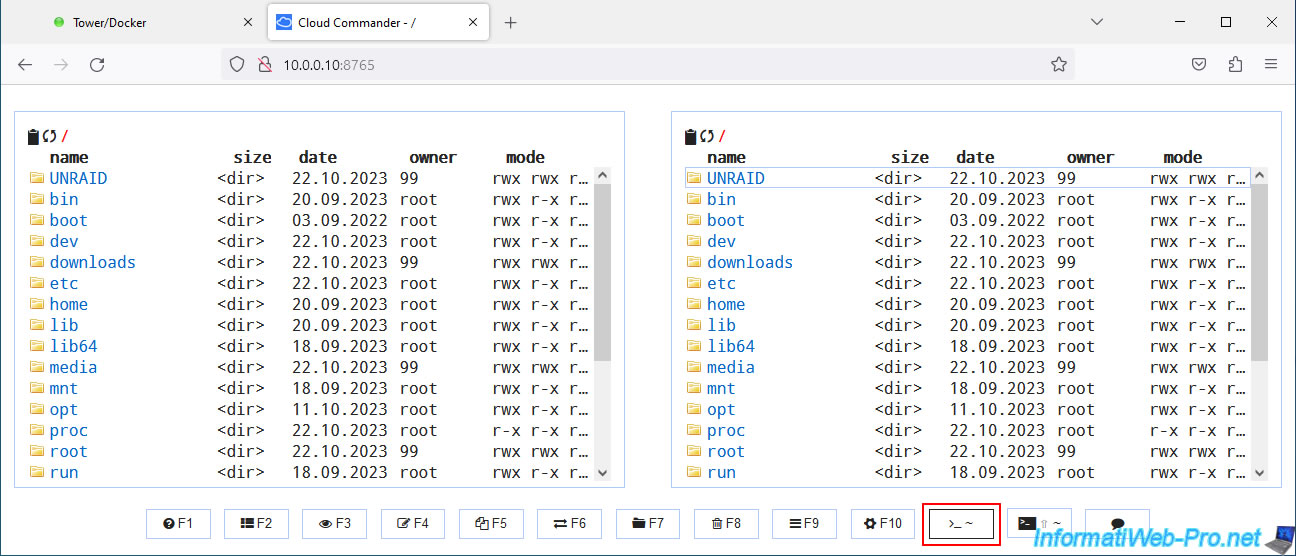
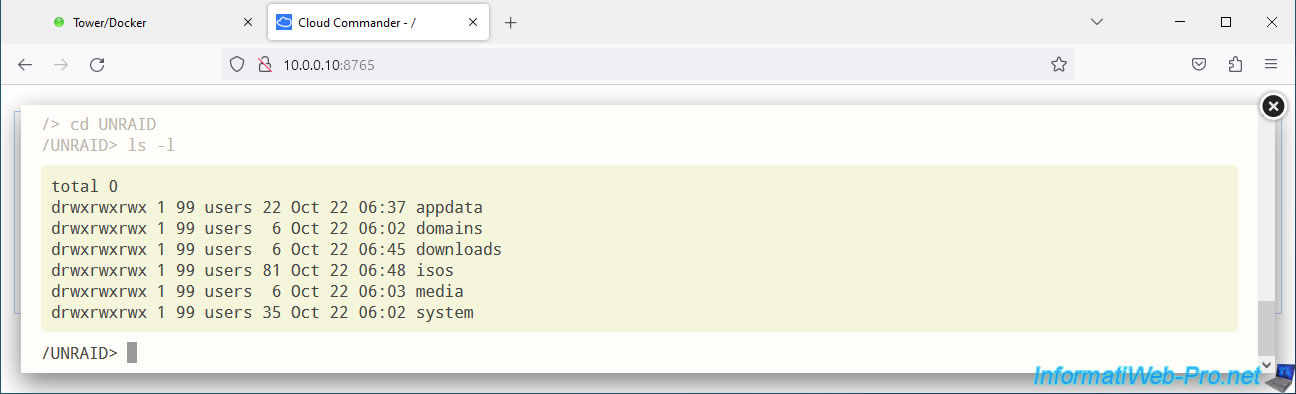
With Cloud Commander, you can run command lines through the console.
To do this, click on the ">_ ~" button located at the bottom right of the window.
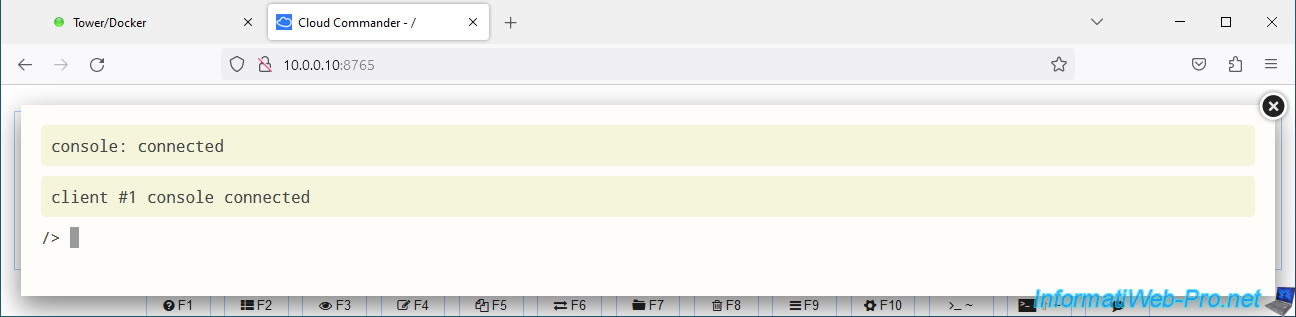
Using the Cloud Commander console, you can manage your Unraid server from the command line if you wish.
Note that the file system available on the command line is the one visible to Cloud Commander and not to the Unraid server.
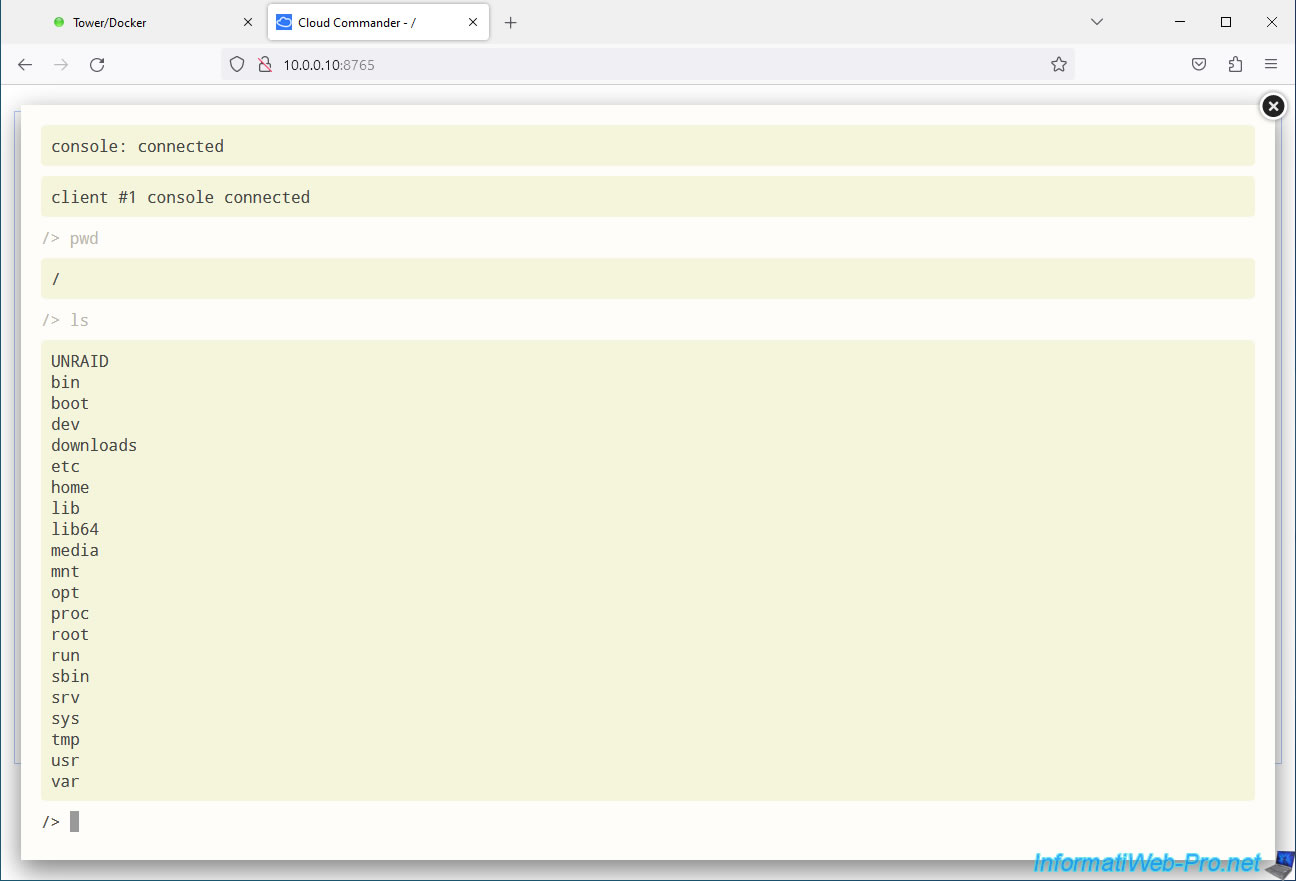
From this console, you can therefore access the "UNRAID" folder accessible by Cloud Commander and list its contents by typing the commands:
Bash
cd UNRAID
ls -l
8. Protect the Cloud Commander interface with a password
Currently, the Cloud Commander web interface is publicly accessible without authentication.
To prevent anyone with network access from being able to modify the files on your server, we recommend that you protect the Cloud Commander web interface with a username and password.
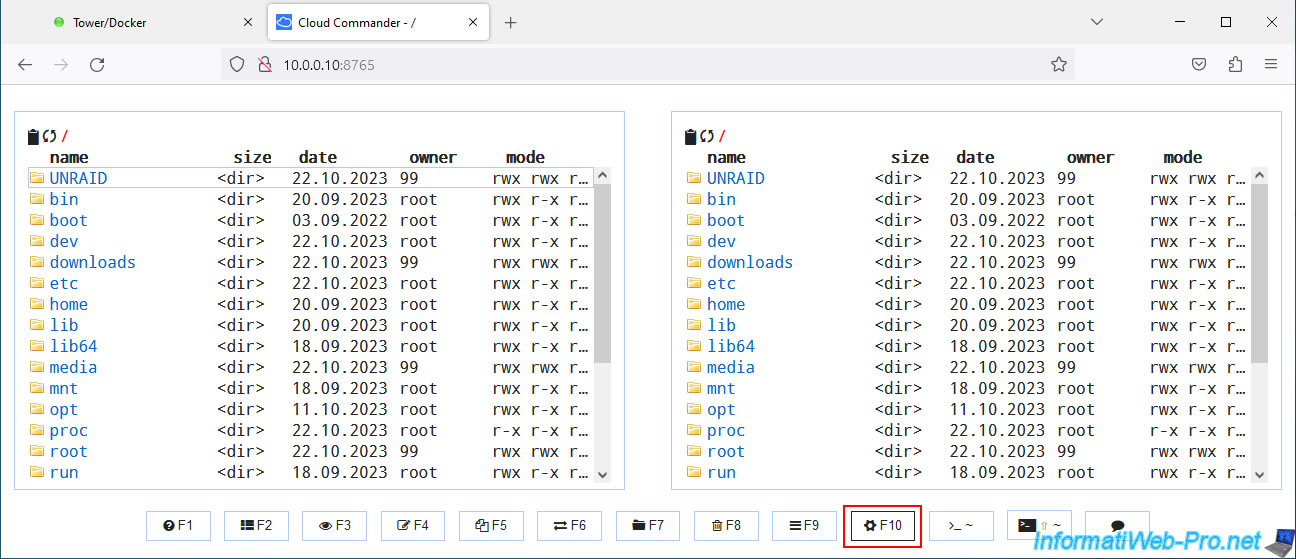
To do this, click on the gear icon (F10).
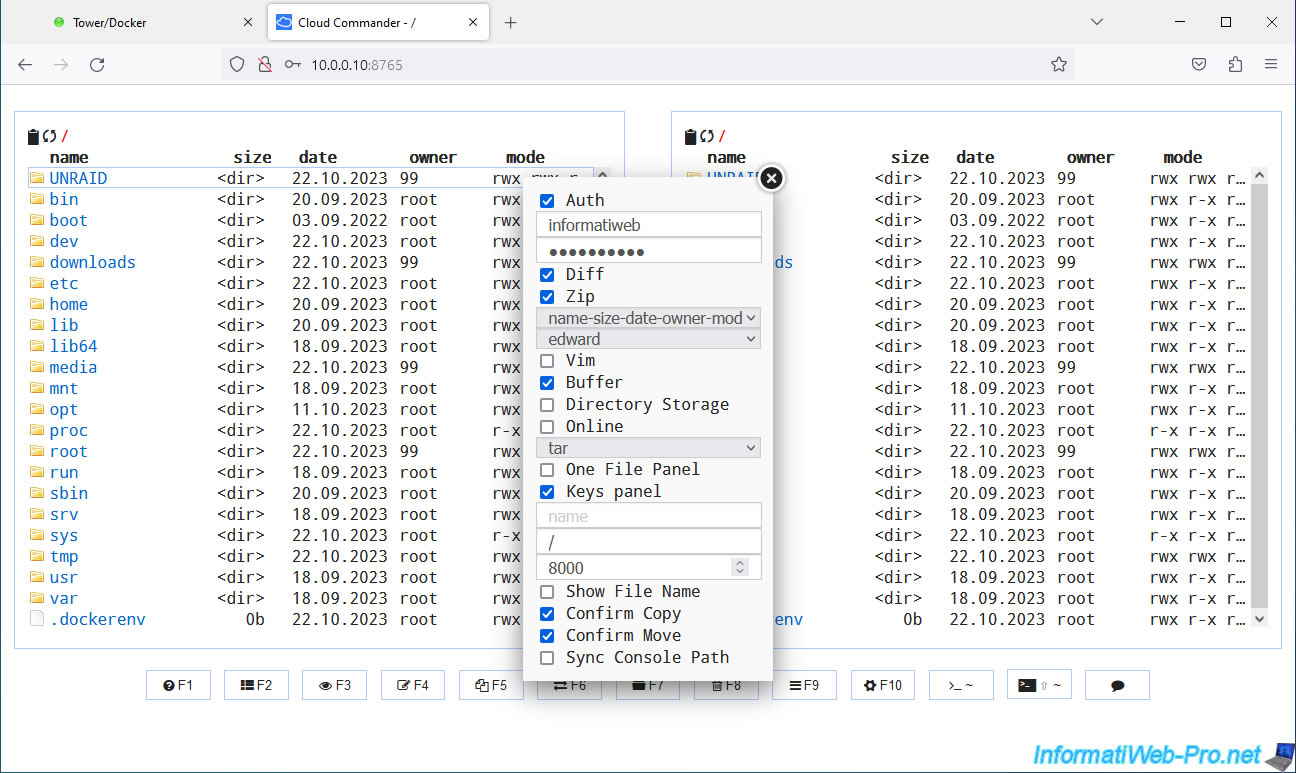
Check the "Auth" box and specify :
- a username
- a password
Then, click on the cross to close the settings window.
Note: these are values local to Cloud Commander. So this has nothing to do with the users of your Unraid server.
Now, your web browser will ask you to log in with a username and password.
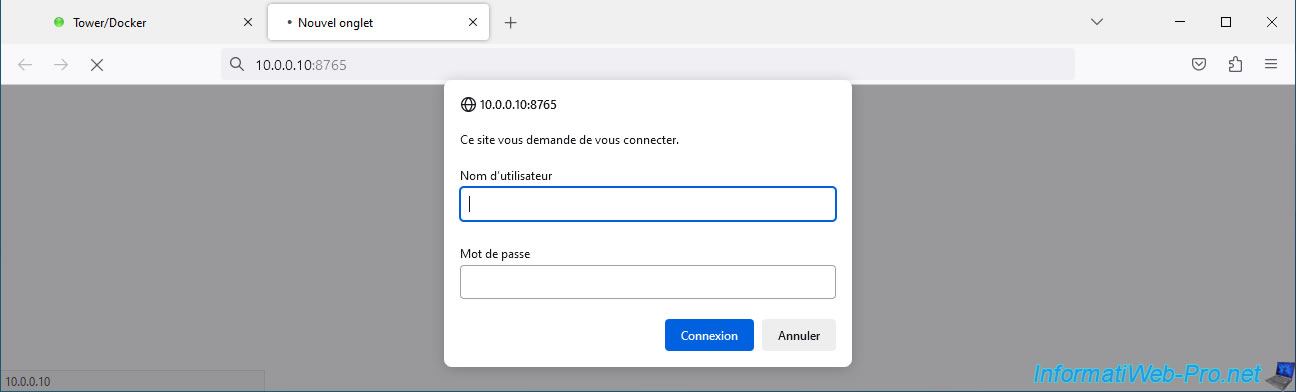
In our case, we indicated "informatiweb" as the username and a password.
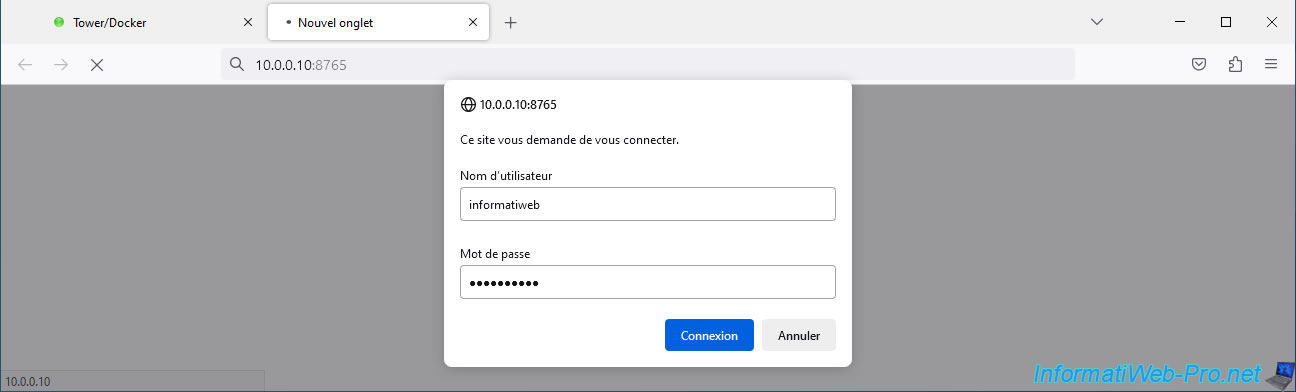
If the credentials are correct, the Cloud Commander interface will appear.
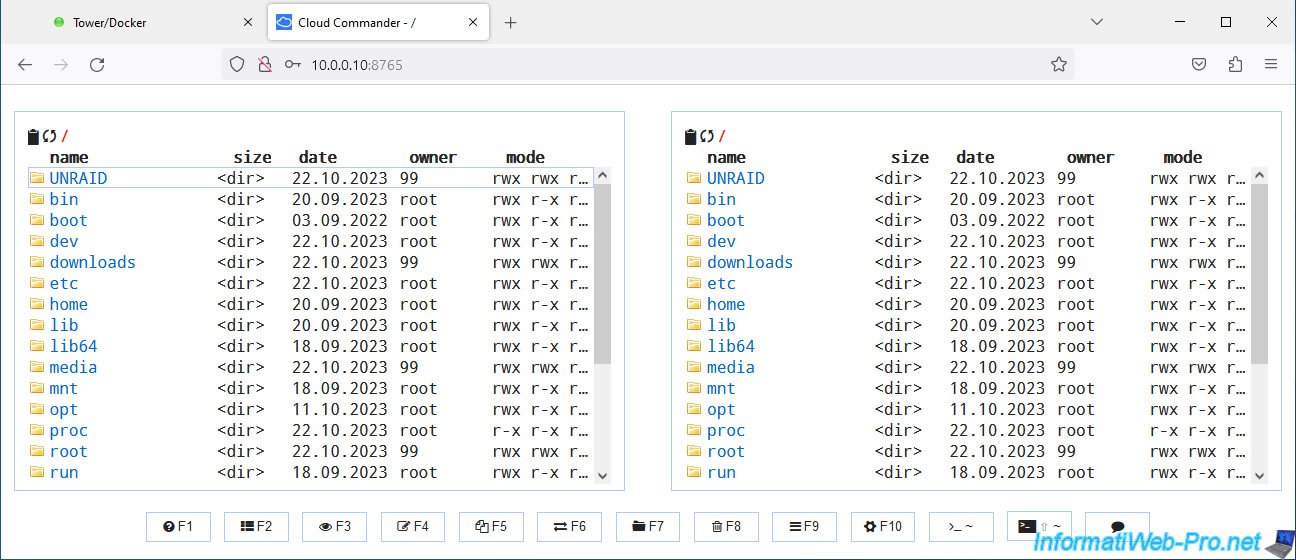
Otherwise, you will only see the "401 Unauthorized" error message appear.

Share this tutorial
To see also
-
NAS 1/30/2026
Unraid 6.9.2 - Create shares (network / user)
-
NAS 5/13/2026
Unraid 6.9.2 - SWAG - Locally access the reverse proxy (SWAG)
-
NAS 8/26/2026
Unraid 6.9.2 - VMs - Create a gaming virtual machine
-
NAS 9/23/2026
Unraid 6.9.2 - VMs - Hotplug USB devices (USB Manager plugin)
No comment