Install a file server (Nextcloud) on Unraid 6.9.2 via Docker
- NAS
- Unraid
- 15 April 2026 at 10:39 UTC
-

- 6/6

11. Contacts
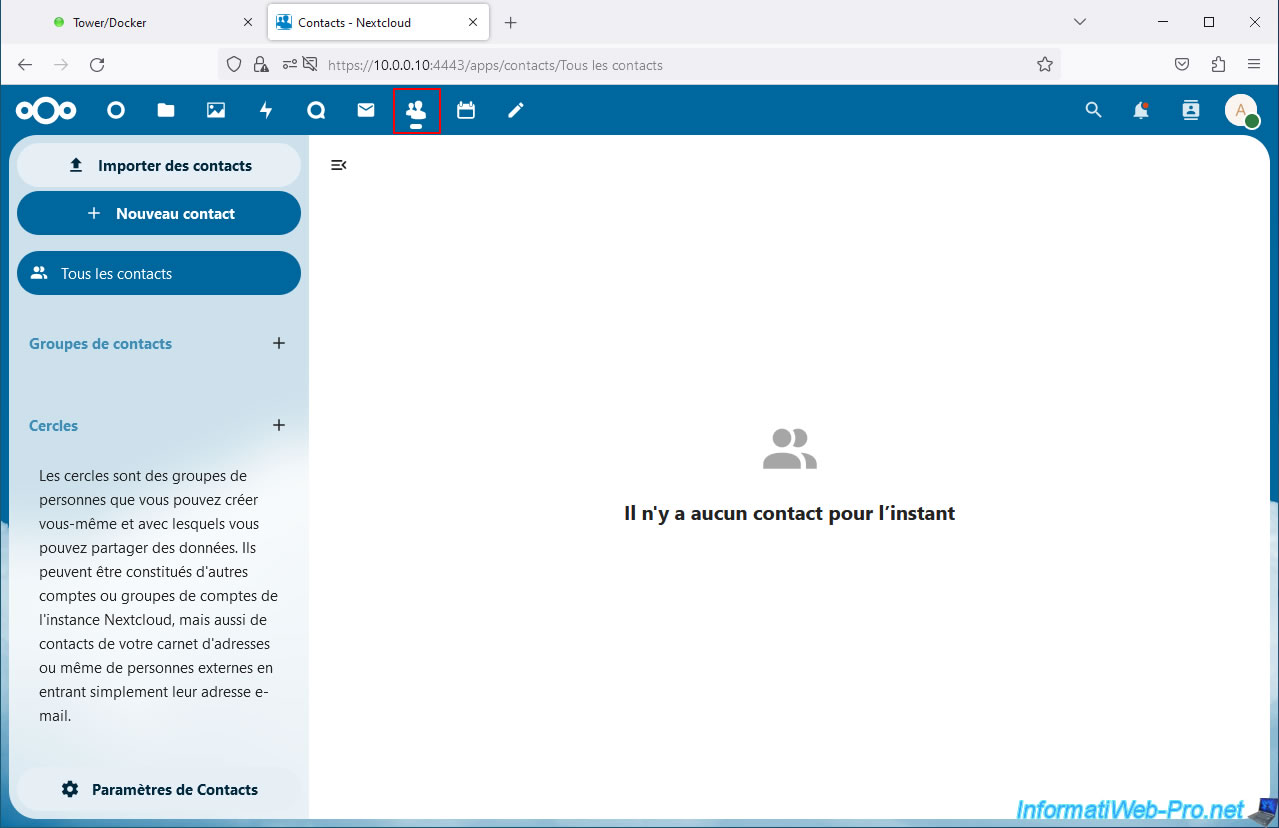
In the "Contacts" tab (whose icon represents a group of users), you can import contacts from a vCard file or create them manually by specifying their name, the company where they work, their telephone number, his email address, his physical address, ...
Note that these contacts can be users of your Nextcloud server, but also people external to your server.
12. Calendar
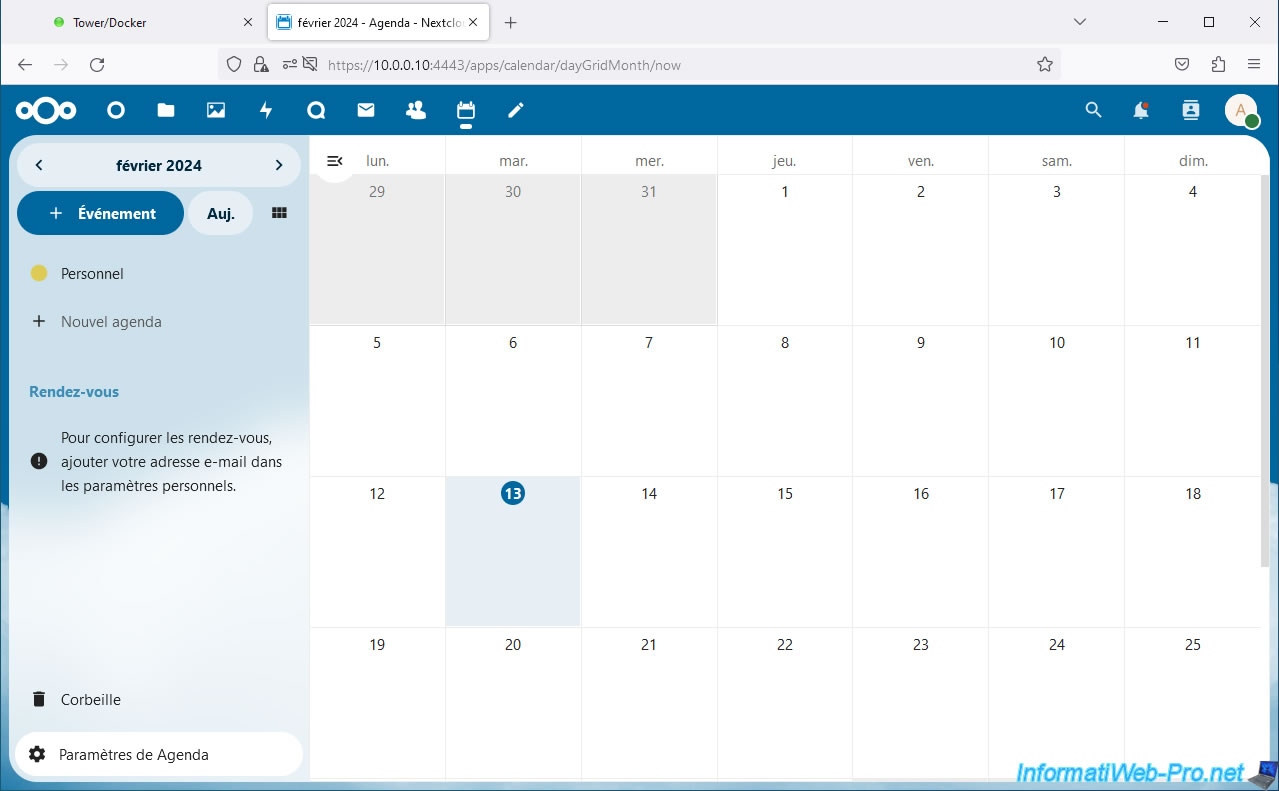
In the "Calendar" tab (whose icon represents a calendar), you can create additional calendars, as well as subscribe to an existing calendar using its link.
You can also subscribe to calendars showing public holidays in different countries.
13. Enable Nextcloud dark theme
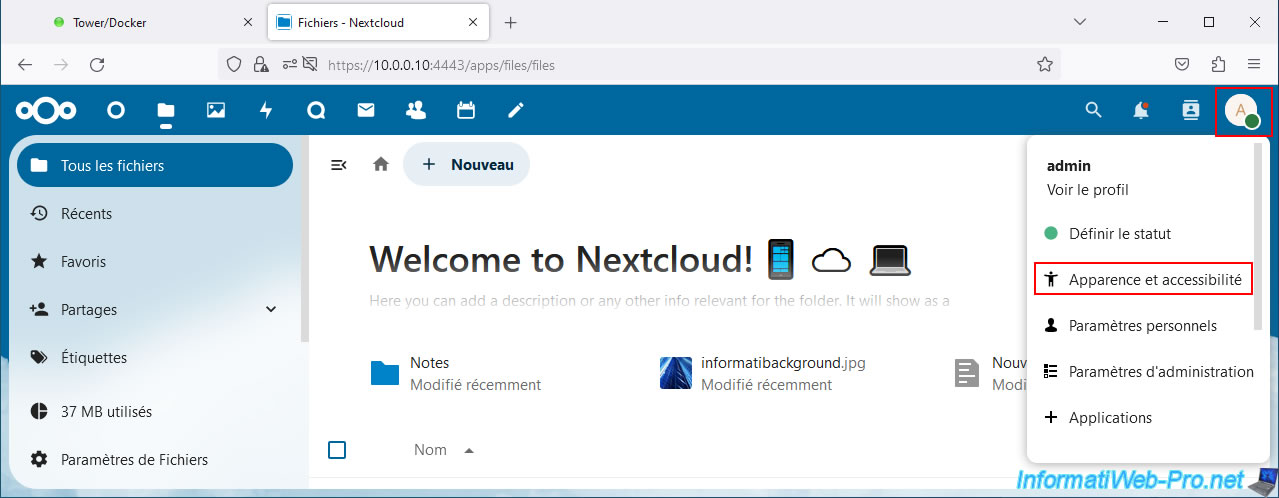
To use the Nextcloud dark theme, click the icon at the top right, then: Appearance and accessibility.
By default, Nextcloud uses the "System Default Theme" theme (which is therefore based on the one used on your computer).
In our case, Nextcloud therefore currently appears with a white background.
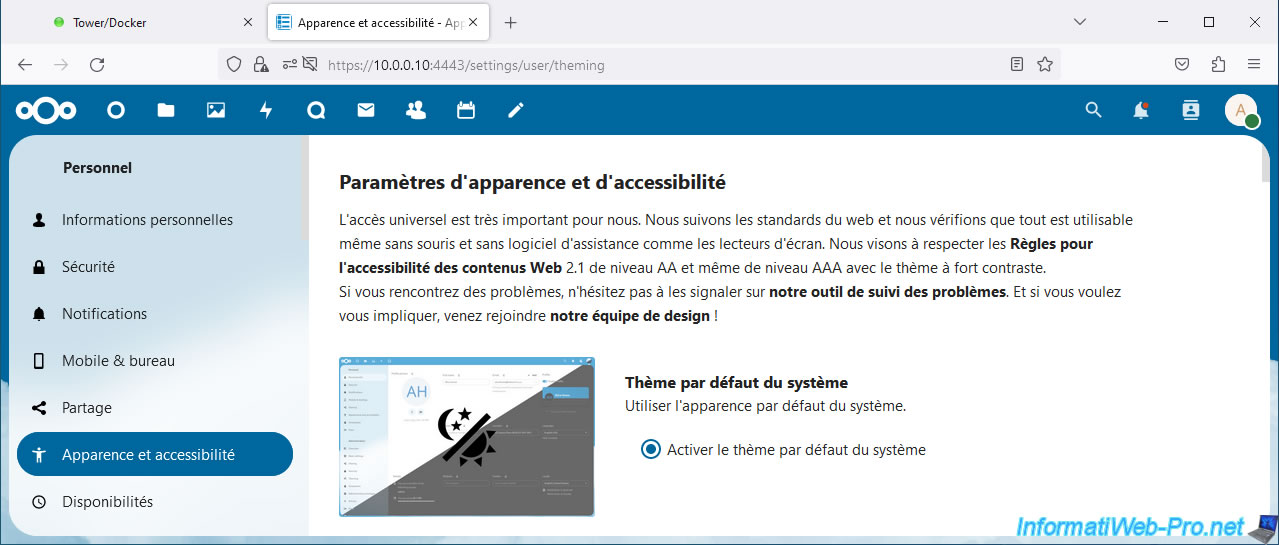
Scroll down a bit and select "Enable Dark Theme".
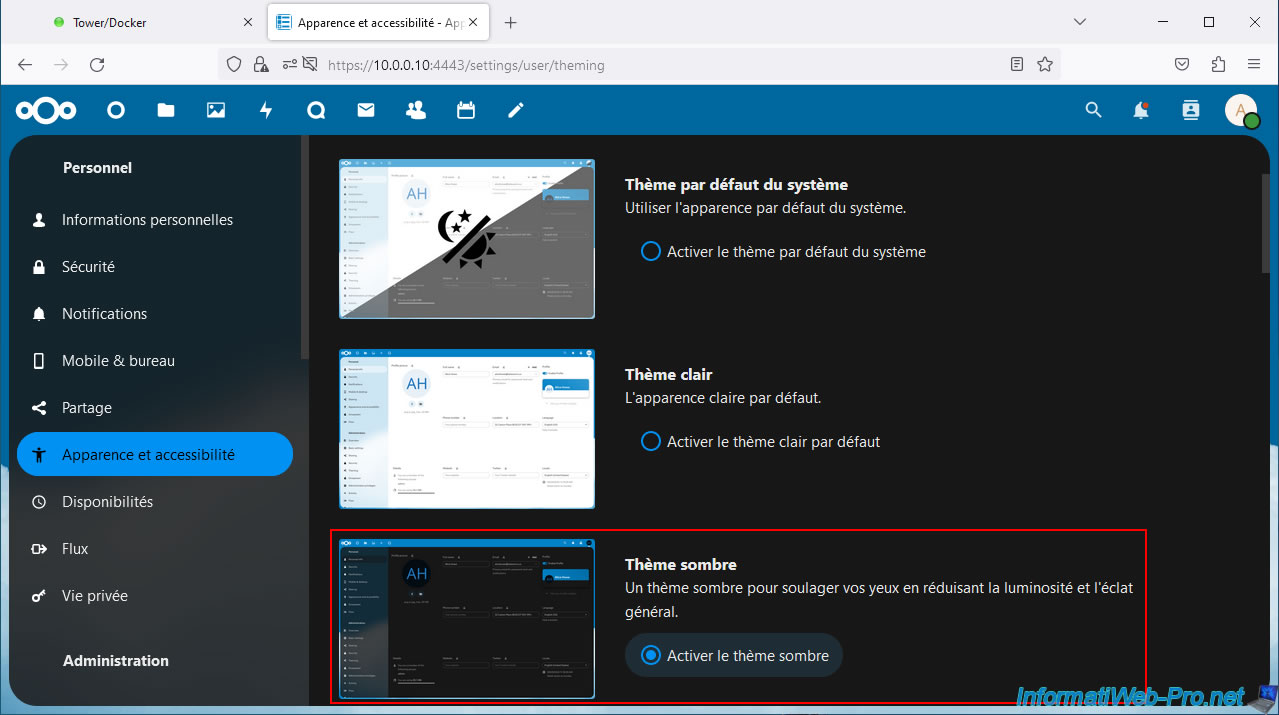
This is what Nextcloud looks like with its dark theme.
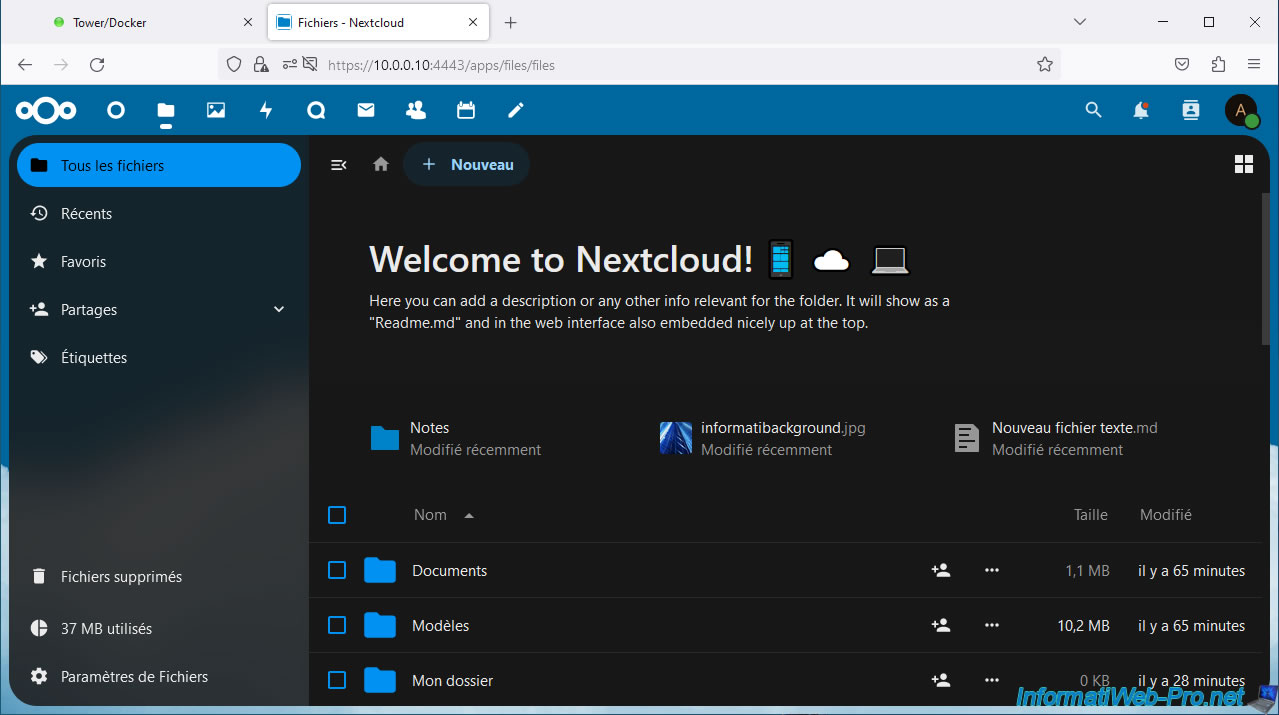
14. Customize the Nextcloud web interface
If you wish, you have the possibility to very easily customize the Nextcloud web interface by changing the Nextcloud logo, wallpaper and/or main color with your own images and your own color.
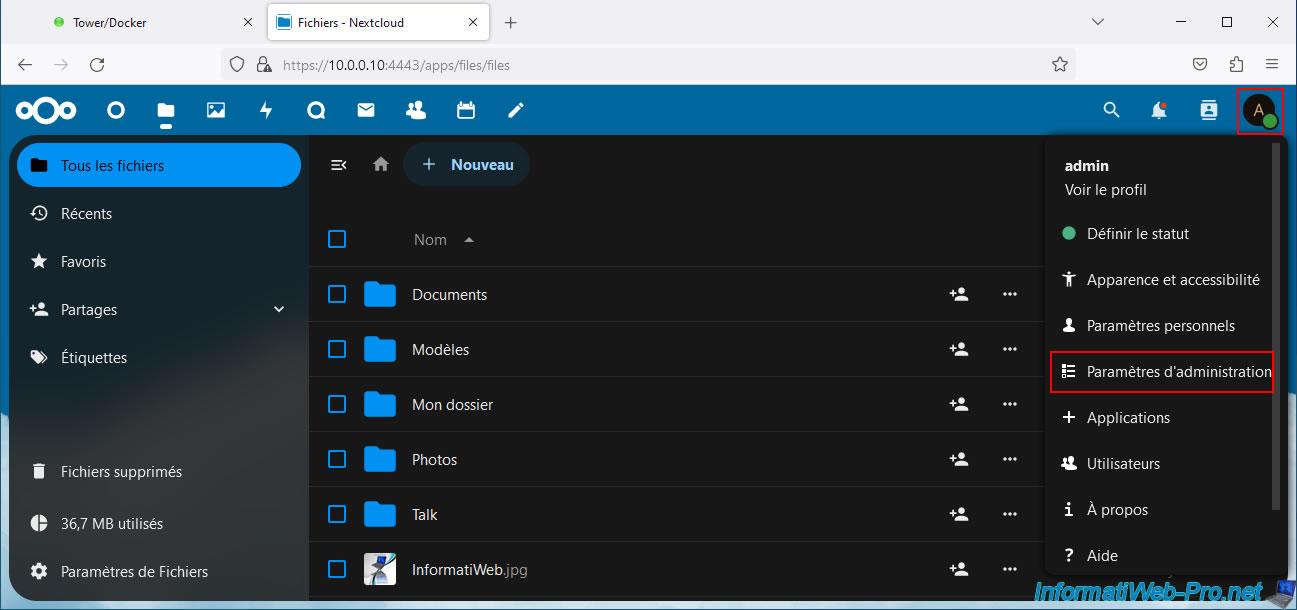
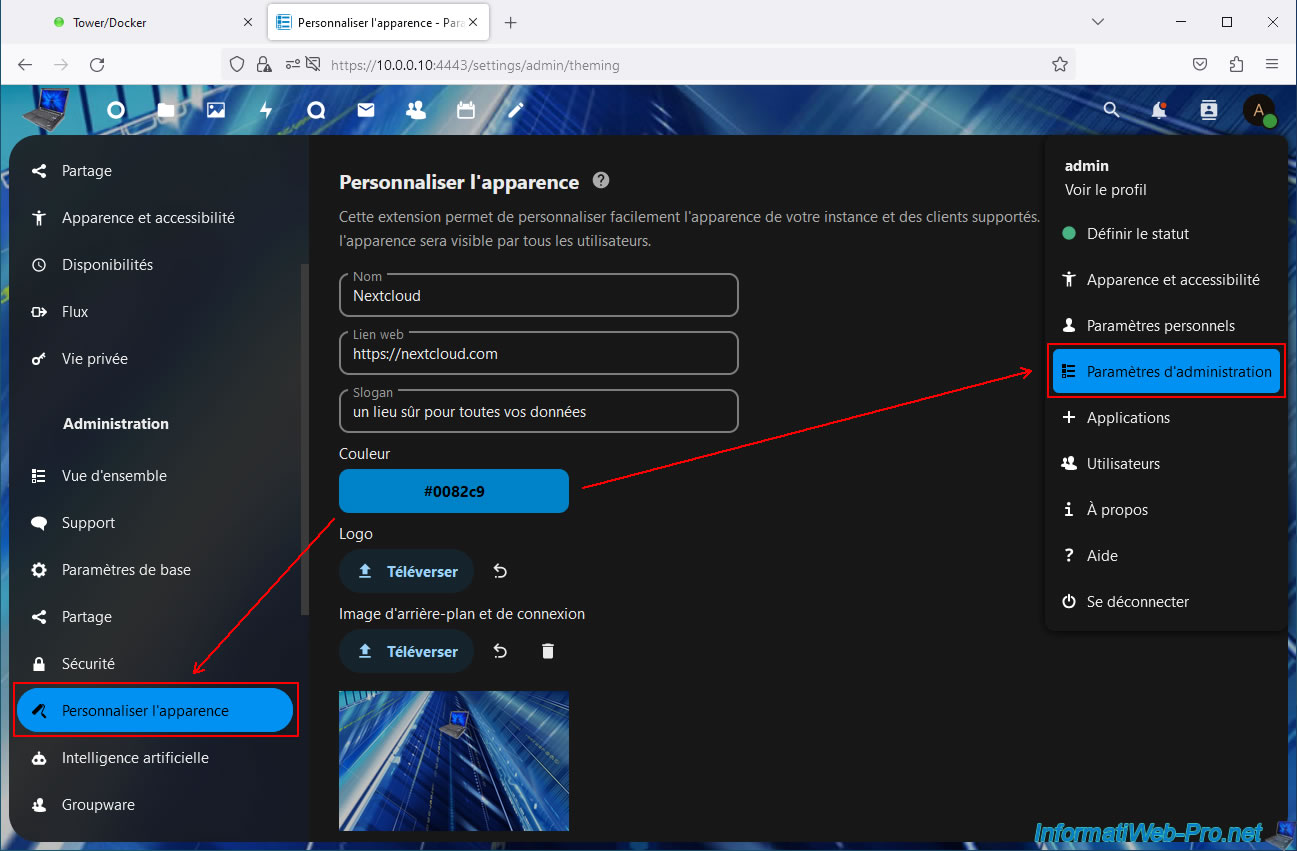
To do this, click on the icon located at the top right, then on: Administration settings.
In the "Administration" section of the left menu, go to "Customize appearance".
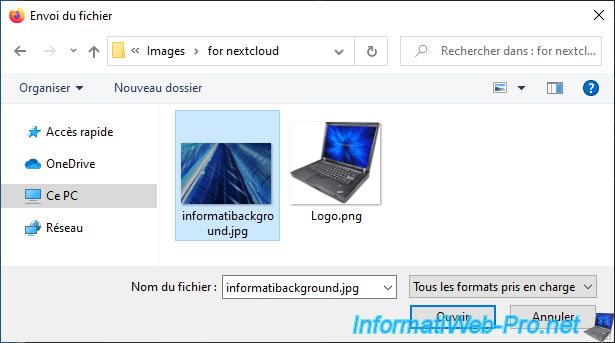
Then, to change the image used as background, click the "Upload" button of the "Background and Login Image" option.
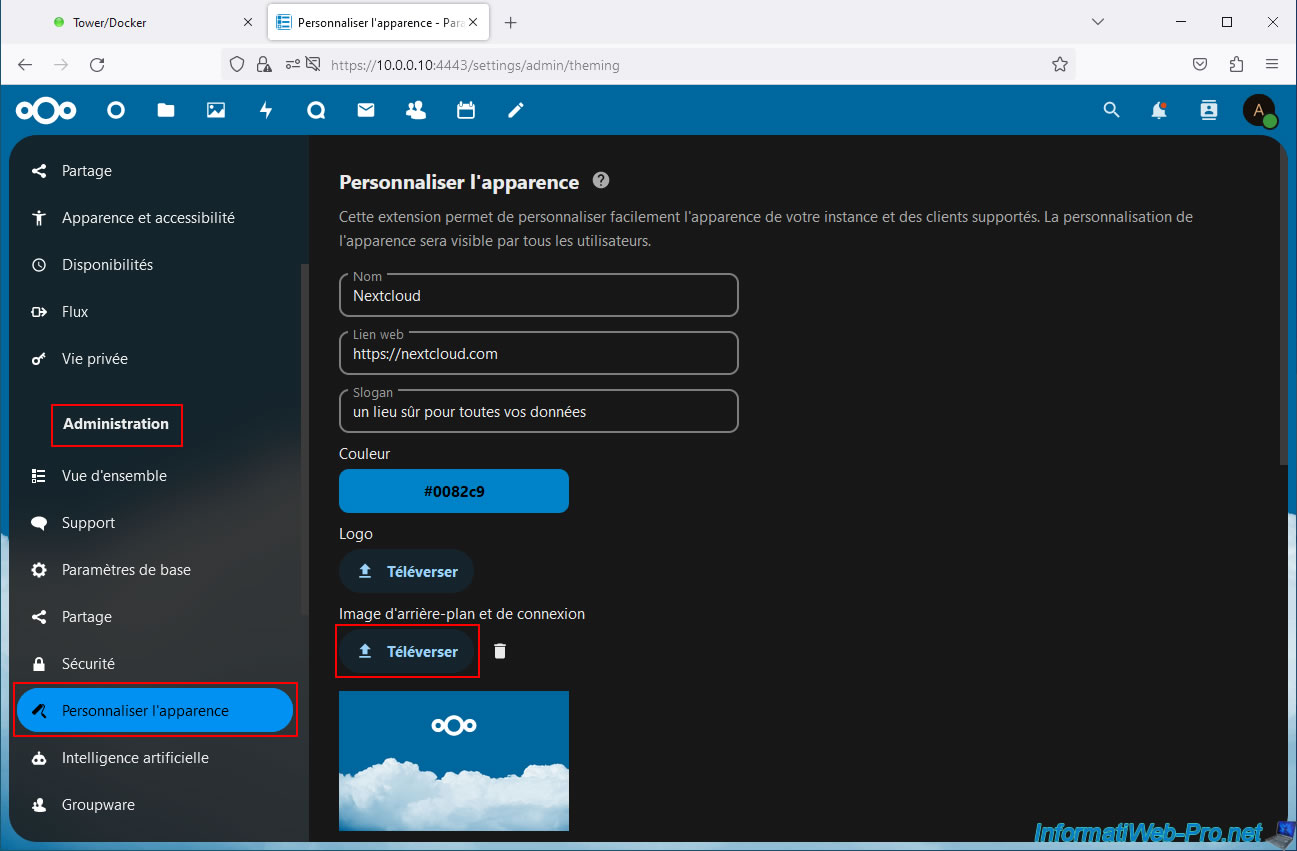
In the "Send File" window that appears, select your new background on your computer and click Open.
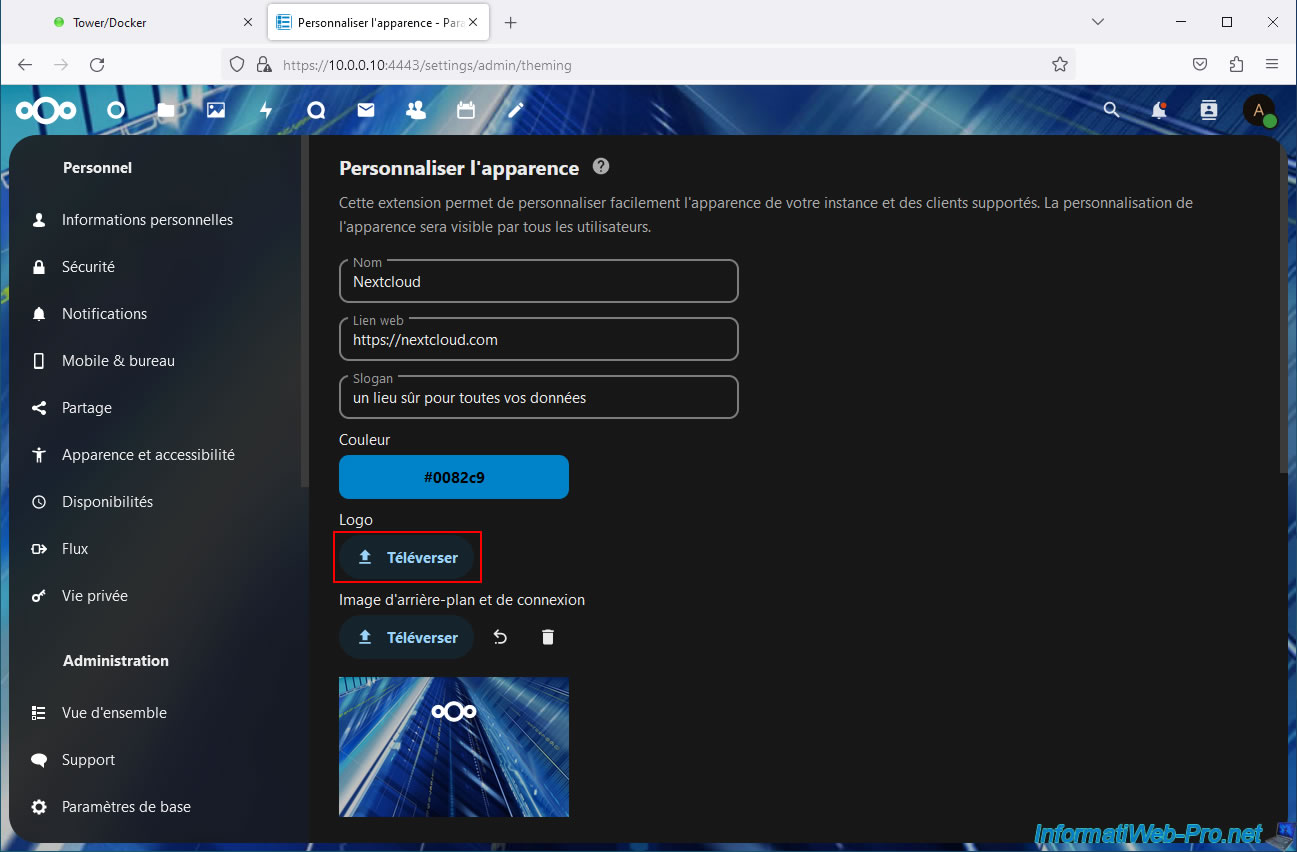
Then, to change the Nextcloud logo displayed in particular at the top left of the page and on the Nextcloud login page, click on the "Upload" button for the "Logo" option.
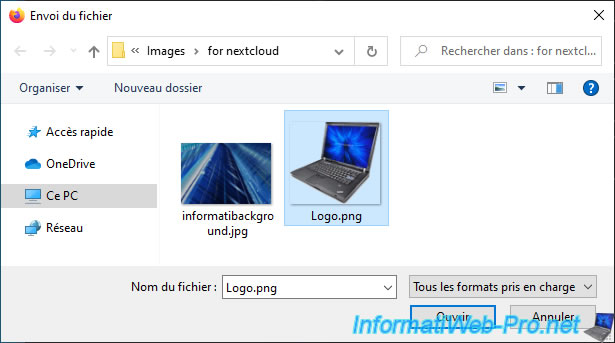
In the "Send File" window, select your logo and click Open.
Finally, you can change the color by clicking on the "Color" button.
Warning : the selected color also influences the color used for other elements on the page.
So, make sure everything (text, icons, ...) is visible when trying to change this color.
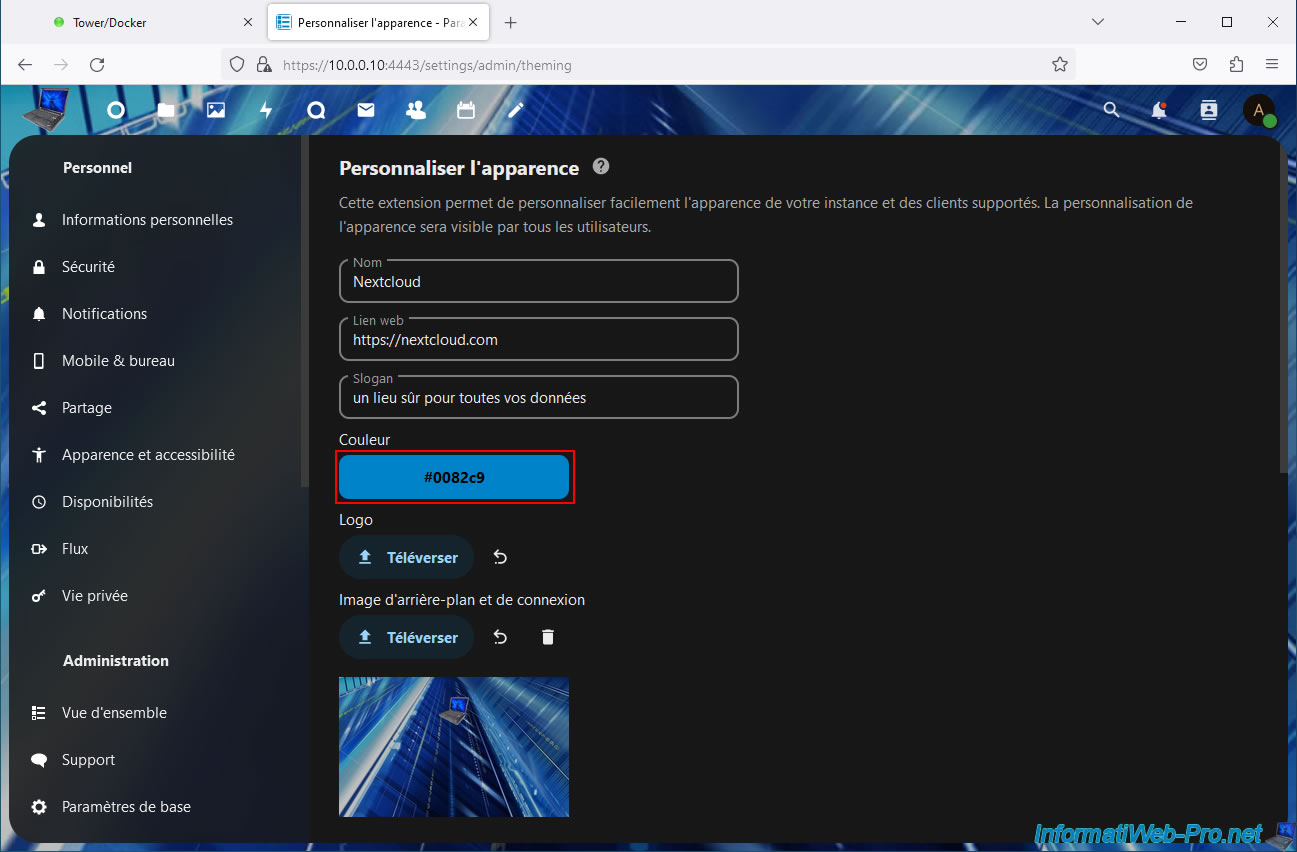
The color selected here is used in particular for selected items in menus and for folder icons in Nextcloud's file explorer.
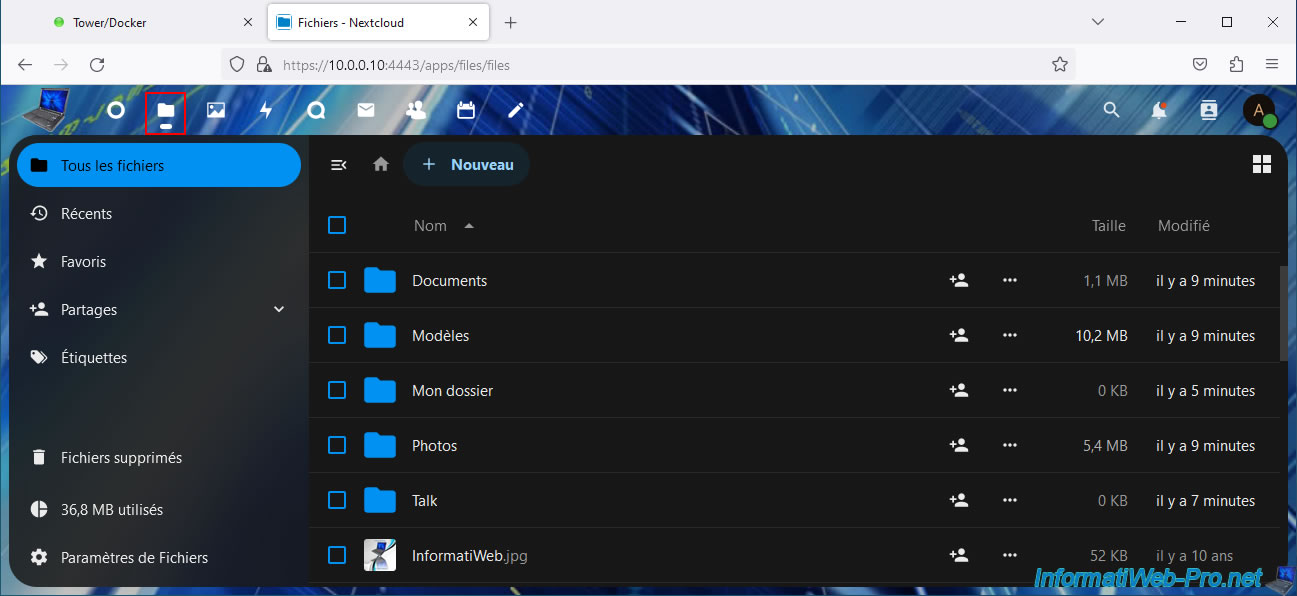
This is what file explorer looks like when customized.
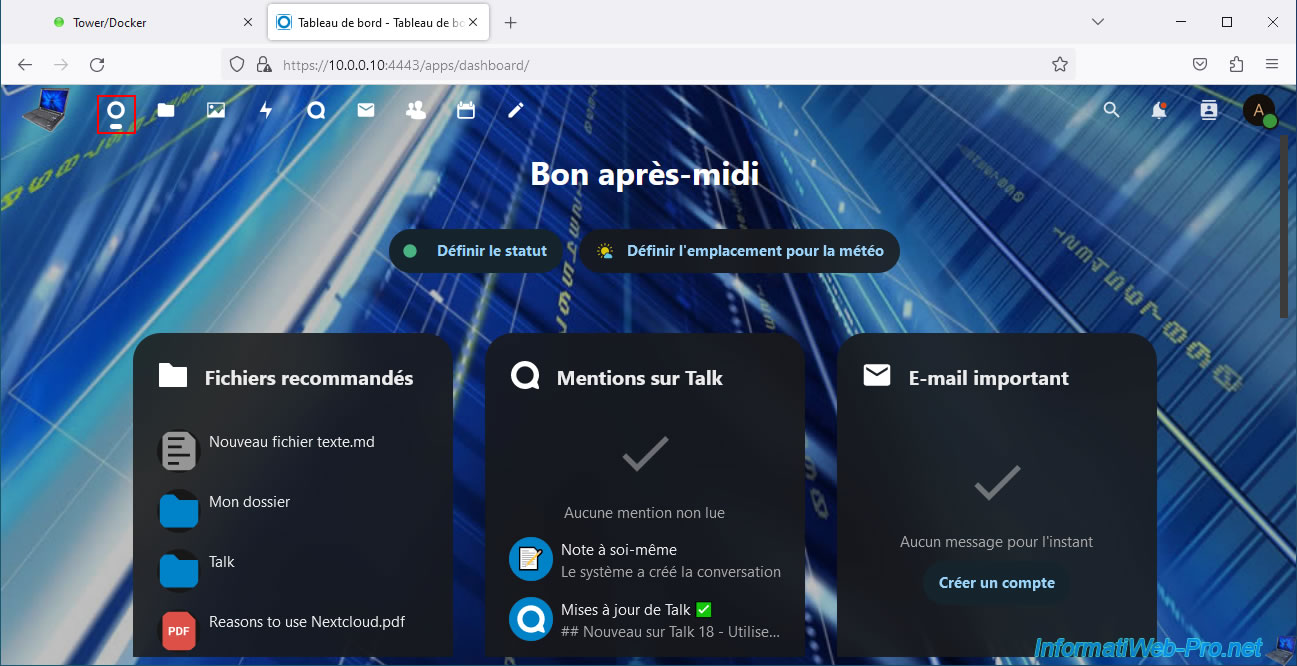
This is what the custom dashboard looks like.
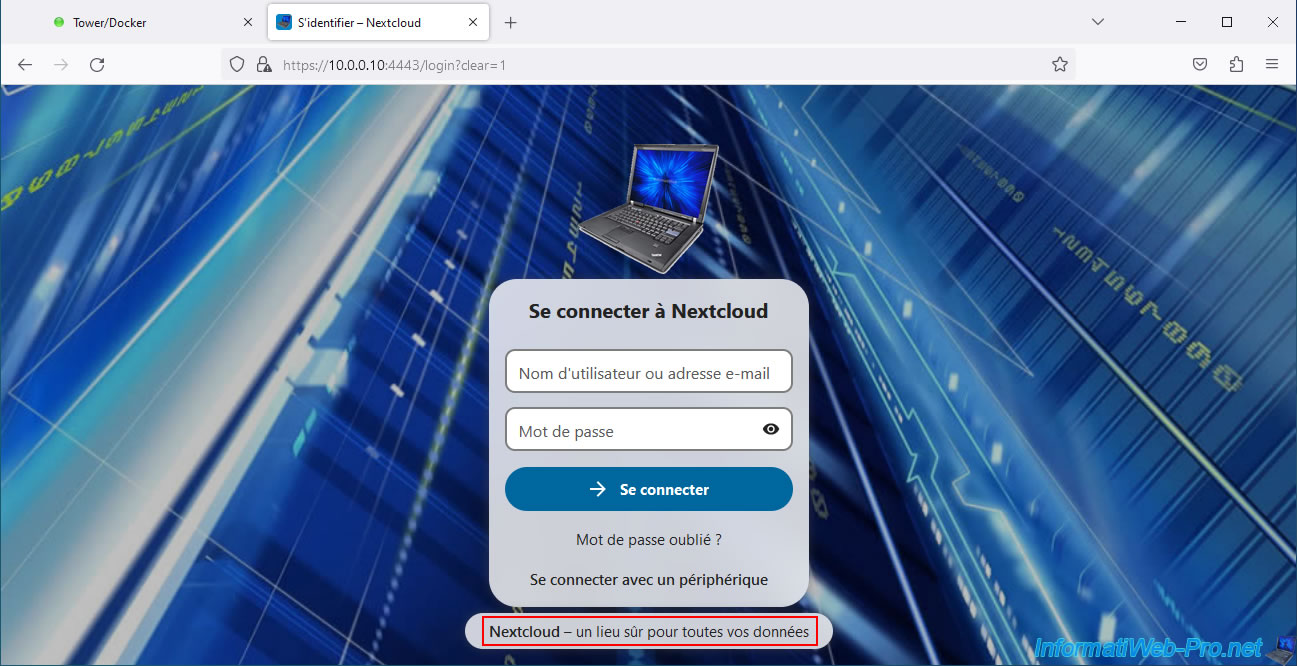
And this is what our new Nextcloud login page looks like.
Note: the line at the bottom (Nextcloud - a safe place for all your data) can also be customized in the "Customize appearance" section presented previously.
Share this tutorial
To see also
-
NAS 1/30/2026
Unraid 6.9.2 - Create shares (network / user)
-
NAS 3/4/2026
Unraid 6.9.2 - Install the "Community Applications" plugin (old version)
-
NAS 8/13/2026
Unraid 6.9.2 - VMs - Guest not initialized display (solution)
-
NAS 9/23/2026
Unraid 6.9.2 - VMs - Hotplug USB devices (USB Manager plugin)
No comment