Define a private static IP address on an Unraid 6.9.2 server
- NAS
- Unraid
- 04 December 2025 at 14:39 UTC
-

- 2/2

3. Modify Unraid's network settings from its web interface
3.1. Unraid network settings grayed out by default
To change the network settings of your Unraid server, go to: Settings -> Network Settings.
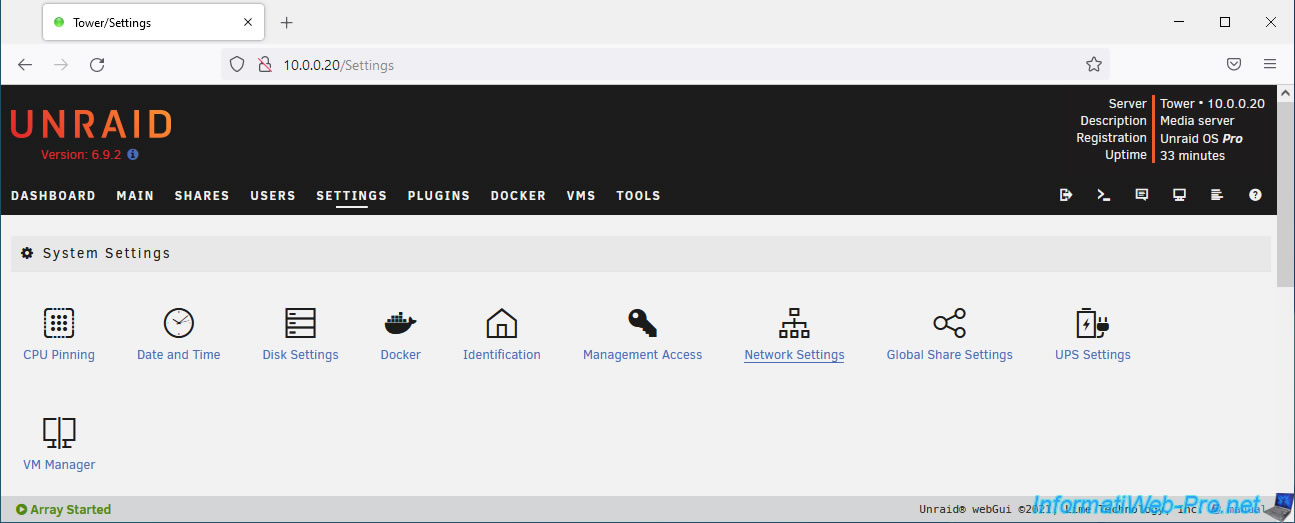
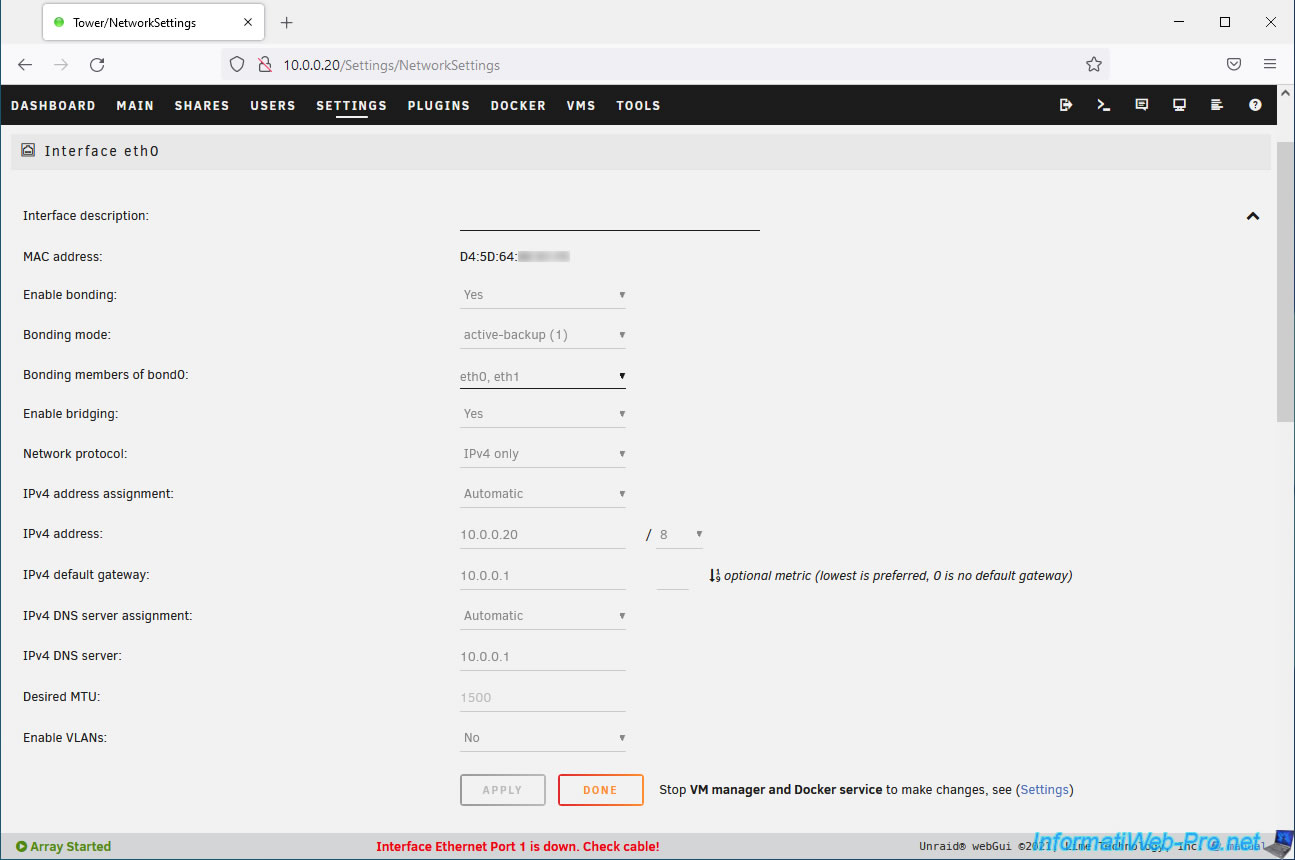
However, you'll see that all Unraid network settings are grayed out by default.
This is because, as indicated at the bottom of this form, you must first stop the Virtual Machine (VM) Manager and the Docker service before you can modify this network configuration.
3.2. Stop the virtual machine (VM) manager and Docker service
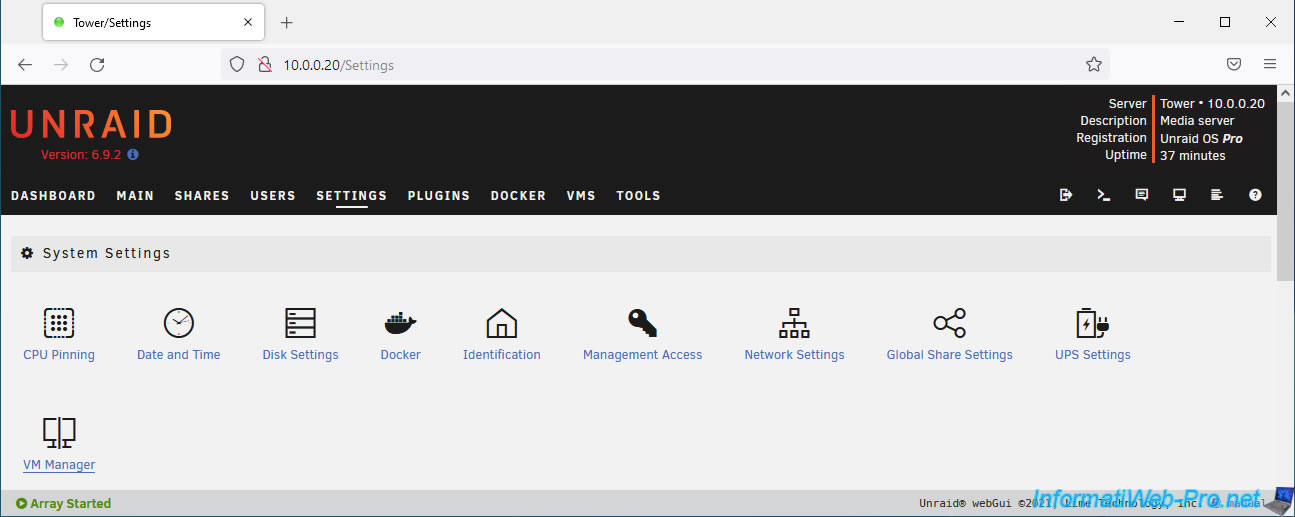
To stop the Virtual Machine Manager (VM Manager), go to: Settings -> VM Manager.
Select "Enabled VMs: No".
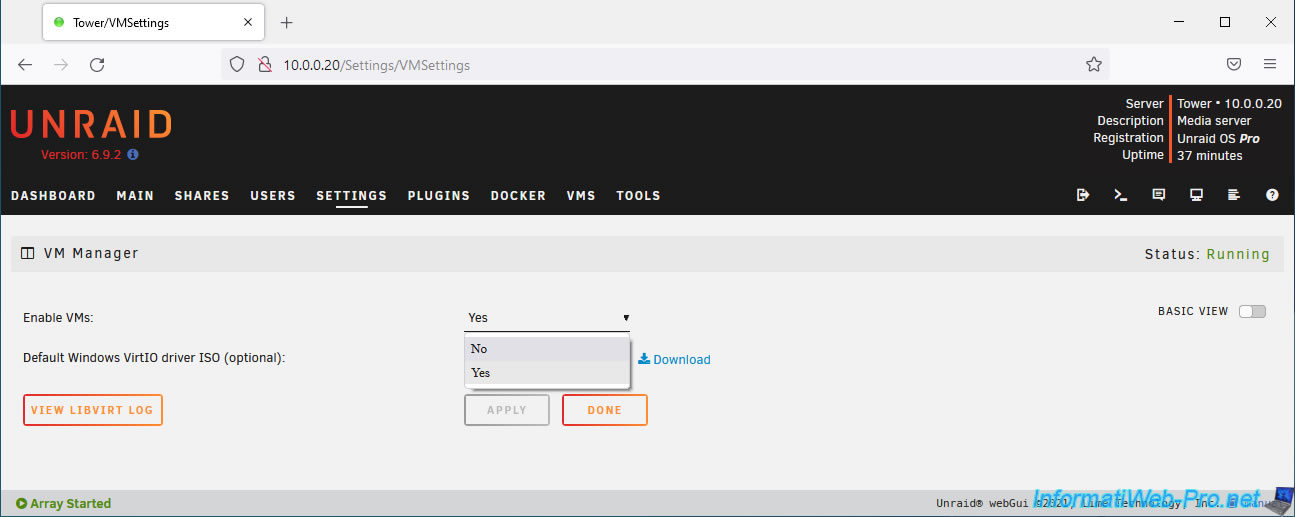
Click on: Apply.
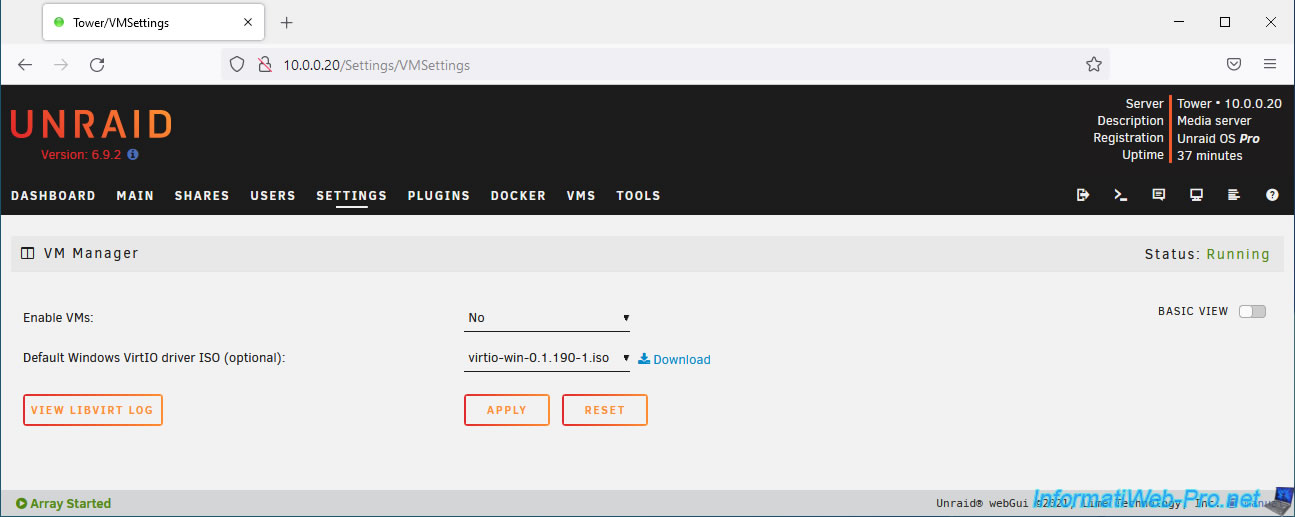
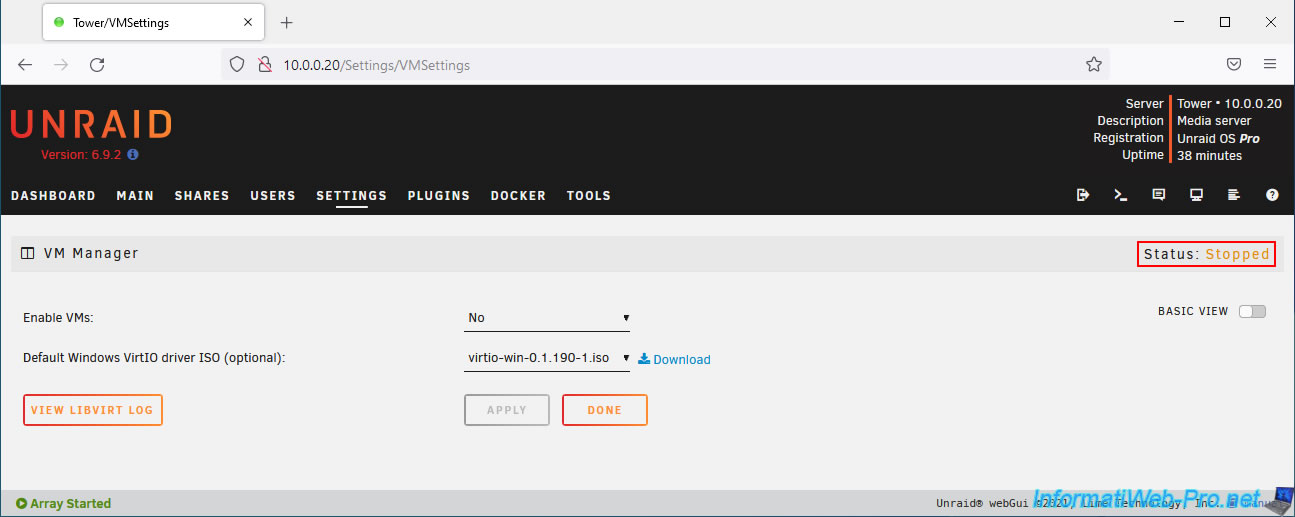
As you can see, the virtual machine manager is now stopped (Status: Stopped).
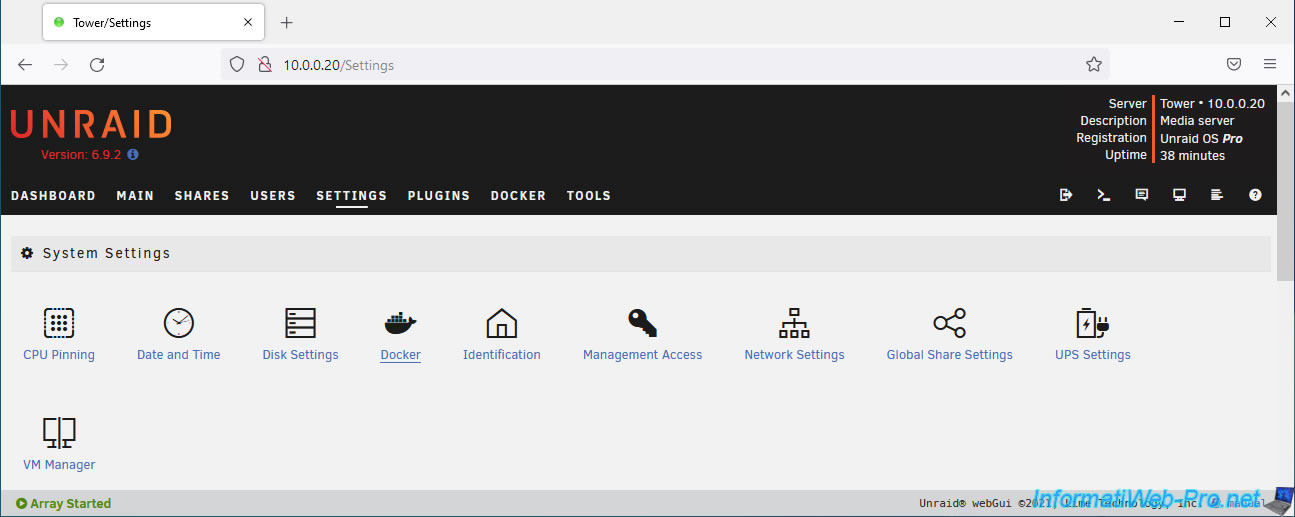
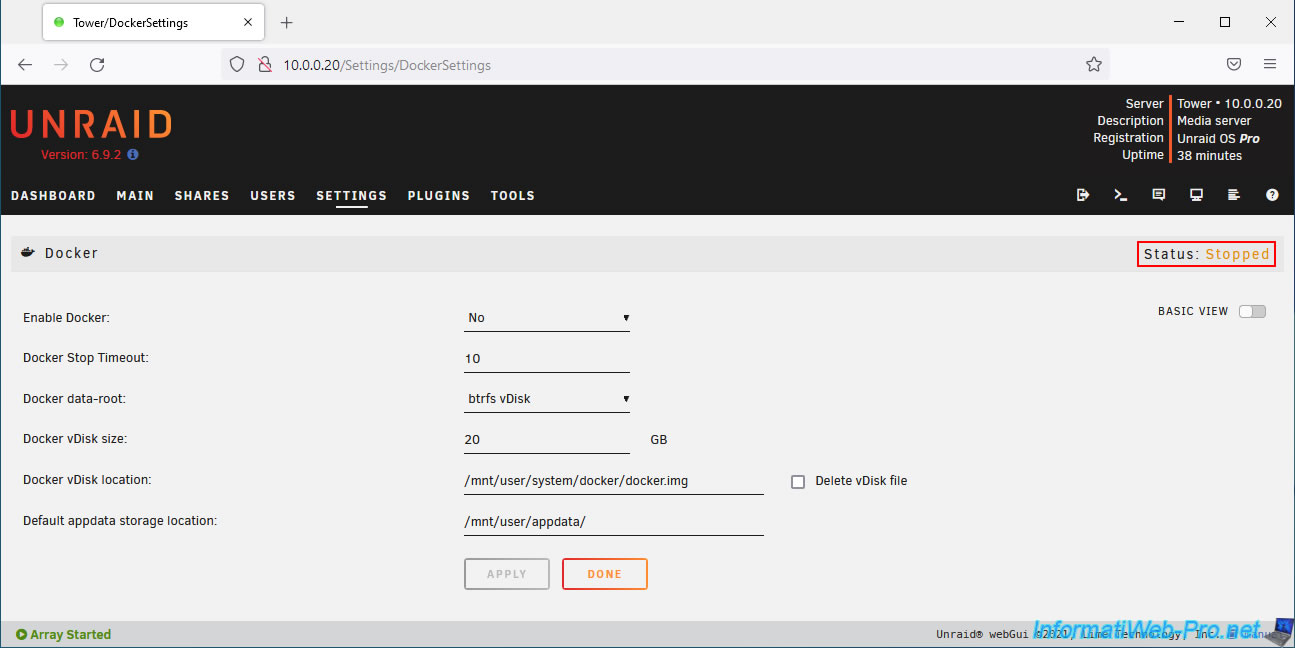
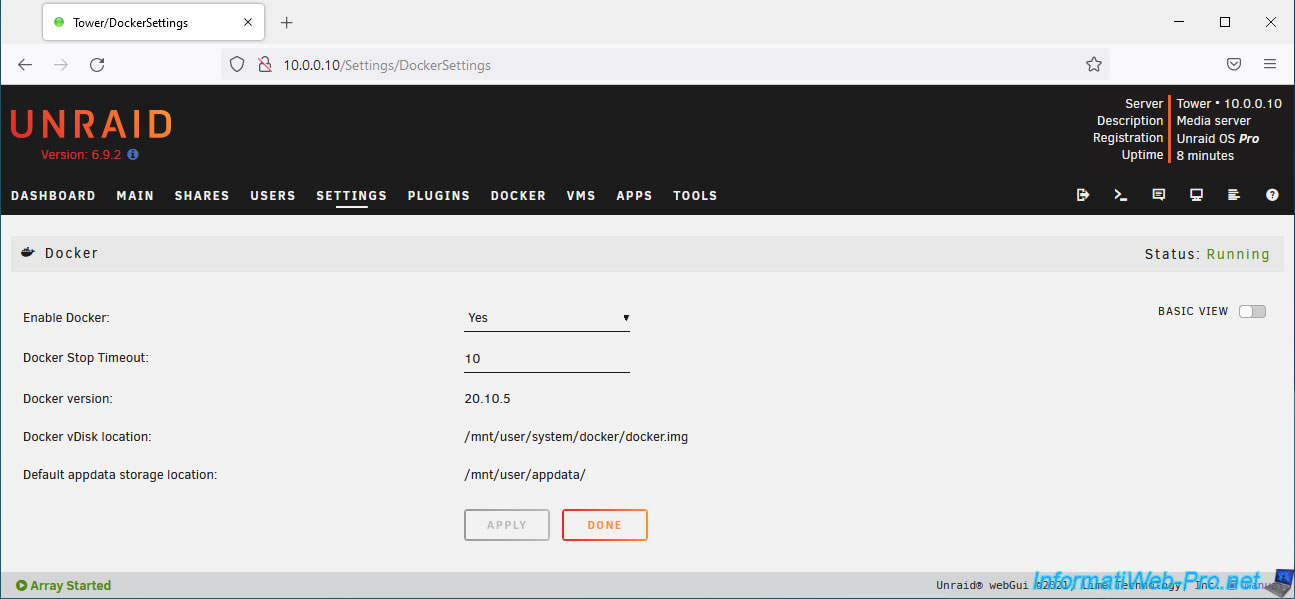
To stop the Docker service, go to: Settings -> Docker.
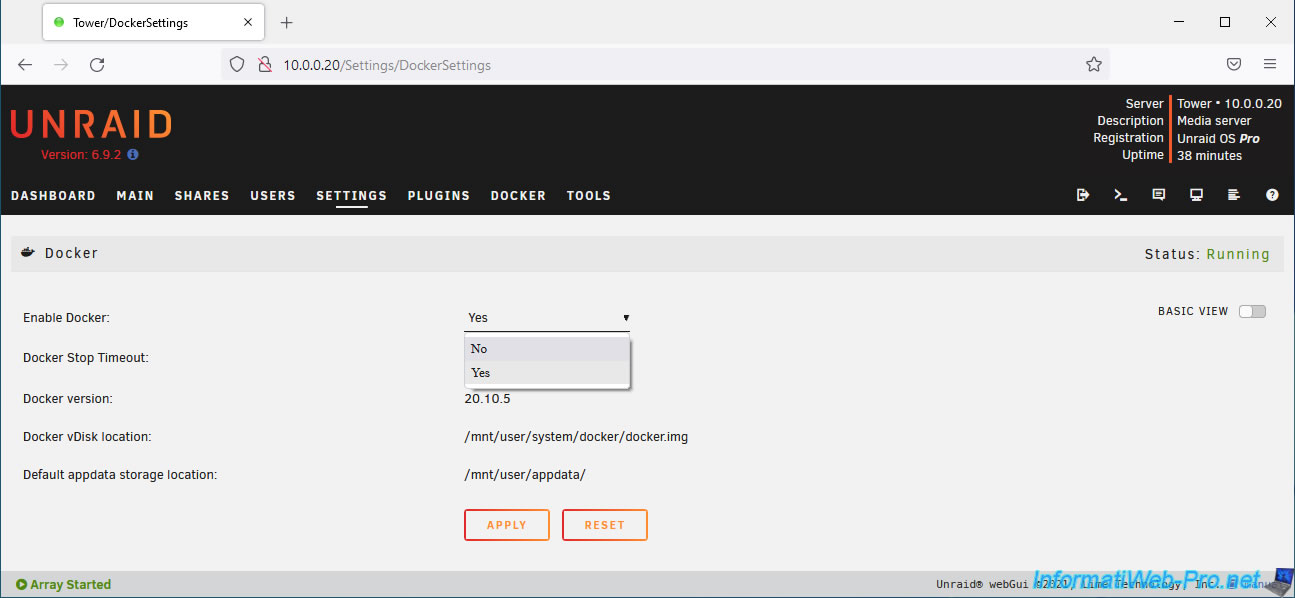
Select "Enable Docker: No", then click: Apply.
As you can see, the Docker service is now stopped (Status: Stopped).
3.3. Set a static IP address from the Unraid web interface
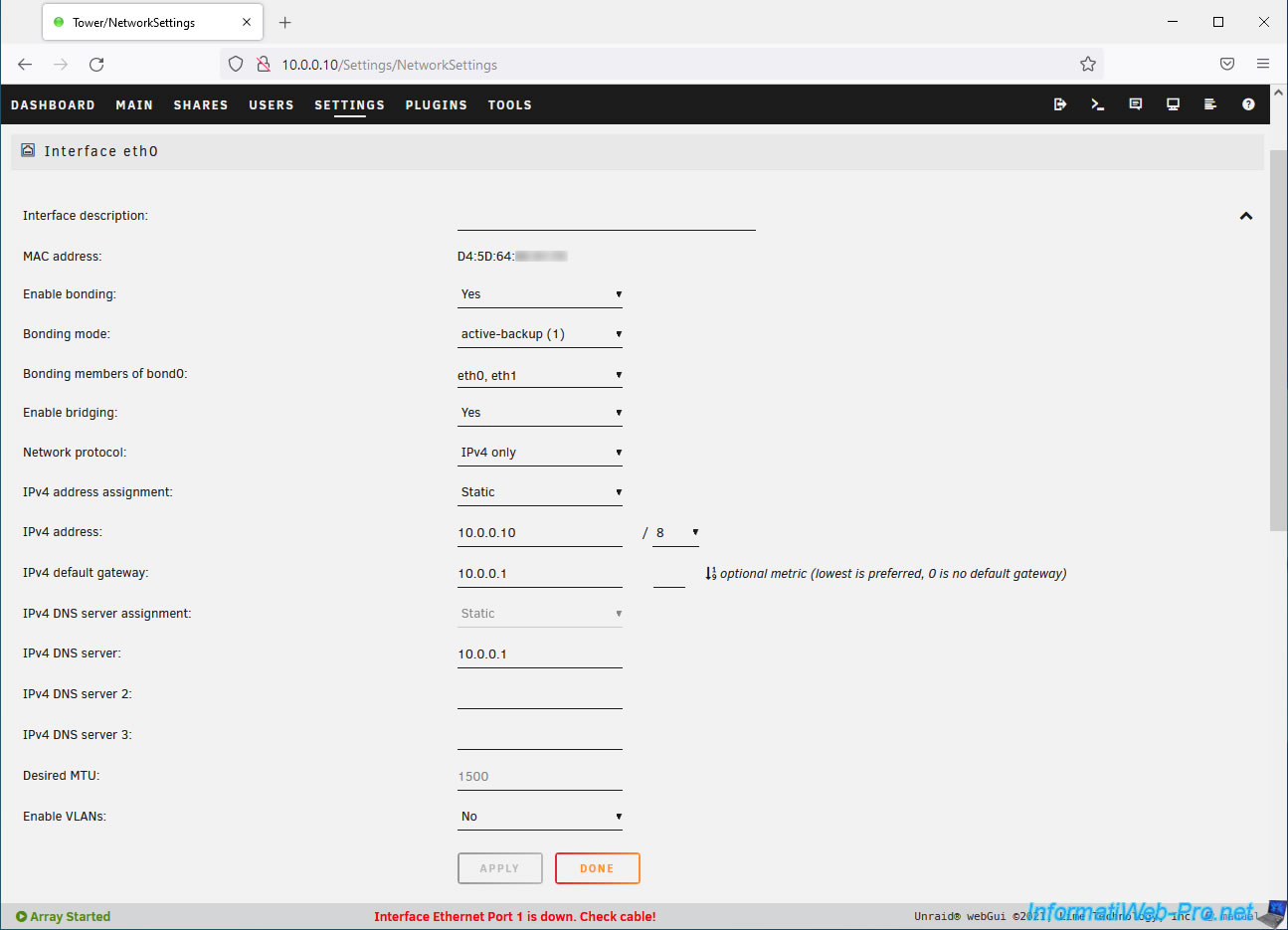
Now that the Virtual Machine Manager and Docker service are stopped, go to Unraid's network settings by clicking: Settings -> Network Settings.
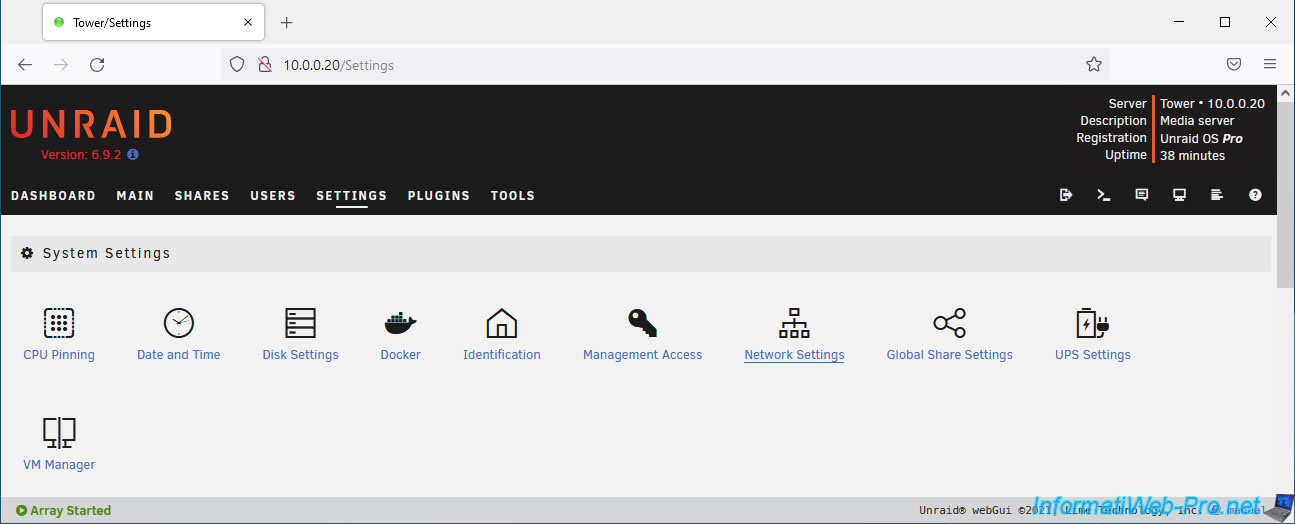
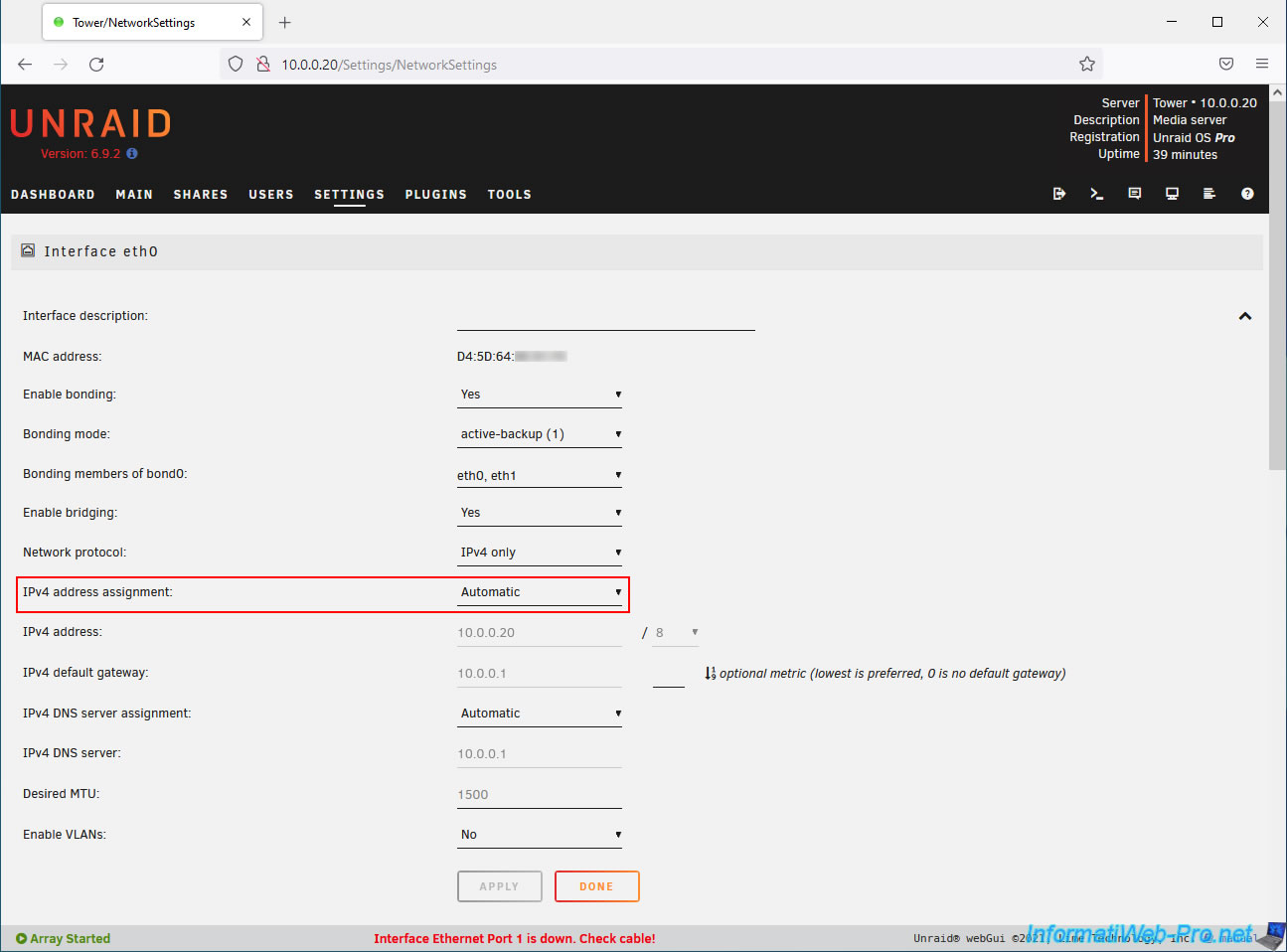
As you can see, in our case our Unraid server is configured to automatically obtain an IP address from a DHCP server (IPv4 address assignment: Automatic).
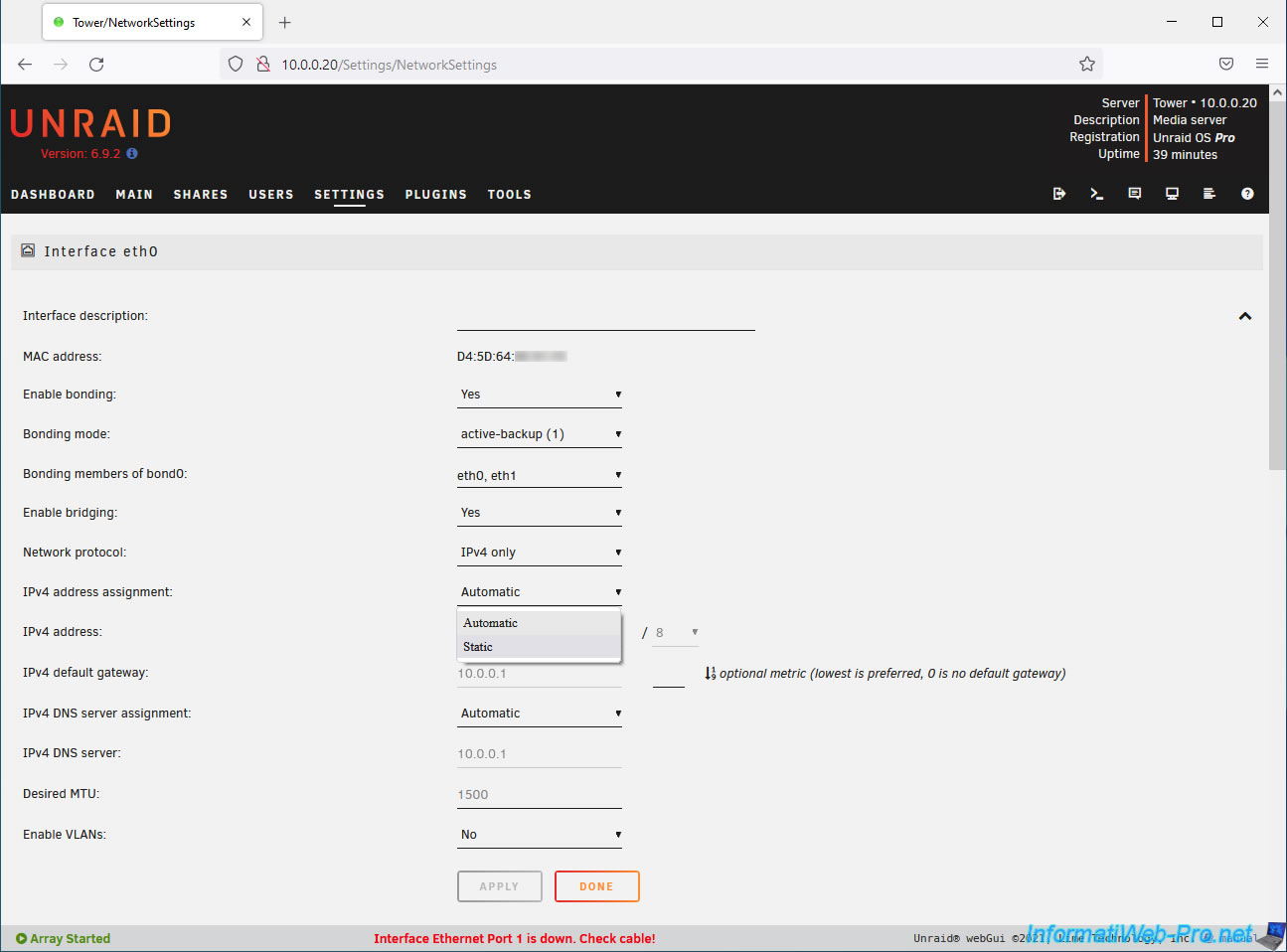
To be able to change the IPv4 address of your Unraid server, you must select "IPv4 address assignment: Static" instead of "Automatic".
Now, configure the fields:
- IPv4 address: the IPv4 address that Unraid should use, along with its subnet mask in CIDR format.
For example, "/8" (= 255.0.0.0) for Class A IP addresses (10.x.x.x) or "/24" (= 255.255.255.0) for Class C IP addresses (192.168.1.x). - IPv4 default gateway: the IPv4 address of the gateway (router or Internet access point) to use.
- IPv4 DNS server: the IPv4 address of the DNS server to use. For example, the IP address of your router or Internet access point to use your ISP's (Internet Service Provider) IP address, or "8.8.8.8" to use Google's public DNS server.
Then, click on: Apply.
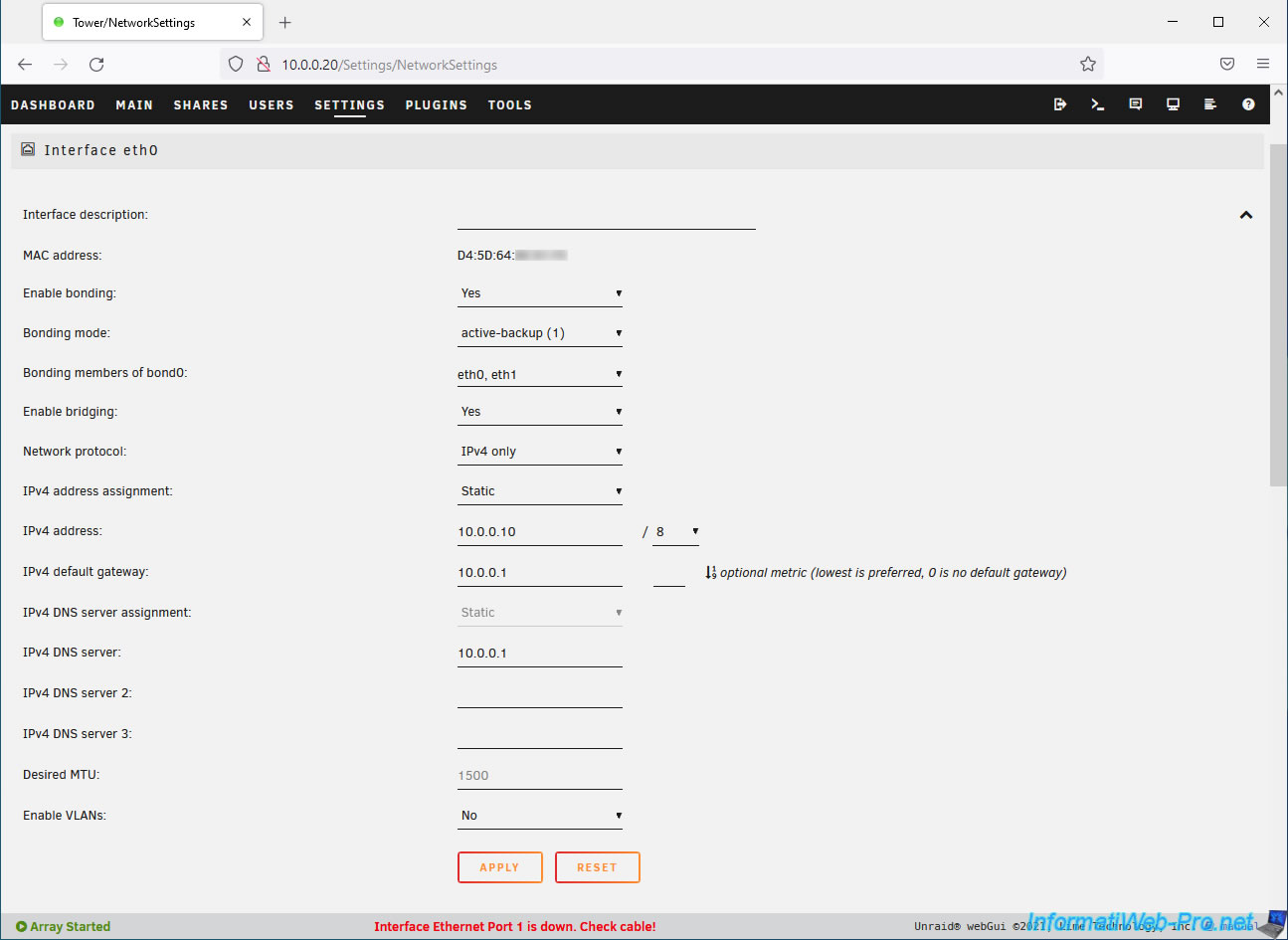
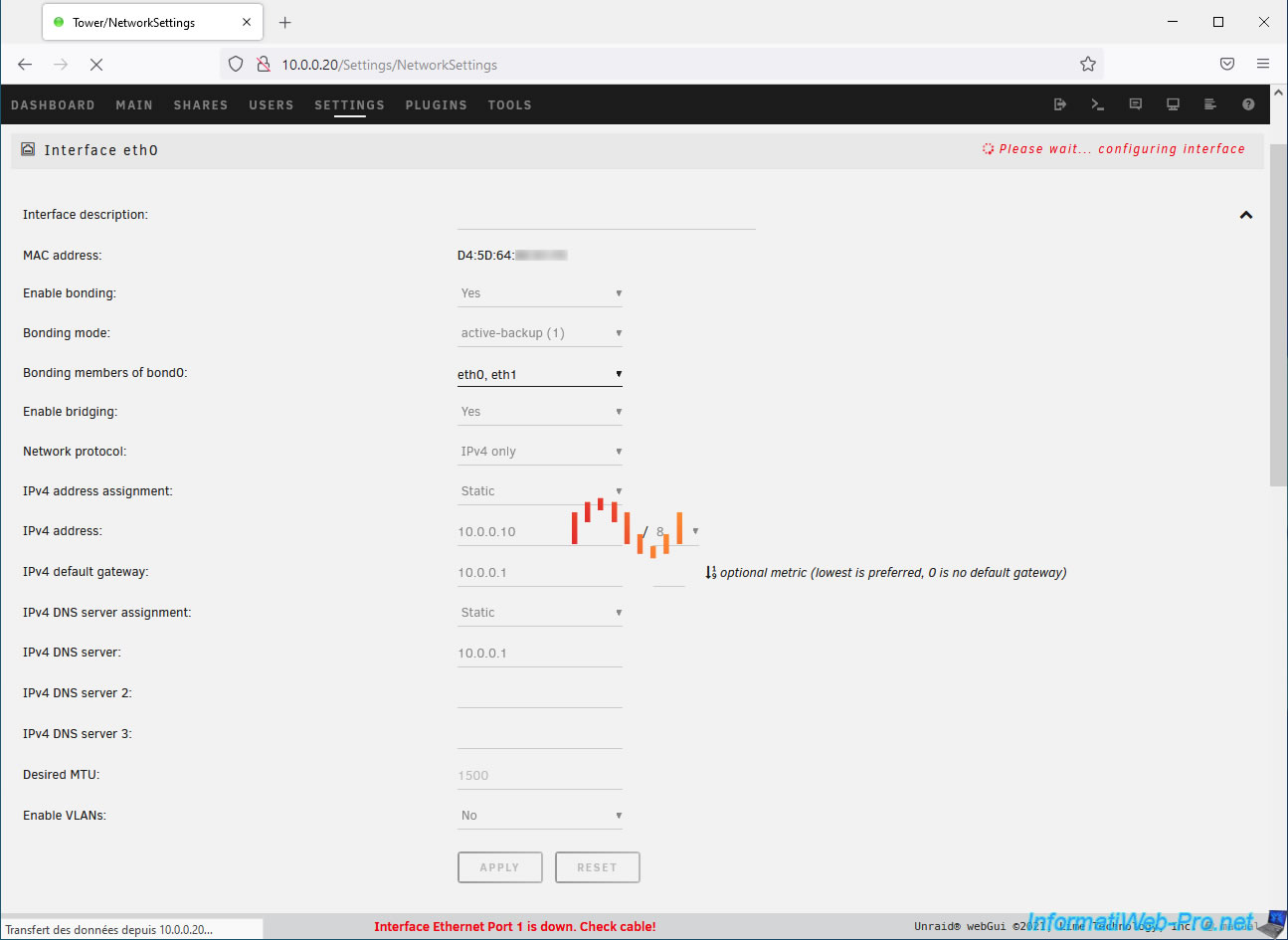
Wait a few seconds while this new network configuration is saved.
Note that the Unraid loading image may remain displayed indefinitely in this case since your Unraid server will have changed IP address.
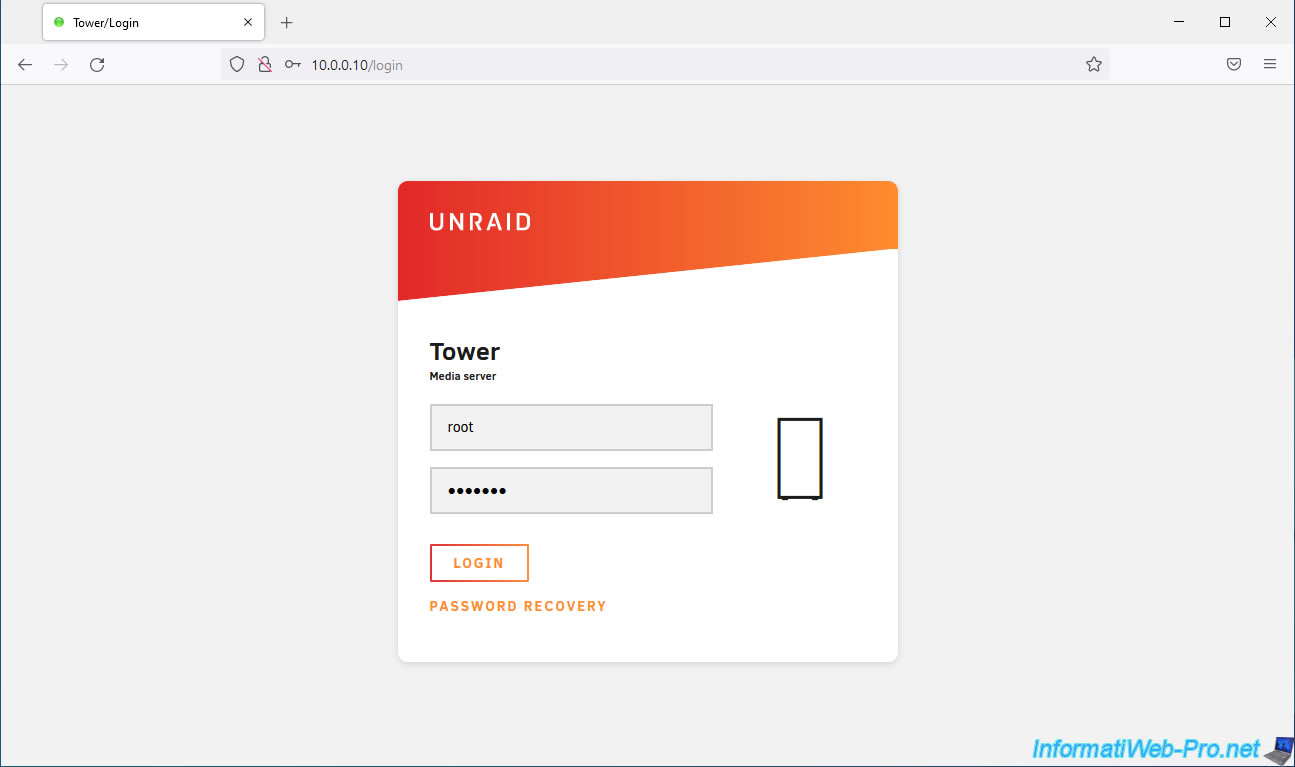
Enter your Unraid server's new IP address in the format "http://[new Unraid server IP address]/" to access your server again.
Since your server's IP address has changed, Unraid will prompt you to log in again.
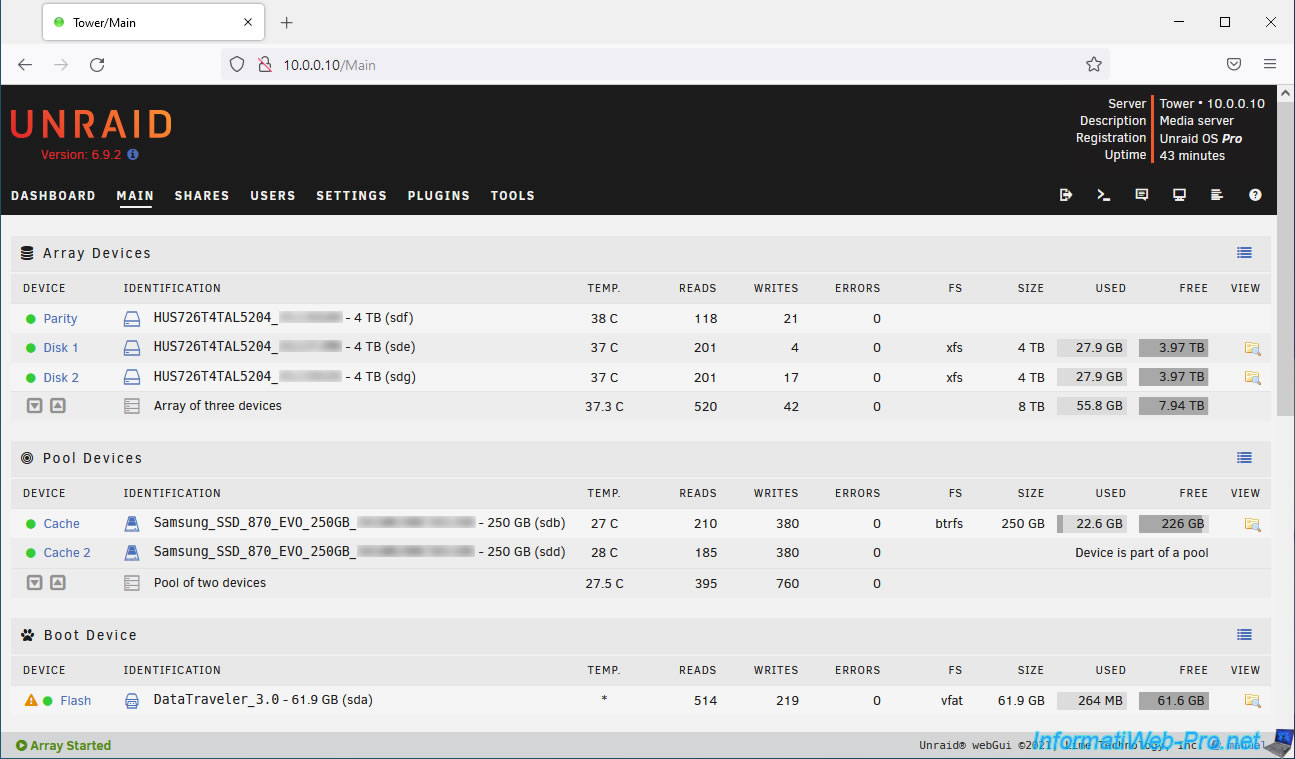
That's it, your Unraid server is using the statically defined IP address.
3.4. Re-enable the virtual machine manager and Docker service
Now that the network configuration has been modified, don't forget to re-enable the previously disabled Virtual Machine Manager and Docker service.
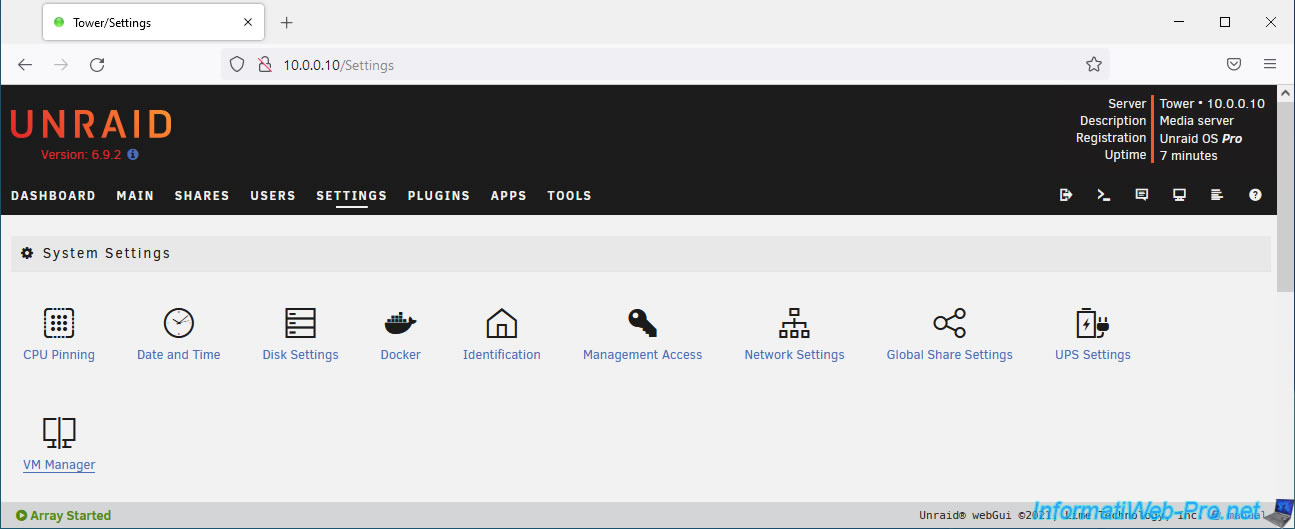
To do this, go to Settings -> VM Manager.
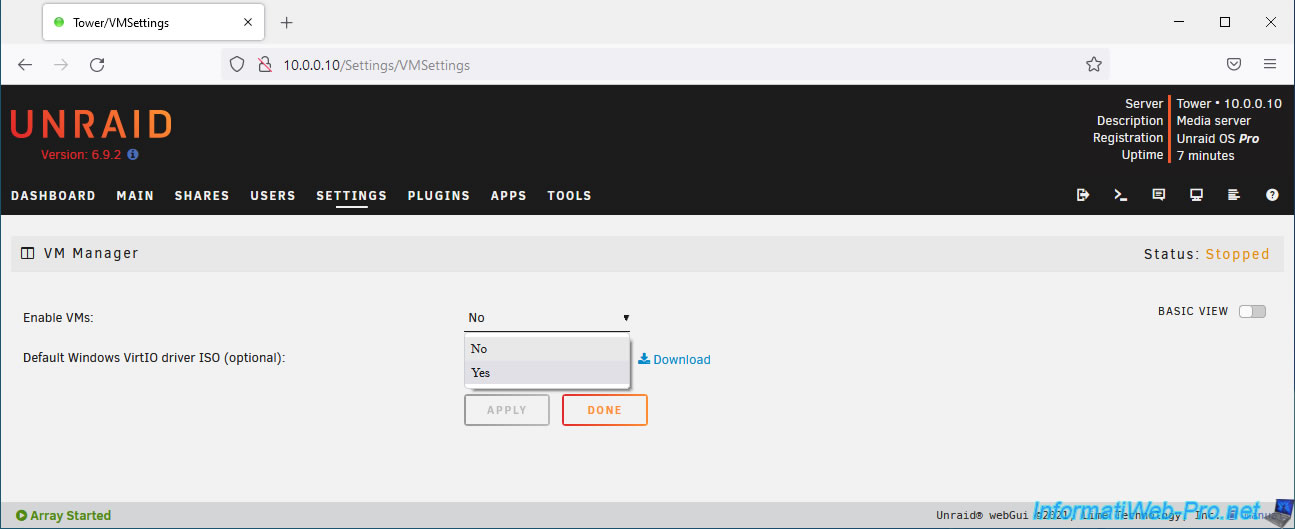
Select "Enable VMS: Yes".
Click on: Apply.
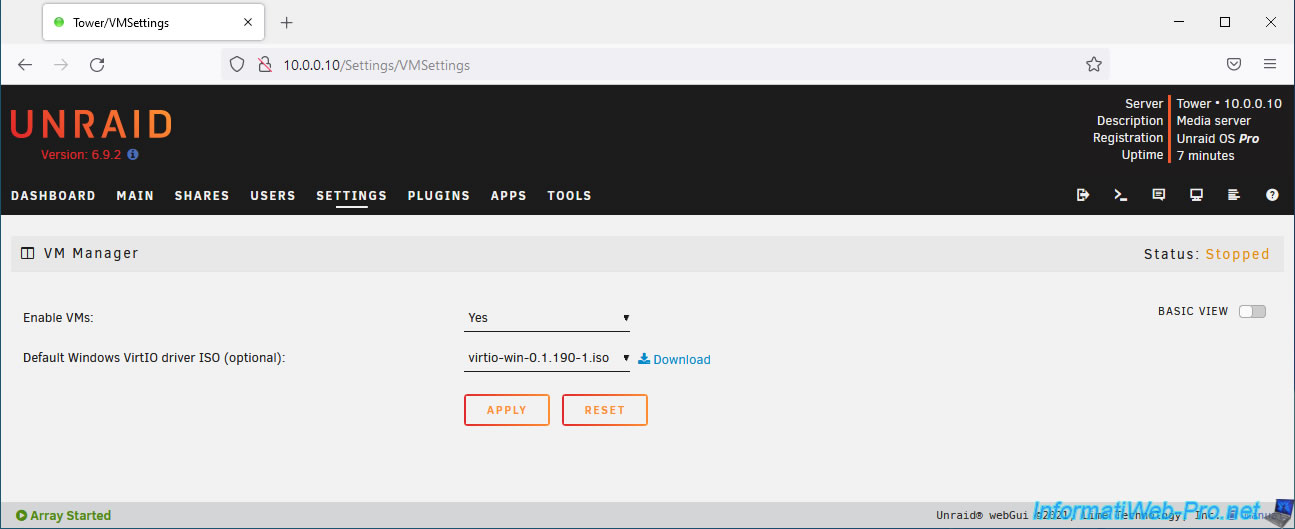
The virtual machine manager is running again (Status: Running).
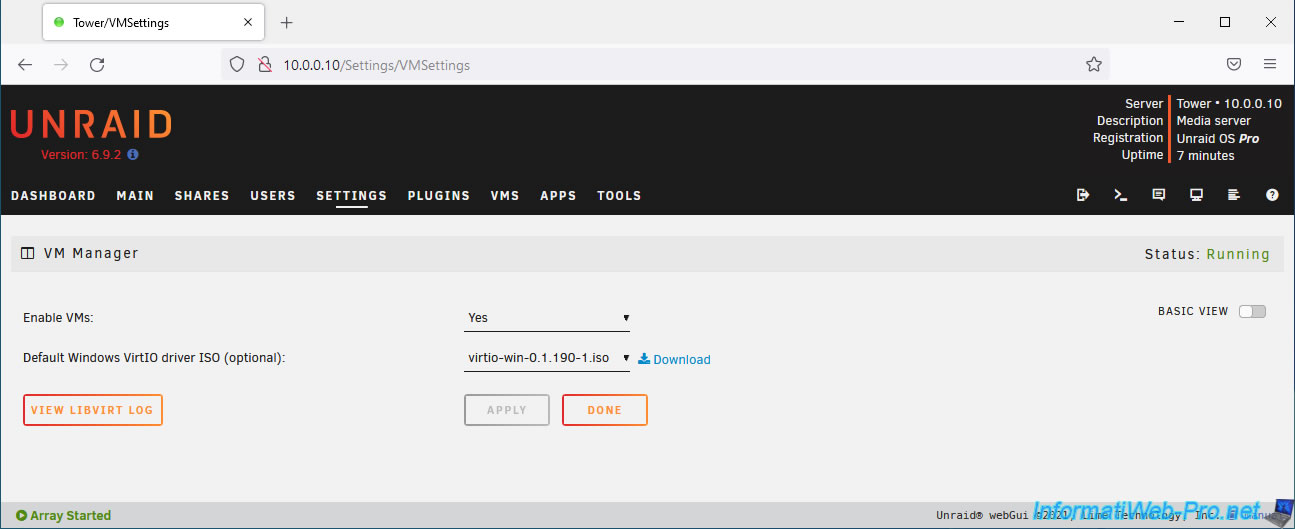
To restart the Docker service, go to: Settings -> Docker.
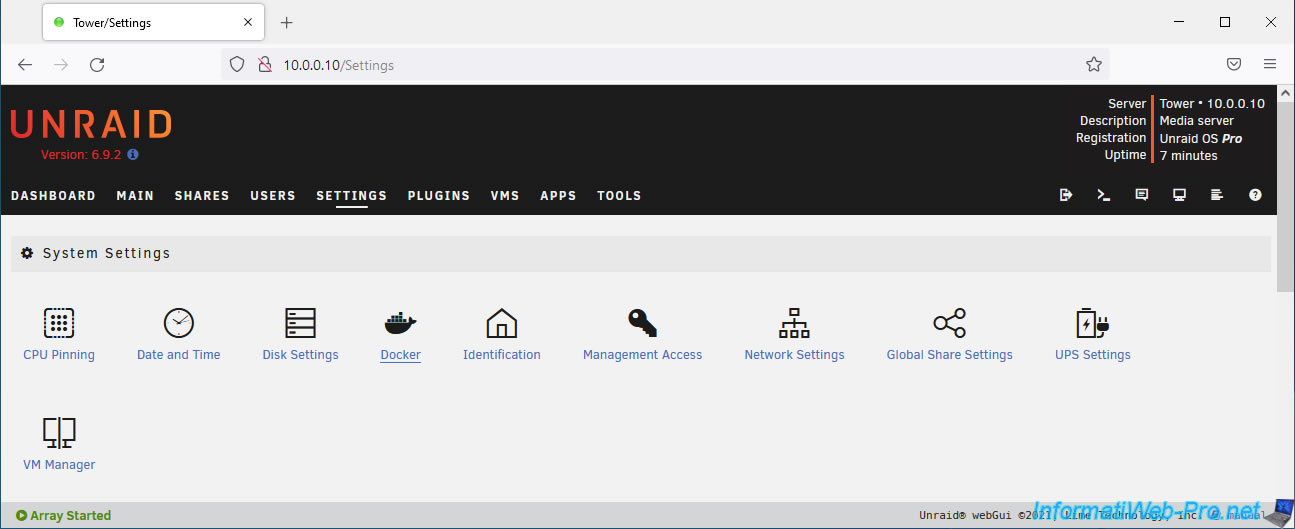
Select "Enable Docker: Yes".
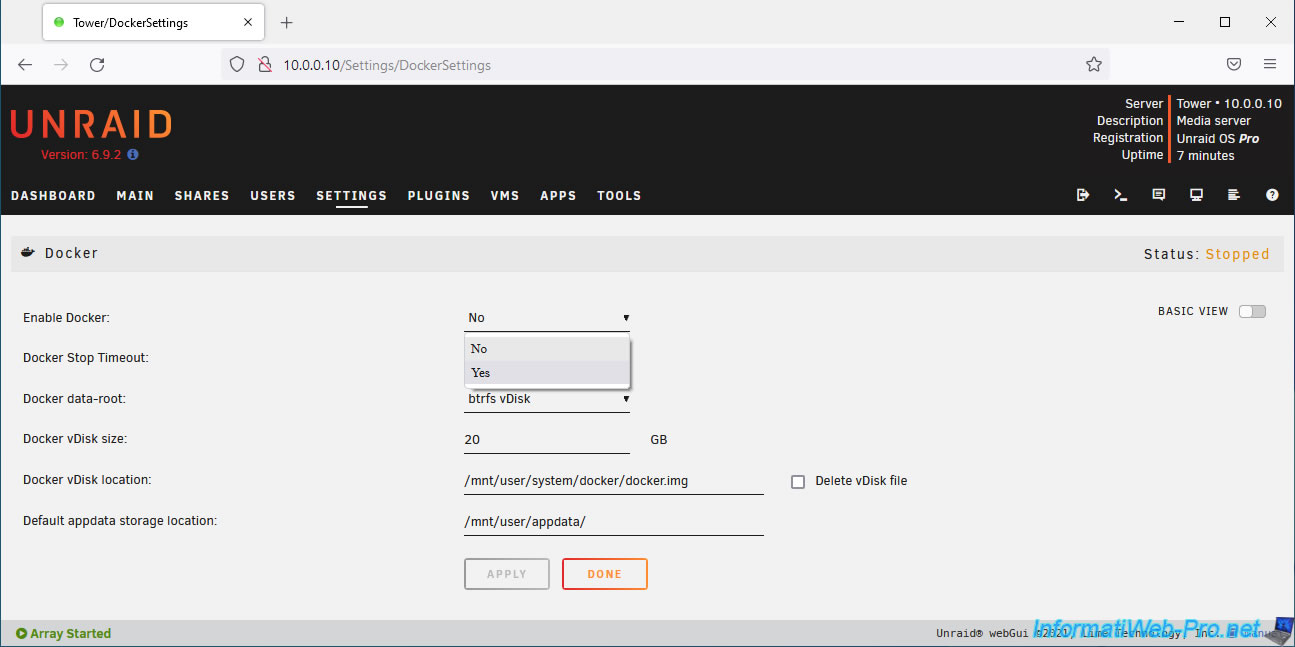
Click on: Apply.
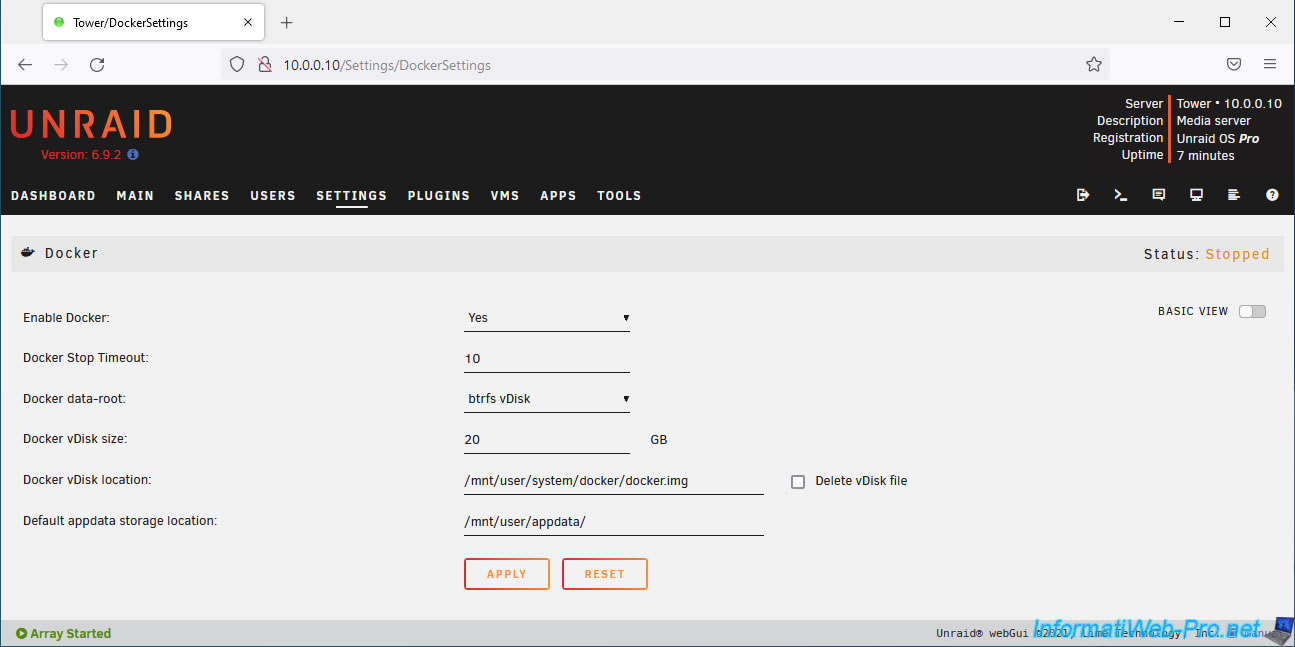
The Docker service is running again (Status: Running).
Share this tutorial
To see also
-

NAS 4/8/2026
Unraid 6.9.2 - Docker - Install a media server (Jellyfin)
-

NAS 6/24/2026
Unraid 6.9.2 - Docker - Install the office suite (Collabora) for Nextcloud
-

NAS 7/1/2026
Unraid 6.9.2 - SWAG - Use a personal domain with a dynamic WAN IP
-
NAS 7/22/2026
Unraid 6.9.2 - VMs - Backing up a VM manually
No comment