Create network shares and user shares on Unraid 6.9.2
- NAS
- Unraid
- 30 January 2026 at 12:44 UTC
-

- 4/4

4. Manage user rights on different shares
Although you can manage the rights of different users for a specific share, you can also do the opposite.
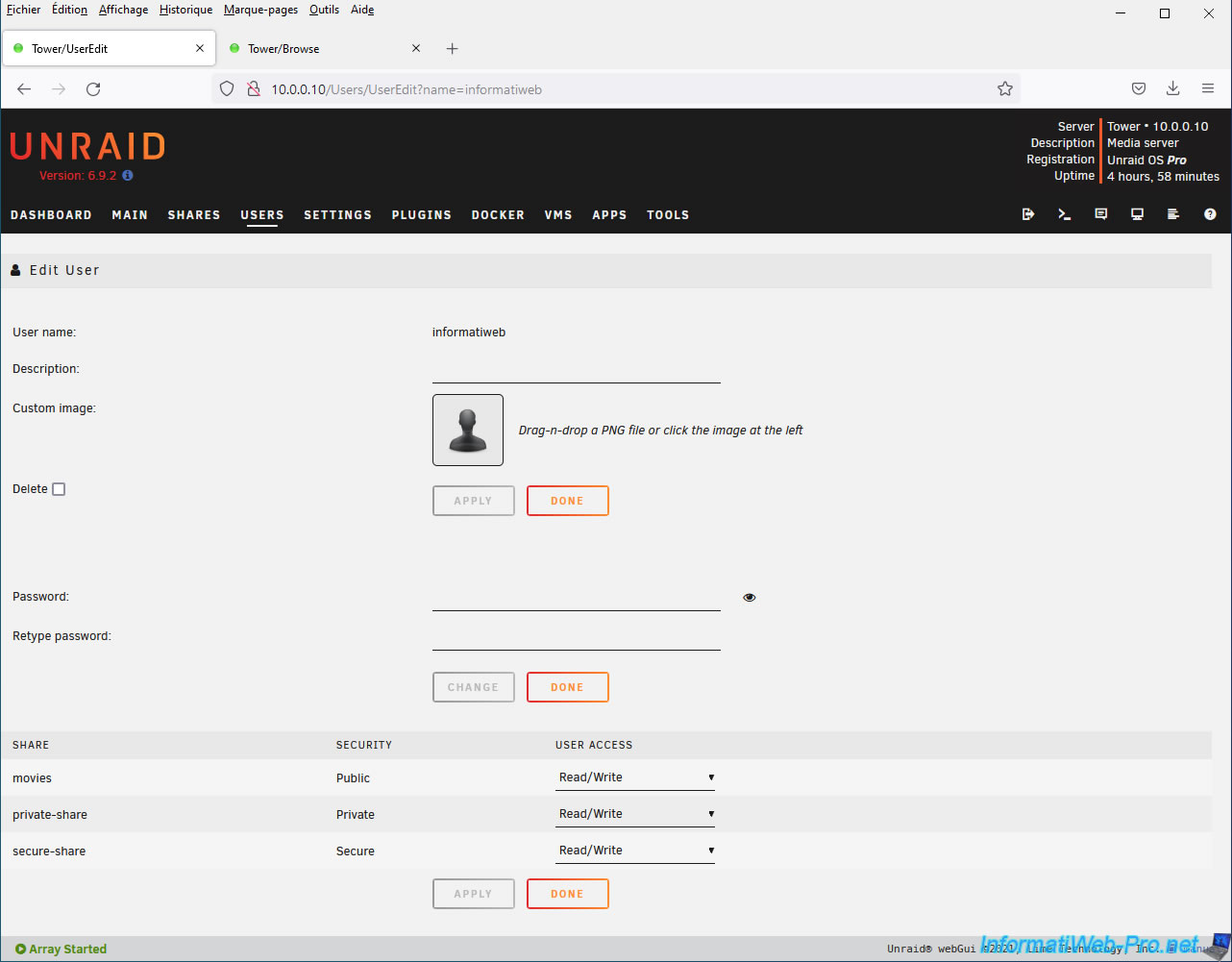
Namely, manage the rights on your different shares for a specific user.
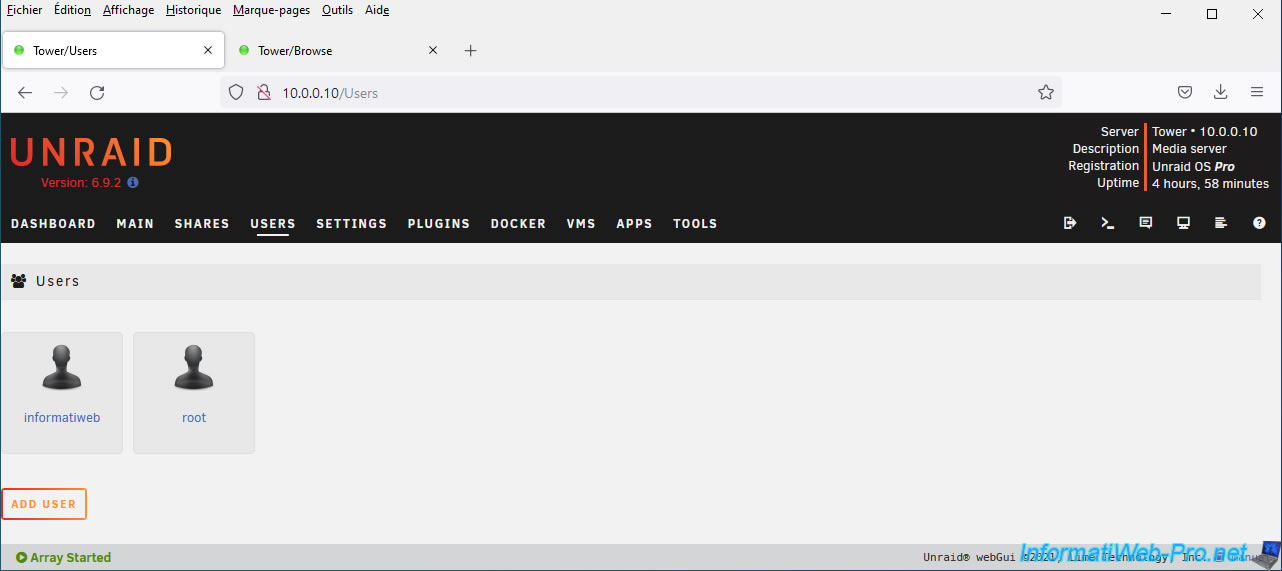
To do this, go to the "Users" tab and click on the name of the user you created previously.
In our case, the "informatiweb" user account.
As you can see at the bottom of the page, you will be able to manage which rights you wish to grant to this user for your different shares.
5. Create and access a hidden network share
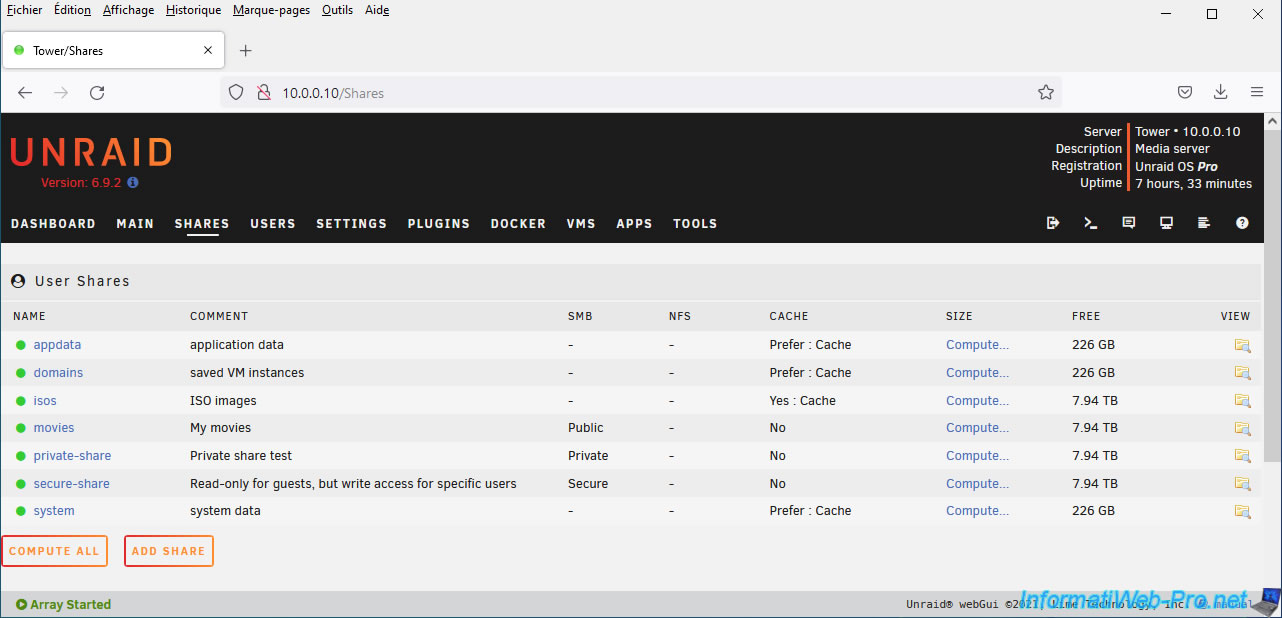
With Unraid, you can also create hidden network shares.
In other words, network shares that don't appear by default when you list the available network shares on a server or computer. But you can access them if you know the server name and the name of the hidden network share.
To do this, click Add Share.
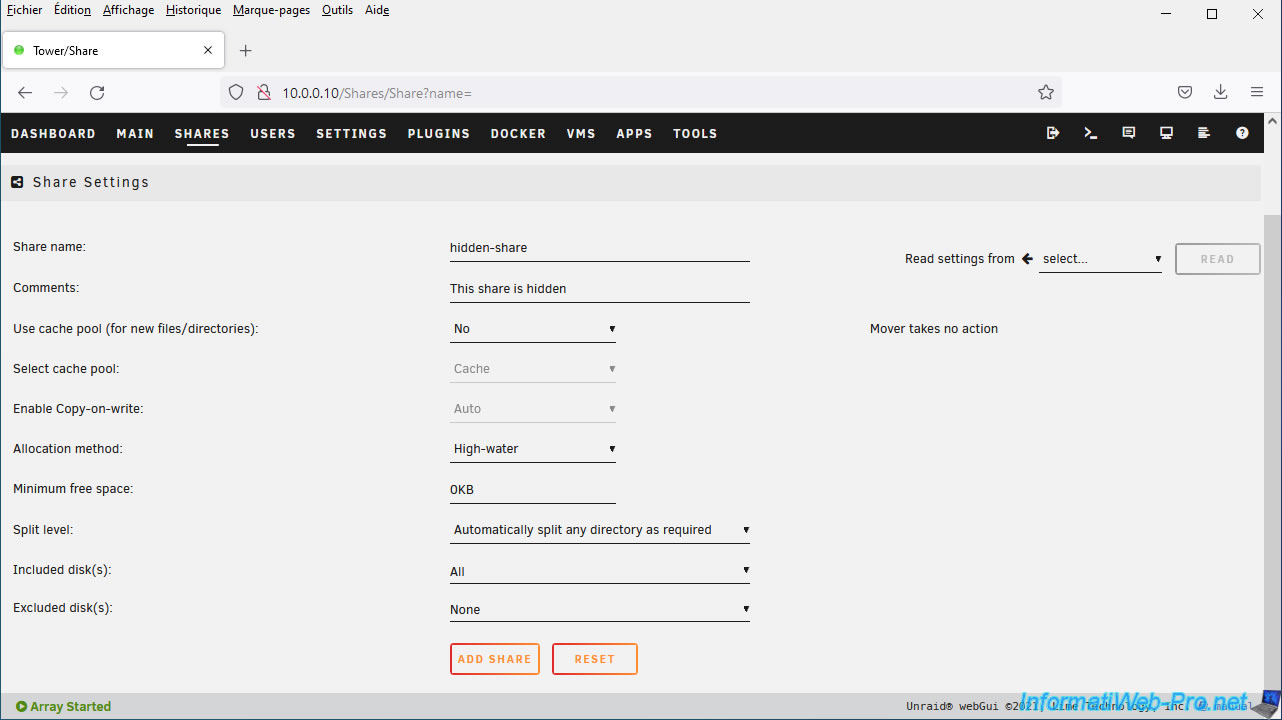
Enter a name for this network share (e.g. hidden-share) and click: Add share.
In the "SMB Security Settings" section, select "Export: Yes (hidden)".
This means that the network share will be accessible over the network, but it will be hidden. In other words, you will only be able to access it if you know the name of this network share.
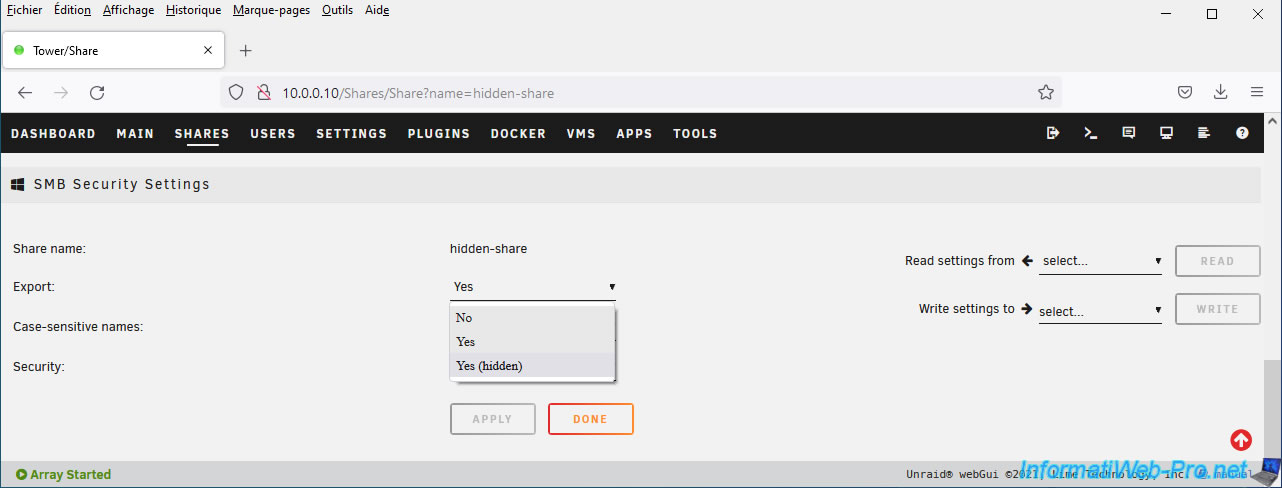
Then, click on: Apply.
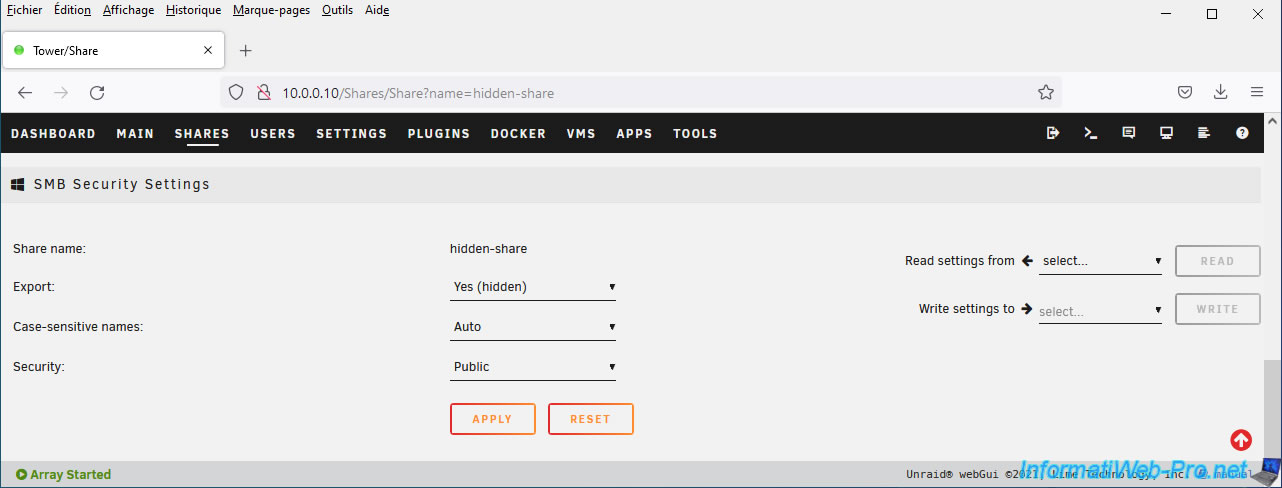
As you can see, the "hidden-share" network share you just created does not appear in the list of network shares available on your server.
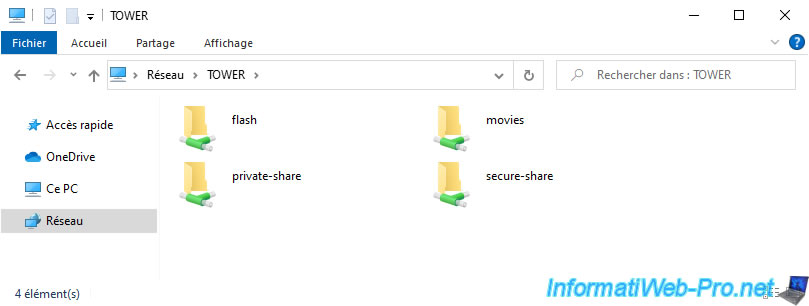
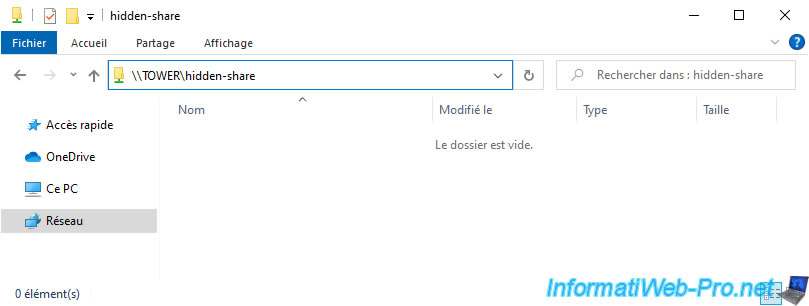
However, you can still access it if you know its name by typing its network path: \\TOWER\hidden-share
6. Create a share accessible locally only
Finally, you can also create shares that will only be accessible from your own Unraid server in the various configuration pages (Docker containers, virtual machines, ...).
To do this, go to the "Shares" tab and click Add Share.
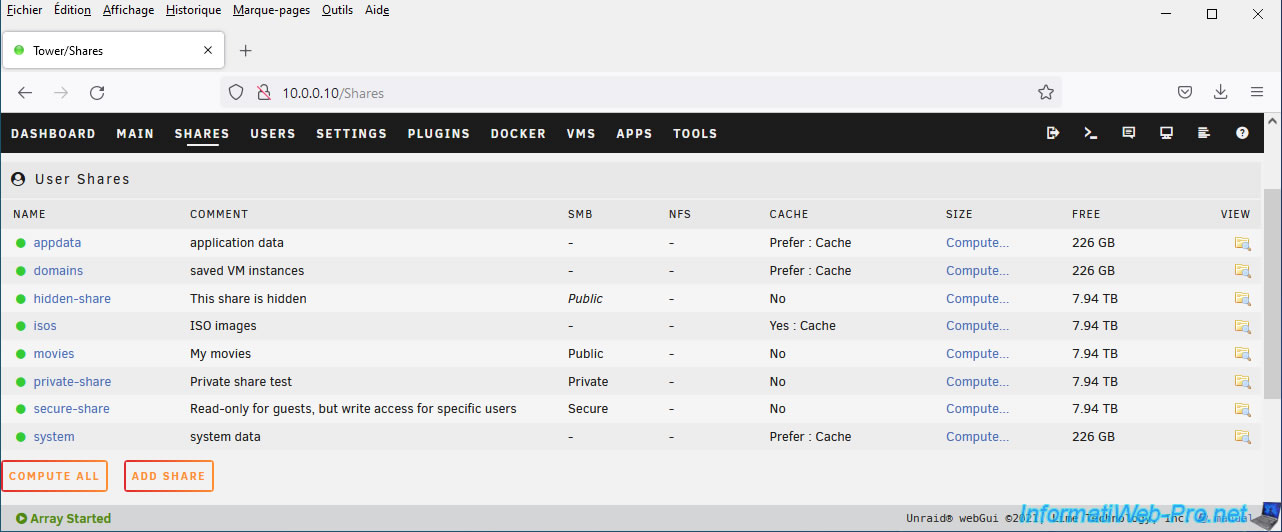
Enter a name for this share. For example: not-exported-share.
Then, click Add share.
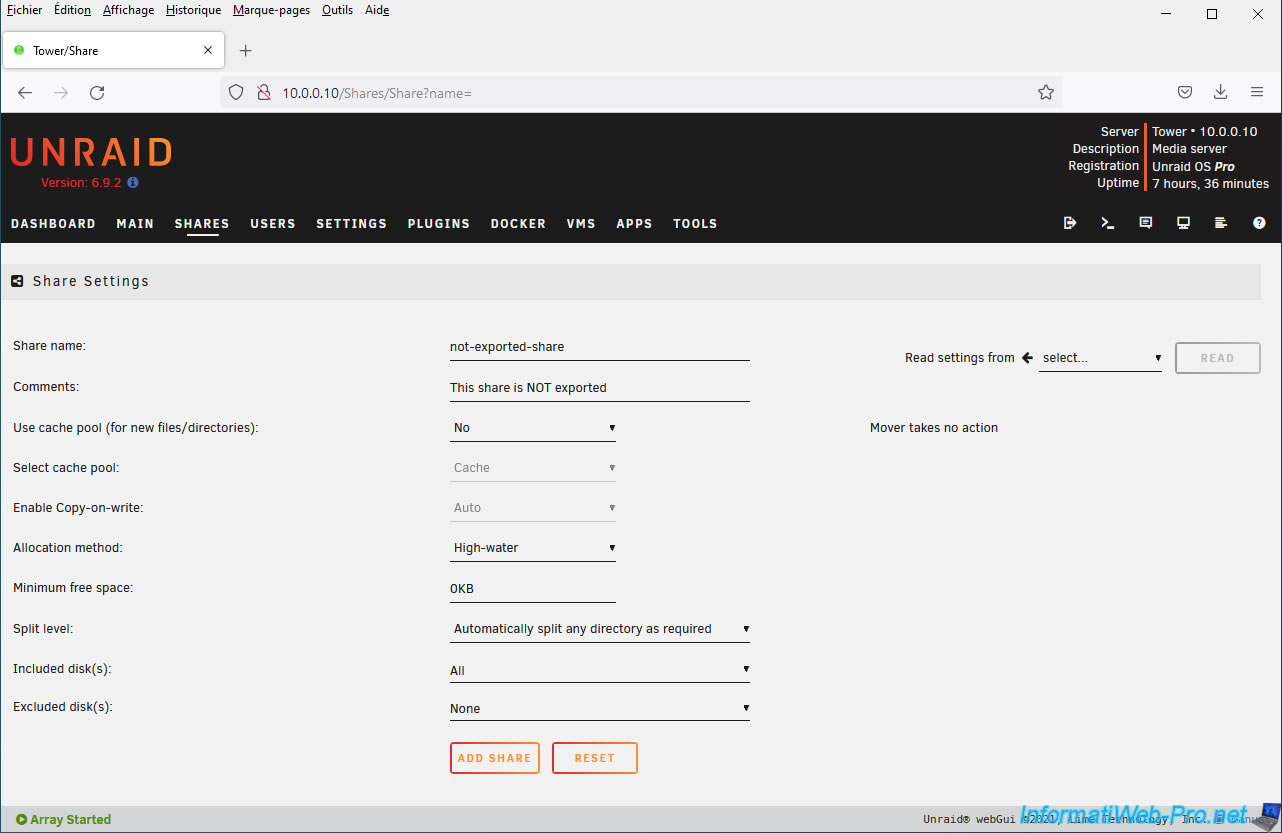
In the "SMB Security Settings" section, select "Export: No".
This means that this share will not be visible or accessible from the network.
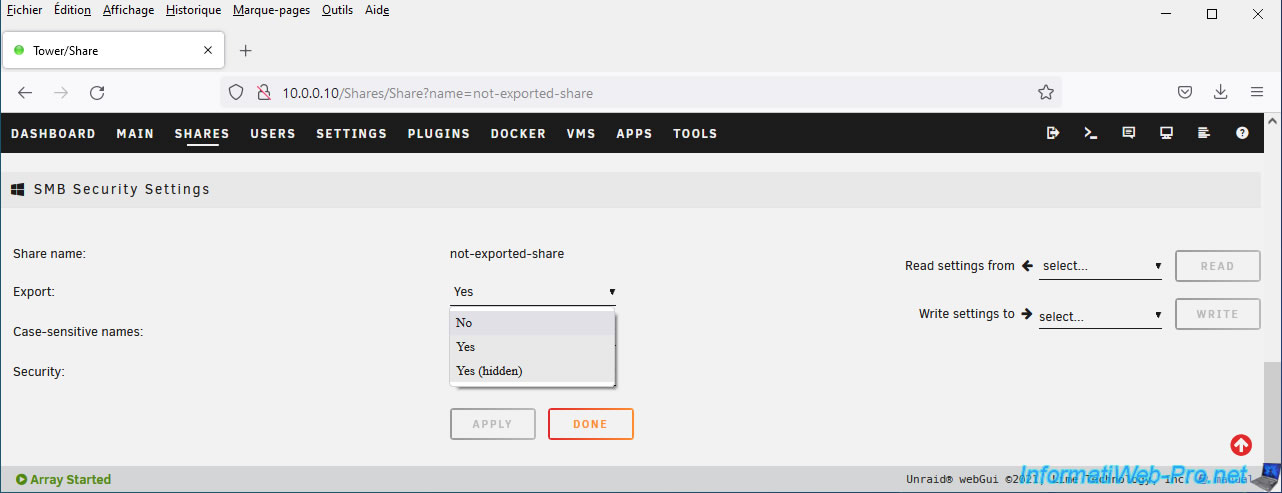
Then, click Apply.
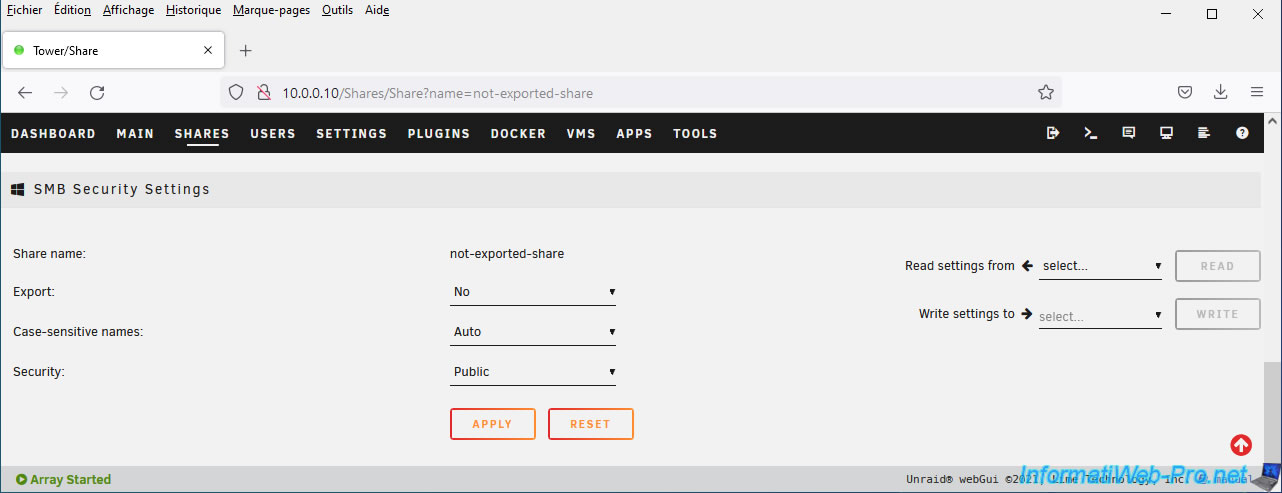
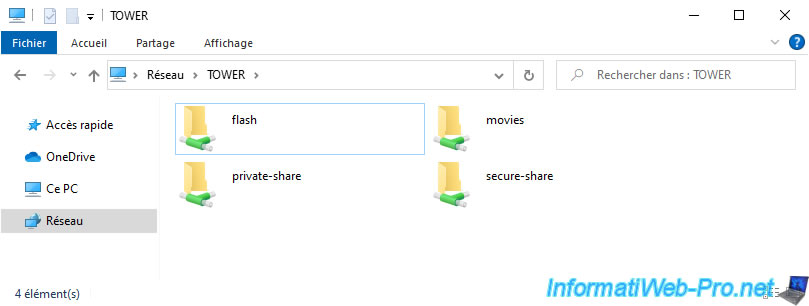
As expected, the newly created share does not appear in your server's network shares.
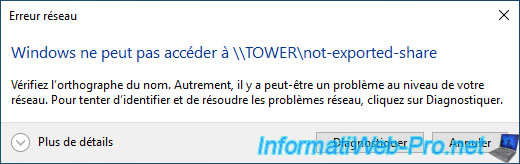
And this one is not accessible by typing its network path either.
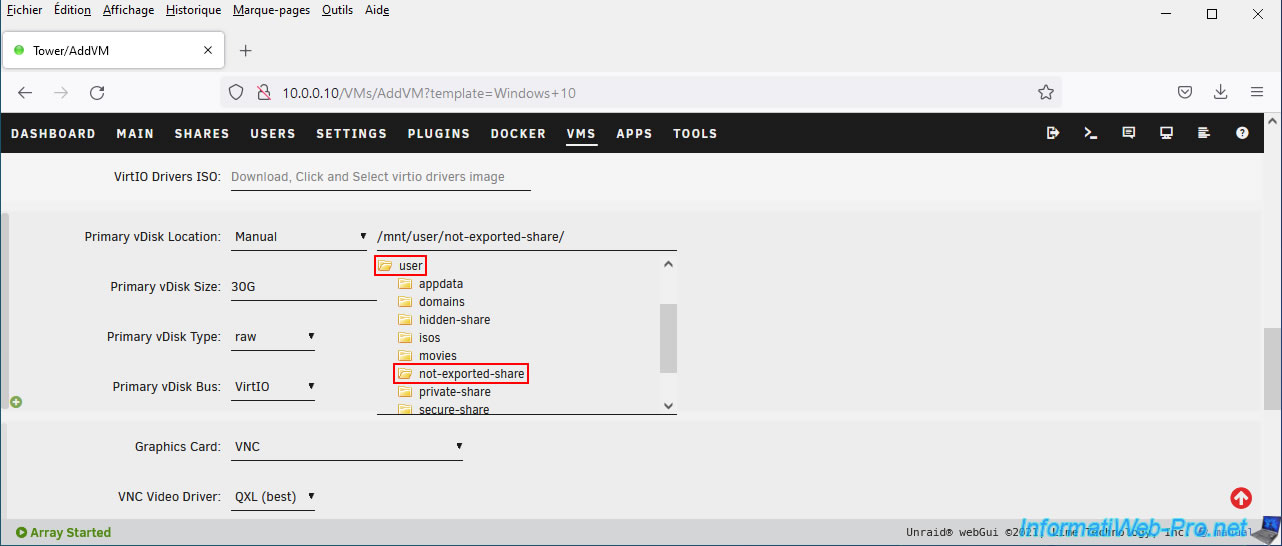
This type of share can only be used locally and is referenced in the /mnt/user folder.
In this case, the path corresponding to our "not-exported-share" is: /mnt/user/not-exported-share.
7. Delete a user share
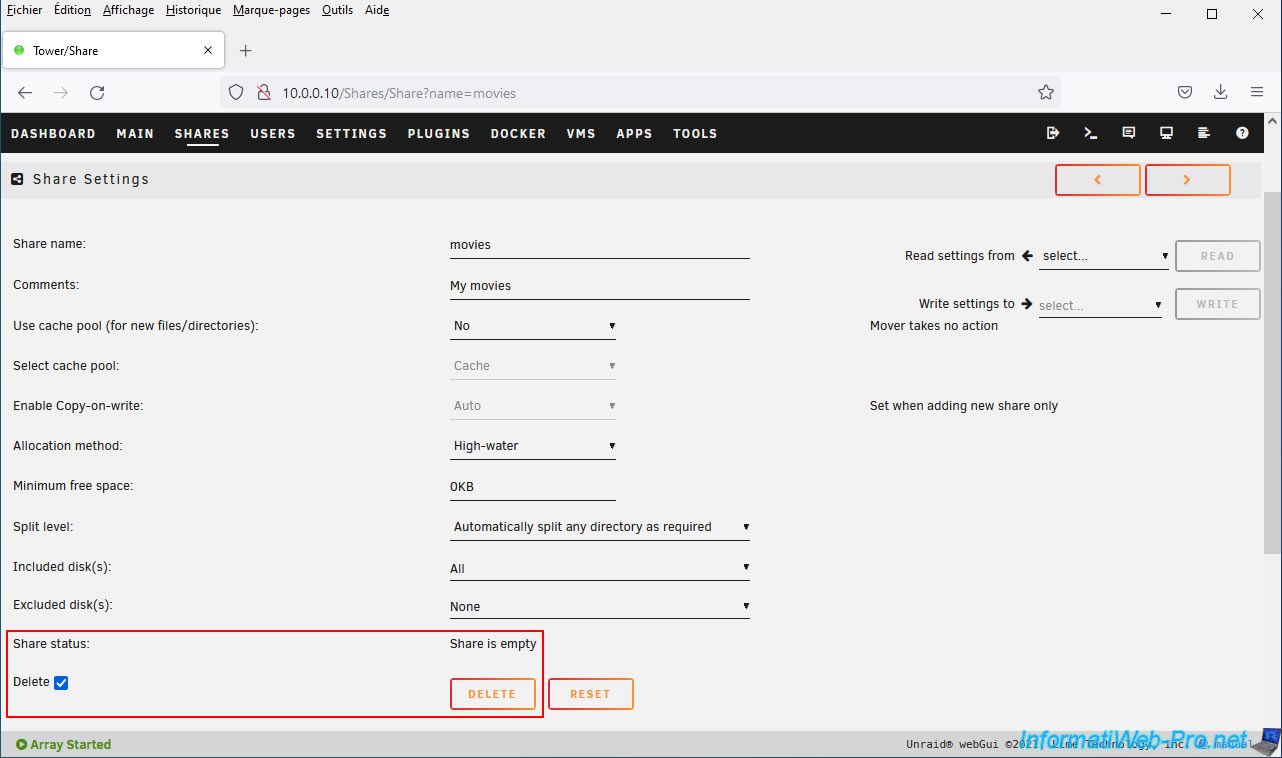
To delete a share, you will first need to click on the name of the desired share.
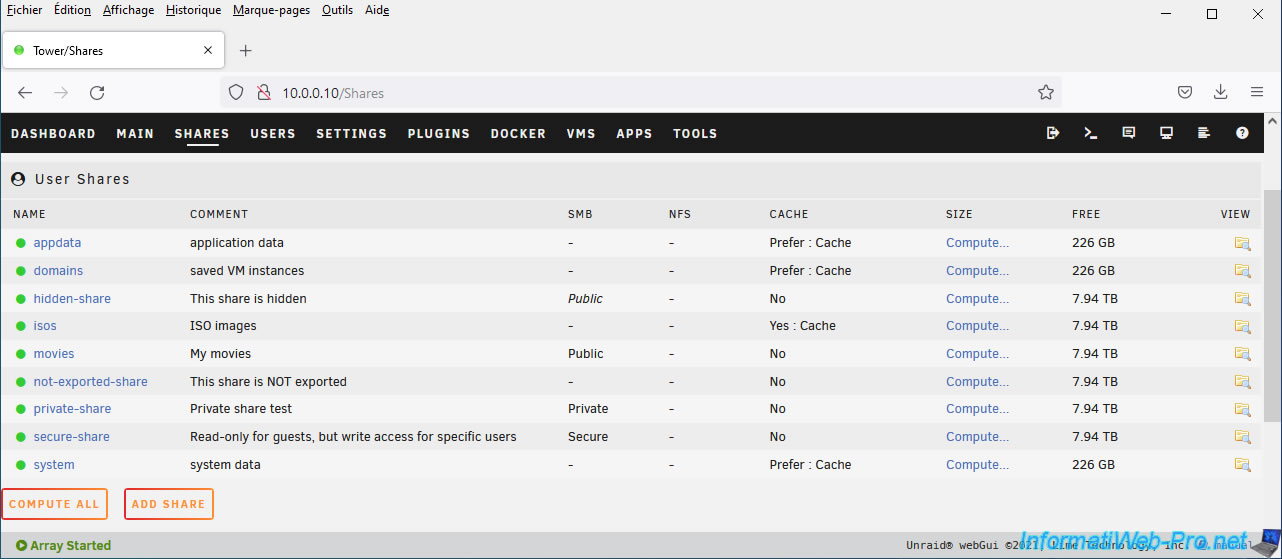
Then, at the bottom of the "Share Settings" section, check the "Delete" box and click the "Delete" button.
However, note that this user share can only be deleted if it is empty (Share is empty).
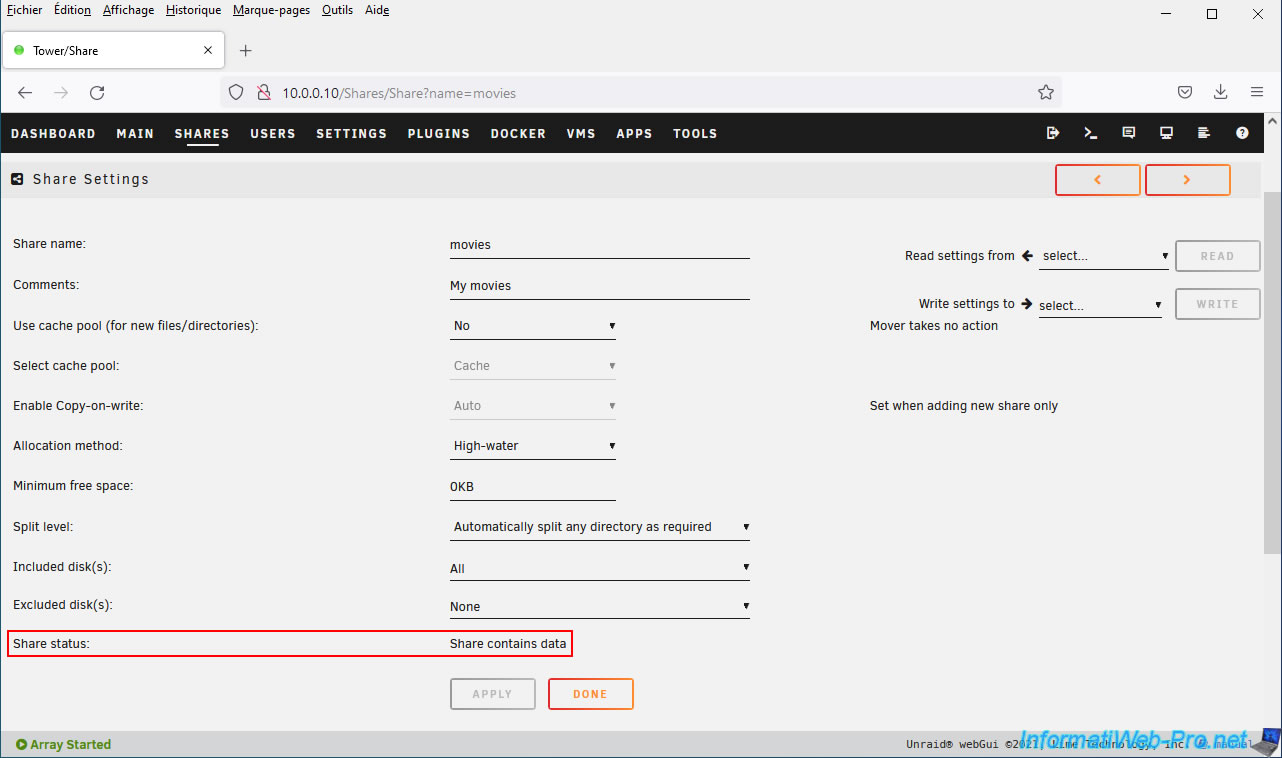
Otherwise, Unraid will tell you that this share contains data (Share contains data) and the delete option will therefore not be displayed.
Share this tutorial
To see also
-
NAS 2/11/2026
Unraid 6.9.2 - Customize the web interface
-
NAS 7/8/2026
Unraid 6.9.2 - Docker - Install a password manager (Vaultwarden)
-
NAS 5/27/2026
Unraid 6.9.2 - SWAG - Use a DDNS client (Duck DNS)
-
NAS 8/5/2026
Unraid 6.9.2 - VMs - Manage your VMs with virt-manager (on Debian)
No comment