Virtualize Unraid 6.9.2 with VMware vSphere 6.7
- VMware
- VMware vCenter Server (VCSA), VMware vSphere
- 26 December 2025 at 10:34 UTC
-

- 4/4

8. Install "Community Applications" plugin
To install VMware Tools in Unraid, you'll need to go through the "Apps" tab of Unraid.
To install it, simply install the "Community Applications" plugin used by all Unraid users.
To do this, go to "Plugins -> Install Plugin", type "https://raw.githubusercontent.com/Squidly271/community.applications/master/plugins/community.applications.plg" and click "Install".
Note: for Unraid version 6.9.2, you will need to use an older version of this plugin (dated 08/31/2021) by typing the address "https://raw.githubusercontent.com/Squidly271/community.applications/d075fda8b8337c4c6bbd0b6d1d66b80a8870d9ba/plugins/community.applications.plg".
This is because the latest version of the "Community Applications" plugin is no longer supported by our "6.9.2" version of Unraid.
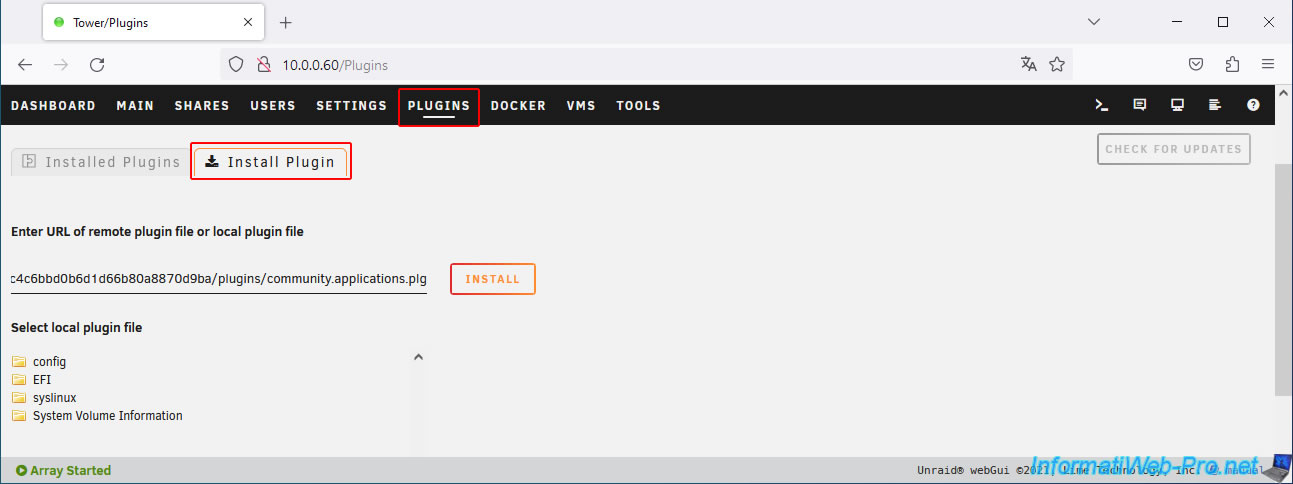
The "Community Applications" plugin has been installed.

Once the page refreshes, you will see that an "Apps" tab has appeared.
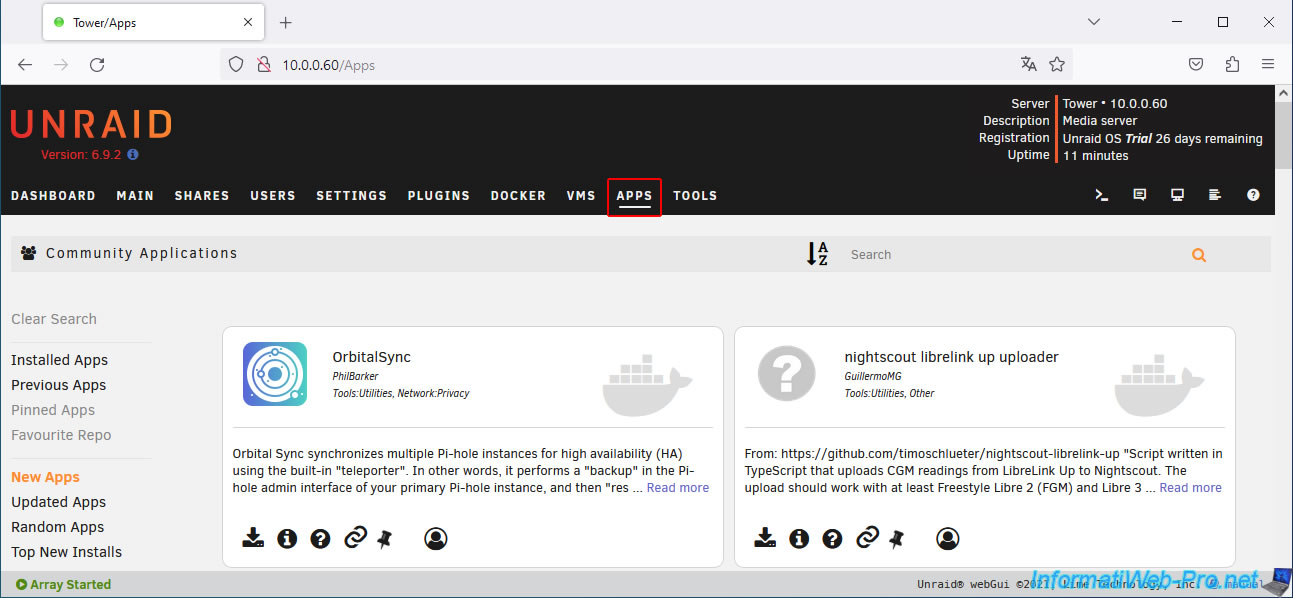
9. Install VMware Tools on Unraid
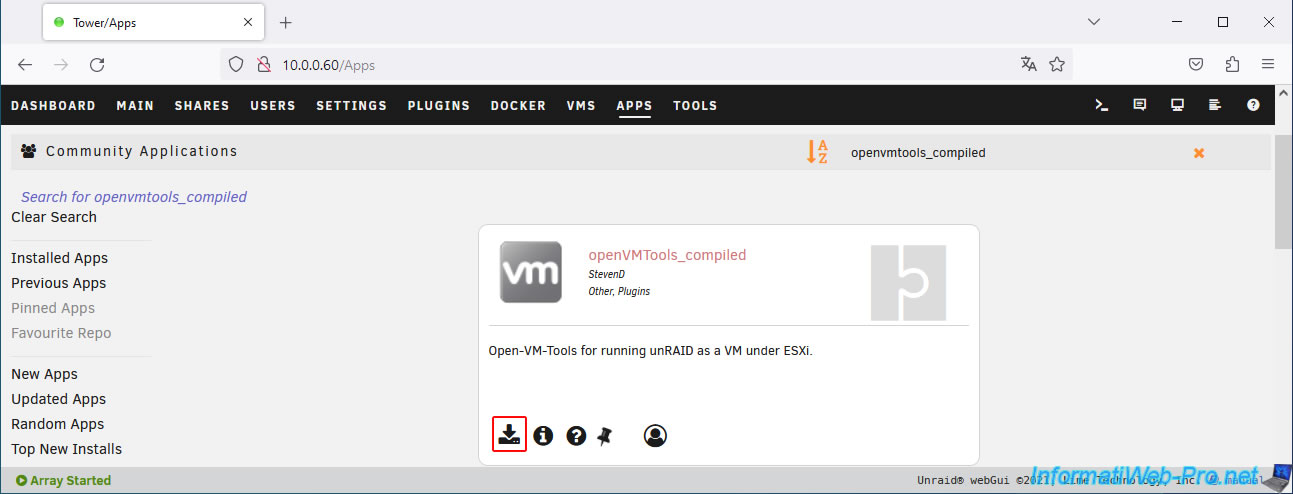
To install VMware Tools in Unraid, go to the "Apps" tab in Unraid and search for the "openVMTools_compiled" plugin.
Then, click the icon to install it.
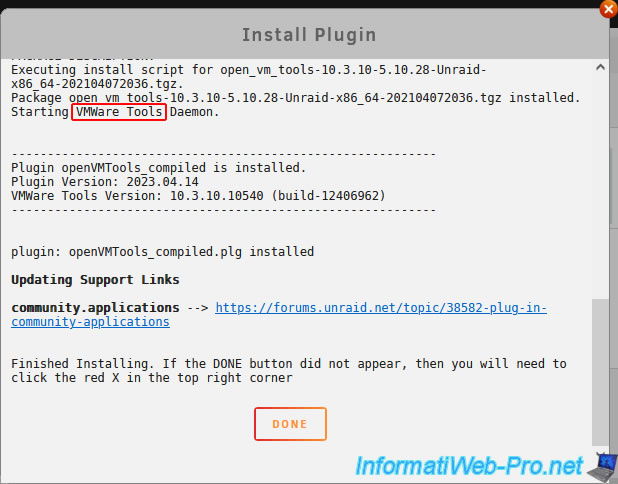
Wait while the "openVMTools_compiled" plugin is downloaded and installed.
As you can see, a "VMware Tools" service (daemon) will start.
Click Done.
Once the plugin is installed, restart your Unraid server to ensure that VMware Tools are properly loaded by Unraid.
To do this, go to the "Dashboard" tab and click the second icon.
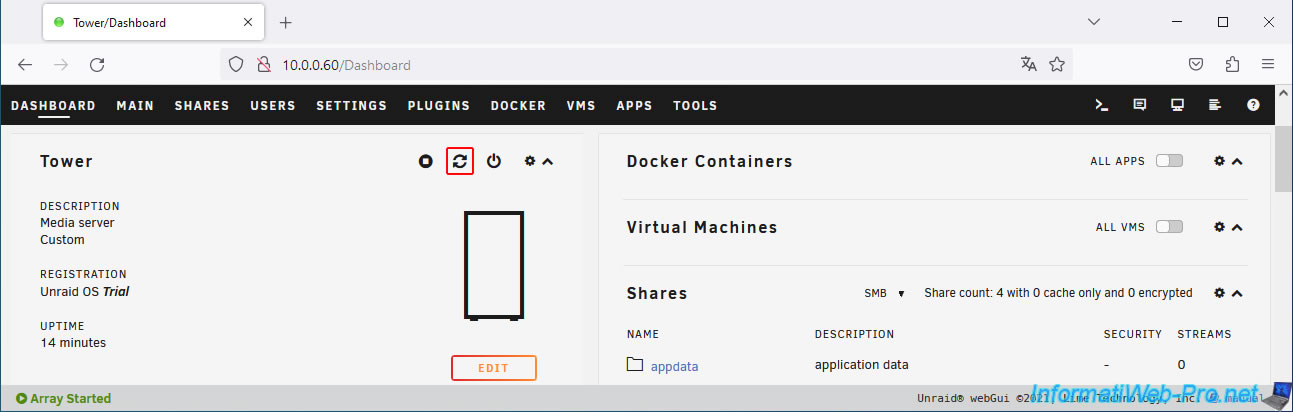
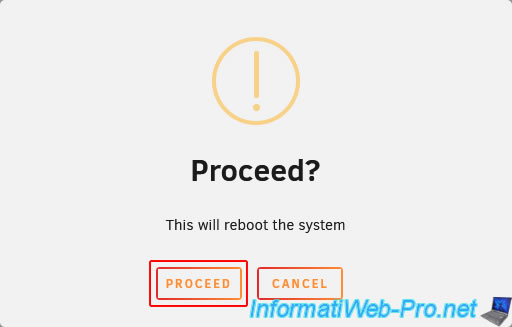
Click "Proceed" to confirm restarting Unraid.
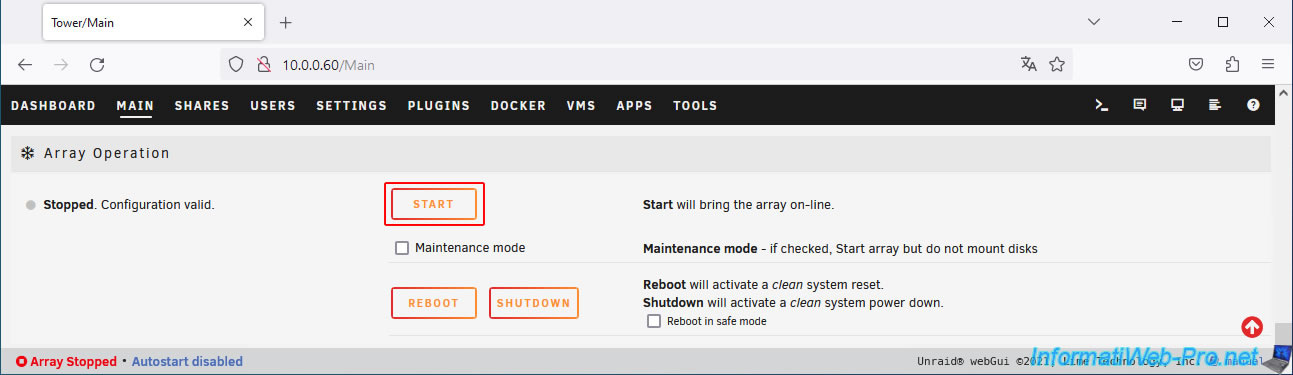
Once your Unraid server has restarted, go to the "Main" tab and click the "Start" button at the bottom of the page.
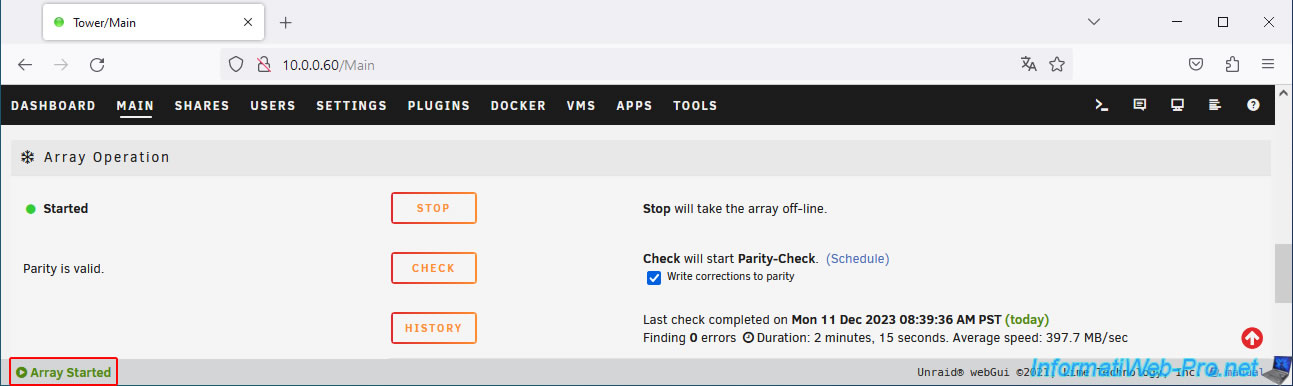
As expected, the array is started (Array Started).
10. Enable automatic array startup
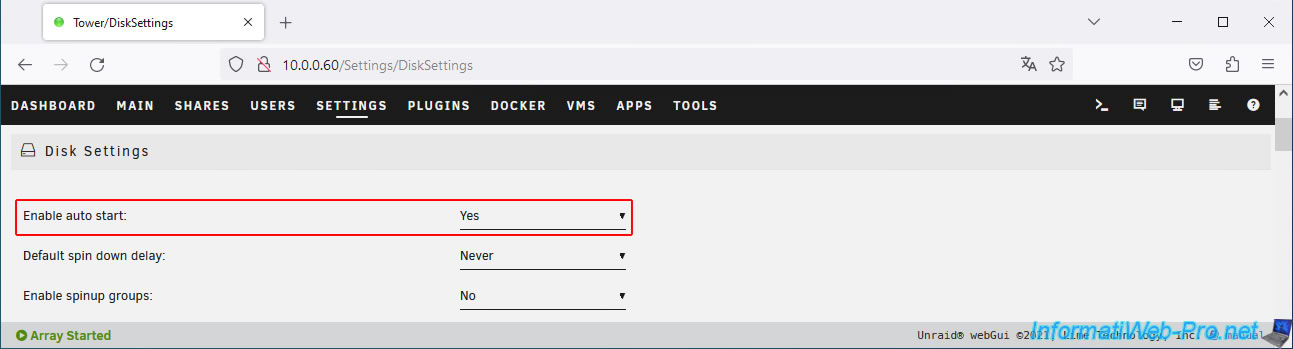
To avoid having to manually start the Unraid array every time, we recommend enabling the "Enable auto start" setting in "Settings -> Disk Settings".
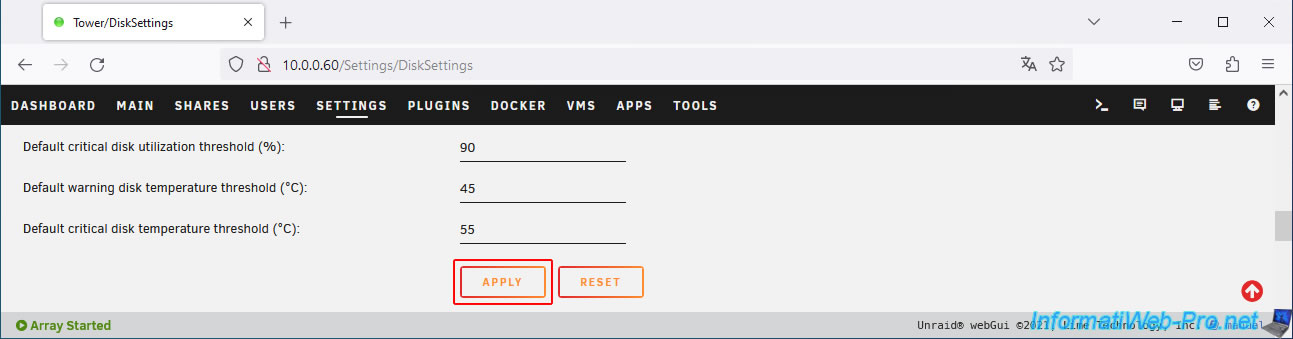
Then, click "Apply" to apply this change.
11. Test VMware Tools
Finally, test that VMware Tools are working properly with your version of Unraid by attempting to properly shut down the guest operating system (Unraid) from a VMware interface.
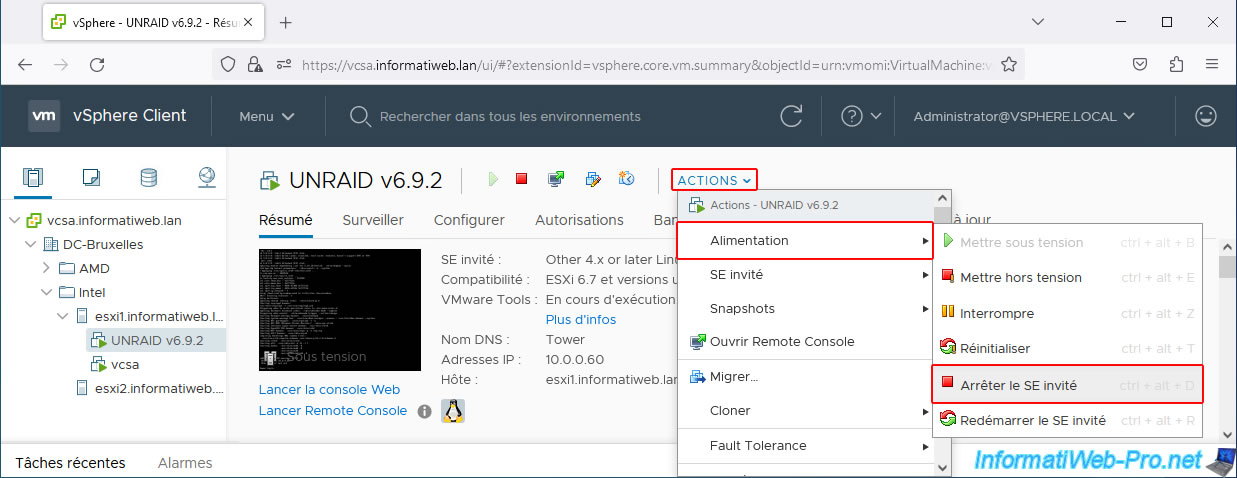
For example: the "stop" icon for your virtual machine in the vSphere Client.

Or, the menu: Actions -> Power -> Shut down guest OS.
Or, in the case of the "VMware Remote Console" (VMRC) program, use the arrow to the right of the VM's power icon, then the "Shut down guest" option.
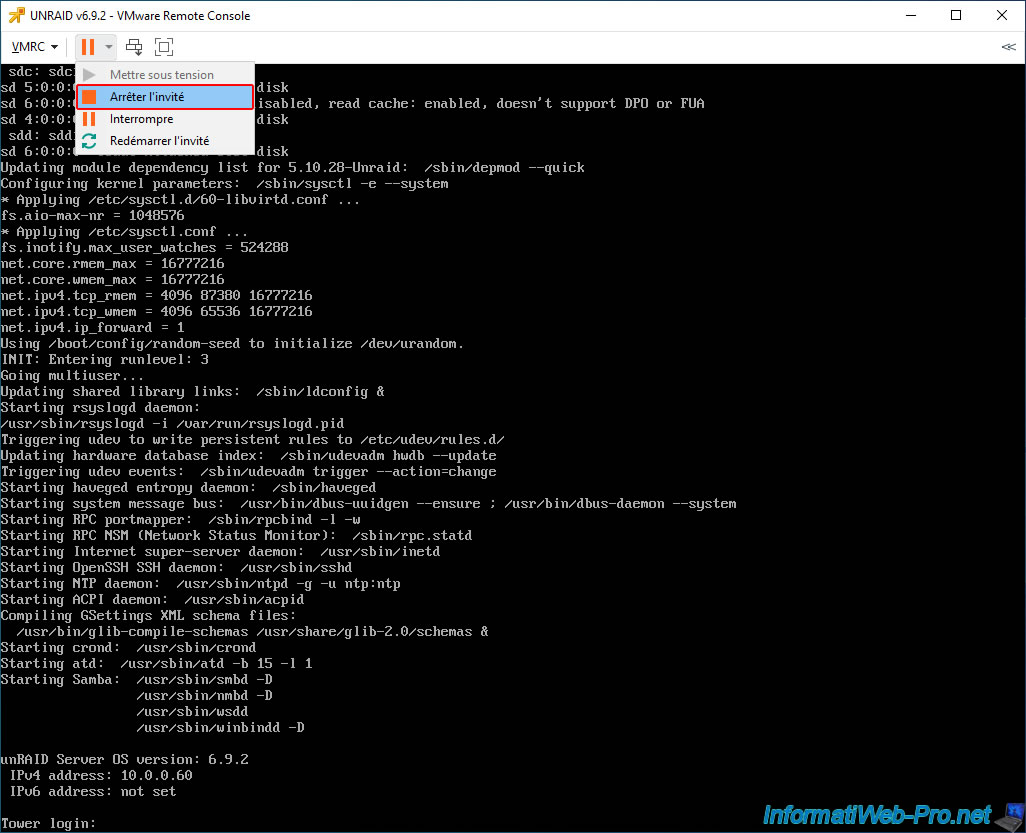
In all 3 cases, you should see Unraid shut down cleanly before the virtual machine is finally powered off.
Plain Text
Waiting up to 90 seconds for graceful shutdown...
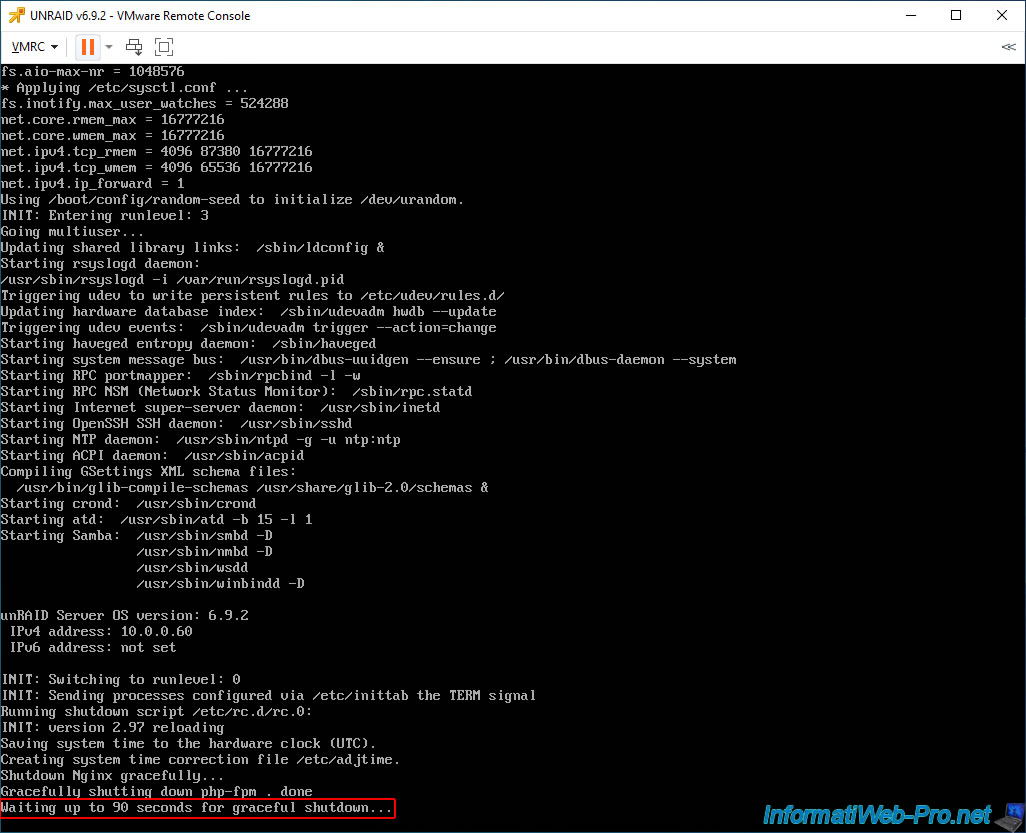
Once the Unraid virtual machine is powered off, power it back on normally.
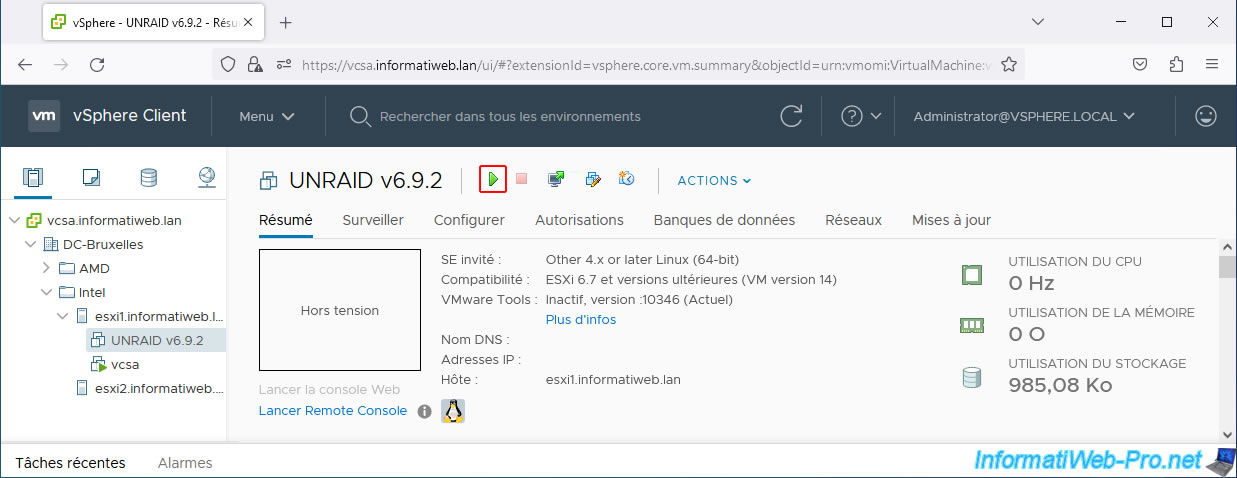
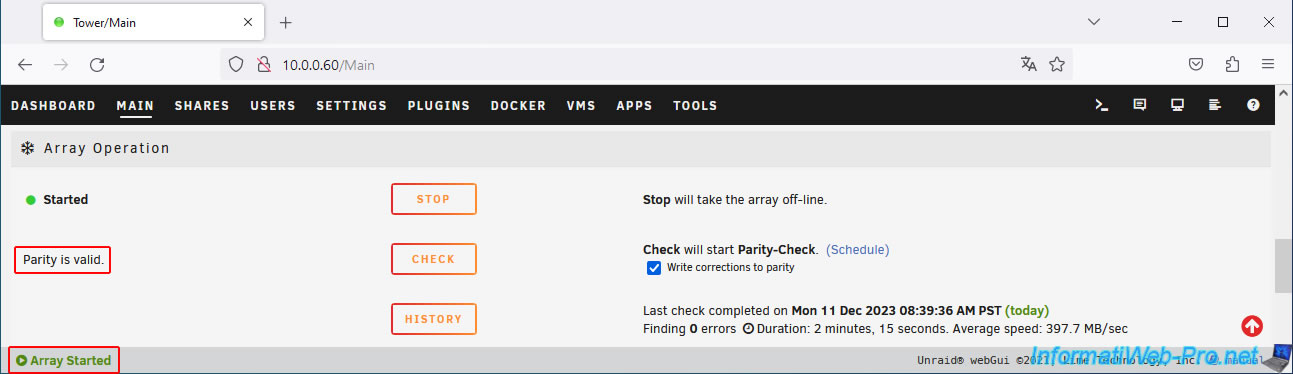
If VMware Tools are working properly, you'll see that the array boot will work on the first try.
Otherwise, if your Unraid virtual machine crashes, booting the array will automatically recalculate the disk assigned as a parity disk on Unraid.
This can take a long time depending on its capacity (size).
Plain Text
Parity is valid.
Array Started.
Share this tutorial
To see also
-
VMware 10/19/2022
VMware ESXi 6.7 - DirectPath I/O (PCI passthrough)
-
VMware 5/26/2023
VMware ESXi 6.7 - Virtualize Windows XP
-
VMware 8/12/2022
VMware ESXi 7.0 / 6.7 - Boot a VM on the BIOS / EFI firmware
-
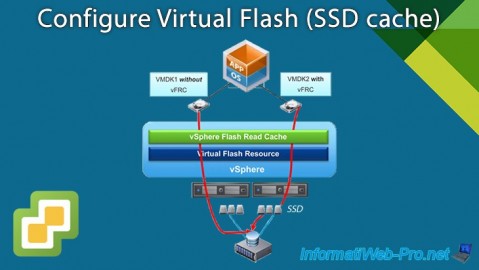
VMware 6/13/2024
VMware vSphere 6.7 - Configure Virtual Flash (SSD cache)
No comment