Configure a multi-site Active Directory infrastructure on Windows Server 2022 and 2016
- Windows Server
- 10 November 2025 at 17:31 UTC
-

- 7/11

12. Join VPN gateways to your Active Directory domain
12.1. Create users in Active Directory for authentication used for connecting site-to-site VPN tunnels
Before joining your VPN servers to your Active Directory domain, you will need to create new users in your Active Directory infrastructure.
Indeed, once these VPN servers are joined to your Active Directory domain, on-demand connections configured via the Routing and Remote Access (RRAS) console will need to use an Active Directory user account (instead of a local user account) to authenticate to the remote VPN server.
Warning : since you have multiple Active Directory domain controllers spread across multiple sites, and data replication between them can take time, we recommend creating each necessary user account on the server where it will be used.
For example, the "VpnUserParis" user account for Paris must be created on an AD domain controller in Site 1 (Brussels), as the Paris VPN server will use this user account to connect to the "brux-vpn" VPN server in Site 1 (Brussels).
12.1.1. Create a user in Active Directory for VPN connection to the VPN server at Site 1 (Brussels)
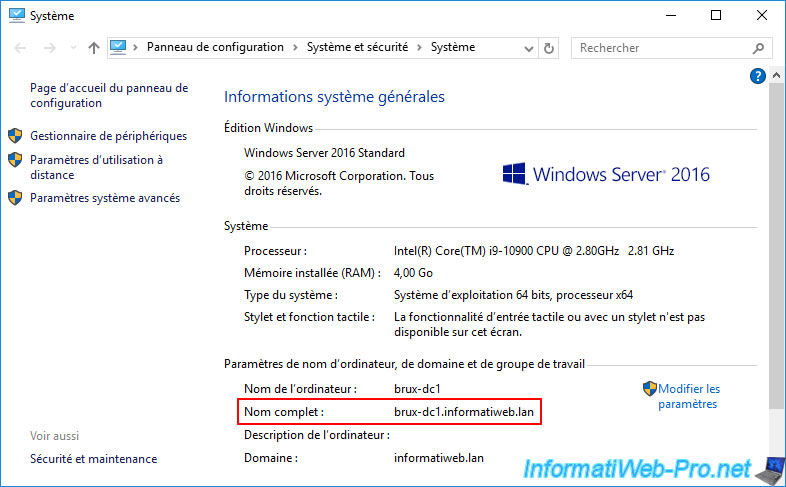
To begin, go to the AD domain controller "brux-dc1" at Site 1 (Brussels).
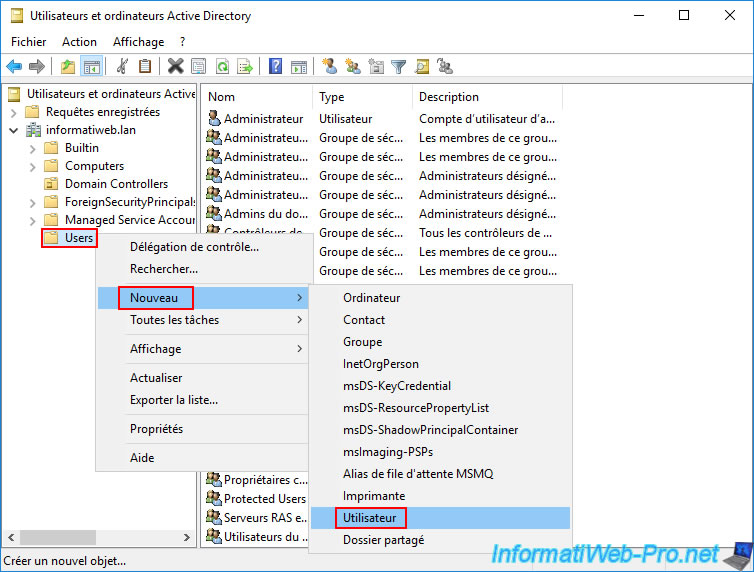
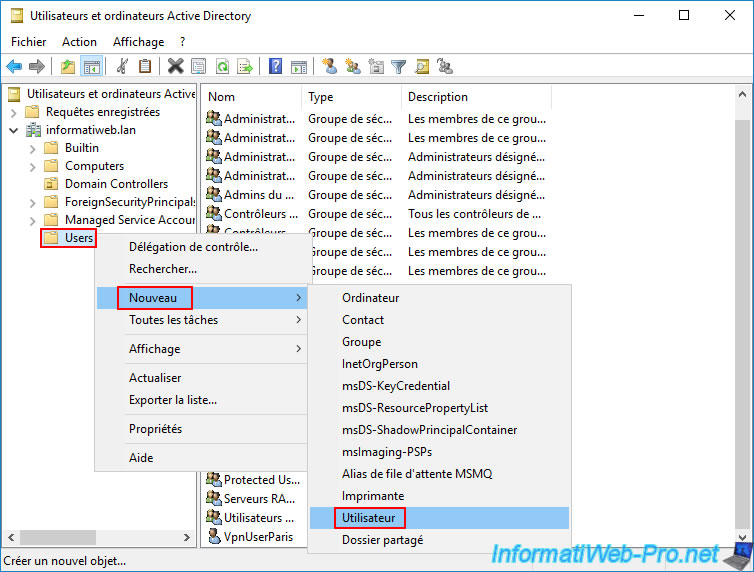
On this AD domain controller (brux-dc1), open the "Active Directory Users and Computers" console and right-click "New -> User" on the "Users" folder.
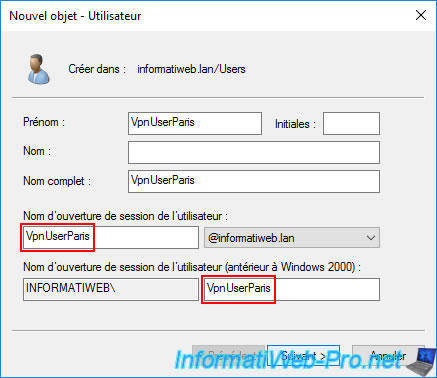
Create a user for Site 2 (Paris) that will connect to the VPN server "brux-vpn" located in the same site (Brussels) as this AD domain controller.
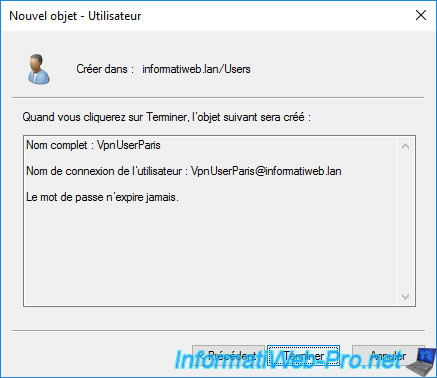
In our case, the user account for Paris is named "VpnUserParis".
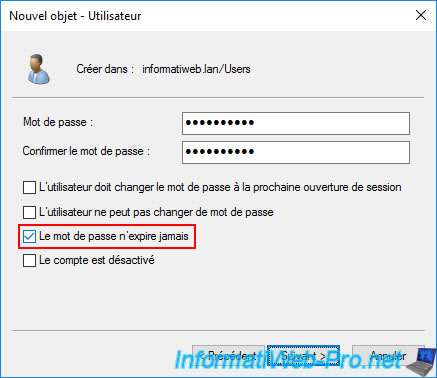
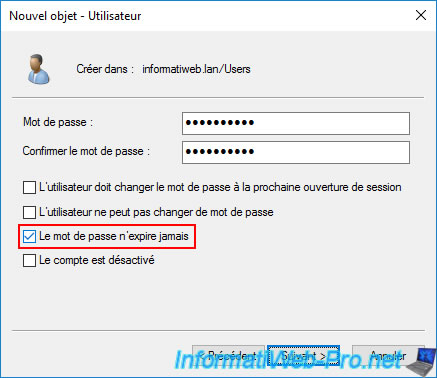
Check the "Password never expires" box and ignore the message that appears.
Note: you'll have noticed that this is the same setting you used when creating a local user account previously.
Once the user is created, click "Finish".
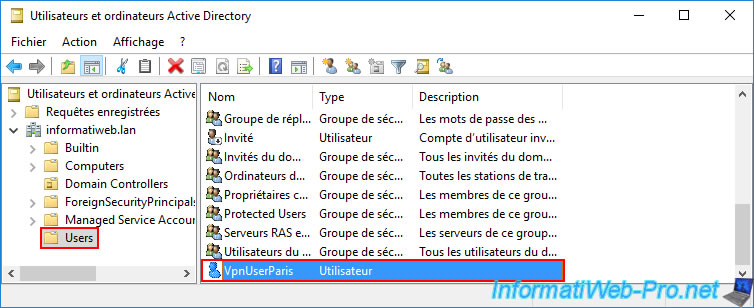
The created user appears in the "Users" folder of this AD domain controller.
Double-click on this "VpnUserParis" user account.
Warning : Active Directory data replication is not instantaneous, so this user account may not appear directly on all your domain controllers.
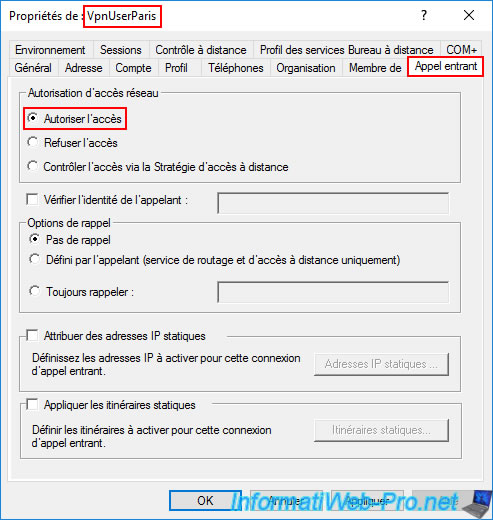
Go to the "Dial-in" tab of this AD user's properties and select the "Allow access" option (again, this is the same setting as for the user account created earlier in this tutorial).
To avoid problems, you can easily force replication of this user account to your other AD domain controllers in your multi-site AD infrastructure by opening a command prompt on the AD domain controller where you just created this user.
Then, simply type the command below and wait a moment for it to complete.
Batch
repadmin /syncall /A /e /P
Plain Text
Synchronizing all name contexts held on brux-dc1.
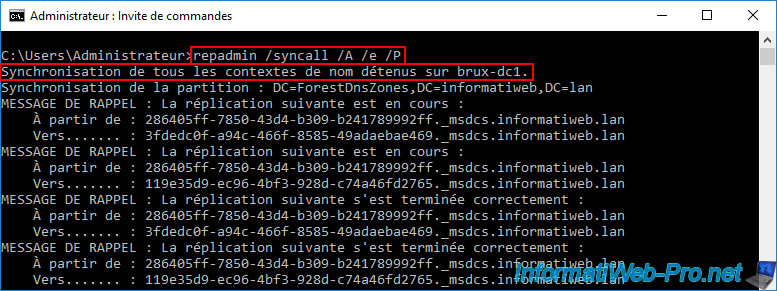
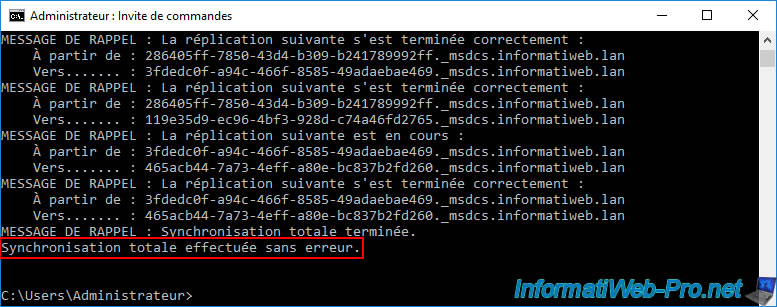
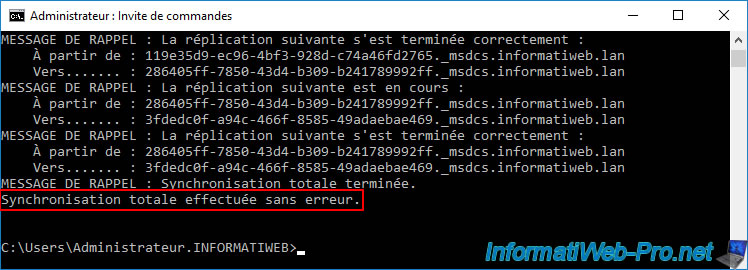
At the end of executing this "repadmin" command, you will see the message below.
Plain Text
Full synchronization completed without error.
12.1.2. Create a user in Active Directory for VPN connection to the VPN server at Site 2 (Paris)
Now, go to an Active Directory domain controller at the remote site.
In our case, the AD domain controller "paris-dc1" at Site 2 (Paris).
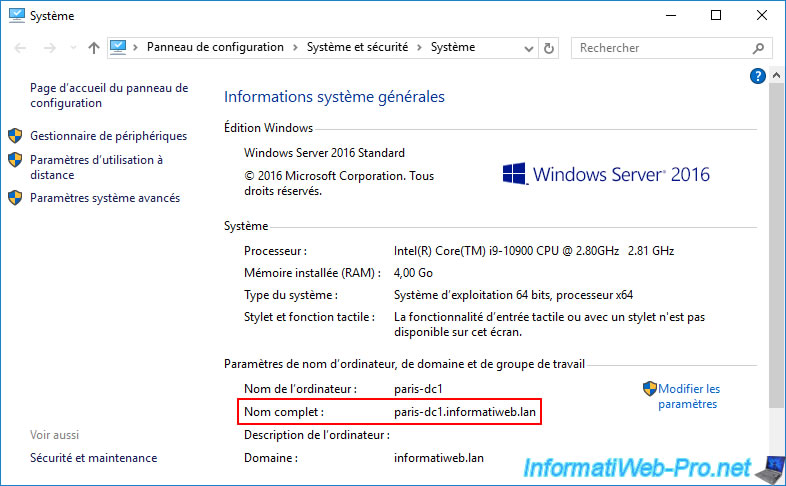
On this AD domain controller "paris-dc1", open the "Active Directory Users and Computers" console and right-click "New -> User" on the "Users" folder (as before).
This time, the user account we're creating is "VpnUserBrux."
This user account will be used by the "brux-vpn" VPN server to connect to the "paris-vpn" VPN server at Site 2 (Paris).
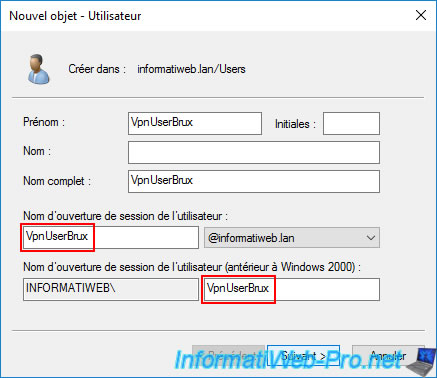
Again, check the "Password never expires" box and ignore the message that appears.
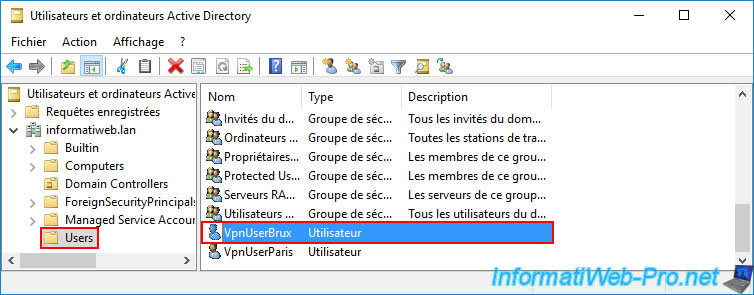
The "VpnUserBrux" user account you created appears in the "Users" folder of this Active Directory domain controller.
Double-click on it.
Note: you may have noticed that the "VpnUserParis" user account previously created via our "brux-dc1" server (in Brussels) has also appeared in the list of AD users available on the "paris-dc1" server located at Site 2 (Paris).
This is due to automatic Active Directory data replication, or more quickly, by running the "repadmin" command mentioned above.
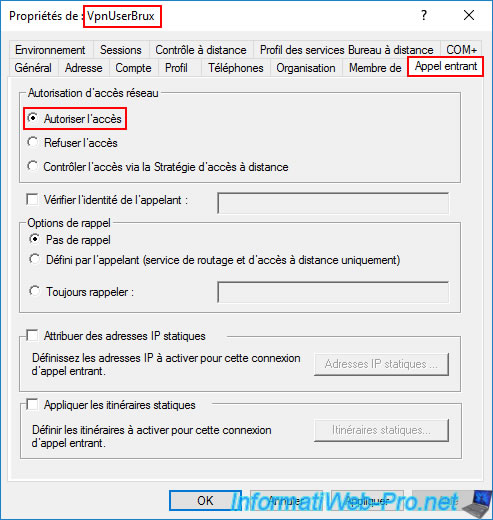
Go to the "Incoming Call" tab and select the "Allow Access" option.
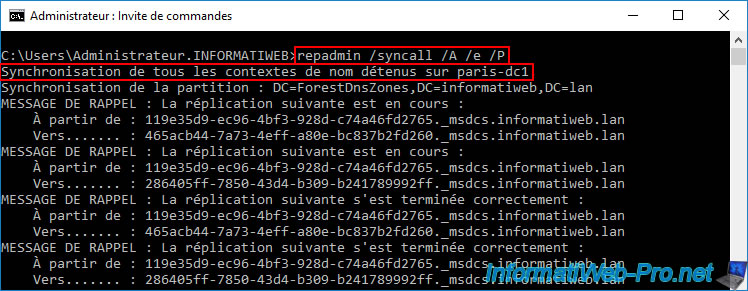
On this Active Directory domain controller, open a command prompt and reuse the "repadmin" command already mentioned previously.
Batch
repadmin /syncall /A /e /P
Plain Text
Synchronizing all name contexts held on paris-dc1.
Again, once the "repadmin" command is complete, you will see the message below.
Plain Text
Full synchronization completed without error.
12.1.3. User accounts replicated across all AD domain controllers (across both sites)
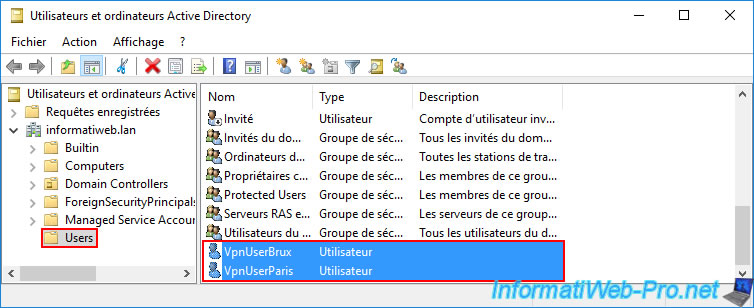
After running the "repadmin ..." command (mentioned previously) on the 2 AD domain controllers through which you created your 2 new user accounts, you should see these 2 new accounts on all your AD domain controllers (on your 2 physical sites).
Share this tutorial
To see also
-

Windows Server 4/16/2021
Windows Server - AD DS - How Active Directory replication works
-
Windows Server 4/30/2021
Windows Server - AD DS - Overview of Active Directory functional levels
-
Windows Server 4/3/2021
Windows Server - AD DS - The basics of Active Directory
-

Windows Server 5/21/2021
WS 2016 - AD DS - Add a domain controller to an existing AD domain
No comment